1. Okwu mmalite
Thank you for choosing the HOCO X70 Ferry Charging and Data Transmission Cable. This cable is designed to provide efficient charging and reliable data transfer for your Apple devices, including iPhone, iPad, and AirPods. Please read this manual carefully to ensure proper use and maintenance of your cable.
2. Ngwaahịa gafereview

Foto 2.1: HOCO X70 Ferry Cable showing USB-A and Lightning connectors.
This image displays the full length of the HOCO X70 cable, highlighting its USB-A connector on one end and the Lightning connector on the other. The cable features a durable white nylon weave exterior.
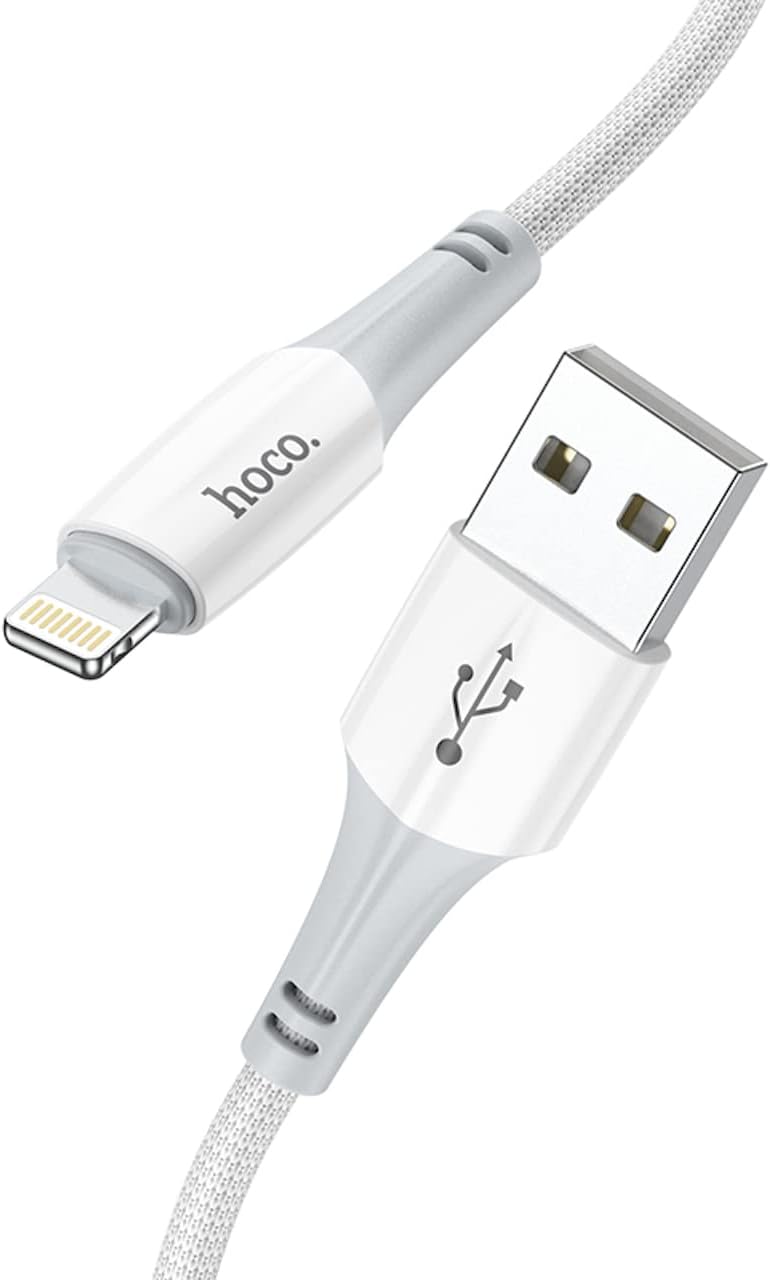
Foto 2.2: Agara nso view of the HOCO X70 cable's connectors.
A zuru ezu view of both the USB-A and Lightning connectors of the HOCO X70 cable, emphasizing the quality of the ABS+TPE joint material and the braided cable design.

Foto 2.3: HOCO X70 cable coiled for easy storage.
This image shows the HOCO X70 cable neatly coiled, demonstrating its flexibility and ease of storage. Both the USB-A and Lightning connectors are visible.
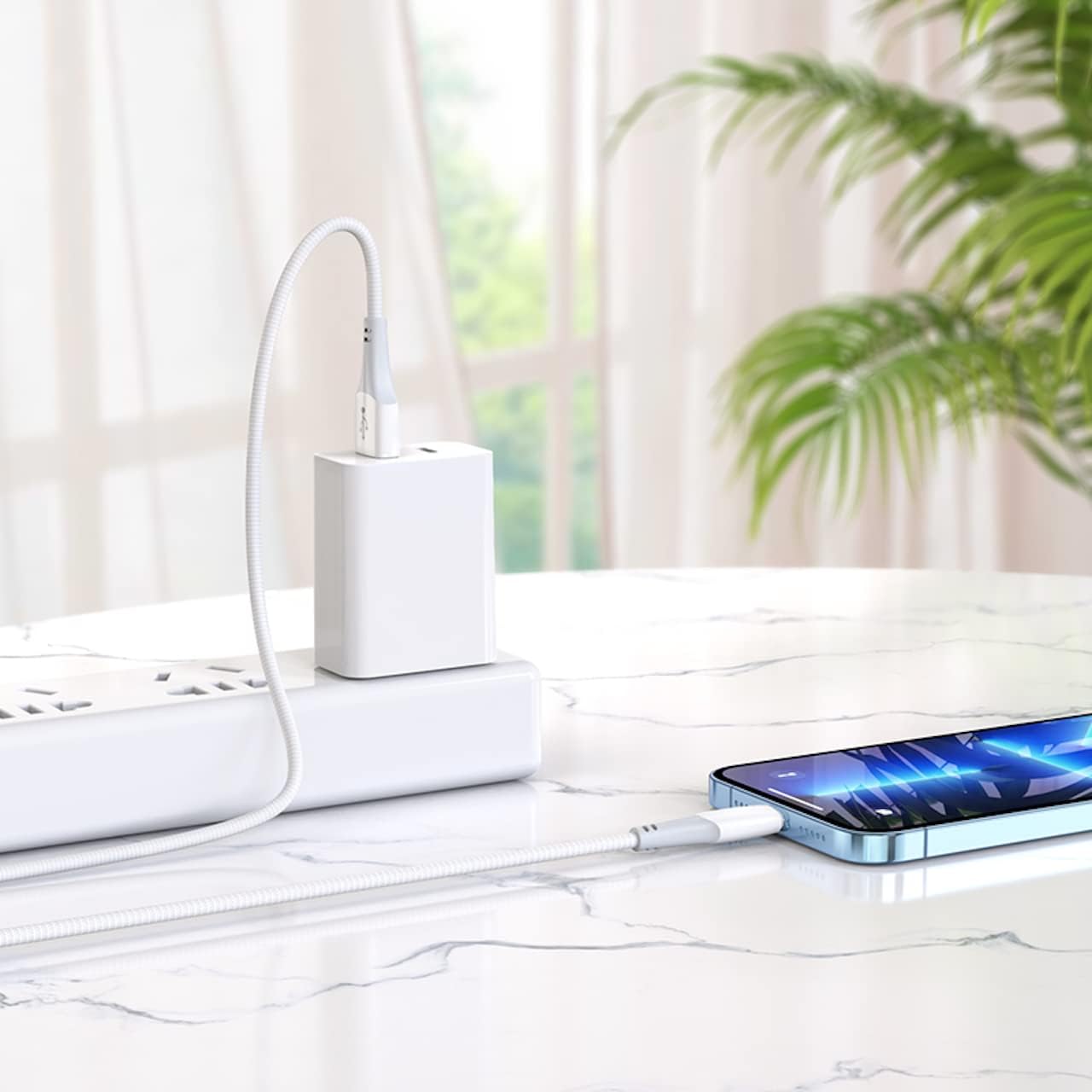
Foto 2.4: HOCO X70 cable connected to a power adapter and iPhone.
An illustrative image showing the HOCO X70 cable in action, connecting an iPhone to a wall charger, demonstrating its practical application for charging.

Foto 2.5: Retail packaging for the HOCO X70 cable.
The front and back of the HOCO X70 cable's retail packaging, displaying key features like "Fast Charging" and "2.4A Output Max," along with product specifications and manufacturer information.
3. Nkọwapụta
| Njirimara | Nkọwa |
|---|---|
| Nlereanya | X70 - White |
| Ogologo | 1 meter (1m) |
| Ibu | 22 grams (22g) |
| Ihe dị n'elu | Nylon weave |
| Joint Material | ABS+TPE |
| Nkọwa nkọwa | (43/0.08)*2C+(16/0.08)*2 OD3.5mm |
| Current Support | Ruo 2.4A |
| Connector Type (Input) | USB-A |
| Connector Type (Output) | Nkwụnye ọkụ |
| Ndakọrịta | Apple iPhone, iPad, AirPods |
| Onye nrụpụta | HOCO |
| ASIN | B0B3HDK7XG |
4. Ntọala na Njikọ
The HOCO X70 cable is designed for plug-and-play functionality. Follow these simple steps to connect your device:
- Maka ịchaji:
- Insert the USB-A end of the cable into a compatible USB power adapter (e.g., wall charger, car charger) or a USB port on a computer.
- Insert the Lightning end of the cable into the charging port of your Apple iPhone, iPad, or AirPods.
- Ensure both connections are secure. Your device should indicate that it is charging.
- For Data Transmission:
- Insert the USB-A end of the cable into an available USB port on your computer (PC or Mac).
- Insert the Lightning end of the cable into the port of your Apple iPhone or iPad.
- Your computer should recognize the connected device. You can then use iTunes, Finder, or other file management software to transfer data.
5. Ntuziaka ọrụ
The HOCO X70 cable operates automatically once connected. No special software or drivers are required for its basic function.
- Ịchaji: The cable supports up to 2.4A current, allowing for efficient charging of compatible devices. Charging speed may vary depending on the power adapter used and the device's battery status.
- Mmekọrịta data: When connected to a computer, the cable facilitates high-speed data transfer for syncing photos, videos, music, and other files between your Apple device and computer.
- Ojiji nke otu oge: You can charge your device while simultaneously transferring data, provided the connected USB port supports both functions.
6. Nlekọta na nlekọta
To ensure the longevity and optimal performance of your HOCO X70 cable, please follow these maintenance guidelines:
- Jiri Nlekọta Aka: Always grasp the connector head when plugging or unplugging the cable. Avoid pulling directly on the cable itself, as this can damage the internal wires or the connector joints.
- Nchekwa: When not in use, coil the cable loosely. Avoid tight coiling or sharp bends, which can stress the cable and lead to damage over time. Store in a cool, dry place away from direct sunlight.
- Nhicha: If the cable or connectors become dirty, gently wipe them with a soft, dry, lint-free cloth. Do not use liquid cleaners or abrasive materials.
- Zere Oke Ọnọdụ: Ewepụla eriri ahụ na oke okpomọkụ, iru mmiri ma ọ bụ ihe na-emebi emebi.
- Na-enyocha mgbe niile: Periodically check the cable for any signs of wear, fraying, or damage to the connectors. Discontinue use if any damage is observed.
7. Nchọpụta nsogbu
If you encounter issues with your HOCO X70 cable, refer to the following common troubleshooting steps:
- Ngwaọrụ anaghị akwụ ụgwọ:
- Ensure both ends of the cable are securely plugged into the power source and your device.
- Gbalịa iji ihe nkwụnye ọkụ dị iche ma ọ bụ ọdụ ụgbọ USB.
- Test the cable with a different compatible device to rule out a device-specific issue.
- Check the charging port on your device for any debris or lint that might be obstructing the connection.
- Okwu mbufe data:
- Ensure the USB-A end is connected to a data-enabled USB port on your computer, not just a charging-only port.
- Restart your computer and your Apple device.
- Update your computer's operating system and iTunes/Finder software to the latest version.
- Check your device's settings to ensure it allows data access when connected to a computer.
- Njikọ na-adịte aka:
- This could indicate a damaged cable. Inspect the cable for any visible signs of wear or fraying, especially near the connectors.
- Hụ na njikọ ndị ahụ dị ọcha ma ghara inwe uzuzu ma ọ bụ ihe ruru unyi.
If problems persist after trying these steps, the cable may be faulty and require replacement.
8. Akwụkwọ ikike na nkwado
HOCO products are manufactured with high-quality standards. For information regarding warranty coverage and customer support, please refer to the warranty card included with your product packaging or visit the official HOCO websaịtị. Biko dowe ihe akaebe nke ịzụrụ ihe maka akwụkwọ ikike.
For further assistance, you may contact HOCO customer service through their official channels. Contact details are typically available on the product packaging or their websaịtị.


