Okwu mmalite
This manual provides detailed instructions for the proper use and care of your Hoco UA17 USB-C Male to USB 3.0 Female Adapter. Please read this manual thoroughly before using the product to ensure optimal performance and longevity.
Ngwaahịa gafereview
The Hoco UA17 is a compact and versatile adapter designed to connect USB-A devices to USB-C enabled hosts. It supports data transmission, On-The-Go (OTG) functionality, and various charging capabilities.
Akụkụ ndị bụ isi:
- Ụdị njikọ: USB-C Male to USB 3.0 Female.
- Mbufe data: Na-akwado nnyefe data ọsọ dị elu.
- OTG Function: Enables connection of peripherals like keyboards, mice, or USB drives to compatible smartphones and tablets.
- Nkwado Nchaji:
- With USB-A to Lightning cable: Charges iP interface devices at 5V/2A (does not support PD fast charging).
- With USB-A to USB-C cable: Charges USB-C interface devices with a maximum current of 4A.
- Fast Charge Compatibility: Supports fast charging for Huawei, Xiaomi, and OPPO mobile phones.
- Nhazi: Compact and portable with a matte finish.
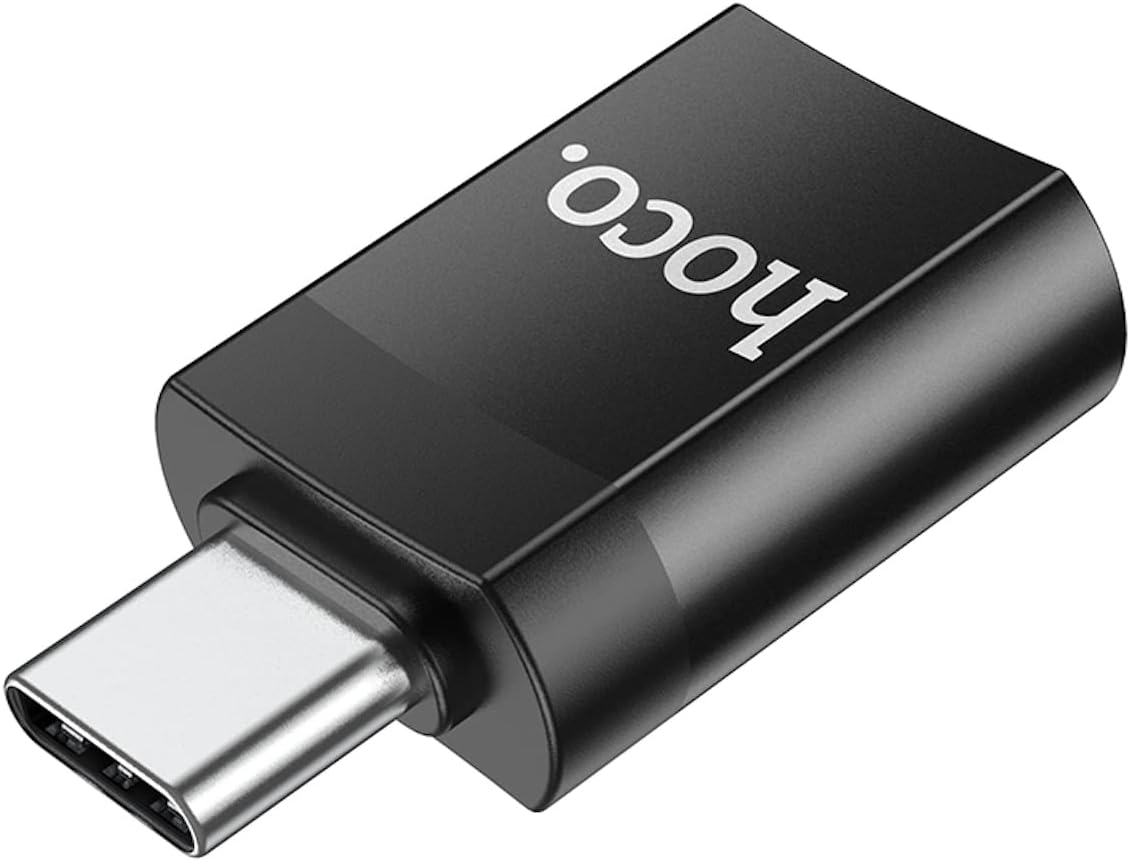
Foto 1: Top view of the Hoco UA17 adapter, highlighting its compact design and USB-C male connector.
Melite
The Hoco UA17 adapter is designed for plug-and-play functionality, requiring no additional drivers or software installation.
- Chọpụta ọdụ ụgbọ mmiri: Locate the USB-C port on your host device (e.g., smartphone, tablet, laptop) and the USB-A port on your peripheral device (e.g., USB flash drive, keyboard, charging cable).
- Connect Adapter to Host: Insert the USB-C male connector of the Hoco UA17 adapter into the USB-C port of your host device. Ensure it is fully seated.
- Connect Peripheral: Insert the USB-A male connector of your peripheral device (or USB-A end of a charging cable) into the USB 3.0 female port of the Hoco UA17 adapter.

Foto 2: Akụkụ view of the Hoco UA17 adapter, showing the USB 3.0 female port where peripheral devices connect.
Ntuziaka ọrụ
Data Transfer and OTG Function:
Once connected, your host device should automatically recognize the connected peripheral. For data transfer, navigate to your device's file manager to access the connected storage device. For OTG functionality, ensure your host device supports OTG and the peripheral is compatible.

Figure 3: The Hoco UA17 adapter facilitating OTG function, connecting a USB flash drive to a smartphone.
Nchaji arụ ọrụ:
The adapter supports charging for various devices. Connect the appropriate USB-A charging cable to the adapter, and then connect the other end to your device.
- For iP interface devices (e.g., iPhone, iPad): Use a USB-A to Lightning cable. The adapter will provide 5V/2A charging. Note that PD (Power Delivery) fast charging is not supported through this adapter for these devices.
- For USB-C interface devices: Use a USB-A to USB-C cable. The adapter can deliver a maximum current of 4A, supporting fast charging for compatible devices like Huawei, Xiaomi, and OPPO phones.

Figure 4: The Hoco UA17 adapter in use for charging a smartphone via a wall adapter.
Nlekọta
To ensure the longevity and proper functioning of your Hoco UA17 adapter, follow these maintenance guidelines:
- Nhicha: Use a soft, dry cloth to wipe the adapter. Avoid using liquid cleaners or solvents, as they may damage the product.
- Nchekwa: Chekwaa ihe nkwụnye ọkụ n'ebe dị jụụ, kpọrọ nkụ pụọ na ìhè anyanwụ kpọmkwem na oke okpomọkụ.
- Ijikwa: Avoid dropping the adapter or subjecting it to strong impacts. Do not force connectors into ports.
- Mmiri: Keep the adapter away from water and high humidity.
Nchọpụta nsogbu
If you encounter issues with your Hoco UA17 adapter, refer to the following common solutions:
- Amataghị ihe nkwụnye:
- Ensure the adapter is fully inserted into the USB-C port of your host device.
- Try connecting the adapter to a different USB-C port on your device, if available.
- Test the adapter with a different peripheral device to rule out peripheral issues.
- Malitegharịa ekwentị gị na ngwaọrụ.
- Peripheral Not Functioning (OTG):
- Verify that your host device supports OTG functionality.
- Ensure the peripheral device is compatible with your host device via OTG.
- Some high-power peripherals may require external power, which this adapter does not provide.
- Slow Charging or No Charging:
- Check if the charging cable is securely connected to both the adapter and the device.
- Ensure the power source (wall adapter, power bank) is functioning correctly and provides sufficient power.
- Confirm that the charging cable itself is not faulty.
- Remember that PD fast charging is not supported for iP interface devices through this adapter.
Nkọwapụta
| Njirimara | Nkọwa |
|---|---|
| Nọmba nlereanya | UA17 |
| Ụdị njikọ | USB-C Male to USB 3.0 Female |
| Mbufe data | Akwadoro |
| Ọrụ OTG | Akwadoro |
| Ntinye Voltage | 5 volts |
| Ogo dị ugbu a | Ruo 4 Amps |
| Akụkụ ngwaahịa | 3.5 x 2 x 1 cm (35 x 20 x 10 mm) |
| Ibu Ibu | 3 grams |
| Ọnụọgụ nke ọdụ ụgbọ mmiri | 1 (USB 3.0 Female) |
| Ụdị mmecha | Matte |
| Onye nrụpụta | Hoco |

Figure 5: Product packaging for the Hoco UA17, displaying key features and specifications.
For more information, visit the official Hoco website or refer to the product packaging. UPC: 6931474762016
Akwụkwọ ikike na nkwado
For warranty information and customer support, please refer to the documentation included with your purchase or visit the official HOCO websaịtị. Debe nnata nzụta gị dị ka ihe akaebe nke ịzụrụ ihe maka akwụkwọ ikike ọ bụla.


