1. Okwu mmalite
Ihe FIFINE AmpliGame A8 is a versatile USB RGB condenser microphone designed for high-quality audio capture in various applications, including live streaming, online meetings, podcasting, and video creation. Its plug-and-play functionality ensures easy setup across multiple platforms, providing clear and crisp audio for effective communication and engaging content.
Akụkụ ndị bụ isi:
- Handy Control: Integrated 3.5mm headphone jack for real-time monitoring, gain knob for volume adjustment, and a tap-to-mute button with LED indicator.
- Optional RGB Lighting: Features 3 modes of controllable RGB lights (static, dynamic, gradient) to enhance your setup's aesthetic.
- Smooth Communication: Condenser microphone capsule delivers clear voice, complemented by a cardioid polar pattern that reduces background noise.
- Mmalite dị mfe: Plug-and-play USB connectivity for quick setup with computers (MAC OS/Windows) and gaming consoles (PS4/PS5).
- Ngwa mpụga: Includes a metal anti-plosive pop filter and an integrated shock mount to minimize unwanted noise from vibrations and plosives.
2. Kedu ihe dị na Igbe ahụ
Upon opening your FIFINE AmpliGame A8 package, you will find the following components:
- USB Microphone (with based stand and shock mount)
- Ịghasa nkwụnye
- USB Cable (6.5ft USB-C to USB-A)
- Akwụkwọ ntuziaka onye ọrụ
- Pop Myọcha

Image: All components included in the FIFINE AmpliGame A8 package.
3. Nhazi
Ihe FIFINE AmpliGame A8 microphone is designed for quick and easy setup, allowing you to start recording or communicating without complex installations.
3.1 Physical Assembly:
- Attach the microphone to its desktop stand. The stand is designed for stability and to reduce vibrations.
- Install the included pop filter onto the microphone to minimize plosive sounds (P, B, T, K sounds).
- If using a boom arm (not included), unscrew the microphone from the desktop stand and use the provided screw adapter to attach it to your boom arm.
3.2 Connecting to Your Device:
- Connect the USB-C end of the provided 6.5ft cable to the USB-C port at the bottom of the microphone.
- Connect the USB-A end of the cable to an available USB port on your computer (Windows/MAC OS) or gaming console (PS4/PS5).
- The microphone is plug-and-play and should be automatically recognized by your operating system. No additional drivers are typically required.

Image: The FIFINE AmpliGame A8 microphone ready for use with a computer.
3.3 Initial Audio Settings:
- Windows: Go to Sound Settings > Input > Select 'FIFINE AmpliGame A8' as your input device. Adjust the input volume as needed.
- MAC OS: Go to System Preferences > Sound > Input > Select 'FIFINE AmpliGame A8'. Adjust the input volume as needed.
- PS4/PS5: Navigate to Sound/Audio Devices in the system settings and select 'FIFINE AmpliGame A8' as the input device.
Video: An official seller video demonstrating the FIFINE AmpliGame A8 microphone's RGB lighting and features, including its use in a gaming setup.
4. Ntuziaka ọrụ
Familiarize yourself with the microphone's controls to optimize your audio experience.
4.1 Headphone Monitoring:
The 3.5mm headphone jack located at the bottom of the microphone allows for real-time audio monitoring. Plug your headphones into this jack to hear your voice and device audio directly, ensuring optimal sound levels during recording or streaming.

Image: The headphone jack for direct audio monitoring.
4.2 Gain Control:
The gain knob on the microphone allows you to adjust the microphone's sensitivity. Turn the knob to increase or decrease the input volume to prevent audio clipping or to pick up softer sounds. Adjust based on your environment and desired vocal presence.

Image: Adjusting the microphone gain for optimal sound input.
4.3 Tap-to-Mute Function:
The top of the microphone features a touch-sensitive tap-to-mute button. Tap once to mute or unmute the microphone. An LED indicator will change color (e.g., green for active, red for muted) to clearly show the microphone's status.

Image: The tap-to-mute button with visual status indicator.
4.4 RGB Lighting Control:
The microphone features controllable RGB lighting with three distinct modes: static, dynamic, and gradient. Use the dedicated RGB control button (often located near the gain knob or on the base) to cycle through different colors and lighting effects to match your setup or mood.
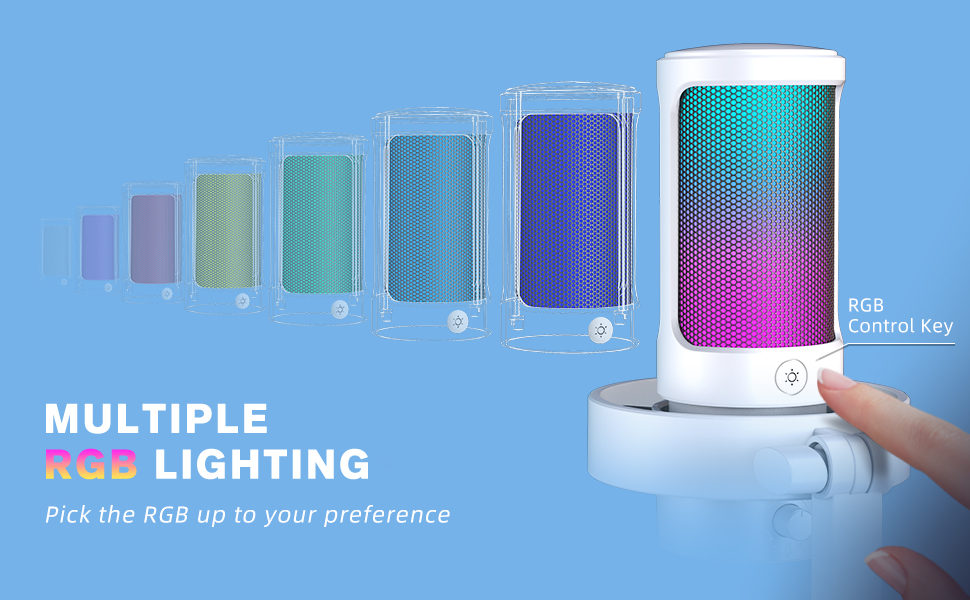
Image: Demonstrating multiple RGB lighting options on the microphone.
4.5 Cardioid Polar Pattern:
The microphone utilizes a cardioid polar pattern, which primarily picks up sound from the front, reducing unwanted noise from the sides and rear. Position the microphone with the FIFINE logo facing you for optimal voice capture and background noise rejection.
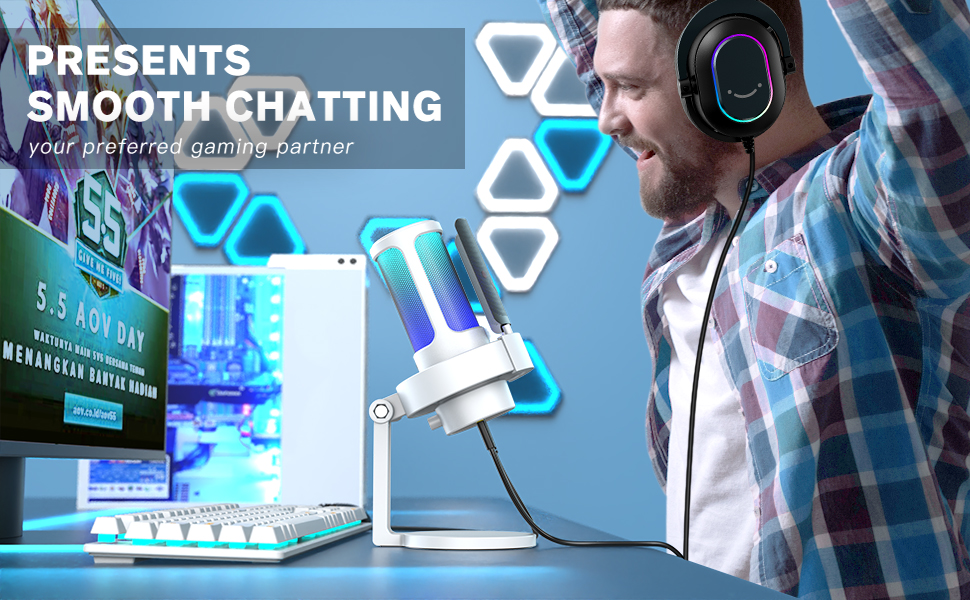
Image: The microphone positioned for clear voice capture in a gaming environment.
5. Nlekọta
Proper maintenance ensures the longevity and optimal performance of your FIFINE Ampigwe okwu liGame A8.
5.1 Nhicha:
- Gently wipe the microphone body with a soft, dry cloth to remove dust and fingerprints.
- Do not use liquid cleaners or abrasive materials, as these can damage the microphone's finish or internal components.
- The pop filter can be carefully removed and cleaned with a soft brush if necessary.
5.2 Nchekwa:
- Debe igwe okwu ahụ n'ebe dị jụụ ma kpọọ nkụ, ebe anwụ na-anaghị apụta kpọmkwem na oke okpomọkụ.
- When not in use, ensure the microphone is disconnected from your device to prevent accidental power draw.
6. Nchọpụta nsogbu
If you encounter any issues with your FIFINE AmpliGame A8 microphone, refer to the following common solutions:
6.1 No Sound/Low Volume:
- Lelee njikọ: Gbaa mbọ hụ na ejikọrọ eriri USB na ma igwe okwu na ngwaọrụ gị.
- Verify Device Settings: Confirm that 'FIFINE AmpliGame A8' is selected as the input device in your computer's or console's sound settings.
- Adjust Gain Knob: Rotate the gain knob on the microphone clockwise to increase the input volume.
- Unmute Microphone: Tap the mute button on top of the microphone to ensure it is not muted (LED should be green).
6.2 Distorted/Peaking Audio:
- Belata Uru: Rotate the gain knob counter-clockwise to decrease the input volume.
- Hazie Ogologo: Move further away from the microphone. Optimal distance is typically 6-12 inches.
- Use Pop Filter: Ensure the pop filter is correctly installed to reduce plosive sounds.
6.3 Background Noise:
- Optimize Environment: Record in a quiet environment, away from fans, air conditioners, or other noise sources.
- Software Noise Reduction: Utilize noise reduction features available in your recording software or communication applications.
- Okwu mgbada: If experiencing persistent hums or static, try plugging your computer into a different wall outlet or using a different USB port.
6.4 RGB Lights Not Working:
- Lelee Ike: Ensure the microphone is properly connected and receiving power.
- Ụdị okirikiri: Press the RGB control button to cycle through the lighting modes.
- Tọgharia: Kwupu ma megharia eriri USB.
7. Nkọwapụta
| Njirimara | Nkọwa |
|---|---|
| Aha Nlereanya | AmpliGame A8 |
| Nọmba Nlereanya ihe | A8W |
| Ụdị | FIFINE |
| Teknụzụ Njikọta | USB |
| Ụdị njikọ | USB Ụdị-A |
| Ụkpụrụ Polar | Unidirectional (Cardioid) |
| Ihe kpatara ụdị igwe okwu | Oke |
| Ngwa dakọtara | Laptop, Macbook, PS4/5, Personal Computer |
| Eji akwadoro | Gaming, Streaming, Recording, Video Creation, Podcasting |
| Agba | Ọcha |
| Ihe onwunwe | Acrylonitrile Butadiene Styrene, igwe |
| Ibu Ibu | 1.32 pound (gram 600) |
| Akụkụ ngwaahịa | 4.53 x 6.46 x 9.33 sentimita asatọ |
| Signgbaàmà-na-Noise ruru | 80 dB |
| Ọnụọgụ nke ọwa | 1 |
| Isi Iyi Ike | Igwe ọkụ eletrik |
| Atụmatụ pụrụ iche | Controllable RGB, RGB Control Button, Tap-to-Mute, Gain Knob, 6.5ft Detachable USB-C Cable, Plug and Play, Desktop Mic |
8. Akwụkwọ ikike na nkwado
For warranty information, technical support, or any product-related inquiries, please refer to the official FIFINE websaịtị ma ọ bụ kpọtụrụ ndị ahịa ha ozugbo. Debe nnata nzụta gị dị ka ihe akaebe nke ịzụrụ maka nkwupụta ikike.
Akụrụngwa dị n'ịntanetị:
- Gaa leta FIFINE Store on Amazon maka ngwaahịa na nkwado ndị ọzọ.


