1. Okwu mmalite
This manual provides detailed instructions for the installation, operation, and maintenance of your SCOORNEST Wireless Security Camera. This compact, battery-operated camera is designed for indoor use, offering 1080P HD video, night vision, and remote monitoring capabilities via a mobile application. Please read this manual thoroughly before using the product to ensure proper function and safety.

Image: The SCOORNEST Wireless Security Camera discreetly placed in a living room, providing wide area surveillance.
2. Akụrụngwa Ngwaahịa
The SCOORNEST Wireless Security Camera offers a range of features for effective home monitoring:
- Vidiyo 1080P HD: Na-ejide foo doro anya ma doo anyatage.
- Ikuku & Batrị Na-arụ ọrụ: Flexible placement without the need for constant power outlets.
- Ọhụụ abalị: Provides clear monitoring in low-light or dark conditions.
- Nchọpụta ngagharị: Alerts you to detected movement, enhancing security.
- Remote App Control: Monitor and control the camera from your smartphone or tablet.
- Ojiji ọtụtụ ihe atụ: Suitable for monitoring homes, babies, pets, elderly care, and office spaces.

Image: Key features of the camera, including 1080P resolution, motion detection, WiFi connectivity, and wireless operation.

Image: Demonstration of the camera's 1080P resolution, providing clear and smooth video quality.
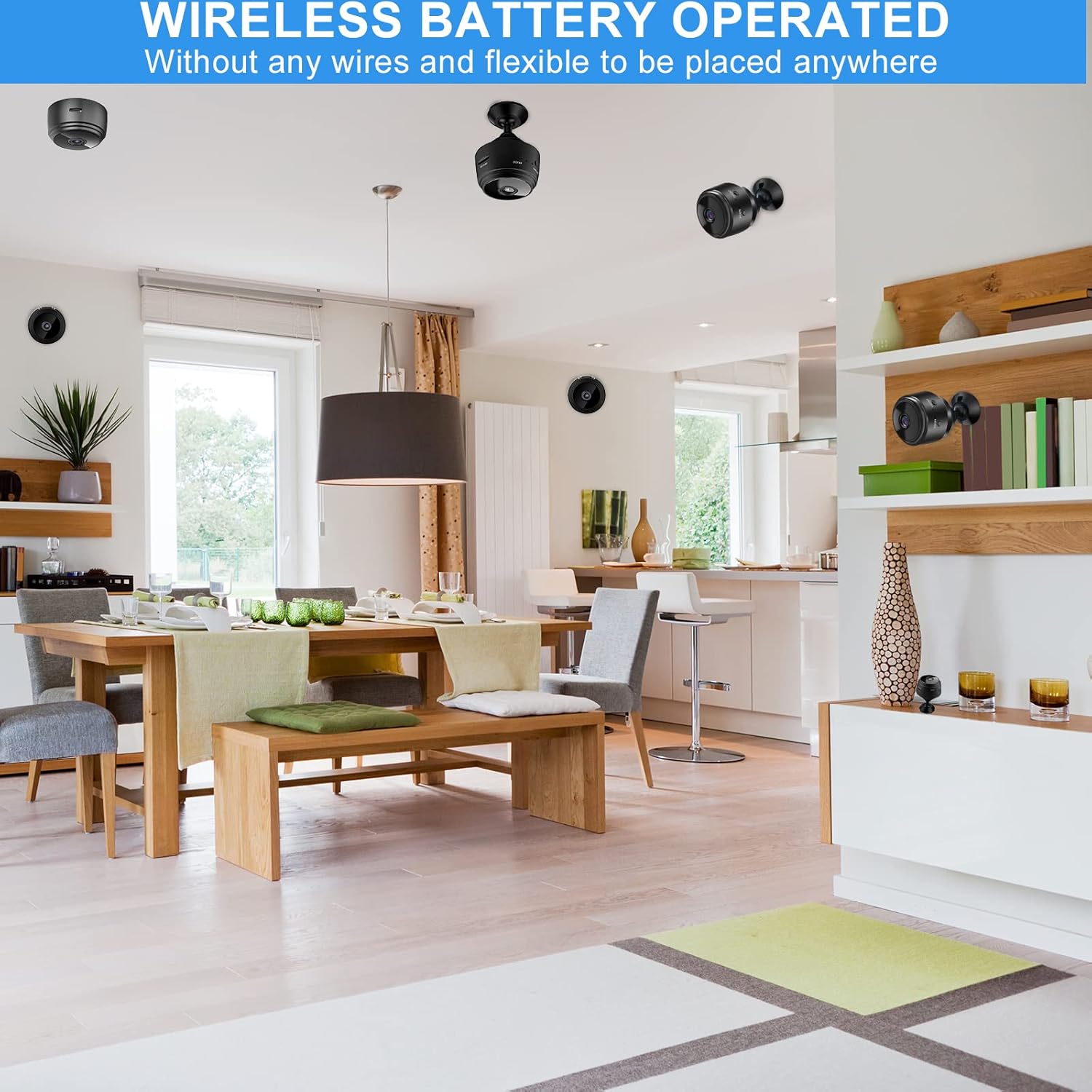
Image: The camera's motion detection feature, sensitive to capture movement and trigger alerts.

Image: Comparison of day and night vision, illustrating the camera's ability to monitor in various lighting conditions.
3. Ntuziaka Nhazi
Follow these steps to set up your SCOORNEST Wireless Security Camera:
- Chajịa igwefoto: Before first use, fully charge the camera using the provided USB cable. A red indicator light typically signifies charging, turning off or changing color when complete.
- Budata ngwa: Chọọ maka "HDwifiCamPro" in the App Store (iOS) or Google Play Store (Android) and install it on your smartphone.
- Ike Na Igwefoto: Pịa ma jide bọtịnụ ike ruo mgbe ọkụ egosi agbanye.
- Jikọọ na ekwentị: Open the HDwifiCamPro app. Follow the in-app instructions to connect the camera to your phone. This usually involves connecting to the camera's temporary Wi-Fi hotspot first, then configuring it to connect to your home 2.4GHz Wi-Fi network.
- Debe igwefoto: Place the camera in your desired monitoring location. Its wireless design allows for flexible placement. Ensure it has a clear line of sight to the area you wish to monitor.
Image: Visual guide for connecting the camera to your smartphone and home WiFi network.
4. Ntuziaka ọrụ
Once your camera is set up, you can begin monitoring:
- Dị ndụ View: Open the HDwifiCamPro app and select your camera to view ndepụta vidiyo dị ndụ.
- Edekọ: The camera supports continuous recording or motion-activated recording. Ensure a microSD card (not included) is inserted for local storage, or utilize cloud storage options if available through the app.
- Mkpu ngagharị: Enable motion detection in the app settings to receive notifications on your phone when movement is detected.
- Night Vision Activation: Night vision typically activates automatically in low-light conditions.
- Nnweta dị anya: As long as your camera is connected to Wi-Fi and your phone has internet access, you can view the live feed and manage settings from anywhere.

Image: Live monitoring of the camera feed on a smartphone.

Foto: Example of using the camera for pet monitoring via the mobile app.

Image: The camera feed can be viewed on multiple devices, including laptops, tablets, and smartphones.
5. Nlekọta
To ensure the longevity and optimal performance of your camera:
- Nhicha: Jiri ákwà dị nro ma kpọọ nkụ hichaa anya igwefoto na ahụ ya nwayọ. Zere iji kemịkalụ siri ike ma ọ bụ ihe ndị na-emebi ihe.
- Nlekọta batrị: Recharge the camera regularly, especially if it's not connected to a continuous power source. Avoid fully depleting the battery frequently to prolong its lifespan.
- Mmelite ngwanrọ: Check the HDwifiCamPro app periodically for firmware updates for your camera. Keeping the software updated can improve performance and security.
- Nchekwa: If storing the camera for an extended period, ensure it is fully charged and stored in a cool, dry place.
6. Nchọpụta nsogbu
Ọ bụrụ na ịnwee nsogbu na igwefoto gị, rụtụ aka na nsogbu na azịza ndị a na-ahụkarị:
| Nsogbu | Ihe nwere ike ime | Ngwọta |
|---|---|---|
| Igwefoto anaghị ejikọta na Wi-Fi | Incorrect Wi-Fi password; camera too far from router; 5GHz Wi-Fi network used. | Ensure correct 2.4GHz Wi-Fi password; move camera closer to router; ensure router supports 2.4GHz. |
| Àgwà foto na-adịghị mma | Dirty lens; insufficient lighting; weak Wi-Fi signal. | Clean the lens; ensure adequate lighting or rely on night vision; improve Wi-Fi signal strength. |
| Batrị na-agbapụ ngwa ngwa | Frequent live viewing; continuous recording; high motion detection sensitivity. | Reduce live viewing time; use motion-activated recording; adjust motion detection sensitivity; keep camera plugged in if possible. |
| Ngwa anaghị enweta ọkwa | App notifications disabled; motion detection off; phone in Do Not Disturb mode. | Check app notification settings; enable motion detection; disable Do Not Disturb. |
Ọ bụrụ na nsogbu ka dị, biko rụtụ aka na ngalaba ikike na nkwado maka ozi kọntaktị.
7. Nkọwapụta
| Njirimara | Nkọwa |
|---|---|
| Akụkụ ngwaahịa | 3.98 x 2.4 x 1.46 sentimita asatọ |
| Ibu Ibu | 2.08 ounces |
| Nọmba nlereanya | FDA MASK 95 |
| Ụdị | SCOORNEST |
| Ụdị oghere | Ogologo akụkụ |
| Nhazi oghere | Bugharịa |
| Ụdị elekwasị anya | Ntinye akwụkwọ ntuziaka |
| Nkọwa nke Mkpuchi Lens | HD mkpuchi |
| Ụbọchị mbụ dị | Mee 10, 2022 |
8. Akwụkwọ ikike na nkwado
SCOORNEST is committed to providing quality products and customer satisfaction. Your SCOORNEST Wireless Security Camera comes with a akwụkwọ ikike otu afọ from the date of purchase. Additionally, we offer ọrụ ndụ mgbe ire ere gasịrị.
For any product-related inquiries, technical support, or warranty claims, please contact our customer service team. Refer to the product packaging or the official SCOORNEST websaịtị maka ozi kọntaktị kacha ugbu a.
You can also find a PDF version of the Instructions for Use Ebe a.


