1. Okwu mmalite
Thank you for choosing the GRIFEMA GD1003-2 Smart WiFi-Bluetooth E27 RGB LED Bulbs. These smart bulbs offer versatile lighting options, including 16 million colors, adjustable white light (2700K-6500K), and smart control via Wi-Fi and Bluetooth. This manual provides essential information for safe installation, setup, operation, and maintenance of your smart bulbs.

Foto 1.1: Ofeview of GRIFEMA Smart LED Bulb features.
2. Ngwaahịa gafereview
The GRIFEMA GD1003-2 is a smart LED bulb designed for modern lighting needs. It features an E27 base, 10W power consumption, and an 80W incandescent equivalent brightness. Key functionalities include:
- Njikọta abụọ: Supports both Wi-Fi (2.4GHz) and Bluetooth for flexible control.
- Full Color Spectrum: 16 million RGB colors and adjustable white light from 2700K (warm white) to 6500K (cool white).
- Enwere ike ibelata: Enwere ike gbanwee ihie site na 1% ruo 100%.
- Njikwa smart: Compatible with Amazon Alexa and Google Home for voice control, and controllable via a mobile application.
- Akụkụ dị elu: Includes group control, scene modes, timer settings, and music synchronization.

Image 2.1: GRIFEMA Smart LED Bulb with key specifications and dimensions.
3. Ozi nchekwa
Please read and follow these safety instructions carefully before installing and using the bulbs:
- Ensure the power is turned off before installation or removal to prevent electric shock.
- Do not use in fully enclosed fixtures as this may shorten the bulb's lifespan.
- Not suitable for dimmers other than those controlled by the smart application.
- Avoid exposing the bulb to direct water or extreme humidity.
- Achịkọtala ma ọ bụ gbanwee bọlbụ ahụ.
- Debe ebe ụmụaka na-apụghị iru.
4. Nhazi
4.1 Nwụnye anụ ahụ
- Turn off the power to the light fixture at the main switch.
- Carefully screw the GRIFEMA GD1003-2 smart bulb into a standard E27 socket.
- Turn the power back on. The bulb should flash, indicating it is in pairing mode. If not, turn it off and on three times to reset.
4.2 Nbudata ngwa na imepụta akaụntụ
- Scan the QR code on the product packaging or search for the recommended smart home app (e.g., 'SurpLife' or 'Smart Life') in your mobile app store (iOS or Android).
- Budata ma wụnye ngwa ahụ.
- Mepee ngwa ahụ wee denye aha akaụntụ ọhụrụ ma ọ bụ banye ma ọ bụrụ na ị nwere otu.
4.3 Pairing the Bulb (Wi-Fi & Bluetooth)
The bulbs support dual Wi-Fi and Bluetooth connectivity for easy pairing.
- Ensure your mobile device's Bluetooth and Wi-Fi are enabled.
- Open the smart home app. The app should automatically detect the new device in pairing mode.
- Follow the on-screen instructions to add the device. You will need to select your 2.4GHz Wi-Fi network and enter its password.
- Once connected, the bulb will stop flashing and appear in your device list within the app.

Image 4.1: Smart bulb compatibility and app interface for color selection.
5. Ntuziaka ọrụ
5.1 Basic On/Off and Brightness Adjustment
From the app, select the bulb you wish to control. You can toggle it on/off and adjust its brightness using the slider.

Image 5.1: Adjusting color temperature for different ambiances.
5.2 Color Selection (RGB & CCT)
- Agba RGB: Use the color wheel in the app to select from 16 million colors.
- White Light (CCT): Adjust the white light temperature from warm (2700K) to cool (6500K) to suit your preference.
- Camera Color Selection: Some apps allow you to use your phone's camera to pick a color from your surroundings and apply it to the bulb.
5.3 Ụdị ihe nkiri
The app provides various pre-set scene modes (e.g., Reading, Party, Relax) that combine specific colors and brightness levels. You can also create and customize your own scenes.

Foto 5.2: Ọpụamples of different lighting ambiances in various rooms.
5.4 Otu njikwa
You can group multiple GRIFEMA smart bulbs together in the app to control them simultaneously. This allows you to change the color, brightness, or scene for an entire room or area with a single command.

Image 5.3: App interface demonstrating group control of multiple bulbs.
5.5 Ọrụ ngụ oge
Set schedules for your bulbs to turn on or off at specific times. This is useful for daily routines, security, or to help you fall asleep and wake up naturally.
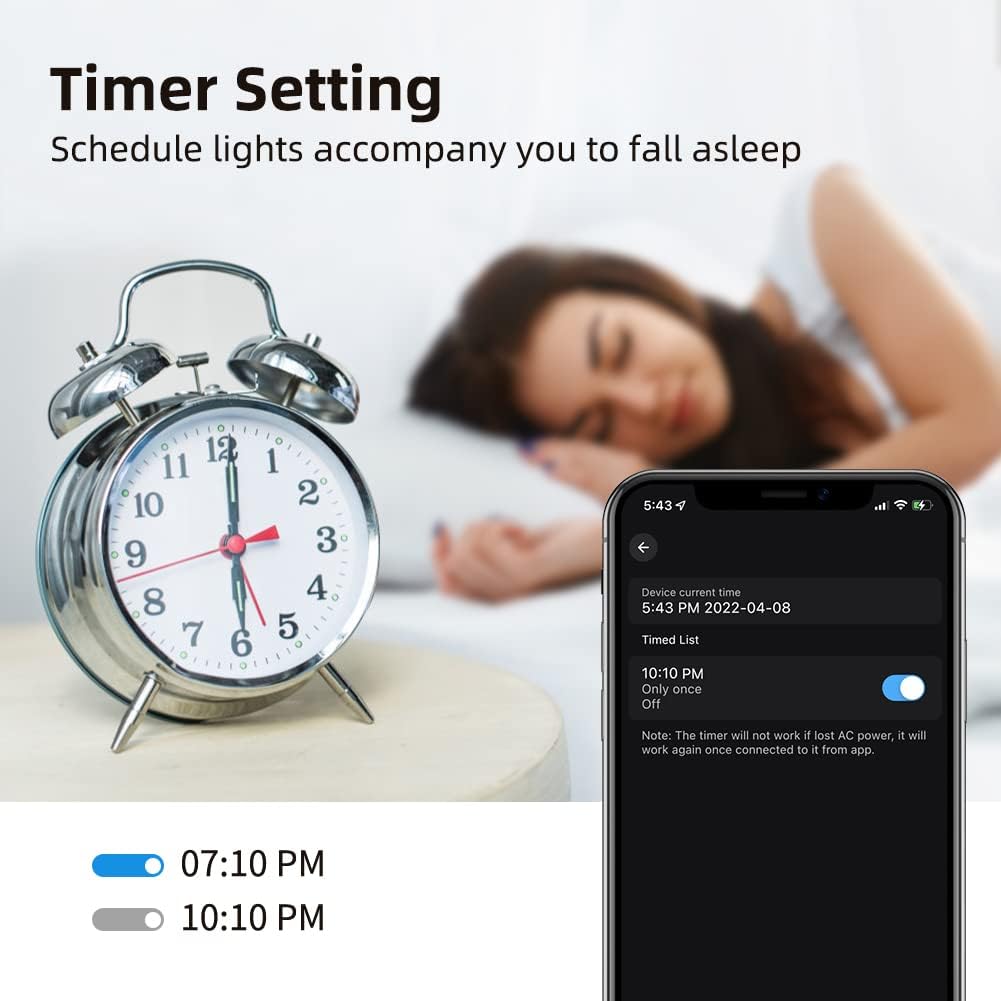
Image 5.4: Setting a timer for the smart bulb via the mobile app.
5.6 Music Sync / Microphone Mode
Activate the music sync feature in the app to make your lights change color and intensity in rhythm with music playing from your phone's microphone. This creates a dynamic atmosphere for parties or entertainment.
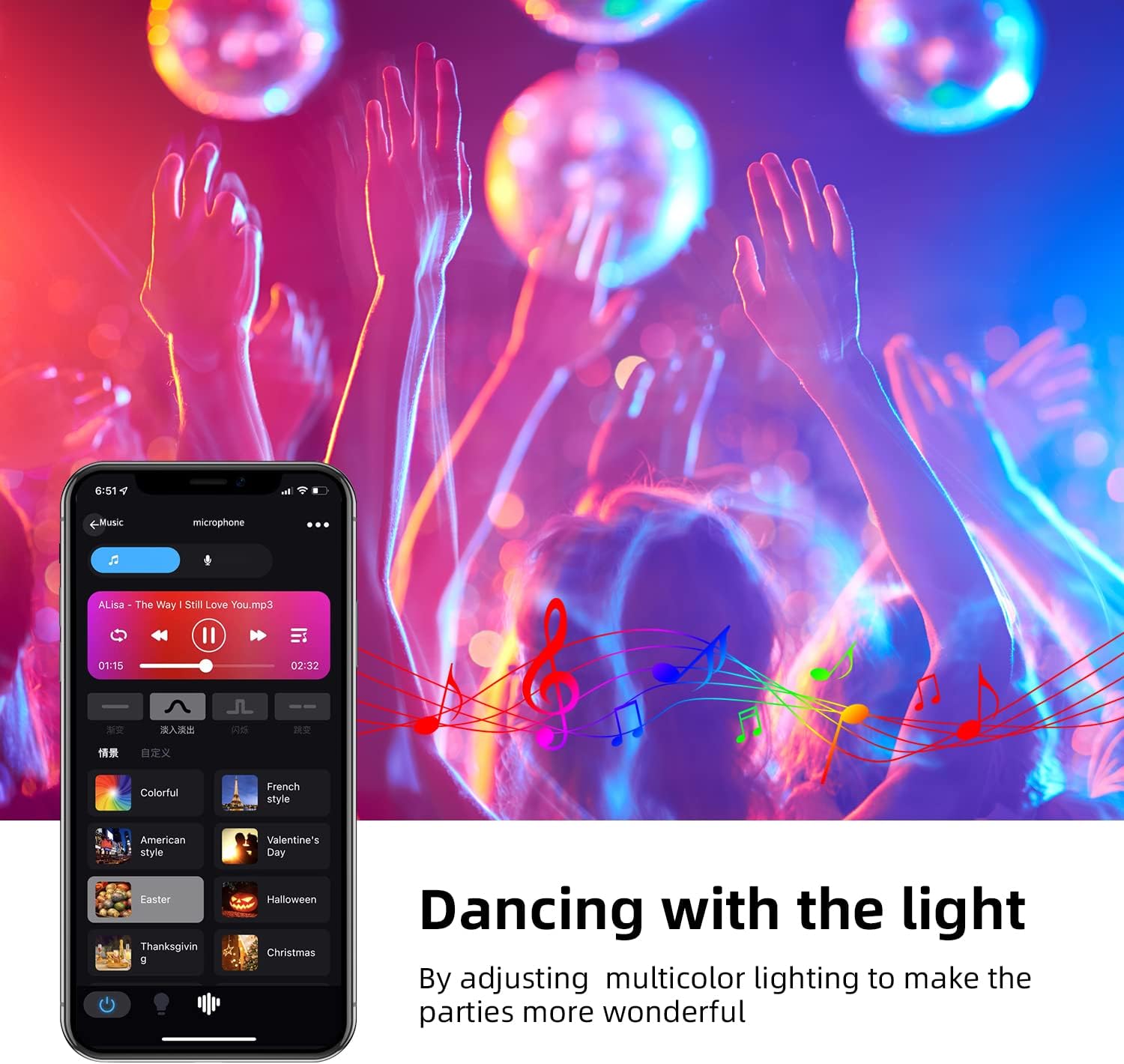
Image 5.5: Lights synchronizing with music in a party setting.

Image 5.6: Microphone mode interface for music synchronization.
5.7 Njikwa olu (Amazon Alexa / Google Home)
To enable voice control, link your smart home app account with Amazon Alexa or Google Home:
- Mepee ngwa Alexa ma ọ bụ Google Home.
- Gaa na 'Nkà na Egwuregwu' (Alexa) ma ọ bụ 'Ọrụ na Google' (Google Home).
- Chọọ maka the smart home app you are using (e.g., 'SurpLife' or 'Smart Life').
- Enable the skill/service and link your account using your app credentials.
- Discover devices. Once discovered, you can use voice commands like:
- "Alexa, gbanye ọkụ ọnụ ụlọ."
- "Hey Google, set the bedroom light to blue."
- "Alexa, dim the kitchen light to 50%."

Image 5.7: Controlling smart bulbs via app and voice commands with Alexa and Google Home.
6. Nchọpụta nsogbu
- Bulb not connecting to Wi-Fi:
- Ensure your Wi-Fi network is 2.4GHz. 5GHz networks are not supported.
- Check if the bulb is flashing rapidly (pairing mode). If not, power cycle it three times (on-off-on-off-on) to reset.
- Verify your Wi-Fi password is correct.
- Move the bulb closer to your Wi-Fi router during setup.
- Ensure your phone's Bluetooth is on during initial setup. - Njikwa olu anaghị arụ ọrụ:
- Confirm the smart home app is linked correctly to Alexa/Google Home.
- Ensure the bulb is named clearly in the app (e.g., "Living Room Light").
- Check your internet connection. - Bulb unresponsive:
- Check the power supply to the light fixture.
- Try turning the bulb off and on from the wall switch.
- If issues persist, try re-pairing the bulb. - Color is not accurate:
- Ensure the app is updated to the latest version.
- Some colors may appear differently depending on the surrounding environment and wall color.
7. Nlekọta
To ensure optimal performance and longevity of your GRIFEMA smart bulbs:
- Clean the bulb with a soft, dry cloth. Do not use liquid cleaners or aerosols.
- Avoid operating the bulb in environments with extreme temperatures or high humidity.
- Do not expose the bulb to direct sunlight for extended periods.
8. Nkọwapụta
| Nkọwapụta | Uru |
|---|---|
| Ụdị | GRIFEMA |
| Nọmba nlereanya | GD1003-2 |
| Onye nrụpụta | Ibergrif Griferias,S.L |
| Akụkụ ngwaahịa (L x W x H) | 6 x 6 x 11.8 cm |
| Ibu Ibu | 130 g |
| Ọnụọgụ nke ihe | 2 |
| Agba | RGB + 2700K-6500K |
| Ụdị | Pear (A19) |
| Ụdị bọlbụ | Ikanam |
| Cap Type / Bulb Base | E27 |
| Flux na-egbuke egbuke | 800 lm |
| Wattage | 10 W |
| Incandescent Dị | 80 Watt |
| Okpomọkụ agba | 2700K-6500K |
| Ndekọ ngosi agba (CRI) | 80 |
| Nkezi ndụ | Awa 20000 |
| Voltage | 240 volts |
| Atụmatụ pụrụ iche | Color Changing, Dimmable, Wi-Fi, Bluetooth, Voice Control |
| Njikọ ikuku | 2.4GHz Wi-Fi |

Image 8.1: EU Energy Label for the GRIFEMA Smart LED Bulb. For more details, refer to the Ebe nchekwa data EPREL.

Image 8.2: Indication of the bulb's average lifespan.
9. Akwụkwọ ikike na nkwado
GRIFEMA products come with a standard manufacturer's warranty. Please refer to the warranty information provided at the time of purchase or contact GRIFEMA customer support for details.
For technical assistance, troubleshooting, or any questions regarding your GRIFEMA GD1003-2 smart bulbs, please visit the official GRIFEMA websaịtị ma ọ bụ kpọtụrụ ngalaba ọrụ ndị ahịa ha. Enwere ike ịchọta ozi kọntaktị na nkwakọ ngwaahịa ngwaahịa ma ọ bụ onye ọrụ nke ika ahụ websaịtị.
Nkwado n'ịntanetị: GRIFEMA Store on Amazon


