1. Okwu mmalite
This manual provides detailed instructions for the setup, operation, and maintenance of your Rapoo E9700M Wireless Keyboard. Please read this manual thoroughly before using the product to ensure proper functionality and to prevent damage.

Image 1.1: The Rapoo E9700M Wireless Keyboard. This image shows the keyboard from an angled perspective, highlighting its slim profile and dark gray finish.
2. Ihe ngwugwu
Chọpụta na ihe niile dị na ngwugwu:
- Rapoo E9700M Wireless Keyboard
- USB-C eriri USB
- Nano USB Receiver (typically stored in the keyboard's battery compartment)
- Ntuziaka Mmalite Ngwa Ngwa (akwụkwọ a na-eje ozi dị ka ntuziaka zuru oke)
3. Atụmatụ
- Multi-Mode Wireless Connectivity: Supports Bluetooth 3.0, 5.0, and 2.4 GHz for stable transmission up to 10 meters.
- Smart Switching: Automatically pairs and connects to multiple devices, allowing one-click switching.
- Nhazi Ultra-Slim: Constructed with an aluminum alloy for stability and durability.
- Batrị enwere ike ịchaji: Integrated eco-friendly lithium battery eliminates the need for disposable batteries.
- Igwe ọkụ mgbasa ozi: Dedicated keys for quick access to multimedia functions.
- DE-Layout QWERTZ: German keyboard layout.
4. Nhazi
4.1. Ịchaji ahụigodo
Before initial use, fully charge the keyboard. Connect the supplied USB-C cable to the keyboard's charging port and the other end to a USB power source (e.g., computer USB port, USB wall adapter).
- Ọkụ na-egosi nchaji ga-enwu n'oge ịchaji.
- The light will turn off or change color once fully charged.
4.2. Connecting via 2.4 GHz Wireless
- Locate the Nano USB receiver, typically stored in a compartment on the underside of the keyboard.
- Tinye ihe nnata USB Nano n'ime ọdụ USB dị na kọmputa gị.
- Turn on the keyboard using the power switch (usually located on the side or back).
- Pịa fn+4 key combination to activate 2.4 GHz mode. The corresponding indicator light will blink.
- Your computer should automatically detect and install the necessary drivers. The keyboard is ready for use.

Foto 4.2: Elu-ala view of the Rapoo E9700M keyboard, showing the German (DE-Layout QWERTZ) key arrangement. Note the function keys with blue icons for connectivity modes.
4.3. Ijikọ site na Bluetooth
The keyboard supports two Bluetooth channels (Bluetooth 1 and Bluetooth 2).
- Gbanwuo ahụigodo site na iji mgba ọkụ.
- Pịa fn+1 for Bluetooth 1 or fn+2 for Bluetooth 2. The corresponding indicator light will blink slowly.
- Ka ịbanye ọnọdụ njikọta, pịa ma jide fn+1 or fn+2 maka 3 sekọnd ruo mgbe ọkụ egosi na-enwu ngwa ngwa.
- On your device (PC, Mac, smartphone, tablet), open Bluetooth settings and search for new devices.
- Select "Rapoo E9700M" from the list of available devices.
- Follow any on-screen prompts to complete the pairing process. The indicator light will stop blinking once connected.
4.4. Ịgbanwe n'etiti ngwaọrụ ejikọrọ
The Rapoo E9700M allows seamless switching between up to three connected devices (one 2.4 GHz and two Bluetooth devices).
- Pịa fn+1 ka ịgbanwee gaa na ngwaọrụ Bluetooth 1.
- Pịa fn+2 ka ịgbanwee gaa na ngwaọrụ Bluetooth 2.
- Pịa fn+4 to switch to the 2.4 GHz wireless connection.
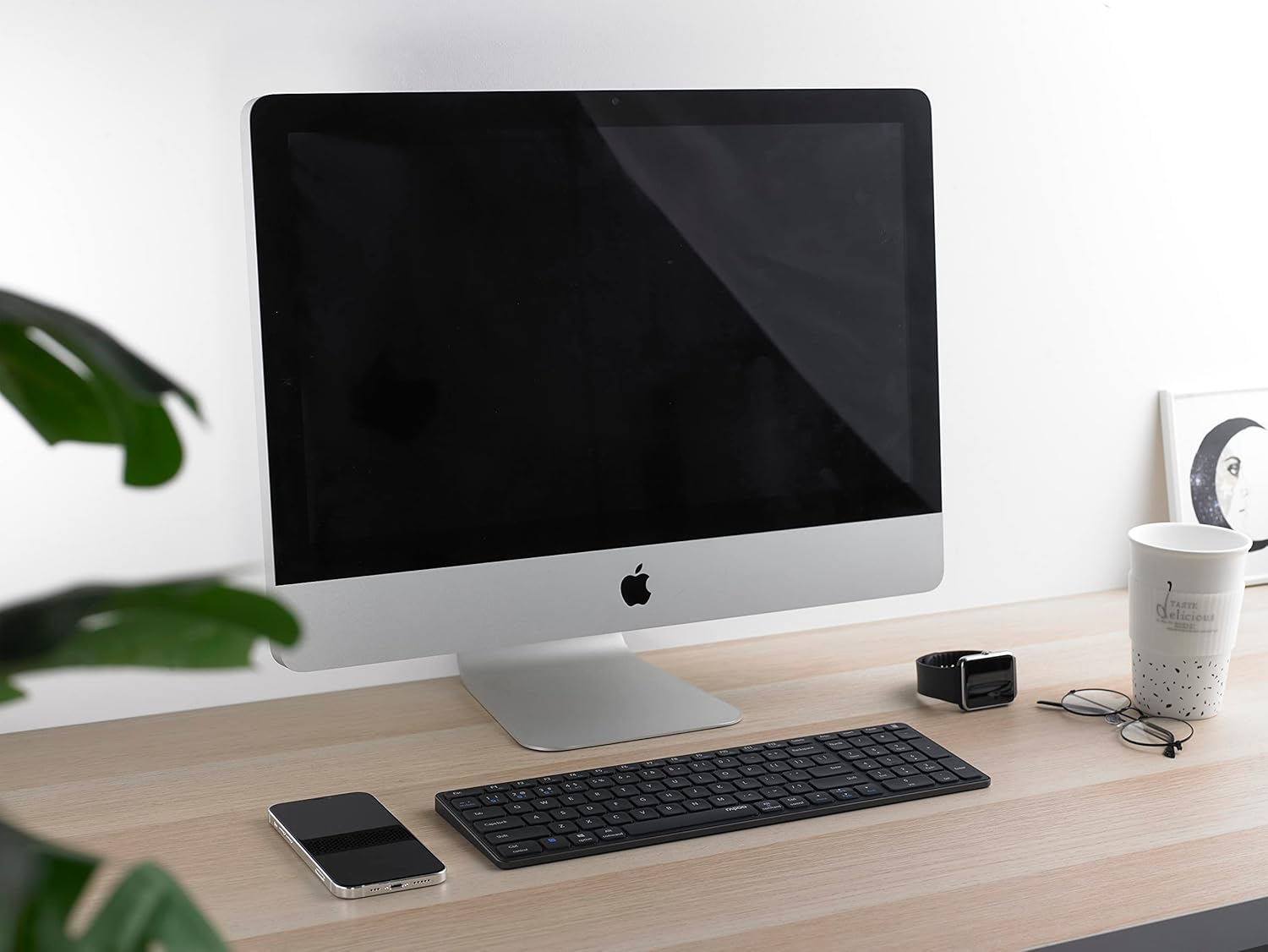
Image 4.4: The Rapoo E9700M keyboard positioned on a desk next to an iMac, demonstrating its compatibility with macOS devices.
5. Ntuziaka ọrụ
5.1. Multimedia Hotkey
The keyboard features multimedia hotkeys for quick access to various functions. These keys are typically activated by pressing the Fn key simultaneously with the corresponding function key (F1-F12).
| Ngwakọta igodo | Ọrụ |
|---|---|
| Fn + F1 | Ihe ọkpụkpọ mgbasa ozi |
| Fn + F2 | Mpịakọta ọnụ |
| Fn + F3 | Elu elu |
| Fn + F4 | Ogbi |
| Fn + F5 | Egwu gara aga |
| Fn + F6 | Track na-esote |
| Fn + F7 | Gwuo/kwụsịtụ |
| Fn + F8 | Kwụsị |
| Fn + F9 | Ibe ebe obibi |
| Fn + F10 | |
| Fn + F11 | Kọmputa m |
| Fn + F12 | ọkacha mmasị |
5.2. Ihe ngosi ọkụ
The keyboard has indicator lights to show connection status and battery level:
- Bluetooth 1/2/4 (2.4G) Indicator: Blinks slowly when searching for connection, blinks rapidly when in pairing mode, solid when connected.
- Ihe ngosi mkpọchi mkpuchi: Illuminates when Caps Lock is active.
- Ngosipụta ọnọdụ batrị: Illuminates when charging, blinks when battery is low.
6. Nlekọta
To ensure the longevity and optimal performance of your Rapoo E9700M keyboard, follow these maintenance guidelines:
- Nhicha: Jiri akwa dị nro ma kpọọ nkụ hichapụ elu ahụ ahụigodo. Maka unyi isi ike, ntakịrị dampen akwa na mmiri ma ọ bụ dị nwayọọ, na-adịghị abrasive Cleaner. Zere oke mmiri mmiri.
- Nchekwa: Chekwaa ahụigodo ahụ n'ebe dị jụụ, kpọrọ nkụ pụọ na ìhè anyanwụ kpọmkwem na oke okpomọkụ.
- Zere Mmiri mmiri: Ewepụla ahụigodo ahụ na mmiri mmiri. Ọ bụrụ na ihe dapụrụ na mberede, gbanyụọ ahụigodo ozugbo wee hapụ ya ka ọ kpọọ nkụ kpamkpam tupu ijigharị ya.
- Ihe nnata USB: When not in use, store the Nano USB receiver in its designated compartment within the keyboard to prevent loss.

Image 6.1: The underside of the Rapoo E9700M keyboard, showing the smooth aluminum finish and regulatory markings. The USB receiver compartment is typically located here.
7. Nchọpụta nsogbu
Ọ bụrụ na ị hụ nsogbu na ahụigodo gị, lee nsogbu na ngwọta ndị a na-ahụkarị:
- Ahụigodo anaghị aza:
- Gbaa mbọ hụ na agbanyere ahụigodo.
- Lelee ọkwa batrị wee kwụọ ụgwọ ma ọ dị mkpa.
- Verify the correct connection mode (2.4 GHz, Bluetooth 1, or Bluetooth 2) is selected using Fn + 1/2/4.
- For 2.4 GHz, ensure the Nano USB receiver is securely plugged into a working USB port.
- Maka Bluetooth, hụ na Bluetooth na-arụ ọrụ na ngwaọrụ gị nakwa na ahụigodo ahụ jikọtara. Gbalịa ijikọ ọzọ ma ọ dị mkpa.
- Nwaa ijikọ na ọdụ USB ma ọ bụ ngwaọrụ dị iche iji wepụ nsogbu ọdụ/ngwaọrụ.
- Njikọ nkwụsịtụ ma ọ bụ nke na-adịghị arụ ọrụ:
- Reduce the distance between the keyboard and your device (maximum 10 meters).
- Remove any obstacles that might interfere with the wireless signal (e.g., large metal objects).
- Avoid using the keyboard near other strong wireless interference sources (e.g., Wi-Fi routers, other wireless devices).
- Gbaa mbọ hụ na agbachara ahụigodo nke ọma.
- Keys not working or typing incorrectly:
- Clean the keyboard to remove any debris that might be obstructing the keys.
- Malitegharịa ekwentị gị / ngwaọrụ.
- If using Bluetooth, try unpairing and re-pairing the keyboard.
8. Nkọwapụta
| Njirimara | Nkọwa |
|---|---|
| Ụdị | Rapoo |
| Nlereanya | E9700M |
| Teknụzụ Njikọta | Bluetooth 3.0, Bluetooth 5.0, 2.4 GHz Wireless (USB-C, WLAN) |
| Ngwa dakọtara | Laptop, PC, Smart TV, Gaming Console, Smartphone, Tablet |
| Nkọwa ahụigodo | Multimedia |
| Njirimara Pụrụ Iche | Multimedia Hotkeys, Rechargeable Battery |
| Agba | Ọchịchịrị Grey |
| Ụdị | Omuma |
| Ihe onwunwe | Aluminom |
| Ngwa gụnyere | Keyboard, USB-C Cable, Nano USB Receiver |
| Nhazi | DE-Layout (QWERTZ) |
9. Akwụkwọ ikike na nkwado
Rapoo products are designed with quality and reliability in mind. For warranty information and technical support, please refer to the warranty card included with your product or visit the official Rapoo websaịtị. Debe ihe akaebe nke ịzụrụ maka akwụkwọ ikike.
For further assistance, please contact Rapoo customer support through their official channels.


