1. Okwu mmalite na gafereview
The Cooler Master XG650 Plus Platinum ARGB is a fully modular 650W power supply unit designed for high-performance computing systems. It features an 80 PLUS Platinum certification for high efficiency, a 135mm silent fan, and a built-in digital display panel for real-time monitoring of performance data. This unit incorporates 100% Japanese capacitors for enhanced reliability and meets Intel ATX 12V version 2.53 guidelines.
Akụkụ ndị bụ isi:
- In-House Platform Design: Engineered for high-end performance with reduced temperature requirements.
- ARGB Fans with Digital Side Panel: Monitor real-time performance data including fan speed, temperature, power load, and customize ARGB lighting.
- 80 PLUS Platinum Certified: Guarantees a minimum typical efficiency of 92% under normal operating conditions.
- Quiet 135mm Fan: Fluid dynamic fan bearing for low RPM operations and quiet cooling performance.
- Smart Thermal Control Mode: Fan remains inactive until the unit reaches 50% load, ensuring silent operation during normal use.
- 100% Japanese Capacitors: Used in both the platform and cables for increased efficiency and reduced ripple noise.
- Cabling modular zuru oke: Reduces cable clutter, improves airflow, and enhances overall efficiency and thermal performance.
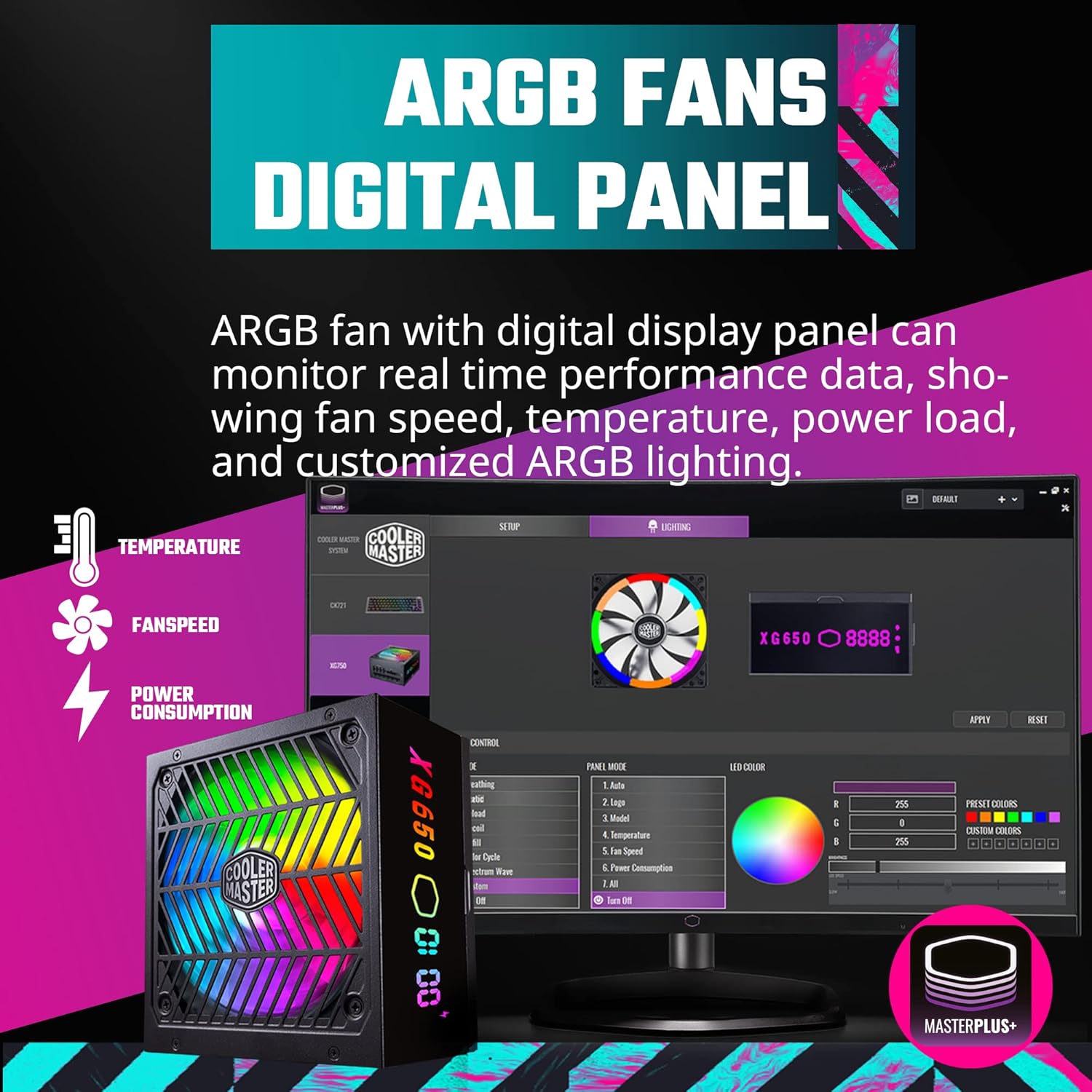
Figure 1.1: The Cooler Master XG650 Plus Platinum ARGB 650W Power Supply Unit.
2. Ntọala na nwụnye
2.1 Nchekwa nchekwa
- Kwụpụ mgbe ọ bụla eriri ọkụ na oghere mgbidi tupu ịwụnye ma ọ bụ wepụ ọkụ eletrik.
- Gbaa mbọ hụ na ntọ ala kwesịrị ekwesị iji gbochie ujo eletrik.
- Do not open the power supply unit casing. Akwa voltages dị n'ime.
- Wụnye ọkụ eletrik na mpaghara ikuku nke ọma.
Ihe ngwugwu 2.2
Chọpụta na akụrụngwa niile dị:
- Cooler Master XG650 Plus Platinum ARGB PSU
- Modular Cable Set (ATX 24-pin, EPS 4+4 pin, EPS 8 pin, PCIe 6+2 pin, SATA, Peripheral 4 pin)
- Igwe ọkụ AC
- Ịkwanye kposara
- Akwụkwọ ntuziaka (akwụkwọ a)
2.3 Nwụnye anụ ahụ
- Ịkwalite PSU: Secure the power supply into the designated PSU bay in your computer case using the provided mounting screws. Ensure the fan is oriented correctly for optimal airflow (typically facing downwards or upwards depending on case design).
- Ijikọ eriri modular: Identify the necessary cables for your motherboard, CPU, graphics card(s), and storage devices. Connect these cables to the corresponding ports on the PSU.

Figure 2.1: Modular cable connection ports on the PSU.
- Njikọ motherboard: Connect the 24-pin ATX power cable to your motherboard. Connect the 4+4 pin or 8-pin EPS cable(s) to the CPU power connector(s) on your motherboard.
- Graphics Card Connections: Connect the appropriate PCIe 6+2 pin cables to your graphics card(s).
- Nchekwa na akụkụ: Connect SATA power cables to your SSDs/HDDs and other SATA-powered devices. Use Peripheral 4-pin cables for other compatible devices.
- USB Protocol Cable: Connect the included USB protocol cable from the PSU to an available USB 2.0 header on your motherboard. This enables software control and display panel functionality.
- Ike AC: Once all internal connections are made, connect the AC power cord to the PSU and then to a wall outlet.

Nyocha 2.2: N'eluview of included modular cables and their lengths.
3. Ntuziaka ọrụ
3.1 Na-agbanye ike
After completing the installation, ensure the power switch on the back of the PSU is in the 'ON' position. Power on your computer system as usual.
3.2 Digital Display Panel
The XG650 Plus Platinum features a built-in digital display panel that provides real-time information about the PSU's operation. This display can show:
- Ọsọ fan (RPM)
- Okpomọkụ (°C)
- Power Load (W)
- Customized ARGB Lighting effects

Figure 3.1: The ARGB digital display panel on the PSU.
3.3 MasterPlus+ Software Control
For advanced monitoring and customization of the ARGB lighting and fan behavior, install the Cooler Master MasterPlus+ software. This software allows you to:
- Monitor PSU performance data in detail.
- Hazie mmetụta ọkụ na agba ARGB.
- Configure fan curves or activate Smart Thermal Control Mode.
Download the latest MasterPlus+ software from the official Cooler Master websaịtị: www.coolermaster.com/downloads/

Figure 3.2: MasterPlus+ software interface for monitoring and control.
3.4 Smart Thermal Control Mode
The PSU features a Smart Thermal Control Mode where the 135mm fan will remain inactive (0 RPM) until the power load reaches 50%. This ensures silent operation during low to moderate system usage. Once the load exceeds 50%, the fan will automatically activate and adjust its speed to maintain optimal temperatures.

Figure 3.3: The quiet 135mm fan with ARGB lighting.
4. Nlekọta
Proper maintenance ensures the longevity and optimal performance of your power supply unit.
- Debe ya ọcha: Periodically clean the exterior of the PSU and the fan grille to prevent dust buildup. Use compressed air to gently remove dust from the fan blades and internal components (do not open the casing).
- Gbaa mbọ hụ na eruba ikuku: Make sure there is adequate airflow around the PSU. Avoid blocking the intake or exhaust vents.
- Njikwa USB: Good cable management not only improves aesthetics but also enhances airflow within your PC case, contributing to better cooling for all components, including the PSU.
5. Nchọpụta nsogbu
If you encounter issues with your Cooler Master XG650 Plus Platinum ARGB PSU, refer to the following troubleshooting steps:
5.1 Enweghị ike
- Lelee njikọ ike: Ensure the AC power cord is securely plugged into both the PSU and the wall outlet. Verify the power switch on the PSU is in the 'ON' position.
- Njikọ dị n'ime: Double-check all modular cables are firmly connected to both the PSU and your components (motherboard, CPU, GPU).
- Mwepu mgbidi: Nwalee ebe a na-esi na mgbidi ahụ site na iji ngwaọrụ ọzọ iji hụ na ọ na-enye ike.
- bọtịnụ ike Motherboard: Ensure your case's power button is correctly connected to the motherboard.
5.2 Fan Not Spinning
- Smart Thermal Control: Remember that the fan operates in Smart Thermal Control Mode and will not spin until the PSU load reaches 50%. This is normal behavior for silent operation.
- Ntọala ngwanrọ: If the fan is not spinning under load, check the fan settings in the MasterPlus+ software.
- Ihe mgbochi: Ensure there are no physical obstructions preventing the fan from spinning.
5.3 Digital Display Panel Not Working / ARGB Issues
- Njikọ USB: Verify that the USB protocol cable is correctly connected from the PSU to a USB 2.0 header on your motherboard.
- Ngwa MasterPlus+: Ensure the MasterPlus+ software is installed and running. Check for any error messages or update the software to the latest version.
- Okwu ndị ọkwọ ụgbọ ala: Reinstall the MasterPlus+ software and any associated drivers.
6. Nkọwapụta

Figure 6.1: Power supply rating label.
| Njirimara | Nkọwapụta |
|---|---|
| Ụdị | Nna-ukwu oyi |
| Usoro | XG650 Plus Platinum ARGB |
| Nọmba nlereanya | MPG-6501-AFBAP-XUS |
| Wattage | 650 Watt |
| Asambodo 80 PLUS | Platinum |
| Ụdị Ihe | ATX |
| Modulity | Ofụri Esịt Modular |
| Nha Fans | 135mm |
| Usoro jụrụ oyi | Ikuku |
| Capacitors | 100% Japanese Capacitors |
| Akụkụ (L x W x H) | 6.3 x 5.91 x 3.39 sentimita (160 x 150 x 86 mm) |
| Ibu | 6.54 pound (2.97 n'arọ) |
| Ntinye Voltage | 100-240V ~ |
| Ugboro ntinye | 50-60Hz |
| Mmepụta Voltage | + 5V, +3.3V, +12V, -12V, +5VSB |
| Ngwa dakọtara | Kọmputa nkeonwe |
7. Akwụkwọ ikike na nkwado
7.1 Ozi akwụkwọ ikike
The Cooler Master XG650 Plus Platinum ARGB PSU comes with a standard limited manufacturing warranty:
- Core Operating Products: Akwụkwọ ikike afọ 10 site na ụbọchị ịzụrụ.
- ARGB LED: Akwụkwọ ikike afọ 3 site na ụbọchị ịzụrụ.
Please retain your proof of purchase for warranty claims. The warranty covers defects in materials and workmanship under normal use. It does not cover damage caused by improper installation, accidents, misuse, abuse, natural disasters, or unauthorized modifications.
7.2 Nkwado nka na ụzụ
For technical assistance, product inquiries, or warranty claims, please visit the official Cooler Master support websaịtị ma ọ bụ kpọtụrụ ndị ahịa ha:
- Nkwado Master Cooler Websaịtị: www.coolermaster.com/support/
- Refer to the Cooler Master websaịtị maka ozi kọntaktị mpaghara.


