1. Okwu mmalite
This manual provides instructions for the installation, operation, and maintenance of your WiZ Smart LED Imageo Spotlight Plate. This smart lighting system offers versatile illumination with adjustable white and colored light, motion detection via SpaceSense technology, and voice control capabilities.

Foto 1: WiZ Smart LED Imageo Spotlight Plate with three GU10 bulbs and its product packaging.
2. Ihe ngwugwu
- 1x WiZ Smart LED Imageo Spotlight Plate (White)
- 3x GU10 5W Smart LED Bulbs
- Installation Hardware (screws, wall plugs)
- Akwụkwọ ntuziaka (akwụkwọ a)
3. Ozi nchekwa
- Gbaa mbọ hụ na agbapụrụ ike tupu echichi ma ọ bụ mmezi.
- Ekwesịrị ịrụ nrụnye site n'aka onye ọrụ ọkụ eletrik ma ọ bụrụ na ị maghị ya.
- Do not expose the product to water or excessive moisture.
- Use only GU10 bulbs as specified.
4. Nwụnye
- Gbanyụọ: Turn off the main power supply at the circuit breaker before beginning installation.
- Ịwụnye efere ahụ: Secure the circular ceiling plate to your desired location using the provided screws and wall plugs. Ensure the mounting surface is suitable to support the fixture's weight.
- Wiring: Connect the electrical wires from your ceiling to the terminal block on the spotlight plate. Follow local electrical codes and ensure proper grounding.
- Fanye bọlbụ: Gently insert the three GU10 smart LED bulbs into the spotlight sockets.
- Hazie ihe ndị na-enye ìhè ọkụ: Adjust the direction of each spotlight as needed.
- Ike Na: Restore power at the circuit breaker. The lights should turn on.

Foto 2: Visual guide for installing WiZ smart lights and downloading the app.
5. Initial Setup and App Connection
- Download the WiZ App: Download the WiZ app from the Apple App Store or Google Play Store.
- Mepụta akaụntụ: Open the app and follow the on-screen instructions to create a new WiZ account or log in to an existing one.
- Na-ejikọta: In the app, select "Add Device" and follow the pairing process. Ensure your Wi-Fi network is active and your phone is connected to the 2.4GHz band during setup.
- Room Assignment: Assign your new spotlight plate to a room within the app for organized control.
6. Operating Your WiZ Smart LED Spotlight
6.1. Basic Control (WiZ App)
- Gbanyụọ/ Gbanyụọ: Toggle the lights on or off directly from the app.
- Igha: Adjust the brightness level using the dimmer slider in the app.
- Ndozi ọkụ Ọcha: Change the white light from warm (yellowish) to cool (bluish) tones to suit your preference or time of day.
- Nhọrọ agba: Choose from millions of colors to create various ambiances.
- Ihe nkiri ndị e dobere tupu oge eruo: Utilize pre-programmed lighting scenes for different activities or moods.

Foto 3: The WiZ spotlight plate can produce light from warm white to cool white.

Foto 4: The WiZ spotlight plate offers millions of color options for personalized lighting.
6.2. SpaceSense Motion Detection
The WiZ SpaceSense technology uses Wi-Fi signals to detect movement in a room without requiring additional sensors. This allows your lights to turn on automatically when you enter and off when you leave.
- Nkwalite: Enable SpaceSense in the WiZ app for the desired room.
- Ndozi mmetụta uche: Adjust the sensitivity settings in the app to fine-tune motion detection. You can set it to detect all movement or only human movement, ignoring pets.
- No Extra Sensors: This feature works using the existing WiZ lights and your Wi-Fi network, eliminating the need for separate motion sensors or batteries.
Vidio 1: Demonstration of WiZ SpaceSense technology, showing lights automatically turning on and off based on movement detection.
6.3. Njikwa olu
The WiZ Smart LED Spotlight Plate is compatible with popular voice assistants, allowing for hands-free control.
- Platform akwadoro: Works with Amazon Alexa, Apple HomeKit, and Google Home.
- Melite: Link your WiZ account to your preferred voice assistant app (e.g., Alexa app, Google Home app).
- Iwu: Use voice commands such as "Alexa, turn on the living room lights," "Hey Google, dim the kitchen spotlights to 50%," or "Siri, set the bedroom lights to blue."
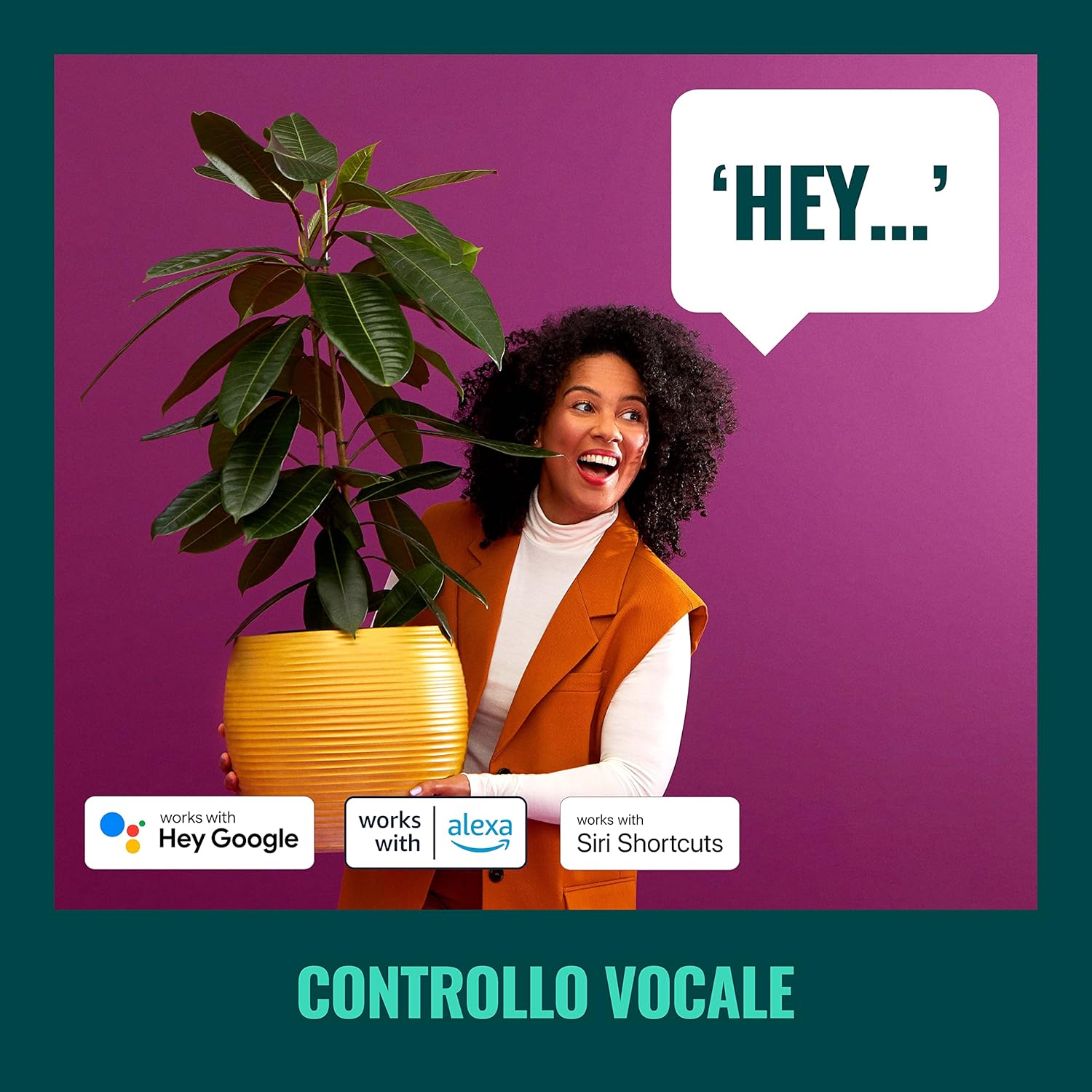
Foto 5: The WiZ system supports voice control via popular smart home platforms.
6.4. Schedules and Routines
Automate your lighting to fit your daily routine.
- Ịhazi oge: Set specific times for lights to turn on/off, change brightness, or alter color.
- Circadian Rhythm: Enable Circadian Rhythm to automatically adjust light color and brightness throughout the day to mimic natural light patterns, promoting well-being.

Foto 6: gafereview of advanced control features including scene personalization, remote control, scheduling, and circadian rhythm.
7. Nlekọta
- Nhicha: Disconnect power before cleaning. Wipe the fixture with a soft, dry cloth. Do not use abrasive cleaners or solvents.
- Ndokwa bọlbụ: Ensure power is off. Allow bulbs to cool before handling. Twist and pull to remove old GU10 bulbs, then insert new ones by aligning and twisting.
- Mmelite ngwanrọ: Regularly check the WiZ app for firmware updates to ensure optimal performance and access to new features.
8. Nchọpụta nsogbu
- Ọkụ Anaghị azaghachi:
- Check if the main power switch is on.
- Ensure your Wi-Fi network is active and stable.
- Verify that the WiZ app is connected to the correct Wi-Fi network.
- Try power cycling the spotlight plate (turn off for 10 seconds, then on).
- Ijikọ ihe isi ike:
- Ensure your phone is connected to a 2.4GHz Wi-Fi network during pairing.
- Move closer to your Wi-Fi router.
- Reset the bulbs by turning them on/off three times (on for 1-2 seconds, off for 1-2 seconds) until they flash.
- SpaceSense Not Detecting Movement:
- Increase the sensitivity setting in the WiZ app.
- Ensure there are at least two WiZ lights in the room for optimal detection.
- Check for obstructions that might block Wi-Fi signals.
- Okwu njikwa olu:
- Confirm that your WiZ account is correctly linked to your voice assistant.
- Lelee njikọ ịntanetị gị.
- Ensure the device name in the WiZ app matches the name used in voice commands.
9. Nkọwapụta
| Njirimara | Nkọwapụta |
|---|---|
| Ụdị | WiZ |
| Nọmba nlereanya | 929003210801 |
| Akụkụ ngwaahịa | 12 x 11 x 26 cm |
| Ibu | 1 n'arọ |
| Agba | Ọcha |
| Ihe onwunwe | Metal (fixture), Plastic (shade) |
| Ụdị | Nke dị ugbu a |
| Ọnụọgụ ọkụ | 3 |
| Ụdị bọlbụ | Ikanam |
| Isi Bulb | GU10 |
| Wattage (kwa bọlbụ) | 5 Watt |
| Flux na-egbuke egbuke | lumens 1350 (mkpokọta) |
| Voltage | Volt 230 (AC) |
| Ogo IP | IP20 |
| Nkezi ndụ | Awa 15,000 |
| Atụmatụ pụrụ iche | Dimmable, Energy Saving, SpaceSense Technology, Voice Control |
10. Akwụkwọ ikike na nkwado
For warranty information and technical support, please refer to the official WiZ websaịtị ma ọ bụ kpọtụrụ ndị ahịa ha ọrụ. Debe nnata nzụta gị ka ihe akaebe nke ịzụrụ.
Akụrụngwa dị n'ịntanetị: Gaa leta WiZ Brand Store maka ozi ngwaahịa na nkwado ndị ọzọ.


