1. Okwu mmalite
The Logitech Signature M650 L for Business Wireless Mouse is designed to enhance productivity and comfort for users with large-sized hands. It offers versatile connectivity options, including Logi Bolt USB receiver for secure connections and Bluetooth Low Energy for cross-platform flexibility. Featuring SmartWheel technology for adaptable scrolling and SilentTouch technology for quiet clicks, this mouse aims to reduce fatigue and improve user experience.
This manual provides comprehensive instructions for setting up, operating, maintaining, and troubleshooting your Signature M650 L mouse.

Image: The Logitech Signature M650 L mouse in graphite color, displayed alongside its retail packaging, highlighting its design and key features.
2. Kedu ihe dị na Igbe ahụ
Upon unboxing your Logitech Signature M650 L mouse, verify that all the following components are included:
- Signature M650L Mouse
- USB Receiver (Logi Bolt)
- Batrị 1 x AA (etinyere ya ma ọ bụ tinye ya iche)
- Instructions (this manual)

Image: A visual representation of the items included in the product package: the Signature M650 L mouse and the Logi Bolt USB receiver, alongside the product box.
3. Atụmatụ igodo
- Mkpọgharị SmartWheel: Automatically switches between line-by-line precision and super-fast free-spin mode for efficient navigation.
- Ịpị nkịtị: Equipped with SilentTouch technology, reducing click noise by 90% for a quieter work environment.
- Njikọta abụọ: Connects via Logi Bolt USB receiver for robust, secure connections or via Bluetooth Low Energy for broad compatibility.
- Nhazi Ergonomic: Contoured shape and soft thumb area provide comfort, reducing forearm muscle activity by 25% compared to a laptop touchpad.
- Bọtịnụ Akụkụ A Na-ahazi: Two programmable side buttons allow for personalized shortcuts and increased productivity.
- Ogologo ndụ batrị: Enjoy up to 24 months of battery life on a single AA battery.
- Ndakọrịta ọtụtụ Platform: Works seamlessly with Windows, macOS, Linux, Chrome OS, iPadOS, and Android.
- Nhazi na-adịgide adịgide: Made with certified post-consumer recycled plastic to minimize environmental impact.

Image: An annotated diagram highlighting the key features of the Logitech Signature M650 L mouse, including silent clicking, SmartWheel, Bluetooth connectivity, customizable side buttons, comfort shape & texture, and 24-month battery life.

Image: A comparison showing the relative sizes of the standard M650 mouse and the larger M650 L mouse, indicating that the product is available in two sizes to fit different hand dimensions.
4. Ntuziaka Nhazi
4.1. Ntinye batrị
- Chọta ebe batrị dị n'okpuru òké.
- Mepee mkpuchi nke batrị batrị.
- Tinye batrị AA dị na ya, hụ na polarity ziri ezi (+/-).
- Mechie mkpuchi nke batrị batrị nke ọma.
4.2. Ijikọ gị òké
The Signature M650 L offers two primary connection methods:
4.2.1. Logi Bolt USB Receiver (Recommended for Business Environments)
- Remove the Logi Bolt USB receiver from the mouse's battery compartment (if stored there).
- Plug the Logi Bolt USB receiver into an available USB-A port on your computer.
- Gbanye òké ahụ site na iji ihe mgba ọkụ dị n'okpuru ya.
- The mouse should automatically connect to the receiver. If not, press and hold the connect button on the mouse (usually near the power switch) until the LED indicator blinks, then release.

Foto: A nso nso view of the Logi Bolt USB receiver plugged into the side of a laptop, illustrating its compact size and secure connection.
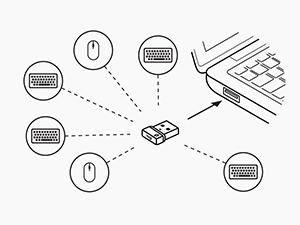
Image: A diagram illustrating how a single Logi Bolt USB receiver can connect to multiple compatible Logitech devices, including mice and keyboards, providing a unified wireless solution.
4.2.2. Ike Bluetooth dị ala
- Gbanye òké ahụ site na iji ihe mgba ọkụ dị n'okpuru ya.
- Press and hold the connect button on the mouse (usually near the power switch) for 3 seconds until the LED indicator blinks rapidly, indicating it's in pairing mode.
- Na kọmputa ma ọ bụ ngwaọrụ gị, mepee ntọala Bluetooth.
- Select "Logitech M650 L" from the list of available devices and follow any on-screen prompts to complete pairing.
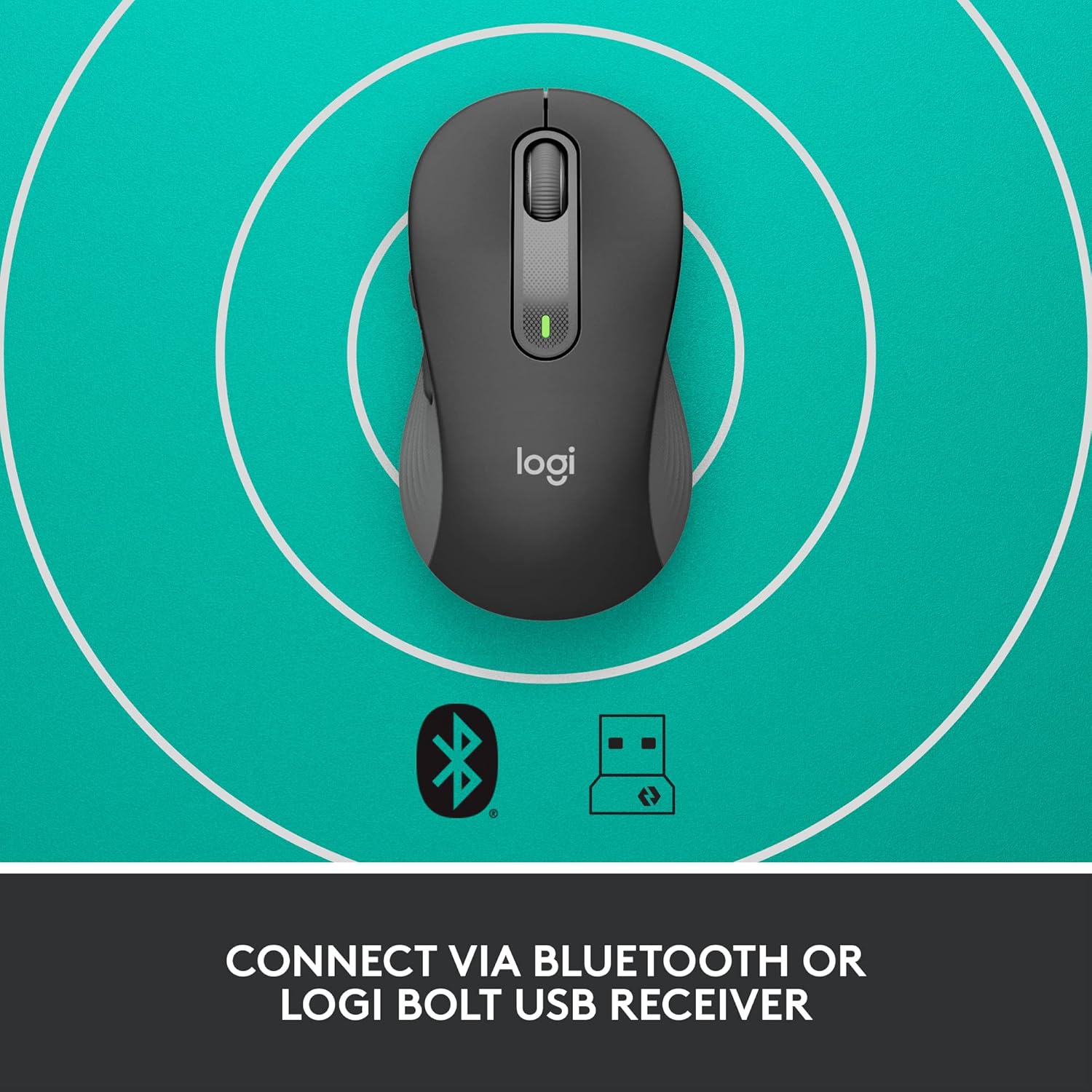
Image: The Logitech Signature M650 L mouse positioned on a surface with concentric circles, accompanied by Bluetooth and Logi Bolt icons, signifying its dual connectivity options.
5. Operating Your Mouse
5.1. Ọrụ ndị bụ isi
- Pịa aka ekpe: Ihe omume bụ isi, nhọrọ.
- Pịa aka nri: Context menu.
- Okporo ụzọ Smart: Scroll up/down. The wheel automatically switches between precise line-by-line scrolling and hyper-fast free-spin scrolling based on your scrolling speed.
- Bọtịnụ akụkụ: By default, these buttons may perform forward/back actions in web nchọgharị.
5.2. Customizing Buttons (Logitech Options Software)
To unlock the full potential of your Signature M650 L mouse, download and install the Logitech Options software from the official Logitech websaịtị (www.logitech.com/software/logi-options-plus.html). This software allows you to:
- Reassign the side buttons to perform various functions (e.g., copy, paste, open applications, media controls).
- Adjust pointer speed (DPI).
- Customize SmartWheel behavior.
- View ọnọdụ batrị.
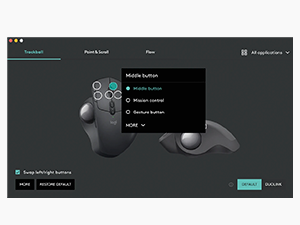
Image: A screenshot of the Logitech Options software interface, demonstrating how users can customize mouse buttons and settings for enhanced productivity.
6. Nlekọta
6.1. Ihicha òké gị
Iji nọgide na-arụ ọrụ kacha mma na ịdị ọcha, na-ehicha òké gị mgbe niile:
- Jiri akwa dị nro na-enweghị ntụpọ dampejiri mmiri ma ọ bụ ihe eji asacha ihe nke nwere ike ime ka ọ dị mfe iji.
- Wipe down the surface of the mouse.
- For optical sensor, use a dry cotton swab to gently clean any dust or debris.
- Zere iji kemịkalụ siri ike, ihe nhicha ihe na-emebi ihe, ma ọ bụ itinye òké n'ime mmiri mmiri.
6.2. Ngbanwe batrị
When the battery indicator light on your mouse turns red or the mouse becomes unresponsive, it's time to replace the AA battery. Follow the battery installation steps in Section 4.1.
7. Nchọpụta nsogbu
| Nsogbu | Ihe nwere ike ime | Ngwọta |
|---|---|---|
| Òké anaghị aza | Low battery; Receiver disconnected; Bluetooth not paired; Mouse powered off. | Replace battery; Re-insert Logi Bolt receiver; Re-pair Bluetooth; Turn mouse on. |
| Cursor lag or erratic movement | Interference; Dirty optical sensor; Surface issues; Low battery. | Move mouse closer to receiver/device; Clean optical sensor; Use a mouse pad; Replace battery. |
| bọtịnụ akụkụ anaghị arụ ọrụ | Logitech Options not installed or configured; Software conflict. | Install/reinstall Logitech Options; Check button assignments in software; Restart computer. |
| Enweghị ike ijikọ site na Bluetooth | Mouse not in pairing mode; Device's Bluetooth off; Interference. | Ensure mouse is in pairing mode (blinking LED); Enable Bluetooth on device; Move away from other wireless devices. |
8. Nkọwapụta
| Njirimara | Nkọwa |
|---|---|
| Ụdị | Logitech |
| Aha Nlereanya | Akara M650 L |
| Nọmba Nlereanya ihe | 910-006346 |
| Teknụzụ Njikọta | Bluetooth Low Energy, Logi Bolt USB Receiver |
| Teknụzụ nchọpụta ngagharị | Ngwa anya |
| Agba | Graphite |
| Ibu Ibu | 3.93 ounces (ihe dị ka gram 111.4) |
| Akụkụ ngwaahịa (LxWxH) | 4.65 x 2.58 x 1.64 sentimita (ihe dịka 11.8 x 6.55 x 4.17 cm) |
| Ụdị batrị | Batrị 1 x AA (gụnyere) |
| Nkezi Ndụ batrị | Ruo ọnwa isii |
| Ngwaike Platform | PC, Linux, Mac |
| Ndakọrịta sistemụ arụmọrụ | Windows 11, Windows 10, macOS 10.15+, Linux, Chrome OS, iPadOS 13.4+, Android 5.0+ |
| Mba onye si | China |
9. Akwụkwọ ikike na nkwado
9.1. Akwụkwọ ikike Ozi
Logitech products typically come with a limited hardware warranty. Please refer to the warranty card included with your product or visit the official Logitech website for the most current and detailed warranty information applicable to your region and product model.
9.2. Nkwado ndị ahịa
For technical assistance, product inquiries, or to report issues, please visit the Logitech support websaịtị:
You may also find helpful FAQs, troubleshooting guides, and driver downloads on their support portal.


