1. Ngwaahịa gafereview
The Intel Core i5-12400F is a 12th Generation desktop processor designed for enthusiast gamers and productivity users. It features 6 Performance-cores (P-cores) and 12 threads, with a base clock speed of 2.5 GHz and a maximum turbo frequency of up to 4.4 GHz. This processor supports PCIe Gen 5.0 & 4.0, as well as both DDR5 and DDR4 memory technologies, offering flexibility for various system configurations. It is compatible with 600 series chipset based motherboards and has a Processor Base Power of 65W. The "F" designation indicates that this processor does not include integrated graphics, requiring a discrete graphics card for display output. An Intel Laminar RM1 cooler is included in the box.

Image: Retail packaging for the Intel Core i5-12400F processor, showing the Intel Core i5 12th Gen branding.
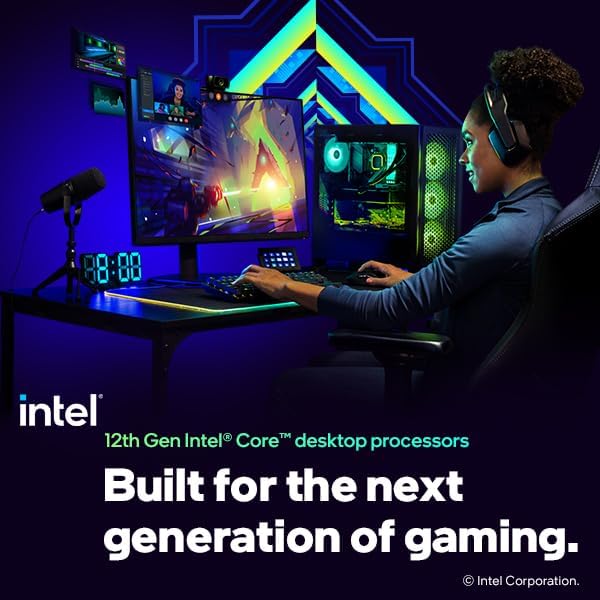
Foto: nso nso view of the Intel Core i5 processor chip, highlighting its metallic surface and Intel branding.
2. Nwụnye na Ntọala
Proper installation of your Intel Core i5-12400F processor is crucial for optimal performance and system stability. Please follow these steps carefully. It is recommended to consult your motherboard's manual for specific instructions related to your model.
2.1. Ndepụta ntinye tupu etinyere
- Compatible Motherboard: Ensure your motherboard has an LGA1700 socket and a 600 series chipset.
- Tapawa okpomọkụ: The included Intel Laminar RM1 cooler comes with pre-applied thermal paste. If using an aftermarket cooler, ensure you have thermal paste.
- Ngwa: Phillips isi sikruuokwomoto.
- Nchedo kwụ ọtọ: Use an anti-static wrist strap or frequently touch a grounded metal object to discharge static electricity.
- Kaadị eserese pụrụ iche: Remember, the i5-12400F requires a separate graphics card for video output.
2.2. Usoro Ntinye Ihe Nhazi
- Kwadebe motherboard: Place the motherboard on a non-conductive, flat surface. Locate the CPU socket (LGA1700).
- Open the CPU Socket: Gently push down the load lever on the side of the socket and pull it away from the socket to release the retention frame. Lift the load plate.
- Wụnye ihe nhazi ahụ: Carefully align the triangular mark on the corner of the processor with the corresponding mark on the CPU socket. Lower the processor straight down into the socket without applying force. Do not touch the gold contacts on the bottom of the CPU.
- Chekwaa ihe nhazi ahụ: Close the load plate over the processor, ensuring it sits correctly. Push the load lever back into its original position until it clicks, securing the processor.
- Wụnye ihe nju oyi:
- Place the Intel Laminar RM1 cooler directly on top of the CPU, aligning the four push-pins with the holes on the motherboard.
- Press down on each push-pin until it clicks into place. Ensure all four pins are securely fastened.
- Connect the cooler's 4-pin power cable to the CPU_FAN header on the motherboard.

Image: A gaming and streaming setup featuring a PC powered by a 12th Gen Intel Core desktop processor, illustrating a typical use case.
3. Operating Your Processor
The Intel Core i5-12400F processor functions as the central processing unit of your computer system. Once installed, it will manage all computational tasks, from running operating systems and applications to processing complex data for gaming and content creation.
3.1. Njirimara arụmọrụ
- Nhazi Isi: 6 Performance-cores (P-cores) with 12 threads provide strong multi-threaded performance for demanding applications.
- Ọsọ elekere: A base clock of 2.5 GHz and a max turbo frequency of 4.4 GHz ensure responsiveness and high performance under load.
- Nkwado ebe nchekwa: Compatibility with both DDR4 and DDR5 memory allows for flexible system building and future upgrades.
- Nkwado PCIe: PCIe Gen 5.0 and 4.0 support enables high-speed connectivity for graphics cards and NVMe SSDs.

Image: Graphic displaying key performance metrics for the Intel Core i5-12400F, including up to 4.4 GHz Max Clock Speed, 6 Cores, and 12 Threads.
3.2. System chọrọ
To ensure proper operation, your system should meet the following requirements:
- Motherboard: LGA1700 socket, 600 series chipset.
- RAM: DDR4 or DDR5 memory modules (check motherboard compatibility for specific speeds and capacities).
- Kaadị eserese: A discrete graphics card is mandatory for video output.
- Ịnye ọkụ: Adequate wattage to support the CPU, motherboard, graphics card, and other components.
- Sistemụ nrụọrụ: Compatible with modern operating systems such as Windows 10/11 (64-bit).
4. Nlekọta
Maintaining your processor primarily involves ensuring adequate cooling and a clean operating environment for your computer system. The processor itself requires no direct maintenance.
4.1. Ndozi usoro oyi
- Mwepụ uzuzu: Regularly clean dust from the CPU cooler heatsink and fan, as well as case fans, using compressed air. Dust accumulation can impede airflow and lead to higher temperatures.
- Ọrụ Fan: Ensure the CPU fan is spinning freely and quietly. Unusual noises or lack of rotation may indicate a fan failure.
- Tapawa okpomọkụ: If you remove the CPU cooler for any reason, it is recommended to clean off old thermal paste from both the CPU and cooler base and apply a fresh layer before reinstallation.
4.2. System Environment
- Igwe ikuku: Ensure your computer case has good airflow and is placed in a well-ventilated area, away from direct heat sources.
- Okpomọkụ: Monitor CPU temperatures using system monitoring software. Sustained high temperatures can reduce processor lifespan.
5. Ịchọpụta nsogbu nkịtị
If you encounter issues with your system after installing the Intel Core i5-12400F, consider the following troubleshooting steps:
5.1. Enweghị Ngosipụta Ngosipụta
- Kaadị eserese pụrụ iche: Verify that a discrete graphics card is properly installed and connected to your monitor. The i5-12400F does not have integrated graphics.
- Njikọ Ike: Gbaa mbọ hụ na ejikọrọ eriri ọkụ niile (ATX 24-pin, CPU 8-pin, ike PCIe maka GPU) na nchekwa.
- RAM: Reseat your RAM modules. Try booting with only one RAM stick if you have multiple.
- Nyochaa ntinye: Check that your monitor is set to the correct input source.
5.2. System Not Booting / POST Errors
- Nwụnye CPU: Recheck the CPU installation to ensure it is seated correctly in the socket and the load lever is secured.
- Ihe nju oyi CPU: Confirm the CPU cooler is properly installed and its fan cable is connected to the CPU_FAN header.
- Ndakọrịta Motherboard: Ensure your motherboard BIOS is updated to support 12th Gen Intel processors. Some older 600 series motherboards might require a BIOS update before installing a 12th Gen CPU.
- Kpochapụ CMOS: Refer to your motherboard manual to clear the CMOS settings, which can resolve boot issues.
5.3. Overheating / Thermal Throttling
- Cooler Contact: Ensure the CPU cooler makes full and even contact with the CPU's integrated heat spreader (IHS).
- Tapawa okpomọkụ: Verify that thermal paste was applied correctly. If using the stock cooler, ensure the pre-applied paste was not disturbed.
- Ofufe ikuku: Check for adequate case airflow. Ensure intake and exhaust fans are working and not obstructed by dust.
- Ọsọ onye ofufe: Confirm CPU fan speed is controlled correctly by the motherboard BIOS/UEFI.
6. Nka na ụzụ nkọwa
| Njirimara | Nkọwa |
|---|---|
| Ụdị Nhazi | Intel Core i5-12400F |
| Cores / eri | 6 Cores (6 P-cores) / 12 Threads |
| Ọsọ elekere isi | 2.5 GHz |
| Ugboro Max Turbo | Ruo 4.4 GHz |
| Cketdị sọks | LGA1700 |
| Ndakọrịta Chipset | Chipset Intel 600 Series |
| Ike isi ihe nhazi | 65W |
| Eserese agbakwunyere | Ọ dịghị (Achọrọ eserese dị iche iche) |
| PCIe Revision | 5.0 & 4.0 |
| Nkwado ebe nchekwa | DDR5 na DDR4 |
| Included Cooler | Intel Laminar RM1 |
| Ibu Ibu | Approximately 1.03 pounds (processor only) |
| Akụkụ ngwaahịa | 5 x 3 x 5 inch (nkwakọ ngwaahịa) |
7. Akwụkwọ ikike na nkwado
7.1. Intel Limited Warranty
Intel processors typically come with a limited warranty. The duration and terms of the warranty may vary by region and retailer. Please retain your proof of purchase for warranty claims. For detailed information regarding the warranty policy for your Intel processor, please visit the official Intel websaịtị ma ọ bụ kpọtụrụ nkwado ndị ahịa Intel.
7.2. Nkwado nka na ụzụ
For technical assistance, driver downloads, or further product information, please visit the official Intel Support websaịtị:
When contacting support, please have your processor model (i5-12400F) and any relevant system information ready.


