Important Information Before Installation
Biko review the following critical information before proceeding with installation to ensure proper functionality and safety.
- Wiring Methods:
- No Neutral Conductor Required: This switch operates with only a single live wire. A yellow adapter must be connected to two sides of the lamp on L1 (not L2 or L3) and cannot be connected directly to a switch socket. Regardless of whether you purchase a 1-gang, 2-gang, or 3-gang version, only one adapter needs to be installed.
- Neutral Conductor Required: For models requiring a neutral conductor, no adapter is necessary.
- Gbanwee arụ ọrụ: The smart switch features a changeover switch or multi-control functionality within the Smart Life APP, allowing it to work with other smart switches. Wi-Fi connectivity is essential for these features.
- Akpachara anya nwụnye: Do not touch the switch before the glass plate is fully installed. Failure to do so may prevent the device from functioning correctly.
- Enweghị ike ịkwụsị: This product is not a dimmer switch and does not support dimming functions.

This image illustrates key considerations before installing the CNBINGO Smart Touch Switch, emphasizing wiring, non-dimmable nature, and installation sequence.
Ngwaahịa gafereview
The CNBINGO Smart Touch Wi-Fi Switch with Double Schuko Socket combines a smart touch-sensitive light switch with two standard Schuko power outlets. Designed for modern homes, it offers convenient control over lighting and power, integrating with smart home ecosystems.
Akụkụ ndị bụ isi:
- Nwụnye dị mfe: Features a removable wall plate for screw-free installation and clear wiring guidance.
- Double Schuko Socket: Two non-smart power outlets, supporting AC 16A 250V max, with child protection and phosphore copper for optimal conductivity and safety.
- Wi-Fi Smart Switch: A 2-way, 1-pole touch system that does not require a neutral conductor. Supports up to 1500W per compartment, AC 90-240V.
- Ndakọrịta Smart Home: Works with Amazon Alexa, Google Assistant, and IFTTT for voice control and automation.
- Njikwa ngwa: Utilize the Smart Life app (iOS and Android) for remote light control, scheduling, timers, scene creation, and family sharing.
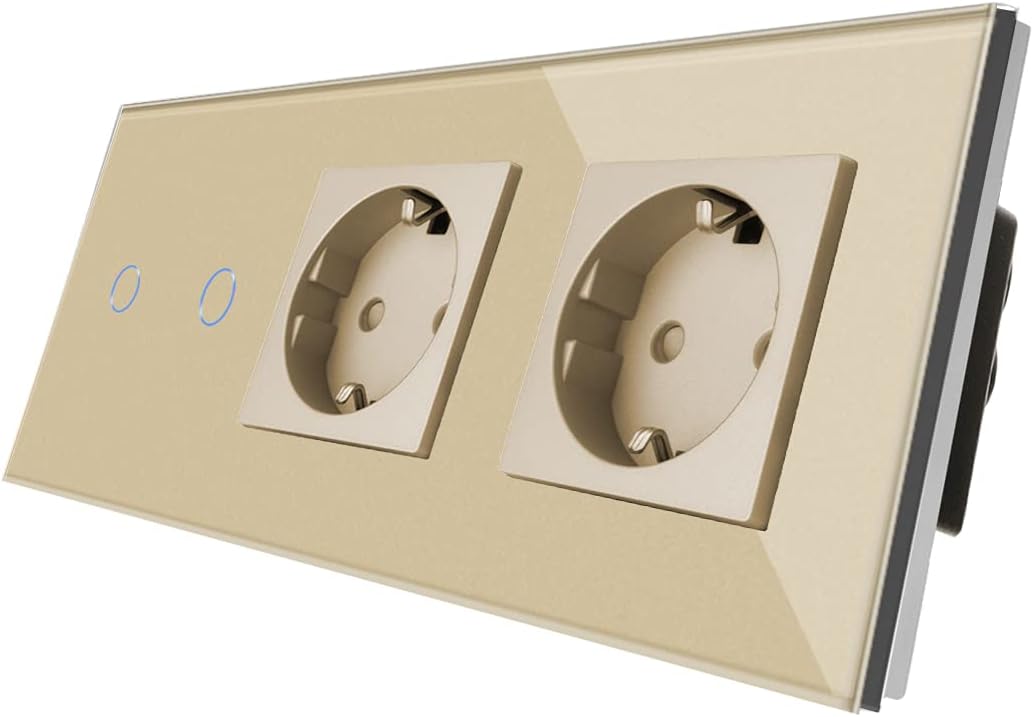
Onyonyo a na-enye akụkụ view of the CNBINGO Smart Touch Wi-Fi Switch with Double Schuko Socket, highlighting its design and components.
Nkọwapụta
| Njirimara | Nkọwapụta |
|---|---|
| Onye nrụpụta | CNBINGO |
| Nọmba nlereanya | L1-201+M1-P111.2 |
| Akụkụ (L x W x H) | 15.7 x 8.6 x 3.9 cm |
| Ibu | 420 grams |
| Ntinye Voltage | AC 90-240V |
| Nrụ ọrụ Voltage | 250 volts |
| Current Rating (Socket) | 16 A |
| Max Load (Switch) | 1500W / compartment |
| Gbanwee Style | Metụ aka |
| Usoro njikwa | Application (Smart Life App) |
| Ụdị njikọ | 1 pole, 2 sockets |
| Neutral Wire Requirement | Not required for switch (adapter needed for lamp) |
| Batrị achọrọ | Mba |
Nwụnye
Ịdọ aka ná ntị nchekwa:
- Always turn off power at the circuit breaker before installation or maintenance.
- Ọ bụrụ na obi adịghị gị mma maka waya eletriki, gakwuru ọkachamara ọkụ eletrik ruru eru.
- Ensure the product's specifications match your electrical system.
- Awụnyela na mmiri ma ọ bụ damp gburugburu.
Eserese waya:
Follow the wiring instructions carefully. For the no-neutral-wire switch, ensure the yellow adapter is correctly installed at the lamp's L1 connection.

This image displays the rear of the switch, indicating the wiring terminals for electrical connections. Note the specific terminals for live (L) and neutral (N) wires, and switch outputs (L1, L2, L3).
Ịkwanye:
The switch is designed for easy installation into standard EU flush-mounted boxes. The removable wall plate allows for a clean, screw-free finish. The unit can be mounted vertically or horizontally to suit your preference.

This image illustrates the flexibility of installing the switch either horizontally or vertically to match your room's aesthetic and functional needs.
Physical Installation Steps:
- Gbanyụọ isi ihe na-enye ike na ihe na-agbaji sekit.
- Remove the existing switch/socket from the wall box.
- Connect the wires to the appropriate terminals on the CNBINGO switch as per the wiring diagram. Ensure all connections are secure.
- For no-neutral-wire models, install the yellow adapter at the lamp's L1 connection.
- Mount the switch mechanism into the wall box using screws.
- Attach the glass front panel. Ensure it clicks securely into place.
- Weghachite ike na sekit breaker.
Setup (App & Voice Control)
App Download & Account Creation:
- Download the 'Smart Life' app from the App Store (iOS) or Google Play Store (Android).
- Debanye aha maka akaụntụ ọhụrụ ma ọ bụ banye ma ọ bụrụ na ị nwere otu.
Jikọọ na Wi-Fi:
- Open the Smart Life app and tap '+' to add a new device.
- Select 'Switch (Wi-Fi)' or 'Socket (Wi-Fi)' depending on the device type.
- Follow the in-app instructions to put the device into pairing mode (usually by pressing and holding a button on the switch).
- Enter your Wi-Fi network credentials (2.4GHz network only).
- Once connected, you can rename the device for easier control.
Mgbakwunye Onye enyemaka olu:
The CNBINGO Smart Touch Switch is compatible with Amazon Alexa and Google Assistant, allowing for convenient voice control.

This image demonstrates the voice control feature, showing the smart switch alongside Amazon Alexa and Google Home devices.
- Maka Amazon Alexa:
- Open the Alexa app, go to 'Skills & Games', and search for 'Smart Life'.
- Enable the skill and link your Smart Life account.
- Discover devices. You can now control your switch using voice commands like "Alexa, turn on Switch 1."
- Maka onye enyemaka Google:
- Open the Google Home app, tap '+' to 'Set up device', then 'Works with Google'.
- Chọọ maka 'Smart Life', link your account, and assign the switch to a room.
- Control your switch with commands like "Hey Google, turn off the living room light."

This image confirms the product's compatibility with Google Assistant and Amazon Alexa for voice control.
Ntuziaka ọrụ
Njikwa mmetụ aka:
The touch-sensitive panel allows for direct control of the connected lights. A gentle touch on the designated area will toggle the light on or off. The blue LED indicator will show the current status (bright for ON, dim for OFF).
Njikwa Ngwa (Ngwa Smart Life):
Once connected to the Smart Life app, you can access a range of smart features:
- Njikwa anya: Turn lights on or off from anywhere using your smartphone.
- Schedules & Timers: Set specific times for lights to turn on or off automatically, or create countdown timers.
- Ihe nkiri: Create custom scenes to control multiple lights or devices with a single tap.
- Ịkekọrịta ngwaọrụ: Share control of the switch with family members through the app.

This image displays the Smart Life app interface, demonstrating remote control capabilities and various smart features like scheduling and scene creation.
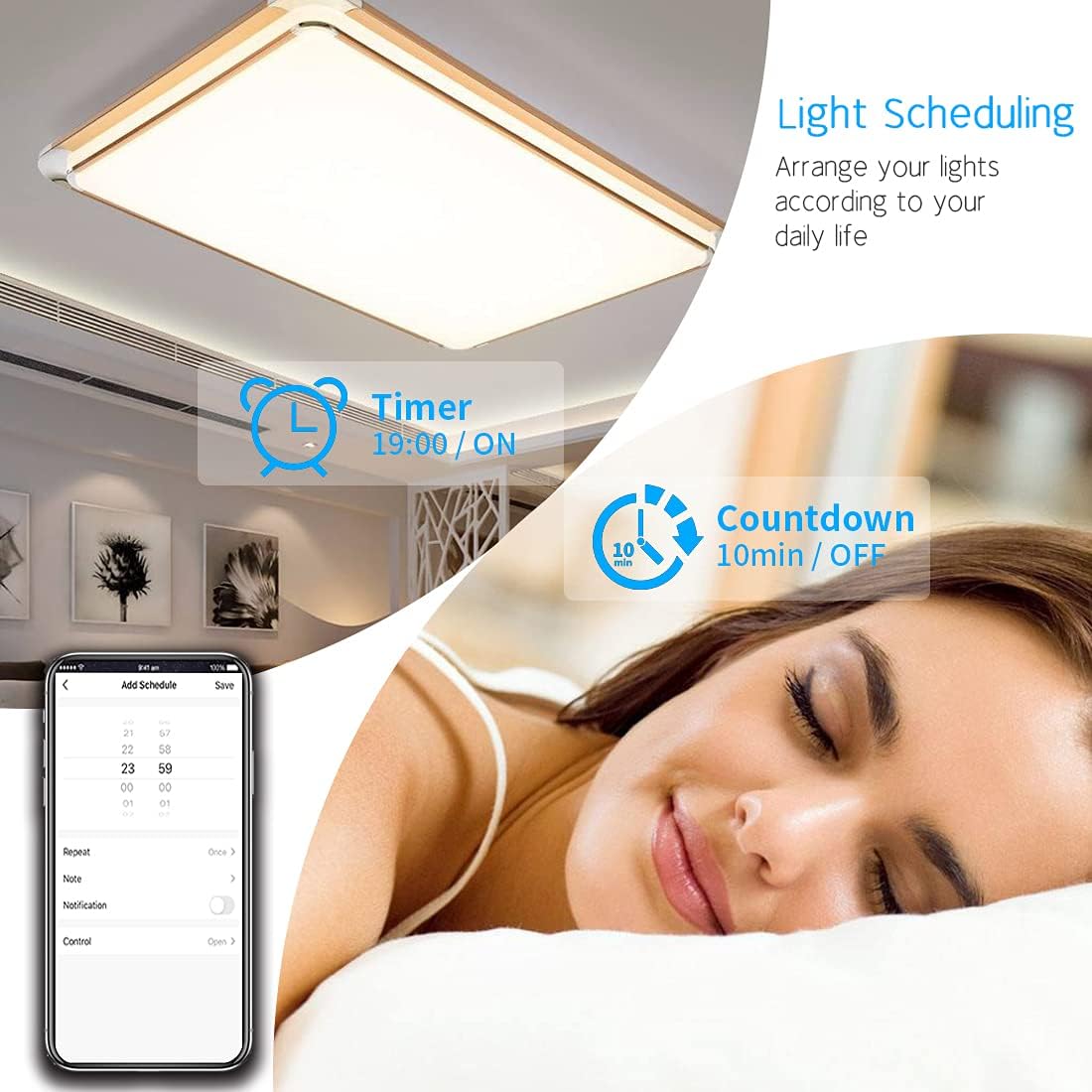
This image illustrates the light scheduling feature within the Smart Life app, allowing users to set timers and countdowns for automated lighting control.
Nlekọta
- Clean the glass panel with a soft, dry cloth. Avoid abrasive cleaners or solvents.
- Ensure the switch and sockets are free from dust and debris.
- Regularly check for any loose connections or signs of damage. If damage is found, discontinue use and consult a qualified electrician.
Nchọpụta nsogbu
- Mgbanwe anaghị aza: Ensure power is supplied to the switch. Check the circuit breaker. Verify the glass panel is correctly installed.
- Nsogbu njikọ Wi-Fi: Ensure your Wi-Fi network is 2.4GHz. Check if the router is within range. Try resetting the switch to pairing mode and re-connecting via the app.
- Njikwa olu anaghị arụ ọrụ: Confirm that your Smart Life account is correctly linked to Alexa or Google Assistant. Ensure the device is discovered and named appropriately in the respective voice assistant app.
- Light flickering or not turning on (no neutral wire model): Verify the yellow adapter is correctly installed at the lamp's L1 connection. Ensure the lamp is compatible with no-neutral-wire switches.
- Sockets not working: The sockets are not smart and do not connect to Wi-Fi. Check if power is supplied to the unit. Ensure devices plugged in are within the 16A 250V limit.
Akwụkwọ ikike na nkwado
This CNBINGO product comes with a Akwụkwọ ikike afọ 5 n'efu. For any issues or support, please contact CNBINGO customer service. Ensure you have your purchase details and model number (L1-201+M1-P111.2) available when contacting support.

This image highlights the general advantages offered by CNBINGO products, including energy efficiency and smart home integration.


