1. Okwu mmalite
This manual provides comprehensive instructions for the Vgate iCar Pro Bluetooth 4.0 OBD2 Car Diagnostic Tool and the accompanying 16 Pin OBD2 Splitter. Please read this manual carefully before using the product to ensure proper operation and to prevent damage.
The Vgate iCar Pro is designed to connect to your vehicle's On-Board Diagnostics (OBD2) port, allowing you to access vehicle data via a compatible smartphone application. The 16 Pin OBD2 Splitter provides flexibility for connecting multiple devices or for easier access to the OBD2 port.
2. Ngwaahịa gafereview
2.1 Vgate iCar Pro Bluetooth 4.0 Diagnostic Tool
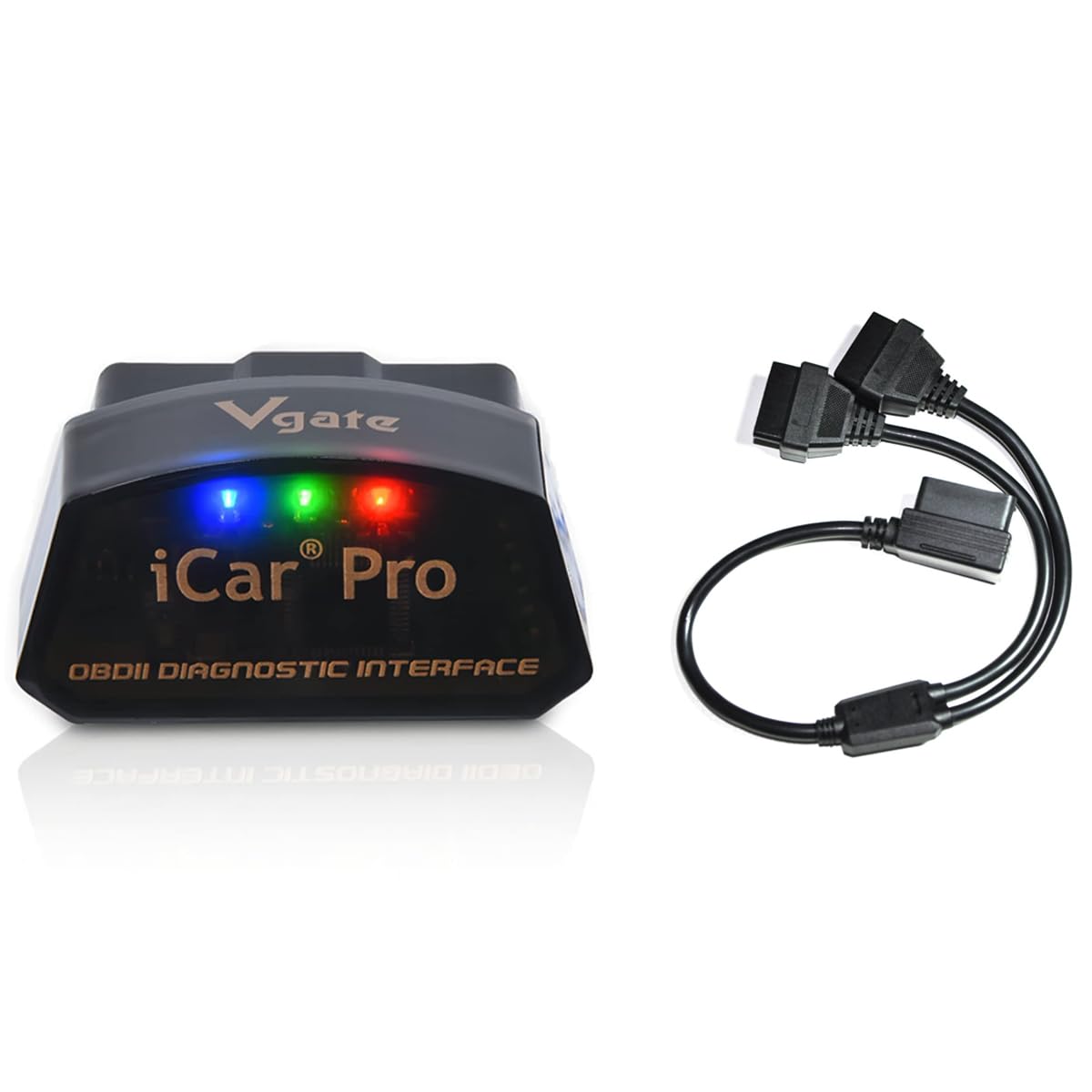
Figure 1: Vgate iCar Pro Bluetooth 4.0 OBD2 Diagnostic Tool. This image shows the compact design of the diagnostic tool with the Vgate and iCar Pro branding.
The iCar Pro is a compact device that plugs directly into your vehicle's OBD2 port. It uses Bluetooth Low Energy (BLE 4.0) to communicate wirelessly with your smartphone or tablet, enabling various diagnostic functions through compatible applications.
2.2 16 Pin OBD2 Splitter Cable
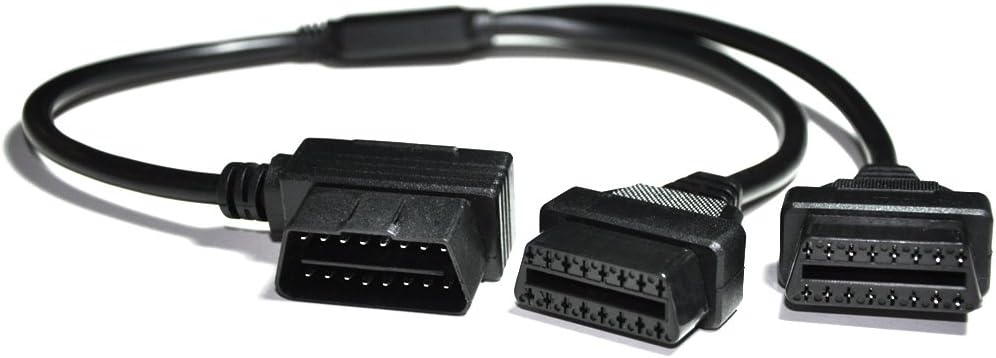
Figure 2: 16 Pin OBD2 Splitter Cable. This image displays the Y-shaped splitter cable with one male and two female OBD2 connectors.
The 16 Pin OBD2 Splitter cable (approximately 12 inches / 30cm in length) allows you to connect the iCar Pro diagnostic tool while keeping the original OBD2 port accessible for other devices or for easier placement of the diagnostic tool.

Figure 3: OBD2 Splitter Cable Pinout Diagram. This image shows the internal wiring connections for each pin on the OBD2 connector, detailing functions like J1850 BUS+, Chassis Ground, Signal Ground, CAN High, CAN Low, and Battery Power.
3. Nhazi ntuziaka
Follow these steps to set up your Vgate iCar Pro diagnostic tool and connect it to your vehicle and smartphone.

Figure 4: Four Easy Steps for Vgate iCar Pro Setup. This image illustrates the four main steps: downloading an app, connecting the scanner to the OBD2 port, connecting the adapter via Bluetooth, and launching the app.
- Download a Compatible OBD2 App: Chọọ maka and download a compatible OBD2 diagnostic application from your device's app store (e.g., Torque for Android, Car Scanner, OBD Fusion, OBD Jscan, BimmerCode). Note that some apps may require a purchase or subscription.
- Connect the iCar Pro to the Vehicle's OBD2 Port: Locate your vehicle's 16-pin OBD2 diagnostic port, typically found under the dashboard on the driver's side. Firmly plug the Vgate iCar Pro device into this port. If using the splitter, connect the splitter to the OBD2 port first, then plug the iCar Pro into one of the splitter's female ports. Ensure the connection is secure.
- Turn on Vehicle Ignition: Turn your vehicle's ignition to the "ON" position (engine off) or start the engine, as required by your chosen app. The iCar Pro device should power on, indicated by LED lights.
- Jikọọ site na Bluetooth:
- Maka ngwaọrụ gam akporo: Go to your phone's Bluetooth settings, search for available devices, and select "Vgate" or "iCar Pro". Pair the device.
- Maka ngwaọrụ iOS: Mkpa: Do not attempt to pair the Bluetooth name in your iOS device's system settings. Instead, simply turn on your phone's Bluetooth, then open your chosen OBD2 app. The app will establish the connection directly.
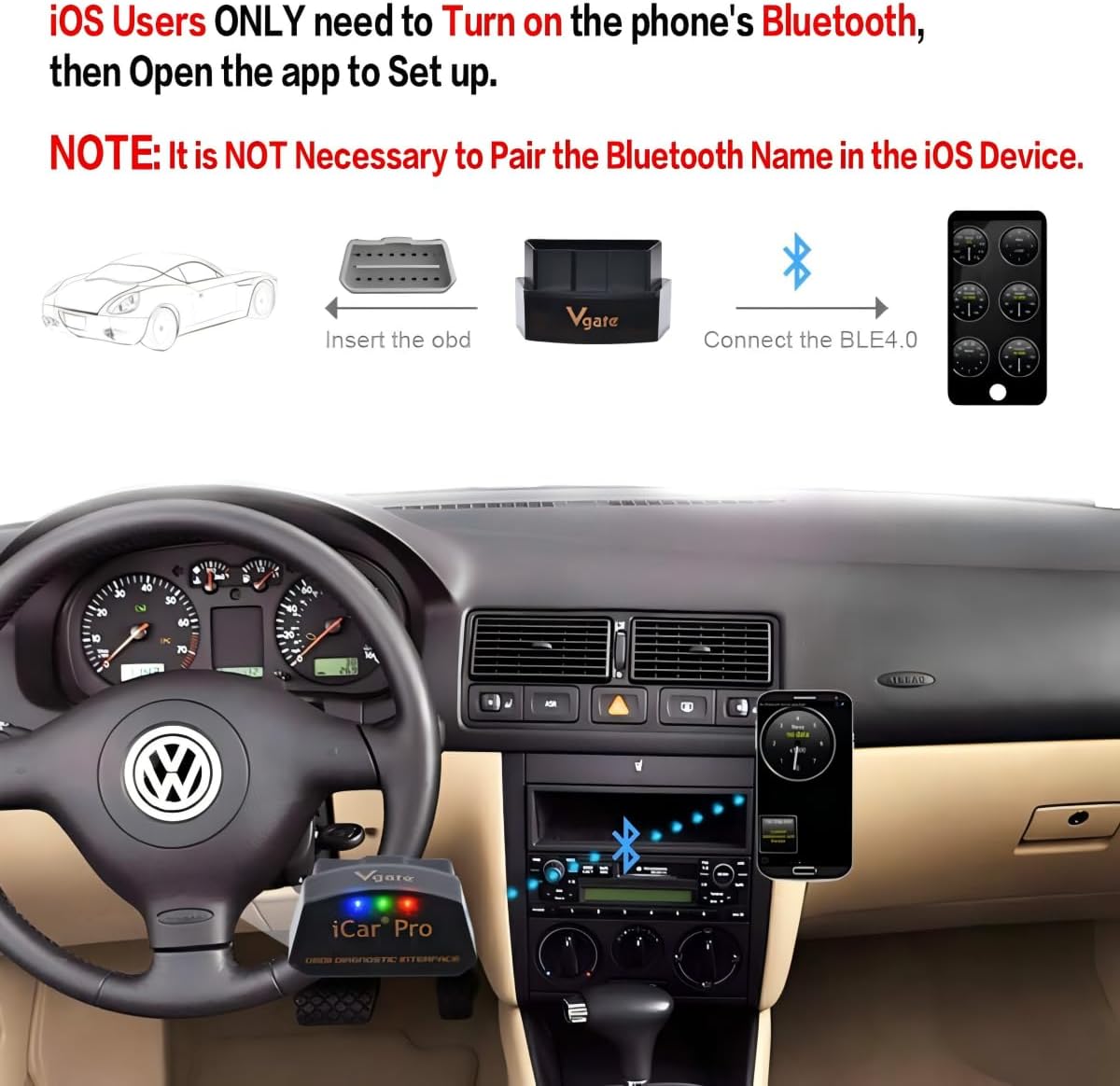
Figure 5: iOS Bluetooth Connection Instructions. This image highlights the specific instruction for iOS users to enable Bluetooth and connect directly through the app, without pairing in system settings.
- Launch the OBD2 App: Open the downloaded OBD2 application on your smartphone. Follow the app's instructions to connect to the Vgate iCar Pro device and begin diagnostics.

Figure 6: Vgate iCar Pro and Splitter Connected in Vehicle. This image shows the iCar Pro diagnostic tool connected to the OBD2 splitter, which is then plugged into the vehicle's OBD2 port, demonstrating a typical installation.
4. Ntuziaka ọrụ
Once the Vgate iCar Pro is successfully connected to your vehicle and paired with your smartphone via a compatible OBD2 app, you can begin using its diagnostic features.
- Ọrụ ngwa: The specific functions available will depend on the OBD2 application you are using. Common features include reading and clearing Diagnostic Trouble Codes (DTCs), viewing live sensor data (e.g., engine RPM, coolant temperature, fuel system status), performing emissions tests, and more. Refer to your chosen app's documentation for detailed usage instructions.
- Ụdị ụra akpaaka: The iCar Pro features an auto-sleep mode to conserve your vehicle's battery when not in use. The device will automatically enter a low-power state after a period of inactivity. It will wake up automatically when vehicle activity is detected or when the app attempts to connect.
- Nkọwa data: Understanding the data provided by the OBD2 app often requires some knowledge of vehicle systems. Consult a professional mechanic or reliable automotive resources if you are unsure about specific diagnostic codes or sensor readings.
5. Ndakọrịta
5.1 Ndakọrịta Ụgbọala
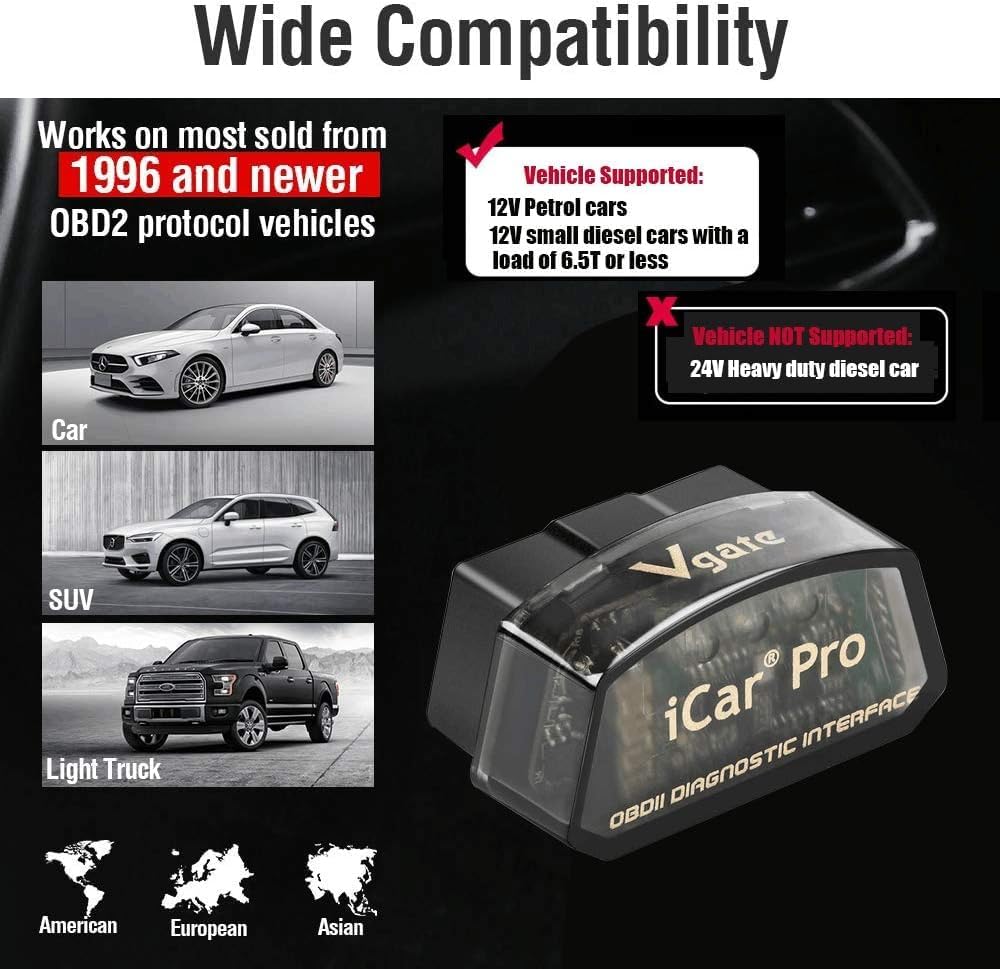
Figure 7: Vgate iCar Pro Vehicle Compatibility. This image illustrates the types of vehicles supported, including 12V petrol cars, 12V small diesel cars (under 6.5T), and explicitly states that 24V heavy-duty diesel cars are NOT supported.
- 12V Petrol Vehicles: Compatible with vehicles made in the U.S. supporting standard OBD2 protocols after 1996.
- 12V Light Diesel Vehicles: Compatible with vehicles having a load of 6.5 tons or less, supporting OBD2 protocols after 1996.
- Ihe ndetu dị mkpa: The Vgate iCar Pro is Ọ BỤGHỊ compatible with 24V power diesel cars or heavy-duty diesel vehicles.
5.2 App Compatibility
The Vgate iCar Pro Bluetooth 4.0 device works with many popular third-party OBD2 applications. Examples gụnyere:
- Torque (for Android)
- Ihe nyocha ụgbọ ala
- OBD Fusion
- OBD Jscan
- Koodu Bimmer
- Na ọtụtụ ndị ọzọ.
Please refer to the specific OBD2 app's website or description for detailed compatibility information and any potential fees associated with the app.
6. Nlekọta
The Vgate iCar Pro diagnostic tool and OBD2 splitter require minimal maintenance.
- Nhicha: Wipe the device and cable with a soft, dry cloth. Do not use liquid cleaners or solvents.
- Nchekwa: When not in use, store the device and cable in a cool, dry place, away from direct sunlight and extreme temperatures.
- Ijikwa: Avoid dropping the device or subjecting it to strong impacts. Do not pull on the cables forcefully when disconnecting.
7. Nchọpụta nsogbu
If you encounter issues with your Vgate iCar Pro, consider the following troubleshooting steps:
- Ngwaọrụ anaghị agba ọkụ:
- Ensure the iCar Pro is firmly seated in the vehicle's OBD2 port.
- Verify the vehicle's ignition is in the "ON" position or the engine is running.
- Check your vehicle's fuse for the OBD2 port (consult your vehicle's manual).
- Enweghị ike ijikọ site na Bluetooth:
- Maka gam akporo: Ensure Bluetooth is enabled on your phone and the iCar Pro is paired in your phone's Bluetooth settings. Try unpairing and re-pairing.
- Maka iOS: Ensure Bluetooth is enabled on your phone. Remember, do NOT pair in iOS settings; the connection is established directly through the OBD2 app. Close and reopen the app.
- Ensure no other devices are actively connected to the iCar Pro.
- Restart your phone and the vehicle's ignition.
- App Not Reading Data:
- Confirm that the iCar Pro is powered on and successfully connected via Bluetooth to your phone.
- Verify your vehicle's compatibility (12V petrol/light diesel, post-1996 OBD2 compliant).
- Ensure the OBD2 app is correctly configured to use the Vgate iCar Pro as its adapter.
- Try a different compatible OBD2 app to rule out app-specific issues.
- Njikọ na-adịte aka:
- Check for loose connections at the OBD2 port or splitter.
- Ensure there are no significant obstructions between the iCar Pro and your smartphone.
- Avoid placing your phone directly on top of the iCar Pro device, which might interfere with Bluetooth signals.
- Femụwe Update: If issues persist, a firmware update for the iCar Pro might be available. Please contact the Vgatemall support team for assistance with firmware updates.
8. Nkọwapụta
| Ụdị | Vgate |
| Nlereanya | iCar Pro Bluetooth 4.0 |
| Njikọta | Ike Bluetooth dị ala (BLE 4.0) |
| Interface | 16-pin OBD2 standard |
| Isi Iyi Ike | Vehicle OBD2 Port (12V) |
| Operating System (App) | Android, iOS (via compatible apps) |
| OBD2 Splitter Cable Length | Ihe dị ka sentimita 12 (30 cm) |
| ASIN | B09MHY5P1R |
| Ụbọchị mbụ dị | Maachị 6, 2017 |
9. Akwụkwọ ikike na nkwado
For product support, technical assistance, or inquiries regarding firmware updates, please contact the Vgatemall support team. Refer to your purchase documentation or the Vgate official websaịtị maka nkọwa akwụkwọ ikike akọwapụtara.
Ozi mkpọtụrụ: Please refer to the contact details provided with your product packaging or on the official Vgate websaịtị.


