Okwu mmalite
The Logitech Signature M650 L is a wireless computer mouse designed for enhanced comfort and productivity, particularly suited for users with larger hands. It features an adaptive SmartWheel for precise and fast scrolling, customizable side buttons, and SilentTouch technology for quiet clicks. This manual provides detailed instructions for setting up, operating, maintaining, and troubleshooting your M650 L mouse.
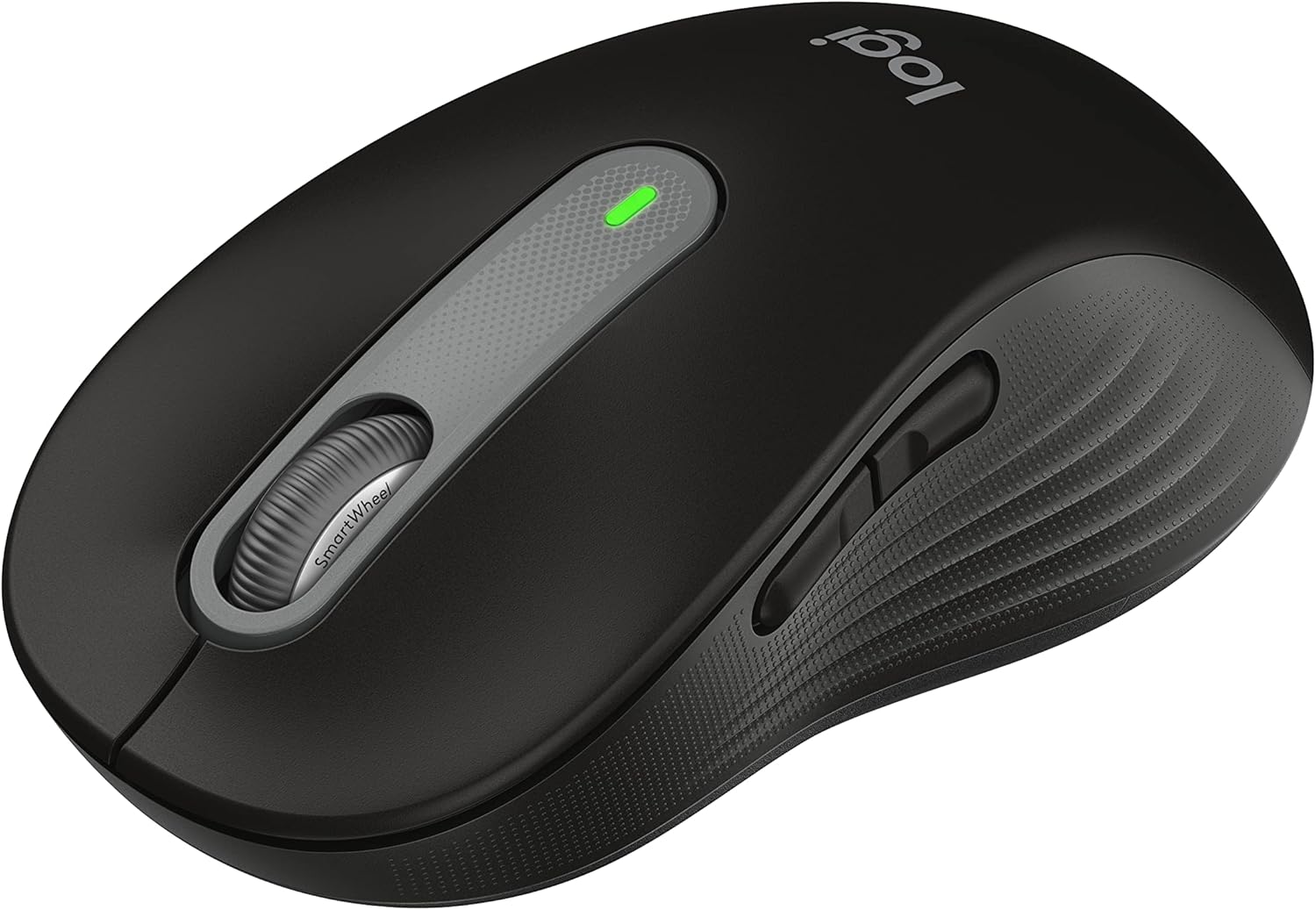
Figure 1: Logitech Signature M650 L Wireless Mouse
Melite
1. Ntinye batrị
The Signature M650 L mouse operates on a single AA battery, providing up to 24 months of battery life. The battery compartment is located on the underside of the mouse.
- Gently slide open the battery compartment cover on the bottom of the mouse.
- Fanye otu batrị AA, na-ahụ polarity ziri ezi (+/-).
- Close the battery compartment cover until it clicks securely into place.
2. Ijikọ gị òké
The M650 L offers two connectivity options: Bluetooth Low Energy or the Logi Bolt USB receiver.

Figure 2: Connectivity Options (Bluetooth and Logi Bolt USB Receiver)
Option A: Logi Bolt USB Receiver
- Locate the Logi Bolt USB receiver inside the battery compartment of your mouse.
- Remove the receiver and plug it into an available USB port on your computer.
- Gbanwee òké site na iji mgba ọkụ na ala. Òké kwesịrị jikọọ na-akpaghị aka.
Option B: Bluetooth Low Energy
- Gbanwee òké site na iji mgba ọkụ na ala.
- Press and hold the connection button on the bottom of the mouse until the LED light starts blinking rapidly. This indicates pairing mode.
- Na kọmputa gị, mepee ntọala Bluetooth:
- Windows: Go to Settings > Devices > Bluetooth & other devices > Add Bluetooth or other device.
- MacOS: Go to System Preferences > Bluetooth.
- Chrome OS/Linux: Access Bluetooth settings through your system tray or settings menu.
- Select "Signature M650 L" from the list of available devices to complete the pairing process.
Iji òké gị arụ ọrụ
SmartWheel Scrolling
The Signature M650 L features an adaptive SmartWheel that provides two modes of scrolling:
- Nhazi Ahịrị-site-Ahịrị: Maka nkọwa zuru ezu gbasara akwụkwọ na mpempe akwụkwọ.
- Nnukwu ọsọ ọsọ n'efu: Maka ịpịgharịa ngwa ngwa site na ogologo web pages or documents. The wheel automatically switches to this mode with a flick of your finger.

Figure 3: SmartWheel for Precision and Speed Scrolling
Customizable Side Buttons
The two side buttons on the M650 L mouse can be customized to perform your favorite shortcuts, such as back/forward navigation, copy/paste, or other functions. Customization is done through the Logitech Options+ software.

Figure 4: Customizing Buttons with Logitech Options+ Software
Silent Clicks (SilentTouch Technology)
The M650 L incorporates Logitech's SilentTouch technology, which reduces click noise by 90% compared to traditional mice. This feature allows for a quieter working environment, minimizing distractions for you and those around you.

Figure 5: Silent Clicks for a Quieter Workspace
Nkasi obi na ergonomics
The mouse is designed with a comfortable shape, a soft thumb area, and rubber side grips to ensure a secure and pleasant feel during long hours of use. The M650 L is specifically sized for larger hands, providing optimal ergonomic support.

Figure 6: Comfort Shape and Rubber Side Grips

Figure 7: M650 and M650 L Size Comparison
Ndakọrịta
The Logitech Signature M650 L mouse is compatible with a wide range of operating systems, ensuring versatile use across different devices.
- PC (Windows 10, 11 or later)
- Mac (macOS 10.15 or later)
- Linux
- Chromebook

Figure 8: Windows 11 Compatibility
Nlekọta
Ngbanwe batrị
When the mouse's performance degrades or the indicator light signals low battery, it's time to replace the AA battery. Follow the battery installation steps outlined in the Setup section.
Nhicha
To maintain optimal performance and hygiene, regularly clean your mouse:
- Jiri akwa dị nro na-enweghị ntụpọ dampened with water or an electronics-safe cleaning solution.
- Wipe the surface of the mouse, paying attention to the scroll wheel and side grips.
- Avoid using harsh chemicals or abrasive materials that could damage the mouse's finish.
Nchọpụta nsogbu
Okwu njikọ
- Òké anaghị aza: Ensure the mouse is powered on and the battery is not depleted. Replace the battery if necessary.
- Njikọ Bluetooth adịghị akwụsi ike: Move the mouse closer to your computer. Ensure no other devices are causing interference. Try re-pairing the mouse with your computer.
- Logi Bolt receiver not detected: Try plugging the receiver into a different USB port. Ensure the receiver is fully inserted.
- Switching between connections: If you switch between Bluetooth and the Logi Bolt receiver, you may need to re-pair or re-establish the connection each time.
Okwu arụmọrụ
- Mmegharị kọsọ na-ezighi ezi: Clean the optical sensor on the bottom of the mouse. Ensure you are using the mouse on a suitable surface (non-reflective, non-glass).
- Scroll wheel not working correctly: Ensure the scroll wheel is free of debris. If using Logitech Options+ software, check scroll settings.
- Bọtịnụ anaghị aza: Check if the buttons are physically obstructed. If using Logitech Options+ software, ensure button assignments are correct.
Nkọwapụta
| Njirimara | Nkọwa |
|---|---|
| Nlereanya | Akara M650 L |
| Nọmba nlereanya | 910-006265 |
| Njikọta | Bluetooth Low Energy, Logi Bolt USB Receiver |
| Ihe Nchịkwa Ihe Nchịkwa | Ngwa anya |
| Ụdị batrị | 1 x AA batrị |
| Ndụ batrị | Ruo ọnwa 24 (nwere ike ịdị iche dabere na ojiji) |
| Atụmatụ pụrụ iche | SmartWheel, SilentTouch Technology, Customizable Side Buttons |
| Akụkụ (LxWxH) | 4.65 x 2.58 x 0.1 sentimita (11.8 x 6.55 x 0.25 cm) |
| Ibu | 3.92 ounce (111 grams) |
| Platform dakọtara | PC, Linux, Mac (Windows 10/11+, macOS 10.15+, Chrome OS) |
Support & Additional Resources
For further assistance or detailed documentation, please refer to the following resources:
- Akwụkwọ ntuziaka onye ọrụ (PDF): Budata akwụkwọ ntuziaka onye ọrụ
- Ntuziaka maka ojiji (IFU) (PDF): Budata IFU
- Nkwado Logitech Websaịtị: Visit the official Logitech support page for FAQs, drivers, and software downloads.
- Logitech Options+ Software: Download the software to customize your mouse buttons and settings.


