1. Okwu mmalite
This manual provides instructions for the Akko ACR61 61-Key 60% RGB Hot-swappable Wired Mechanical Gaming Keyboard. It covers setup, operation, maintenance, and troubleshooting to ensure optimal performance and longevity of your device.
The Akko ACR61 keyboard features a 60% layout, RGB backlighting, and hot-swappable switches, allowing for customization and enhanced typing experiences. It utilizes PBT double-shot keycaps for durability and N-key rollover for precise input.
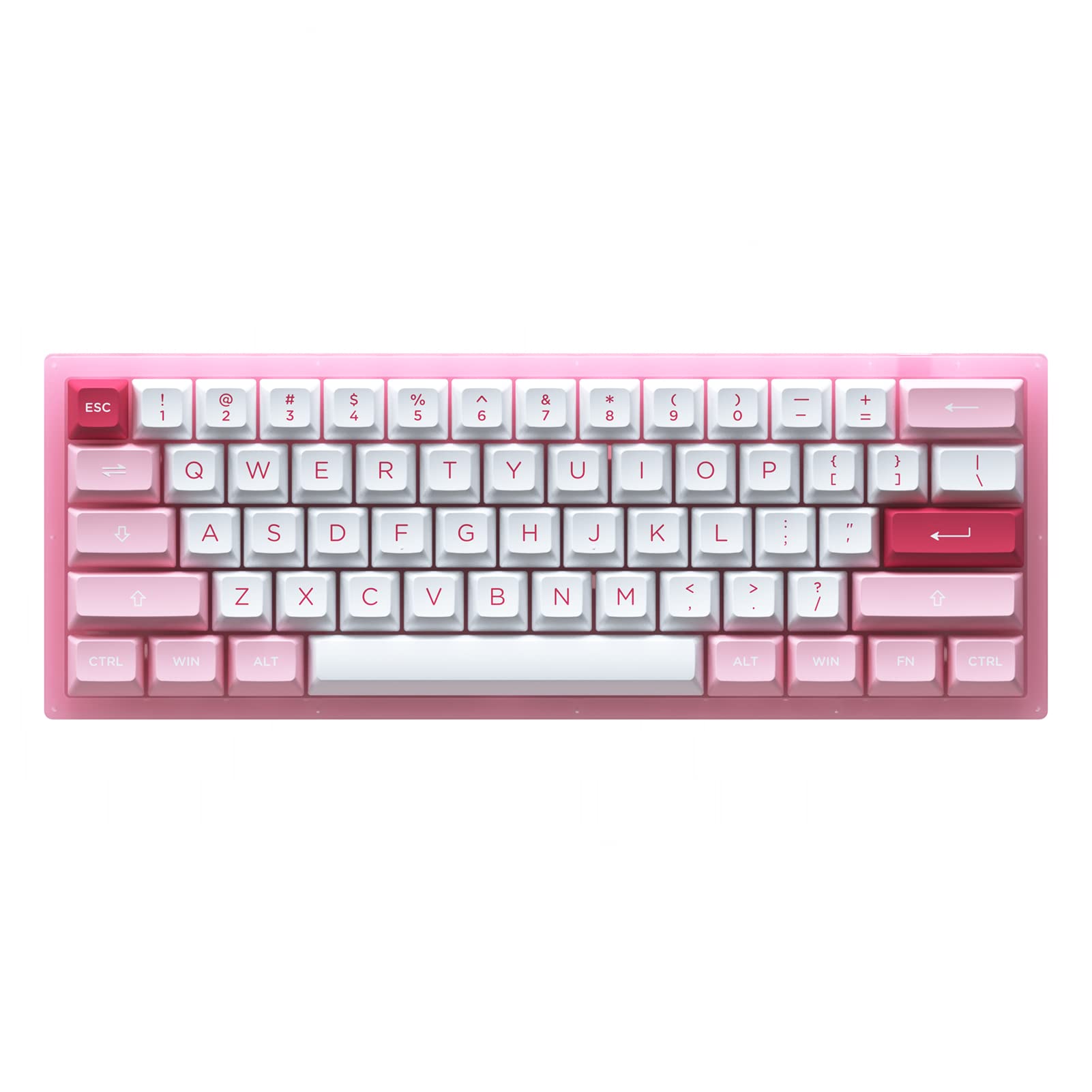
Image 1.1: Akko ACR61 keyboard showcasing the Prunus Lannesiana design and Jelly Pink switches.
2. Nhazi
Ihe ngwugwu 2.1
- Akko ACR61 Mechanical Keyboard
- USB-C na eriri USB-A
- Onye na-adọkpụ igodo
- Gbanwee Puller
- Additional Keycaps (if included)
2.2 Jikọọ ahụigodo
- Locate the USB-C port on the back or side of the Akko ACR61 keyboard.
- Jikọọ njedebe USB-C nke eriri enyere na ahụigodo ahụ.
- Connect the USB-A end of the cable to an available USB port on your computer or device.
- The keyboard will be automatically recognized by most operating systems. No additional drivers are typically required for basic functionality.
3. Ntuziaka ọrụ
3.1 Ọrụ igodo isi
The Akko ACR61 is a 60% keyboard, meaning some functions are accessed via the 'Fn' key combined with other keys. Refer to the keycap legends for specific Fn combinations.
- Fn + [Igodo]: Accesses secondary functions printed on the front or side of keycaps (e.g., arrow keys, F-row keys, multimedia controls).
- N-Key Rollover (NKRO): The keyboard supports simultaneous key presses without conflicts, which is beneficial for fast typing and gaming.
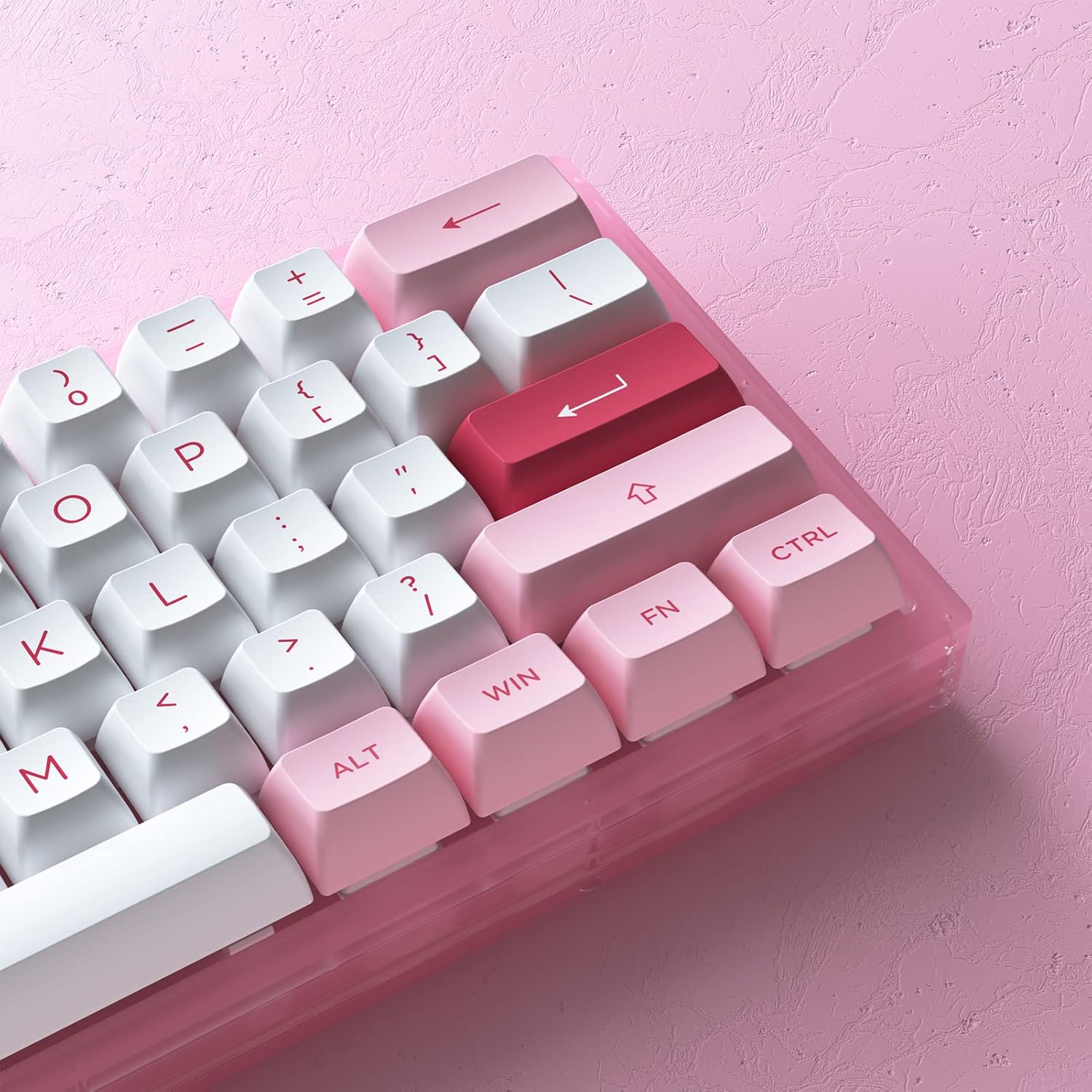
Foto 3.1: nso nso view of the Akko ACR61 keycaps, illustrating primary and secondary functions.
3.2 RGB njikwa ọkụ azụ
The keyboard features built-in RGB backlighting with customizable light animation effects. Specific key combinations, often involving the 'Fn' key, are used to cycle through lighting modes, adjust brightness, and change colors.
- Fn + [Igodo]: Typically used to change RGB effects, speed, or direction. Consult the keyboard's specific keycap legends or software for exact combinations.
- Igwe ọkụ na-acha ọkụ ọkụ: The keyboard also features underglow LED lighting, which can be controlled independently or in conjunction with the main RGB backlighting.
3.3 Ịme mmemme
The Akko ACR61 keyboard is programmable, allowing users to remap keys and create macro sequences. This functionality is typically managed through dedicated software provided by Akko. Keys used for controlling Macro mode (Esc/Win/Fn) cannot be remapped.
- Mwepụta igodo: Assign different functions to individual keys.
- Ndekọ nnukwu: Record a sequence of keystrokes and assign it to a single key for quick execution.
4. Nlekọta
4.1 Ihicha ahụigodo
ihicha mgbe niile na-enyere aka idowe ọdịdị na arụrụ ọrụ ahụigodo.
- Kwụpụ ahụigodo ahụ na kọmputa gị.
- Jiri ahịhịa dị nro ma ọ bụ ikuku abịakọrọ wepụsịa uzuzu na irighiri ihe n'etiti igodo igodo.
- For keycap cleaning, gently remove keycaps using a keycap puller. Wash them with mild soap and water, then ensure they are completely dry before reattaching.
- Jiri ntakịrị d. Hichapụ elu ahụ ahụigodoamp, akwa akwa na-enweghị lint. Zere oke mmiri mmiri.
4.2 Mgbanwe ọkụ-Swappable
The Akko ACR61 features premium TTC gaming 5-pin hot-swappable sockets, allowing you to change switches without soldering.

Image 4.1: A Jelly Pink mechanical switch, illustrating the hot-swappable design.
- Iwepu ihe mgba ọkụ: Use the provided switch puller to carefully grip the top and bottom clips of the switch. Gently pull the switch straight up and out of the socket. Avoid bending the pins.
- Installing a Switch: Align the pins of the new switch with the holes in the PCB socket. Ensure the pins are straight. Gently push the switch straight down until it clicks into place. Do not force the switch; if resistance is met, check pin alignment.
5. Nchọpụta nsogbu
5.1 Ahụigodo anaghị azaghachi
- Gbaa mbọ hụ na ejikọrọ eriri USB na nchekwa na ma ahụigodo ma kọmputa.
- Gbalịa ijikọ ahụigodo na ọdụ ụgbọ USB dị iche na kọmputa gị.
- Nwalee ahụigodo na kọmpụta ọzọ ka ewepụ nsogbu ndị metụtara sistemụ.
- Ọ bụrụ na ị na-eji eriri USB, gbalịa jikọọ ozugbo na kọmputa.
5.2 RGB ọkụ anaghị arụ ọrụ ma ọ bụ na-ezighi ezi
- Ensure the keyboard is properly connected and powered.
- Use the designated Fn key combinations to cycle through lighting modes or adjust brightness.
- If using Akko software, ensure it is running and configured correctly.
5.3 Specific Keys Not Working
- For hot-swappable switches, carefully remove the keycap and then the switch for the affected key. Reinstall the switch, ensuring the pins are straight and fully seated.
- Test with a known working switch in the problematic socket to determine if the issue is with the switch or the socket.
- Gbaa mbọ hụ na ọ nweghị irighiri ihe na-egbochi usoro ngbanwe.
6. Nkọwapụta
| Njirimara | Nkọwa |
|---|---|
| Nlereanya | ACR61 |
| Nhazi | 61-Key (60%) |
| Njikọta | Ejiri waya (USB-C) |
| Mgbanwe | Hot-swappable TTC Gaming 5-pin sockets (Jelly Pink Switches included) |
| Isi okwu | PBT Double Shot ASA Profile |
| Ịkụ azụ azụ | RGB with Underglow LED |
| Mgbochi mmụọ | N-Key Rollover (NKRO) |
| Enwere ike ime mmemme | Yes (via software, excluding Esc/Win/Fn) |
| Ihe onwunwe | Polybutylene Terephthalate (Keycaps) |
| Ibu Ibu | 15.5 ounces |
| Akụkụ ngwugwu | 13.7 x 8.78 x 1.93 sentimita asatọ |
7. Akwụkwọ ikike na nkwado
For warranty information and technical support, please refer to the official Akko websaịtị ma ọ bụ kpọtụrụ ndị ahịa ha ozugbo. Debe ihe akaebe nke ịzụrụ ihe maka akwụkwọ ikike ọ bụla.
Official Akko Store: Akko Store on Amazon


