Ngwaahịa gafereview
The SteelSeries Prime FPS Gaming Mouse Neo Noir Edition is a limited edition, lightweight gaming mouse designed for competitive FPS gameplay. It features a battle-tested shape, hyper-durable design, and a textured matte finish for optimal grip and comfort during extended use. This mouse is equipped with advanced optical switches and a high-performance sensor to deliver precise and responsive control.
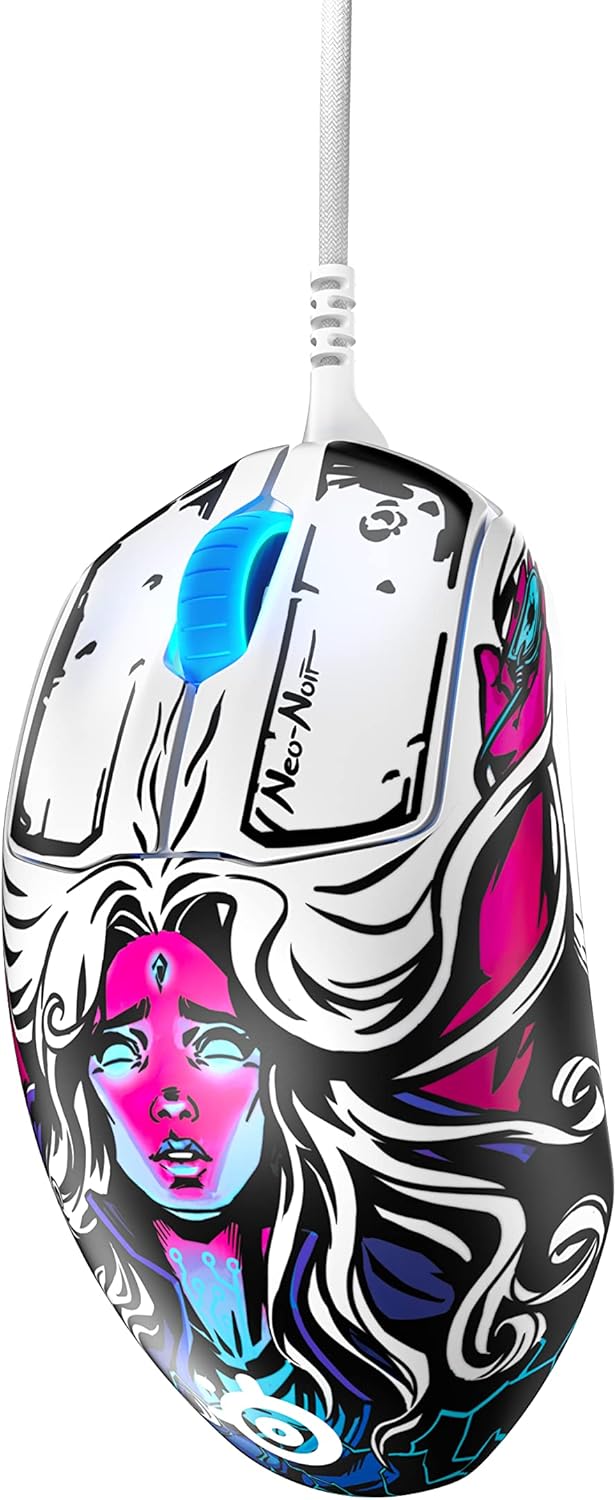
Atụmatụ gụnyere:
- Prestige Optical Magnetic Switches: Revolutionary switches that actuate lightning fast using infrared beams, rated for an industry-best 100 million clicks using neodymium magnets, ensuring durability and consistent performance.
- TrueMove Pro Optical Sensor: A top-of-the-line sensor delivering 18,000 CPI (Counts Per Inch), 450 IPS (Inches Per Second), and 50G acceleration with advanced tilt tracking for unparalleled precision.
- Nhazi dị arọ: Weighing only 69g, developed with input from esports professionals for sustained comfort and battle-tested durability.
- On-board Customization: Allows for direct adjustment of 4 polling rates and up to 5 pre-set or customized CPIs without software.
- Brilliant Prism RGB Lighting: Customizable RGB lighting integrated into the scroll wheel.
Melite
Achọrọ Sistemụ
Before connecting your SteelSeries Prime FPS Gaming Mouse, ensure your system meets the following requirements:
- Operating System: Windows, macOS, Xbox, or Linux.
- Ọdụ ụgbọ mmiri USB dị.
Ijikọ òké
- Chọta ọdụ ụgbọ USB dị na kọmputa gị ma ọ bụ njikwa egwuregwu gị.
- Insert the USB connector of the SteelSeries Prime FPS Gaming Mouse into the USB port.
- Sistemụ arụmọrụ gị kwesịrị ịchọpụta ma wụnye draịva dị mkpa na akpaghị aka.

Software Installation (SteelSeries GG)
For full customization and advanced features, it is recommended to install the SteelSeries GG software:
- Visit the official SteelSeries websaịtị: steelseries.com/gg
- Download the SteelSeries GG software compatible with your operating system.
- Soro ntuziaka ihuenyo iji mezue nrụnye.
- Once installed, launch SteelSeries GG to access mouse settings, including CPI, button remapping, and RGB lighting customization.
Operating Your SteelSeries Prime FPS Gaming Mouse
Ọrụ ndị bụ isi
- Pịa aka ekpe: Bọtịnụ ihe omume mbụ.
- Pịa aka nri: Secondary action button, often used for context menus or alternate actions.
- Mpempe akwụkwọ mpịakọta: A na-eji ya pịgharịa site na dọkụmentị ma ọ bụ web pages. Can also be clicked for a middle-mouse button function.
- Bọtịnụ akụkụ: Two programmable buttons located on the left side of the mouse, typically used for forward/back navigation or in-game actions.
- CPI Button: Located on the bottom of the mouse, this button allows for on-the-fly cycling through pre-set or customized CPI profiles.

Customization with SteelSeries GG
The SteelSeries GG software unlocks the full potential of your Prime FPS Gaming Mouse:
- Ndozi CPI: Fine-tune your mouse sensitivity from 100 to 18,000 CPI. You can set up to 5 distinct CPI profiles and switch between them using the on-board CPI button.
- Mmemme bọtịnụ: Remap any of the 5 programmable buttons to perform specific keyboard functions, macros, or media controls.
- RGB ọkụ: Customize the Brilliant Prism RGB lighting on the scroll wheel with various effects, colors, and brightness levels.
- Ọnụego ntuli aka: Adjust the polling rate (125Hz, 250Hz, 500Hz, 1000Hz) to control how frequently the mouse reports its position to your computer. A higher polling rate generally provides smoother tracking.
- Acceleration/Deceleration: Adjust mouse acceleration and deceleration settings to suit your preference.
Nlekọta
Na-ehicha òké gị
Regular cleaning helps maintain the performance and longevity of your mouse:
- Mputa: Jiri akwa dị nro na nke enweghị mmiri ọkụ dampejiri mmiri ma ọ bụ ihe nhicha dị nro mee ya. Zere kemịkalụ siri ike ma ọ bụ ihe ndị na-emebi ihe.
- Ihe mmetụta: Gently clean the optical sensor on the bottom of the mouse with a cotton swab or compressed air to remove dust and debris. Ensure the mouse is disconnected before cleaning.
- Ụkwụ òké: Periodically check the PTFE feet on the bottom of the mouse for wear or debris. Clean gently if needed.

Nchekwa
When not in use, store your mouse in a clean, dry environment away from extreme temperatures and direct sunlight. Avoid coiling the cable too tightly to prevent damage.
Nchọpụta nsogbu
If you encounter issues with your SteelSeries Prime FPS Gaming Mouse, refer to the following common solutions:
Òké Anaghị aza
- Lelee njikọ USB: Hụ na eriri USB ahụ dị n'ime ọdụ USB na-arụ ọrụ nke ọma na kọmputa gị. Nwaa ọdụ USB ọzọ.
- Malitegharịa kọmputa: A simple restart can often resolve connectivity issues.
- Nwalee na ngwaọrụ ọzọ: If possible, test the mouse on another computer to determine if the issue is with the mouse or your system.
- Lelee Njikwa Ngwaọrụ (Windows): Verify that the mouse is recognized in Device Manager and that there are no driver conflicts.
Inconsistent Tracking or Cursor Lag
- Ihe mmetụta dị ọcha: Dust or debris on the optical sensor can cause tracking issues. Refer to the Maintenance section for cleaning instructions.
- Mouse Pad Surface: Ensure you are using the mouse on a clean, uniform surface. Highly reflective or uneven surfaces can interfere with optical tracking.
- Adjust CPI: Experiment with different CPI settings in the SteelSeries GG software to find the optimal sensitivity for your usage.
- Ọnụego ntuli aka: Ensure the polling rate is set appropriately. While higher is generally better, very high polling rates on older systems might cause issues.
Buttons Not Registering or Double-Clicking
- Nyochaa ngwanrọ: Open SteelSeries GG and ensure button assignments are correct and there are no conflicting profiles.
- Femụwe Update: Check for and install any available firmware updates for your mouse via the SteelSeries GG software.
- Ihe mgbochi anụ ahụ: Inspect the buttons for any physical debris that might be preventing proper actuation.
Nkọwa nka nka
| Njirimara | Nkọwa |
|---|---|
| Ụdị | Usoro igwe |
| Nọmba nlereanya | 62535 |
| Sensọ | TrueMove Pro Optical Sensor |
| CPI (Counts Per Inch) | Up to 18,000 CPI |
| IPS (Inchi kwa Sekọnd) | 450 IPS |
| Osooso | 50G |
| Mgbanwe | Prestige Optical Magnetic Switches (100M Click Rating) |
| Bọtịnụ | 5 bọtịnụ mmemme |
| Ibu | 69g (2.43 ounces) |
| Akụkụ (LxWxH) | 7.32 x 4.96 x 2.17 sentimita asatọ |
| Njikọta | USB eriri |
| Ndakọrịta sistemụ arụmọrụ | Windows, macOS, Xbox, Linux |
| Agba | Neo Noir |
Akwụkwọ ikike na nkwado
Ozi akwụkwọ ikike
SteelSeries products are manufactured to the highest quality standards. This product is covered by a limited manufacturer's warranty. For specific warranty terms and conditions, including duration and coverage details, please refer to the warranty card included with your product or visit the official SteelSeries websaịtị.
Nkwado ndị ahịa
For technical assistance, troubleshooting, or general inquiries, please visit the SteelSeries support page:
Ị nwekwara ike ịchọta akụrụngwa na-enyere aka, FAQs, na nnọkọ obodo na ha websaịtị.


