1. Okwu mmalite
Thank you for choosing the Shinco WiFi Karaoke Machine. This portable system features a 15-inch touch screen, two wireless microphones, and multiple connectivity options including Wi-Fi and Bluetooth. This manual provides detailed instructions to help you get the most out of your device.
2. Kedu ihe dị na Igbe ahụ
Jiri nlezianya kpopu ihe niile wee hụ na ị nwetala ihe ndị a:
- Wifi Karaoke Machine with Touch Screen
- Igwe igwe ikuku ikuku 2 UHF
- Njikwa anya
- Ihe nkwụnye ọkụ
- USB RCA
- Akwụkwọ ntuziaka (akwụkwọ a)
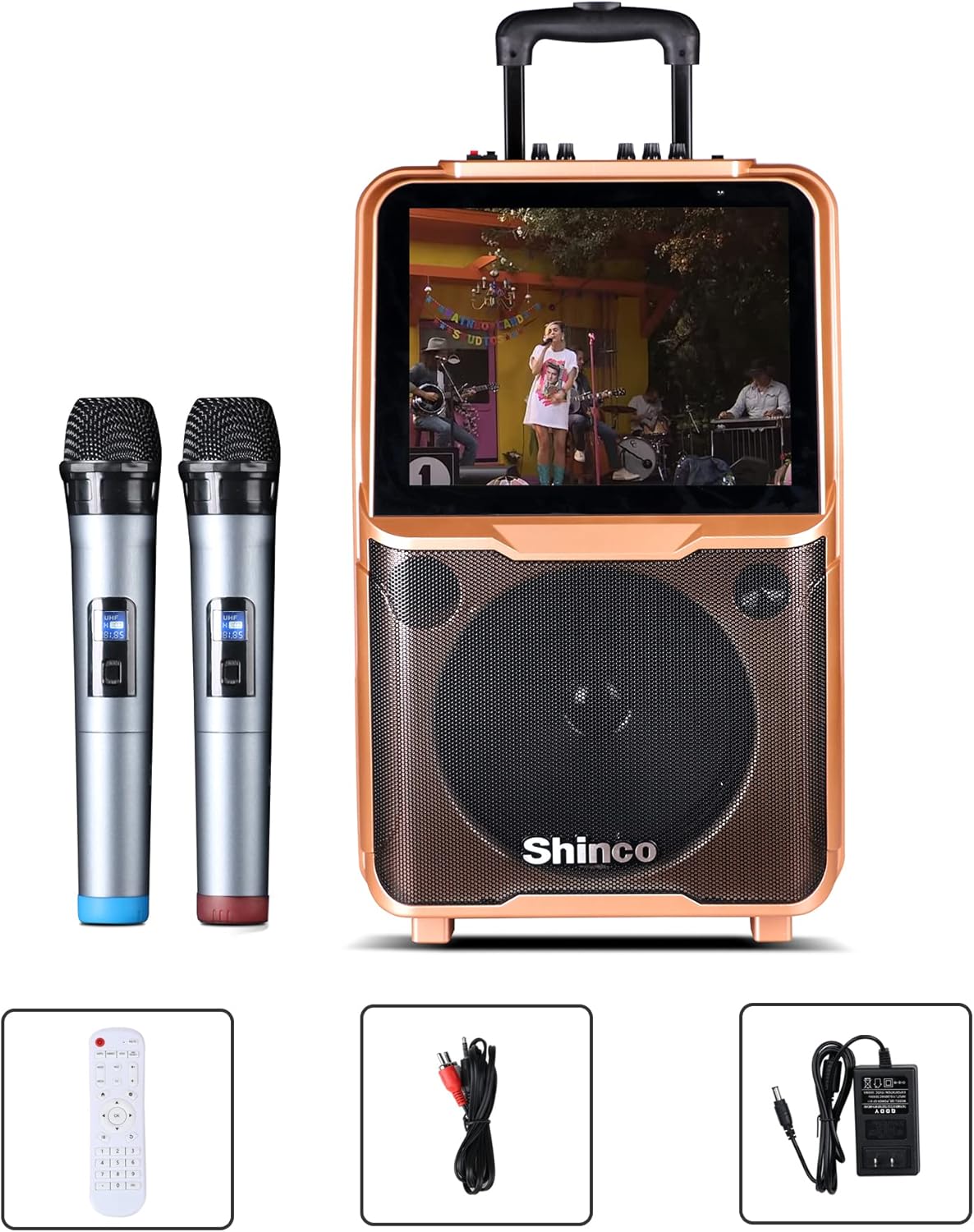
Image: Shinco Karaoke Machine with its accessories, including two wireless microphones, a remote control, an RCA cable, and a power adapter.
3. Akụrụngwa Ngwaahịa
- Ihuenyo Mmetụ Aka nke 15-inch: Navigate menus and applications with ease.
- Njikọ Wi-Fi: Access online content and download apps from the Google Play Store.
- 2 Wireless Microphones: Enjoy untethered vocal performance.
- 50W ike RMS Ampntughari: Delivers clear audio through a 10-inch woofer.
- Ihe mmepụta HDMI: Connect to an external TV for a larger display.
- Njikọ Bluetooth: Gbanye ọdịyo na ikuku site na ngwaọrụ dakọtara.
- Ọrụ ndekọ: Record your vocal performances.
- Igwe Redio: Lelee redio kachasị amasị gị.
- USB/TF Card Compatible: Play media directly from storage devices.
- Enwere ike ibugharị: Equipped with a trolley and retractable handle for easy transport.
- Batrị arụnyere: Provides power for outdoor use.

Image: The Shinco Karaoke Machine highlighting its Android operating system, YouTube app compatibility, and Wi-Fi connectivity.
4. Nhazi
- Mepee ngwaọrụ ahụ: Remove the karaoke machine and all accessories from the packaging.
- Njikọ ike: Connect the power adapter to the DC 15V input port on the back of the machine and plug it into a standard electrical outlet. The machine can operate on battery power, but it is recommended to charge it fully before first use.
- Ike Na: Press the Power button located on the control panel to turn on the machine. The 15-inch touch screen will illuminate.
- Nkwadebe igwe okwu: Insert 2 AA batteries (not included) into each wireless microphone. Turn on the microphones using their respective power switches. The microphones are pre-paired with the machine.

Foto: N'azụ view of the Shinco Karaoke Machine, illustrating the storage compartments for the two wireless microphones.
5. Ntuziaka ọrụ
5.1. Ntugharị Ihuenyo Mmetụ aka
The 15-inch touch screen operates like a tablet. Swipe left or right to navigate between screens, tap icons to open applications, and use the on-screen keyboard for input.
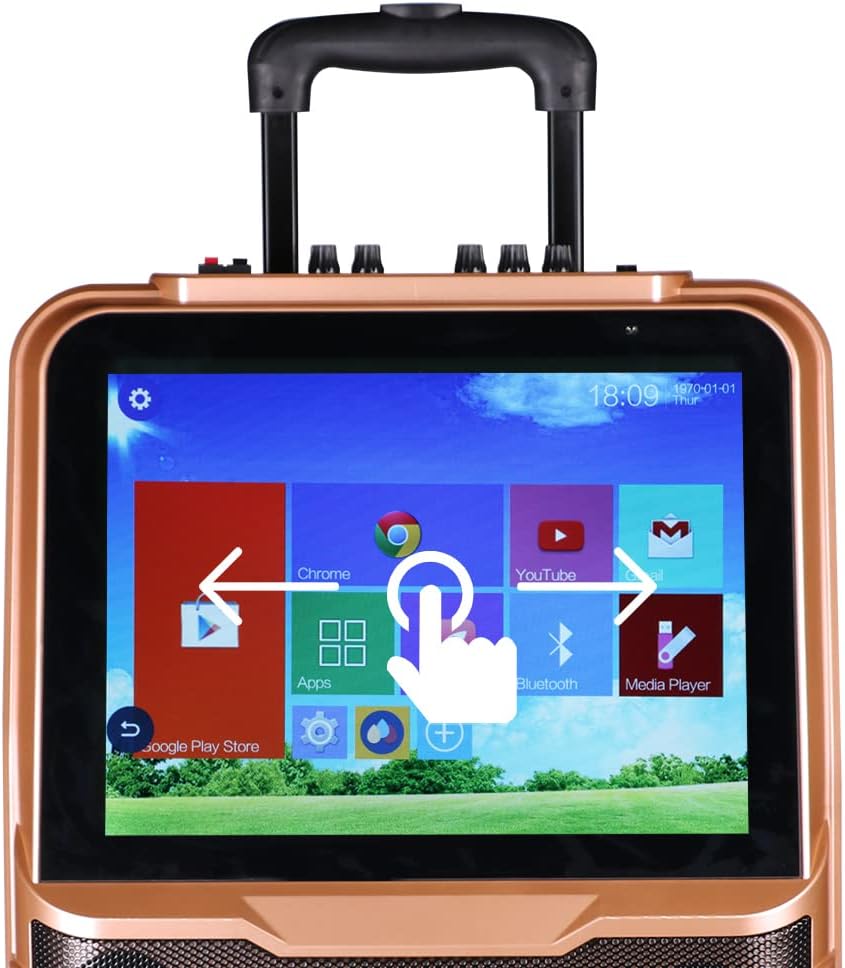
Image: A close-up of the Shinco Karaoke Machine's touch screen, displaying app icons and illustrating touch navigation with a hand gesture.
5.2. Njikọ Wi-Fi
- From the home screen, tap the 'Settings' icon.
- Họrọ 'Wi-Fi' wee gbanye ya.
- Choose your desired network from the list and enter the password if prompted.
- Once connected, you can access online karaoke apps, YouTube, and other internet services.
5.3. Njikọ Bluetooth
- Tap the 'Bluetooth' icon on the home screen or navigate through 'Settings'.
- Ensure Bluetooth is enabled on both the karaoke machine and your external device (e.g., smartphone, tablet).
- Select the karaoke machine's name from your device's Bluetooth list, or select your device from the machine's list to pair.
- Kwenye koodu njikọ ma ọ bụrụ na kpaliri ya.
5.4. Using Wireless Microphones
The two UHF wireless microphones are designed for ease of use. Simply turn them on, and they will automatically connect to the karaoke machine. Adjust microphone volume using the dedicated knobs on the machine's control panel.
5.5. HDMI Output to TV
To display the karaoke machine's screen on a larger television:
- Connect one end of an HDMI cable (not included) to the HDMI OUT port on the karaoke machine.
- Jikọọ nsọtụ nke ọzọ nke eriri HDMI na ọdụ ntinye HDMI na telivishọn gị.
- Select the corresponding HDMI input on your TV using your TV's remote control.

Image: The Shinco Karaoke Machine connected to a television via an HDMI cable, demonstrating how lyrics are displayed on both the machine's screen and the TV.
5.6. Ịkpọghachi kaadị USB/TF
Insert a USB drive or TF card into the designated port. Use the 'Media Player' app on the touch screen to browse and play audio or video files echekwara na ngwaọrụ.
5.7. Recording Voice
Utilize the recording function within compatible karaoke applications to capture your vocal performances. Refer to the specific app's instructions for detailed recording steps.
5.8. Redio FM
Access the FM Radio application from the touch screen. Use the on-screen controls to scan for stations and adjust the frequency.
5.9. Portability
The machine is equipped with a retractable handle and wheels for easy transportation. Extend the handle and tilt the machine to roll it to your desired location.

Image: A person demonstrating the portability of the Shinco Karaoke Machine by pulling it with its retractable handle and wheels.
6. Nlekọta
- Nhicha: Use a soft, dry cloth to clean the exterior of the machine. For the touch screen, use a microfiber cloth specifically designed for electronics. Avoid abrasive cleaners or solvents.
- Nlekọta batrị: For optimal battery life, avoid completely draining the battery frequently. Charge the machine regularly, especially if it will be stored for an extended period.
- Nchekwa: Store the karaoke machine in a cool, dry place away from direct sunlight and extreme temperatures.
- Nlekọta igwe okwu: Remove batteries from the wireless microphones if they will not be used for a long time to prevent leakage.
7. Nchọpụta nsogbu
| Nsogbu | Ihe nwere ike ime | Ngwọta |
|---|---|---|
| Igwe anaghị agba ọkụ. | No power, low battery, or power adapter issue. | Ensure power adapter is securely connected and plugged into a working outlet. Charge the battery. |
| Enweghị ụda sitere na ndị ọkà okwu. | Volume too low, mute activated, or incorrect audio source. | Increase master volume. Check if mute is active. Verify correct audio input source is selected. |
| Igwe okwu ikuku anaghị arụ ọrụ. | Microphones off, low batteries, or pairing issue. | Ensure microphones are powered on. Replace batteries. If issues persist, refer to pairing instructions in the full manual (if applicable, otherwise assume pre-paired). |
| Wi-Fi connection unstable or failing. | Weak signal, incorrect password, or router issue. | Move closer to the Wi-Fi router. Re-enter Wi-Fi password. Restart your Wi-Fi router. |
| Touch screen unresponsive or slow. | Temporary software glitch or excessive background apps. | Restart the machine. Close unnecessary applications. Ensure screen is clean. |
8. Nkọwapụta
| Njirimara | Nkọwa |
|---|---|
| Nọmba nlereanya | B09K73CG2P |
| Ibu Ibu | 22.4 pound |
| Akụkụ ngwugwu | 26.5 x 17 x 10.5 sentimita asatọ |
| Ngosipụta | Ihuenyo mmetụ 15-inch |
| Ọnụọgụgụ ọnụ okwu | 1 (with 10-inch woofer) |
| Isi Iyi Ike | Adapta Batrị / AC |
| Njikọta | Wi-Fi, Bluetooth, USB, TF Card, HDMI Out, RCA |
| Igwe okwu | Igwe igwe ikuku ikuku 2 UHF |
| Njirimara Pụrụ Iche | Wireless, Portable with Trolley and Retractable Handle |
9. Akwụkwọ ikike na nkwado
For warranty information and technical support, please refer to the warranty card included with your product or visit the official Shinco websaịtị. Debe nnata nzụta gị dị ka ihe akaebe nke ịzụrụ ihe maka akwụkwọ ikike ọ bụla.


