1. Okwu mmalite
This manual provides detailed instructions for the proper use and maintenance of your Cellularline Task Dual-Mode Headset. Please read this manual thoroughly before using the product to ensure optimal performance and longevity.
The Cellularline Task headset is designed for versatility, offering both wired and wireless (Bluetooth) connectivity. It features a detachable microphone, making it suitable for smart working, remote learning, and music listening.
2. Ngwaahịa gafereview
The Cellularline Task headset combines comfort with functionality, featuring over-ear cushions and intuitive controls. Its dual-mode capability allows seamless switching between wired and Bluetooth connections.

Foto 2.1: Cellularline Task Dual-Mode Headset with detachable microphone connected.
Akụkụ ndị bụ isi:
- Dual-mode stereo headset (wired and Bluetooth).
- Wireless communication technology compatible with various devices (iPhone, Samsung, Huawei, Xiaomi, etc.).
- Modern design with comfortable over-ear cushions.
- Adaptable and removable microphone, ideal for video calls and audio recording.
- Volume limitation feature for hearing protection.
- Up to 18 hours of continuous music playback or talk time.
3. Nhazi
Ihe ngwugwu 3.1
Before proceeding, ensure your package contains the following items:
- Cellularline Task Headset
- Igwe okwu enwere ike iwepu
- Eriri Nchaji (USB)
- Audio Cable (3.5mm jack)
- Akwụkwọ ntuziaka (akwụkwọ a)
3.2 Ịchaji ekweisi
Before first use, fully charge the headset. Connect the provided USB charging cable to the charging port on the headset and to a compatible USB power source. The LED indicator will show charging status and turn off or change color when fully charged.
3.3 Na-agbakwunye igwe okwu na-apụ apụ
The microphone can be easily attached or detached based on your usage needs.
- Chọta ọdụ ụgbọ mmiri ntinye igwe okwu n'akụkụ aka ekpe nke ekweisi.
- Align the 3.5mm jack of the detachable microphone with the port.
- Gently push the microphone jack into the port until it is securely seated.
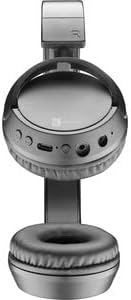
Foto 3.1: Headset with the detachable microphone removed, showing the input port.
3.4 Njikọ wired
Iji jiri ekweisi n'ụdị wired:
- Gbaa mbọ hụ na agbanyụrụ ekweisi.
- Connect one end of the 3.5mm audio cable to the audio input port on the headset.
- Connect the other end of the 3.5mm audio cable to the audio output jack of your device (e.g., computer, smartphone, tablet).
- The headset will function as a wired headset, drawing power from the connected device if needed, or using its own battery for active features.

Foto 3.2: Headset connected via 3.5mm audio cable, demonstrating wired mode.
3.5 Njikọ Bluetooth
To connect your headset wirelessly via Bluetooth:
- Ike Na: Press and hold the Power button on the headset until the LED indicator flashes, indicating pairing mode.
- Mee ka Bluetooth rụọ ọrụ: On your device (smartphone, tablet, computer), go to the Bluetooth settings and ensure Bluetooth is enabled.
- Chọọ maka Ngwaọrụ: Your device will scan for available Bluetooth devices.
- Họrọ ekweisi: From the list of found devices, select "Cellularline Task" (or similar name).
- Kwenye njikọ: Once connected, the LED indicator on the headset will change to a steady light or flash slowly, and your device will confirm the connection.
The headset is compatible with iPhone, Samsung, Huawei, Xiaomi, and other Bluetooth-enabled devices.
4. Ntuziaka ọrụ
4.1 Gbanyụọ ma ọ bụ gbanyụọ
- Ike Na: Pịa ma jide bọtịnụ ike maka ihe dịka sekọn 3 ruo mgbe ihe ngosi LED na-enwu.
- Gbanyụọ: Pịa ma jide bọtịnụ ike maka ihe dịka sekọnd 5 ruo mgbe ihe ngosi LED gbanyụrụ.
4.2 Njikwa olu
The headset features tactile controls for volume adjustment.
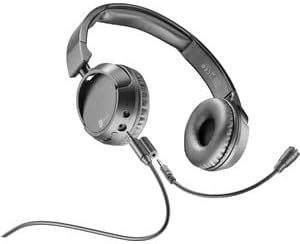
Foto 4.1: Agara nso view of the earcup showing control buttons for volume and playback.
- Dịkwuo Mpịakọta: Pịa bọtịnụ '+'.
- Belata Mpịakọta: Pịa bọtịnụ '-'.
The headset includes a volume limitation feature to protect your hearing.
4.3 Njikwa oku
When connected via Bluetooth, you can manage calls directly from the headset:
- Oku azaa: Press the Multi-function button (usually the Power button or a dedicated call button) once.
- Oku ngwụcha: Pịa bọtịnụ ọtụtụ ọrụ otu ugboro n'oge oku.
- Jụ oku: Pịa ma jide bọtịnụ Multi-function maka sekọnd abụọ mgbe oku na-abata na-ada.
4.4 Nghaghachi egwu
When connected via Bluetooth, control your music playback:
- Gwuo/kwụsịtụ: Pịa bọtịnụ Multi-function ozugbo.
- Track na-esote: Pịa ma jide bọtịnụ '+'.
- Gara aga Track: Pịa ma jide bọtịnụ '-'.
4.5 Igwe okwu
The detachable microphone is designed for clear voice capture during calls or recordings.
- Ensure the microphone is securely attached (refer to Section 3.3).
- Position the microphone appropriately for optimal voice pickup.
- When using the headset in wired mode, the microphone functionality will depend on the connected device's compatibility with 4-pole 3.5mm jacks.
5. Nlekọta
5.1 Nhicha
- Jiri akwa dị nro dị nro hichaa ekweisi.
- Ejila ihe nhicha, ihe mgbaze, ma ọ bụ kemịkal siri ike mee ihe.
- Zere ịbanye mmiri n'ime oghere ọ bụla.
5.2 Nchekwa
- Chekwaa ekweisi n'ebe dị jụụ, kpọrọ nkụ na-adịghị na ìhè anyanwụ kpọmkwem na oke okpomọkụ.
- If storing for an extended period, ensure the battery is partially charged (around 50%) to maintain battery health.
5.3 Nlekọta batrị
- Zere ịchaji batrị ugboro ugboro.
- Ewepụla batrị ahụ na okpomọkụ dị elu.
- If the headset will not be used for a long time, charge it every few months to prevent deep discharge.
6. Nchọpụta nsogbu
6.1 Headset Does Not Power On
- Ensure the headset is fully charged. Connect it to a power source and wait a few minutes before attempting to power on again.
- Gbalịa eriri chaja dị iche ma ọ bụ nkwụnye ọkụ.
6.2 Enweghị ụda ma ọ bụ olu dị ala
- Lelee ọkwa olu na ma ekweisi na ngwaọrụ ejikọrọ.
- If using Bluetooth, ensure the headset is properly paired and connected.
- If using wired mode, ensure the 3.5mm audio cable is fully inserted into both the headset and the device.
- Nwalee site na iji isi iyi ma ọ bụ ngwaọrụ ọdịyo dị iche.
6.3 Okwu njikọta Bluetooth
- Ensure the headset is in pairing mode (LED flashing).
- Gbanyụọ ma gbanye Bluetooth na ngwaọrụ gị.
- Forget the headset from your device's Bluetooth list and attempt to pair again.
- Ensure the headset is within the effective range of your device (typically 10 meters).
6.4 Igwe okwu anaghị arụ ọrụ
- Gbaa mbọ hụ na etinyere igwe okwu enwere ike ịpụpụ na ekweisi.
- Check microphone settings on your connected device to ensure the headset's microphone is selected as the input device.
- Nwalee igwe okwu ahụ site na iji ngwa ma ọ bụ ngwaọrụ dị iche.
- Ensure the microphone is not muted on your device or via any headset controls (if applicable).
7. Nkọwapụta
| Ụdị | Cellularline |
| Aha Nlereanya | BTHEADBTASKK |
| Teknụzụ Njikọta | Wireless (Bluetooth), Wired (3.5mm jack) |
| Teknụzụ nzikọrịta ozi ikuku | Bluetooth |
| Ụdị Ihe | Ntị karịa |
| Atụmatụ pụrụ iche | Fast Charging, Volume Control, Included Microphone |
| Oge egwuregwu | Ruo awa iri abụọ |
| Oge Okwu | awa 18 |
| Ngwa dakọtara | Laptop, Tablet, Mobile Phone, Universal |
| Ụdị njikwa | Touch Control, Remote Control |
| Ihe onwunwe | Plastic, rọba |
| Agba | Nwa |
8. Akwụkwọ ikike na nkwado
Cellularline products are designed and manufactured to the highest quality standards. For information regarding warranty coverage, please refer to the warranty card included with your product or visit the official Cellularline websaịtị.
If you encounter any issues not covered in this manual or require further assistance, please contact Cellularline customer support through their official websaịtị ma ọ bụ ozi kọntaktị enyere na nkwakọ ngwaahịa gị.
Websaịtị: www.cellularline.com


