Rapoo Multi-Device Silent Wireless Mouse User Manual
Ụdị: M300G
Ngwaahịa gafereview
This manual provides detailed instructions for the Rapoo Multi-Device Silent Wireless Mouse. This mouse is designed for versatile use across multiple devices, offering silent clicks, adjustable DPI, and an ergonomic design for comfortable, extended use.
Atụmatụ gụnyere:
- Multi-device connectivity (USB receiver or Bluetooth) for up to 3 devices.
- Silent click design for a quiet working environment.
- 4 adjustable DPI levels (600/1000/1300/1600) for precise control.
- Ergonomic design for right-hand comfort.
- High precision optical engine for use on various surfaces.
- Extended battery life with low-power technology.
Video ngosi ngwaahịa
Video: An official product video demonstrating the features and usage of the Rapoo Multi-Device Bluetooth Mouse, including its silent clicks and multi-mode connectivity.
Ntuziaka nhazi
1. Ihe ngwugwu
Gbaa mbọ hụ na ihe niile dị na ngwugwu:
- Rapoo Multi-Device Silent Wireless Mouse
- USB Receiver (usually stored inside the mouse)
- Akwụkwọ ntuziaka onye ọrụ
2. Ntinye batrị
The mouse uses one AA battery (not included). Open the battery compartment on the bottom of the mouse and insert the battery, ensuring correct polarity.
3. Ijikọ òké
The Rapoo Multi-Device Mouse supports three connection modes: Bluetooth 3.0, Bluetooth 4.0, and 2.4G Wireless (via USB receiver). You can switch between these modes using the button on the bottom of the mouse.
3.1. 2.4G Wireless Connection (USB Receiver)
- Locate the USB receiver, typically stored in a slot on the bottom of the mouse.
- Tinye eriri USB n'ọdụ ụgbọ mmiri dị na kọmputa gị.
- Gbanwee òké site na iji mgba ọkụ na ala.
- The mouse should automatically connect. No driver installation is usually required.

Image: The Rapoo mouse connected to a laptop via its 2.4G USB receiver, illustrating the wireless connection.
3.2. Bluetooth Connection (Bluetooth 3.0 / Bluetooth 4.0)
- Gbanwuo ọkụ ọkụ òké.
- Press the Bluetooth connection switch button on the bottom of the mouse to select either Bluetooth 1 or Bluetooth 2 channel. The corresponding indicator light (blue or green) will flash slowly.
- Long press the Bluetooth button for more than 3 seconds to start pairing. The indicator light will flash rapidly.
- On your device (laptop, tablet, or smartphone), go to Bluetooth settings and search for new devices.
- Select "RAPOO BT3.0 Mouse" or "RAPOO BleMouse" (Bluetooth 4.0) from the list of available devices to pair.
- Ozugbo ejikọtara ya, ọkụ ihe ngosi ahụ ga-akwụsị ịgbawa.

Image: A diagram illustrating the steps to connect the Rapoo mouse via Bluetooth 3.0 or 4.0, showing the pairing process with indicator lights.
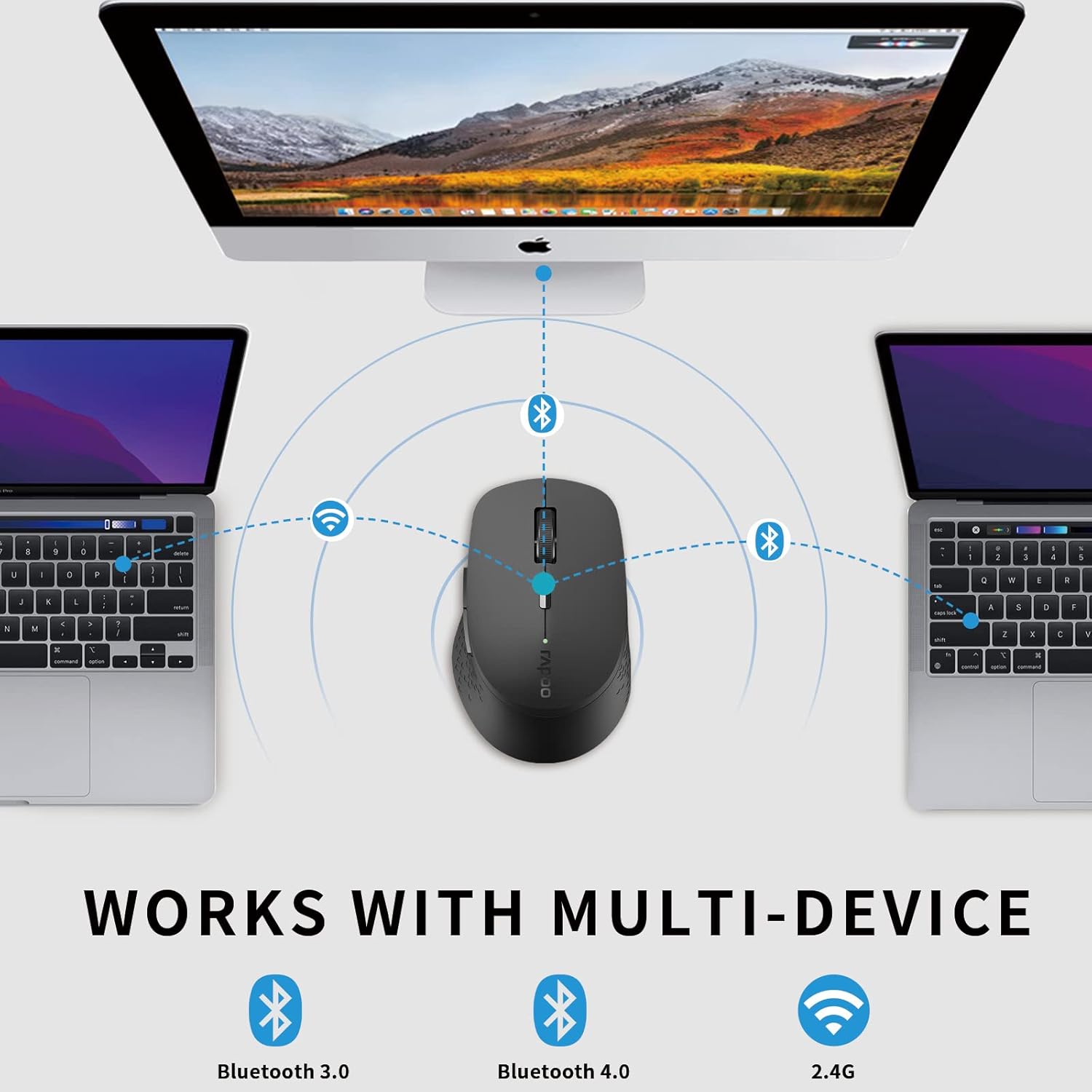
Image: An illustration demonstrating the multi-device capability of the Rapoo mouse, connecting to two laptops via Bluetooth and a desktop via 2.4G wireless.
Ntuziaka ọrụ
1. Ọrụ bọtịnụ

Image: A labeled diagram showing the functions of each button on the Rapoo mouse, including left/right click, scroll wheel, DPI switch, multi-device indicator, and forward/backward buttons.
- Bọtịnụ Pịa aka ekpe: Nhọrọ na mmalite ọkọlọtọ.
- Pịa aka nri bọtịnụ: Na-emepe menu ihe ndị dị n'ime ya.
- Mpempe akwụkwọ mpịakọta: Pịgharịa gaa na akwụkwọ na web ibe. Enwere ike pịa maka ịrụ ọrụ pịa etiti.
- Bọtịnụ Mgbanwe DPI: Cycles through DPI settings (600/1000/1300/1600).
- Multi-device Conversion Indicator: Shows the currently active device channel.
- Bọtịnụ mbugharị: Na-aga n'ihu web ihe nchọgharị ma ọ bụ file ndị na-eme nchọpụta.
- Bọtịnụ azụ: Na-agagharị azụ n'ime web ihe nchọgharị ma ọ bụ file ndị na-eme nchọpụta.
2. Ịgbanwe n'etiti Ngwaọrụ
To switch between connected devices (up to 3), short press the Bluetooth connection switch button on the bottom of the mouse. The indicator light will change to reflect the active channel (Bluetooth 1, Bluetooth 2, or 2.4G wireless).
3. Ịgbanwe DPI (Mmetụta)
Press the DPI switch button located behind the scroll wheel to cycle through the four available DPI settings: 600, 1000, 1300, and 1600. Choose the sensitivity that best suits your task and screen resolution.

Image: A visual representation of the adjustable DPI settings (600, 1000, 1300, 1600) for the Rapoo mouse, indicating how cursor sensitivity can be changed.
4. Njirimara Pịa N'enweghị Ntụaka
The mouse features a silent click design, reducing click noise by 90%. This allows for a quiet working environment, ideal for offices, libraries, or late-night use.

Image: The Rapoo mouse highlighting its noiseless and durable click feature, with a sleeping baby in the background to emphasize the quiet operation.
5. Ergonomic Design
The mouse is ergonomically designed for right-hand users, with a flat radian that fits the curve of the hand, reducing fatigue during prolonged use.

Foto: A n'elu-ala view of the black Rapoo Bluetooth mouse, showcasing its ergonomic shape.
Nlekọta
1. Nhicha
To clean the mouse, use a soft, dry cloth. For stubborn dirt, slightly dampen akwa na mmiri ma ọ bụ a nwayọọ ihicha ngwọta. Zere iji kemịkalụ siri ike ma ọ bụ ihe na-emebi emebi.
2. Ngbanwe batrị
When the mouse's performance degrades or the low battery indicator (if present) activates, replace the AA battery. Ensure the power switch is off before replacing the battery.

Image: The Rapoo mouse illustrating its low power consumption, indicating an extended battery life of up to 12 months.
3. Nchekwa
When not in use for extended periods, turn off the mouse to conserve battery life. Store the USB receiver inside the mouse's dedicated slot to prevent loss.
Nchọpụta nsogbu
| Nsogbu | Ihe nwere ike ime | Ngwọta |
|---|---|---|
| Òké anaghị aza | Low battery; Power switch off; USB receiver disconnected; Bluetooth not paired. | Replace battery; Turn on power switch; Re-insert USB receiver; Re-pair Bluetooth. |
| Lagging or erratic cursor movement | Interference; Dirty optical sensor; Mouse used on unsuitable surface. | Move closer to receiver/device; Clean optical sensor; Use on a flat, non-reflective surface or mouse pad. |
| Enweghị ike ịgbanwee n'etiti ngwaọrụ | Incorrect button press; Device not properly paired. | Ensure short press of the multi-device switch button; Verify all devices are paired correctly. |
| Njikọ Bluetooth ada ada | Mouse not in pairing mode; Device Bluetooth off; Interference. | Long press Bluetooth button for 3 seconds; Enable Bluetooth on device; Move away from other wireless devices. |
Nkọwapụta
- Akara: Rapoo
- Ụdị: M300G
- Teknụzụ Njikọta: Bluetooth (3.0/4.0), 2.4G Wireless (USB)
- Teknụzụ nchọpụta ngagharị: Ngwa anya
- DPI: 600/1000/1300/1600 adjustable
- Pịa jụụ: Yes (90% noise reduction)
- Nhazi Ergonomic: Right-hand specific
- Ndụ batrị: Up to 9-12 months (depending on usage)
- Akụkụ ngwaahịa: 3.94 x 2.76 x 1.57 sentimita asatọ (ihe dị ka 10.0 x 7.0 x 4.0 cm)
- Ibu ihe: 3.84 ounces (108.87 grams approx.)
- Agba: Nwa
- Onye nrụpụta: RAPOO
- Nke mbụ dị: Eprel 15, 2021

Image: The underside of the Rapoo mouse, detailing its dimensions (10.39 cm / 4.09 in length, 6.54 cm / 2.57 in width), weight (83.2g), power switch, Bluetooth connection switch, and invisible optical sensor.
Akwụkwọ ikike na nkwado
Rapoo provides a one-year warranty for this product. In case of any issues, please contact Rapoo customer support for assistance. The product also comes with a hassle-free 30-day return and refund or replacement policy.
For further support, visit the official Rapoo websaịtị ma ọ bụ kpọtụrụ ọwa ọrụ ndị ahịa ha.


