1. Ozi nchekwa dị mkpa
Operating a laser engraver requires adherence to safety protocols to prevent injury. Please read and understand all safety guidelines before operating the SCULPFUN S9.
- Always install the laser protective cover when operating the machine. If the cover is not installed, wear appropriate laser safety goggles.
- Do not touch the laser emitter with bare hands, as it can cause burns.
- Avoid strong impacts to the machine to prevent damage and ensure proper function.
- Children under 14 years of age are not permitted to use this product. Children over 14 require adult supervision.
- The laser engraver should not be used on mirror-reflecting objects, as this can cause laser reflection and potential injury to the operator or damage to the laser module.
- The integrated laser filter cover blocks 98% of UV light, allowing observation of the engraving process without additional goggles in most cases. However, always exercise caution.
- A dedicated power switch is provided for emergency shutdown.
- Utilize the included A4 size steel pad to protect your work surface from laser damage.

Image: The SCULPFUN S9 laser engraver shown with a metal safety pad positioned beneath the laser module to protect the work surface.

Foto: A nso nso view of the laser module, highlighting the protective cover and the laser beam during operation.
2. Ngwaahịa gafereview
The SCULPFUN S9 is a full-metal CNC laser engraving machine designed for high-precision engraving and cutting tasks. It features a 5.5W diode laser with advanced beam shaping technology.
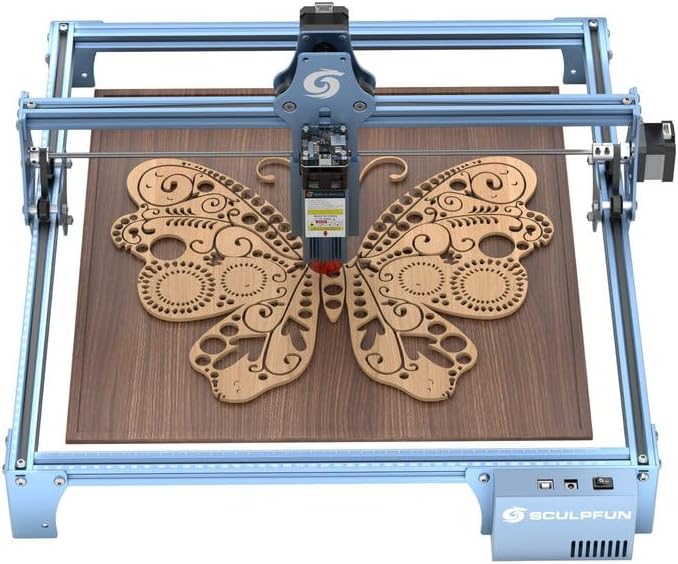
Image: The SCULPFUN S9 laser engraver in operation, showcasing a detailed butterfly design engraved on a wooden board.
Akụkụ ndị bụ isi:
- Ultra-thin Laser Beam: Equipped with a 5.5W diode laser utilizing beam shaping technology, producing an ultra-fine 0.06mm laser focus for high precision.
- Cutting Capability: Capable of cutting up to 15mm thick lightwood, 10mm black acrylic, and engraving on ceramics, stainless steel, and dark stone.
- Fast Focusing: Features a fixed focus lens and sliding design for quick and easy focusing.
- Oke izi ezi: X and Y-axis include precise scale lines for accurate measurement of engraving objects.
- Nrụpụta siri ike: All-metal structure design ensures stability, durability, and longevity.
- Ebe Nkịtị Ukwuu: Offers a generous 410x420mm working area to accommodate various project sizes.

Image: An illustration detailing the laser beam shaping technology, emphasizing its precision and cutting power.
3. Ntọala na Mgbakọ
The SCULPFUN S9 laser engraver is designed for straightforward assembly. Typically, installation and setup can be completed within 10-20 minutes.
Nzọụkwụ Mgbakọ:
- Wepu ihe niile ma chọpụta megide ndepụta nkwakọ ngwaahịa.
- Follow the detailed pictorial instructions provided in the included User Manual (PDF) for step-by-step assembly.
- Ensure all screws and connections are securely fastened for stable operation.
- Place the assembled machine on a stable, level surface, preferably with the A4 steel pad underneath.
Maka ntuziaka zuru oke, biko rụtụ aka na onye ọrụ gọọmentị Akwụkwọ ntuziaka onye ọrụ (PDF).
4. Ntuziaka ọrụ
4.1 Ngwa ndakọrịta
The S9 laser engraver is compatible with various engraving software and operating systems:
- Ngwanrọ eji arụ ọrụ: LaserGRBL, LightBurn, Benbox, GrblController, LiteFire
- Sistemu akwadoro: Windows XP, 7, 8, 10, and MAC systems
- Akwadoro File Ụdị: NC, BMP, JPG, PNG, DXF, SVG, G-code, and other image formats.

Image: Demonstrates the broad software compatibility of the SCULPFUN S9, including LaserGRBL and LightBurn.
4.2 Ndakọrịta Ihe
The SCULPFUN S9 can engrave and cut a wide range of materials:
- Ihe osise: Wood, paper, cardboard, plastic, leather, PCB board, aluminum oxide, 304 stainless steel, ceramic, dark stone.
- Ihe eji ebipụ: Wood (up to 15mm lightwood), acrylic (up to 10mm black acrylic), cardboard, fabric, bamboo, plastic board, KT board.

Image: Visual representation of the cutting capabilities on various materials, including wood, plywood, and acrylic, with thickness measurements.

Foto: Examples of engraving and cutting on diverse materials such as wood, leather, acrylic, and cloth.
4.3 Focusing and Measurement
- Fast Focusing: To achieve optimal focus, slide the laser module to the desired height and then tighten the screw. The fixed focus lens design simplifies this process.
- Ntụnye ziri ezi: The X and Y-axes are equipped with precise scale lines, allowing for accurate positioning and measurement of your engraving or cutting objects.

Foto: A n'elu-ala view illustrating the large 410x420mm working area of the engraver.
5. Nlekọta
Regular maintenance ensures the longevity and optimal performance of your SCULPFUN S9 laser engraver.
- Nhicha: Periodically clean the laser lens and the machine's rails to prevent dust and debris buildup, which can affect performance. Use a soft, lint-free cloth.
- mmanu mmanu: Apply a small amount of appropriate lubricant to the moving parts and rails as needed to ensure smooth operation.
- Nyocha: Regularly inspect all cables, connections, and structural components for any signs of wear or damage. Tighten any loose screws.
- Nchekwa: When not in use, store the engraver in a clean, dry environment away from direct sunlight and extreme temperatures.
6. Nchọpụta nsogbu
This section addresses common issues encountered during operation.
6.1 Software Connection Issues
Nsogbu: The SCULPFUN S9 laser engraver cannot connect to LaserGRBL or LightBurn software.
Ngwọta: This issue is often caused by a missing driver. When connecting the machine to your computer for the first time, install and open your engraving software. Navigate to "Tools" (or a similar menu option) and select "Install CH340 Driver." After installation, restart your computer to establish the connection.
6.2 Engraving/Cutting Quality Issues
Nsogbu: Engraving or cutting is not smooth or effective.
Ngwọta: Optimal engraving and cutting results depend on correct parameter settings for your specific material. If you encounter issues, consider the following:
- Verify the laser focus is correctly set for the material thickness.
- Adjust power and speed settings in your software (LaserGRBL or LightBurn) according to the material type and thickness. Refer to the User Manual for recommended starting parameters.
- Ensure the material is flat and securely positioned on the work surface.
- Clean the laser lens for any obstructions.
If problems persist, document your software settings (screenshots), material type, and thickness, and contact customer support for further assistance.
7. Nkọwapụta
| Nkọwapụta | Nkọwa |
|---|---|
| Nọmba nlereanya | SCULPFUN S9 |
| Ike mmepụta laser | 5000mW (5.5W) |
| Klas laser | IV |
| Nleba anya laser | 0.06mm Ultra-mkpa |
| Mpaghara ihe osise | 410mm x 420mm |
| Ibu Ibu | 10.13 pound |
| Akụkụ ngwugwu | 24 x 14 x 5.5 sentimita asatọ |
| Onye nrụpụta | SCULPFUN |
| Ụbọchị mbụ dị | Ọktoba 29, 2021 |
8. Akwụkwọ ikike na nkwado
For warranty information, please refer to the documentation included with your product or contact the seller directly. SCULPFUN is committed to providing support for its products.
Ihe ndị ọzọ:
For technical support or inquiries, please contact your retailer or the manufacturer directly. Provide your product model and purchase details for efficient service.


