1. Okwu mmalite
The Phomemo P12 PRO is a compact, portable Bluetooth thermal label maker designed for various labeling needs in home, office, and school environments. This device utilizes thermal printing technology, eliminating the need for ink or toner. It connects wirelessly to your smartphone or tablet via Bluetooth, allowing you to design and print labels using the dedicated 'Print Master' application.
The P12 PRO supports a variety of label materials, including standard plastic labels, satin ribbons, and iron-on labels, offering versatility for organizing, crafting, and personalizing items. Its built-in rechargeable battery ensures portability and convenience.

Figure 1: Phomemo P12 PRO Label Maker with a roll of label tape and a smartphone displaying the 'Print Master' app.
2. Nhazi
2.1. Kedu ihe dị na Igbe ahụ
- Phomemo P12 PRO Label Maker
- Label Tape Roll (pre-installed or included separately)
- USB Type-C Nchaji USB
- Akwụkwọ ntuziaka (akwụkwọ a)
2.2. Ịchaji ngwaọrụ
Before initial use, fully charge the P12 PRO. Connect the provided USB Type-C cable to the charging port on the device and to a standard USB power adapter (not included) or a computer's USB port. The charging indicator light will provide feedback on the charging status.
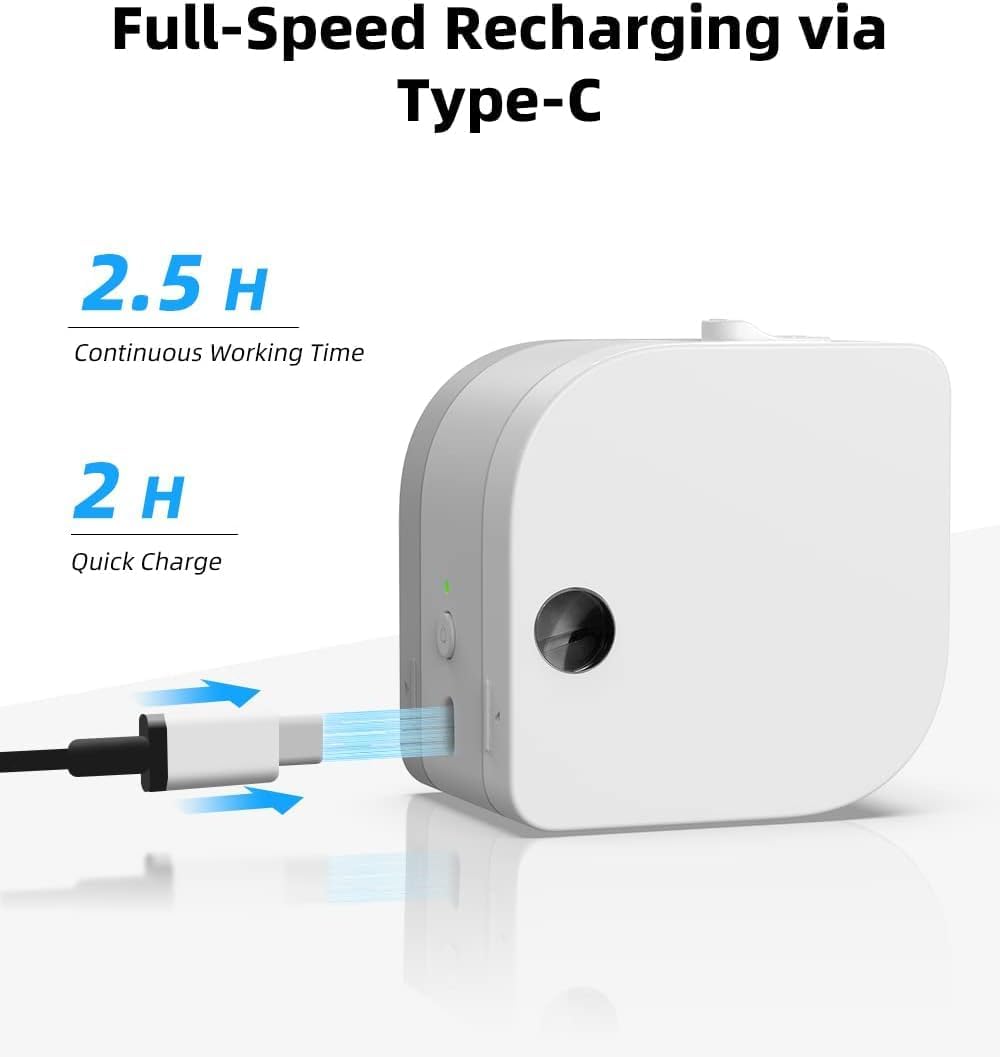
Figure 2: The P12 PRO charging via its Type-C port. A full charge takes approximately 2 hours and provides up to 2.5 hours of continuous working time.
2.3. App Installation and Bluetooth Pairing
The Phomemo P12 PRO operates via the 'Print Master' application. Follow these steps to install the app and pair your device:
- Budata ngwa: Chọọ maka 'Print Master' in the Apple App Store (for iOS devices) or Google Play Store (for Android devices) and install it.
- Ike Na: Press and hold the power button on the P12 PRO until the indicator light turns on.
- Kwado Bluetooth: Gbaa mbọ hụ na agbanyere Bluetooth na ama ma ọ bụ mbadamba gị.
- Open App and Connect: Open the 'Print Master' app. The app will automatically search for available Phomemo devices. Select 'P12 PRO' from the list to establish a connection. The device indicator light will change to confirm a successful connection.

Figure 3: The 'Print Master' app interface, demonstrating Bluetooth connectivity and options for customizing labels with borders and icons.
3. Ntuziaka ọrụ
3.1. Loading Label Tape
- Mepee mkpuchi: Gently push the cover release button (if present) or lift the top cover of the device.
- Fanye teepu: Place the label tape roll into the compartment with the label end extending out through the printer's output slot. Ensure the tape is aligned correctly.
- Mechie mkpuchi: Mechie mkpuchi ahụ nke ọma ruo mgbe ọ pịnyere aka n'ebe ọ dị.
3.2. Creating and Printing Labels
The 'Print Master' app provides extensive customization options for your labels:
- Ntinye ederede: Enter your desired text. The app supports multiple lines of text.
- Fonts and Styles: Choose from over 154 fonts and adjust text size, bolding, italics, and alignment.
- Borders and Icons: Select from 78 frames and thousands of icons, graphics, and symbols to enhance your labels.
- Atụmatụ pụrụ iche: Create barcodes, QR codes, and utilize various templates for specific applications (e.g., date labels, price tags).

Ọgụgụ 4: Ọpụamples of labels with clear text and icons, suitable for school items and organization.

Figure 5: The P12 PRO's versatility in creating labels for kitchen organization, including date and content labels.
3.3. Supported Label Types
The P12 PRO is compatible with 12mm wide label tapes and supports various materials:
- Plastic Labels: Water-resistant, abrasion-resistant, oil-resistant, and strong adhesive for general use.
- Satin Ribbon Labels: Ideal for gift wrapping, crafts, and decorative purposes.
- Iron-on Labels: For labeling clothing and fabric items.
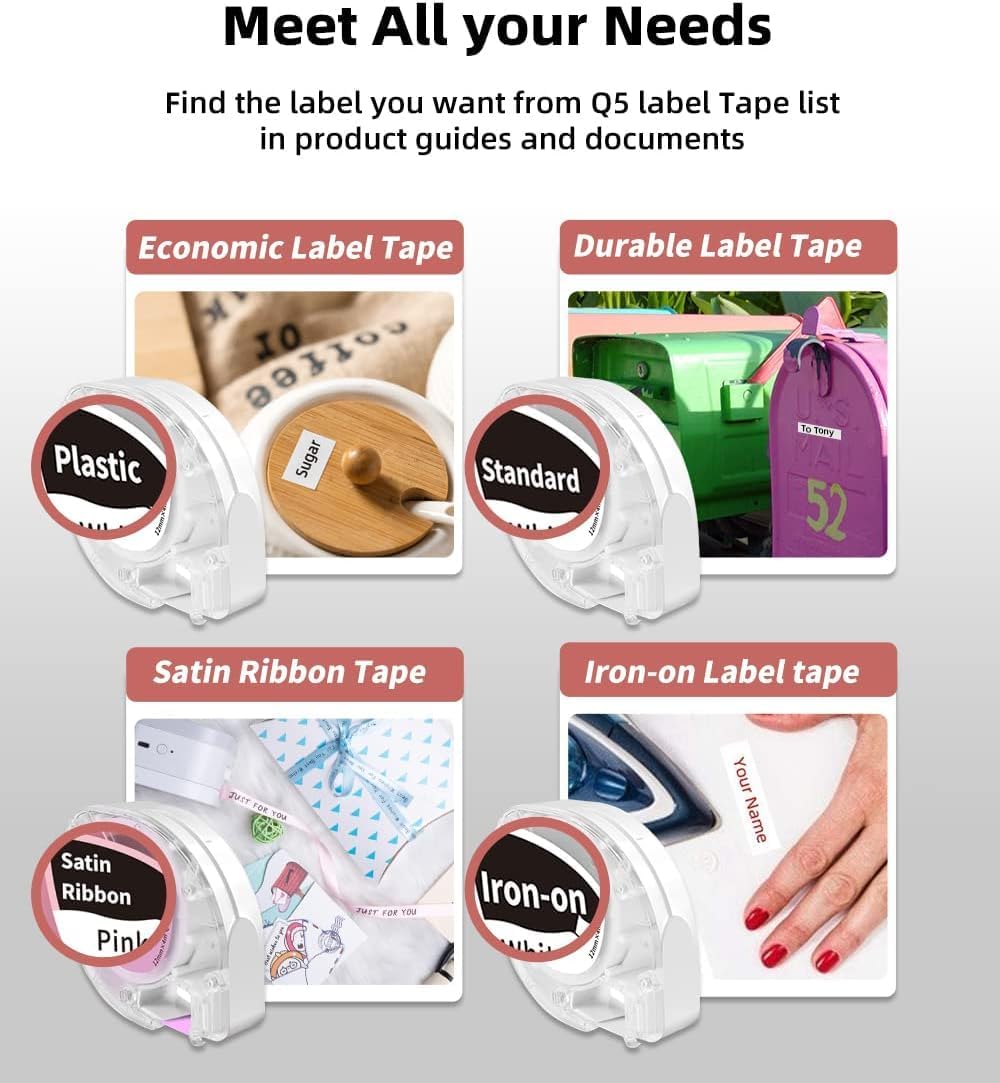
Figure 6: A selection of label tape types compatible with the Phomemo P12 PRO, including plastic, standard, satin ribbon, and iron-on options.

Figure 7: Demonstrating the application of an iron-on label for clothing, a feature supported by the P12 PRO.
3.4. Cutting Labels
After printing, use the built-in serrated tear-off knife to cleanly cut the label from the tape roll. This ensures a smooth and quick cut.
4. Nlekọta
4.1. Na-ehicha isi mbipụta
To maintain optimal print quality, periodically clean the print head. Use a soft, lint-free cloth lightly dampened with isopropyl alcohol. Gently wipe the print head surface. Ensure the device is powered off before cleaning.
4.2. Nlekọta batrị
The P12 PRO features a built-in lithium-ion battery. To prolong battery life:
- Zere ịchaji batrị ugboro ugboro.
- Chekwaa ngwaọrụ ahụ n'ebe dị jụụ, kpọrọ nkụ mgbe ọ naghị eji ya ogologo oge.
- If the device will not be used for a long time, charge it to about 50% every few months.
5. Nchọpụta nsogbu
5.1. Ngwaọrụ anaghị agba ọkụ
- Ensure the device is fully charged. Connect it to a power source using the Type-C cable.
- Pịa ma jide bọtịnụ ike maka sekọnd ole na ole.
5.2. Cannot Connect via Bluetooth
- Verify that the P12 PRO is powered on and within range of your mobile device.
- Gbaa mbọ hụ na agbanyere Bluetooth na ngwaọrụ mkpanaka gị.
- Restart the 'Print Master' app and try connecting again.
- If issues persist, try restarting both the P12 PRO and your mobile device.
5.3. Ogbenye Bipụta Ogo
- Check if the label tape is correctly installed and not jammed.
- Hichaa isi mbipụta dịka akọwara na ngalaba mmezi.
- Ensure you are using genuine Phomemo label tapes.
- Check the battery level; low battery can affect print quality.
5.4. Label Jamming
- Gbanyụọ ngwaọrụ ozugbo.
- Open the cover and carefully remove any jammed label tape.
- Reinstall the label tape, ensuring it is properly aligned.
6. Nkọwapụta
| Njirimara | Nkọwa |
|---|---|
| Aha Nlereanya | Phomemo P12 Pro |
| Teknụzụ obibi akwụkwọ | Thermal |
| Mkpebi | 203 dpi |
| Njikọta | Bluetooth 4.0 or above, USB Type-C |
| Sistemu dakọtara | Android, iOS |
| Max Label Width | 12mm |
| Ike batrị | 1000mAh Lithium Ion (enwere ike ịchaji ya) |
| Oge Nchaji | Ihe ruru. awa 2 |
| Oge ọrụ na-aga n'ihu | Ihe ruru. awa 2.5 |
| Gbanyụọ akpaaka | Mgbe nkeji 15 nke arụghị ọrụ |
| Akụkụ | 4.8 x 4.5 x 2.67 sentimita asatọ |
| Ibu Ibu | 7.8 ounces |
7. Akwụkwọ ikike na nkwado
7.1. Akwụkwọ ikike Ozi
The Phomemo P12 PRO Label Maker Machine comes with a 2-afọ akwụkwọ ikike site na ụbọchị ịzụrụ. Akwụkwọ ikike a na-ekpuchi ntụpọ nrụpụta na adịghị arụ ọrụ n'okpuru ojiji nkịtị. Biko dowe ihe akaebe nke ịzụrụ ihe maka akwụkwọ ikike.
7.2. Nkwado ndị ahịa
For technical assistance, troubleshooting not covered in this manual, or warranty inquiries, please contact Phomemo customer support through their official website or the contact information provided with your product packaging. Please have your model number (P12 Pro) and purchase details ready when contacting support.


