Okwu mmalite
This manual provides comprehensive instructions for the VR-robot V9 Pro Motorcycle Helmet Intercom Communication System. It covers setup, operation, maintenance, and troubleshooting to ensure optimal performance and user safety. The V9 Pro is designed to provide clear communication, stereo music, and FM radio functionality for motorcycle riders.

Image: The VR-robot V9 Pro main unit with attached speakers and microphone, illustrating the complete system components.
Ihe ngwugwu
Nyochaa na etinyere ihe niile edepụtara n'okpuru na ngwugwu gị:

Image: A visual representation of all components included in the VR-robot V9 Pro package, numbered for easy identification.
- Velcro
- 3M mama
- Fixed Velcro
- Fixed Velcro (additional)
- Microphone Protective Cover
- Mpempe ekwentị ntị
- Akwụkwọ ntuziaka onye ọrụ
- Igwe okwu okwu
- Ịchaji eriri
- Igwe ndọtị igwe okwu
- Igwe okwu zoro ezo
- V9 Pro Main Unit
- Igwe okwu mkpanaka
- Ngwa Ọkà Okwu
Ntọala na nwụnye
The V9 Pro offers two installation methods: Velcro and metal earphone clip. Choose the method best suited for your helmet type.
1. Ịchaji ngwaọrụ
Before first use, fully charge the V9 Pro. Connect the provided charging cable to the device and a USB power source. A full charge takes approximately 2.5 hours.

Image: Illustration showing the 850mAh battery capacity and charging time of 2.5 hours, with a standby time of up to 200 hours.
2. Ịwụnye na okpu agha
The V9 Pro is compatible with both open helmets and full-face helmets. No additional screws are needed, preserving the helmet's appearance.

Image: Various types of motorcycle helmets, demonstrating the versatility of the V9 Pro's installation across different helmet designs.
Using the Earphone Clip:
- Attach the earphone clip to the side of your helmet.
- Slide the V9 Pro main unit onto the clip until it securely locks into place.
- Insert the speakers into the helmet's ear pockets, ensuring they are positioned directly over your ears for optimal sound.
- Attach the microphone (soft or rod-type) to a suitable position inside the helmet, near your mouth, using the microphone extension cable if needed.
Using Velcro:
- Clean the desired installation area on your helmet.
- Apply the fixed Velcro strips to the helmet surface.
- Attach the V9 Pro main unit to the Velcro.
- Proceed with speaker and microphone installation as described above.
Image: A step-by-step visual guide demonstrating how to install the V9 Pro unit onto a motorcycle helmet using the provided clip and connecting the speakers and microphone.
Ntuziaka ọrụ
The V9 Pro features multi-function buttons designed for easy operation, even while wearing gloves.

Image: A comparison illustrating the ease of operating the V9 Pro's large buttons with both bare hands and gloved hands.
1. Gbanyụọ / gbanyụọ
- Ike Na: Pịa ma jide bọtịnụ ike maka sekọnd iri na ise.
- Gbanyụọ: Pịa ma jide bọtịnụ ike maka sekọnd iri na ise.
2. Njikọ Bluetooth
The V9 Pro uses Bluetooth 3.0 for connectivity.
- Gbaa mbọ hụ na agbanyụrụ ngwaọrụ ahụ.
- Press and hold the Multi-function button until the indicator light flashes red and blue, indicating pairing mode.
- On your mobile device, search for "V9 Pro" in the Bluetooth settings and select to pair.
- Once paired, the indicator light will turn blue.
3. Intercom Communication
The V9 Pro supports intercom communication between two riders up to 800 meters (2625 feet).

Image: Two motorcyclists communicating, with an overlay indicating an intercom distance of up to 800 meters.
- To initiate intercom, ensure both V9 Pro units are powered on and within range.
- Press the Intercom button on one unit to connect.
- To end intercom, press the Intercom button again.
4. Oku ekwenti
The V9 Pro supports hands-free calling with automatic answer functionality.

Image: A motorcyclist riding, with an overlay of a smartphone screen showing an incoming call, illustrating the automatic call answering feature.
- Oku azaa: Incoming calls are automatically answered after a few rings. You can also short press the Multi-function button to answer.
- Oku ngwụcha: Pịa obere bọtịnụ ọrụ dị iche iche.
- Jụ oku: Pịa ma jide bọtịnụ ọtụtụ ọrụ maka sekọnd iri na abụọ.
- Nọmba Ikpeazụ emegharịgharịrị: Pịa bọtịnụ Multi-function ugboro abụọ.
5. Nghaghachi egwu
Enjoy stereo music with DSP noise reduction technology for clear audio.
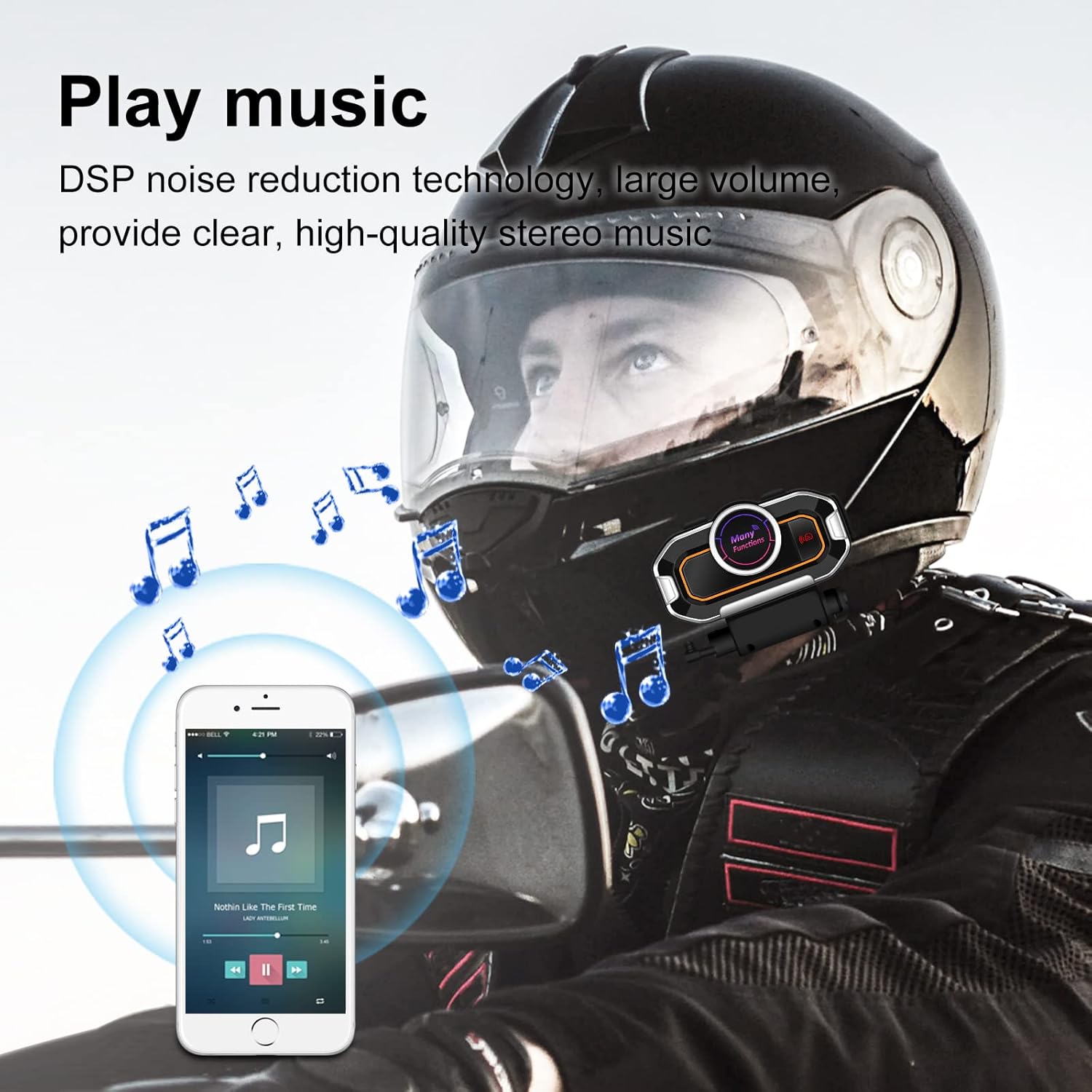
Image: A motorcyclist wearing a helmet, with musical notes floating around, indicating the stereo music playback capability of the V9 Pro.
- Gwuo/kwụsịtụ: Pịa obere bọtịnụ ọrụ dị iche iche.
- Track na-esote: Pịa obere bọtịnụ Mpịakọta Elu.
- Gara aga Track: Pịa obere bọtịnụ Mbelata Olu.
- Olu elu: Pịa bọtịnụ Mpịakọta Elu ruo ogologo oge.
- Olu ala: Pịa bọtịnụ Mbelata Olu ruo ogologo oge.
6. Redio FM
Tune into FM radio for real-time road conditions and entertainment.

Image: A motorcyclist riding, with a transparent map overlay showing radio waves, symbolizing the FM radio function for real-time information.
- Turn On/Off FM Radio: Pịa bọtịnụ FM.
- Nyochaa ọwa: Press and hold the FM button to automatically scan and save available stations.
- Ọdụ na-esote: Pịa obere bọtịnụ Mpịakọta Elu.
- Ebe gara aga: Pịa obere bọtịnụ Mbelata Olu.
7. Voice Prompts and GPS
The V9 Pro provides voice prompts for device status and can relay GPS voice instructions from your paired smartphone.
Nlekọta
Proper maintenance ensures the longevity and optimal performance of your V9 Pro system.
- Nhicha: Jiri nwayọọ, damp cloth to clean the main unit and speakers. Avoid using harsh chemicals or abrasive cleaners.
- Nguzogide mmiri: The V9 Pro has a daily-use waterproof design, allowing normal operation in bad weather. However, avoid submerging the device in water.
- Nchekwa: When not in use for extended periods, store the device in a cool, dry place. Ensure it is fully charged before storage to preserve battery health.
- Nlekọta batrị: Recharge the battery regularly, even if not frequently used, to maintain its capacity.

Image: The V9 Pro unit with water droplets on its surface, demonstrating its waterproof capabilities against rain.
Nchọpụta nsogbu
If you encounter issues with your V9 Pro, refer to the following common problems and solutions:
| Nsogbu | Ihe nwere ike ime | Ngwọta |
|---|---|---|
| Ngwaọrụ anaghị agbanwu ọkụ. | Batrị dị ala. | Chajịa ngwaọrụ ahụ ruo opekata mpe awa abụọ. |
| Enweghị ike ijikọ na ekwentị. | Device not in pairing mode; Bluetooth off on phone; device already paired with another device. | Ensure V9 Pro is in pairing mode (flashing red/blue). Turn on phone's Bluetooth. Disconnect from other devices. |
| Intercom not connecting. | Units out of range; units not properly paired for intercom. | Ensure units are within 800m. Re-initiate intercom connection. |
| Poor audio quality/noise. | Microphone/speakers improperly positioned; external interference. | Adjust microphone closer to mouth. Ensure speakers are centered over ears. Move away from strong electromagnetic fields. |
| Bọtịnụ anaghị anabata. | Ngwaọrụ ahụ kpọnwụrụ akpọnwụ; obere batrị. | Try restarting the device. Charge the device. |
If the problem persists, please contact VR-robot customer support.
Nkọwapụta
| Njirimara | Nkọwa |
|---|---|
| Aha Nlereanya | V9 Pro |
| Teknụzụ Njikọta | Ikuku (Bluetooth) |
| Ụdị Bluetooth | 3.0 |
| Intercom Range | Up to 800 meters (2625 feet) for 2 riders |
| Ike batrị | 850mAh batrị lithium |
| Oge Nchaji | Awa 2.5 |
| Oge ọrụ na-aga n'ihu | 10 hours (Play time: 12 hours) |
| Oge Njikere | Ruo awa 200 |
| Njikwa mkpọtụ | Active Noise Cancellation (DSP) |
| Ọkwa Nguzogide mmiri | Waterproof (Daily-use) |
| Nhọrọ igweokwu | Soft microphone, Rod-type hard microphone |
| Ụdị njikwa | Call Control, Noise Control, Voice Control, Volume Control (Multi-function buttons) |
| Akụkụ | 3.26 x 1.73 x 1.02 sentimita asatọ |
| Ibu Ibu | 1.94 ounces |
Akwụkwọ ikike na nkwado
VR-robot is committed to providing satisfactory solutions. If you have any questions or require assistance with your V9 Pro, please contact customer support.
Nkwado kọntaktị:
- Refer to the contact information provided in your product packaging or on the official VR-robot websaịtị.
- For Amazon purchases, you can typically click "VR robot" on the product page and then "ASK A QUESTION" for support.

Image: An image depicting customer service representatives, symbolizing the availability of support for VR-robot products.


