Okwu mmalite
The Microsoft Modern USB-C Headphones are designed to provide high-quality audio for calls, meetings, and general use, particularly optimized for Microsoft Teams. They offer clear sound, a noise-reducing microphone, and intuitive controls for enhanced productivity and communication.
Ihe ngwugwu
- Microsoft Modern USB-C Headset
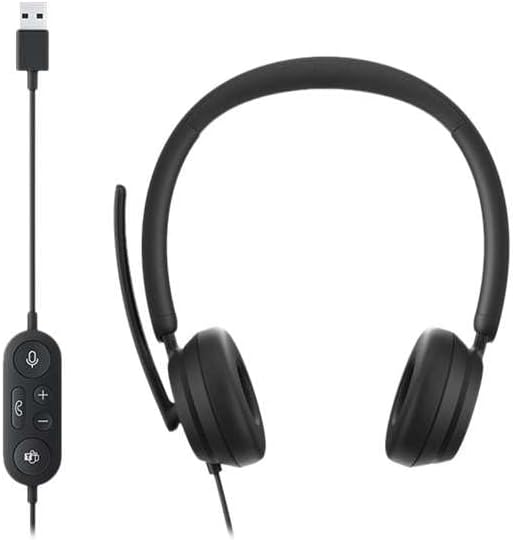
Image: The Microsoft Modern USB-C Headphones, featuring the headset with its attached USB-C cable and inline control unit. The control unit has buttons for mute, volume up/down, call answer/end, and a Microsoft Teams button.
Melite
Ijikọ ekweisi
- Locate an available USB-C port on your computer or compatible device.
- Plug the USB-C connector of the headset into the USB-C port.
- Your operating system (Windows 11/10/8.1/8 or Mac OS 11.0/10.15) should automatically detect and install the necessary drivers.
Ndozi igwe okwu
- The microphone boom is flexible. Position it approximately one inch from your mouth for optimal voice pickup.
- The microphone features noise reduction to minimize background distractions during calls.

Foto: A nso nso view of the earcups and the adjustable microphone boom of the Microsoft Modern USB-C Headphones.
Na-arụ ọrụ ekweisi
Njikwa ntanetị
The inline control unit provides convenient access to essential functions:
- Oghere bọtịnụ: Press to mute or unmute your microphone. An indicator light on the control unit may show mute status.
- Mpịakọta Mpịakọta / Ala: Gbanwee olu ege ntị.
- Bọtịnụ oku: Pịa ka ịza ma ọ bụ kwụsị oku.
- Bọtịnụ Ndị otu Microsoft: Quickly launch or bring Microsoft Teams to the foreground.

Foto: nkọwa zuru ezu view of the inline control unit, showing the microphone mute, volume up/down, call, and Microsoft Teams buttons.
Nkasi obi na Nhazi
The headset features padded and lightweight earcups designed for extended wear, ensuring comfort during long calls or work sessions.

Image: A close-up showing the soft, padded earcup of the Microsoft Modern USB-C Headphones, highlighting its comfortable design.
Nlekọta
- Nhicha: Jiri ákwà dị nro ma kpọọ nkụ hichaa ekweisi ahụ. Zere iji kemịkalụ siri ike ma ọ bụ ihe ndị na-emebi ihe.
- Nchekwa: Debe ekweisi n'ebe dị jụụ ma kpọọ nkụ mgbe a naghị eji ya. Zere oke okpomọkụ.
- Nlekọta USB: Do not excessively bend or pull the USB-C cable to prevent damage.
Nchọpụta nsogbu
| Nsogbu | Ngwọta |
|---|---|
| Enweghị ụda sitere na ekweisi |
|
| Igwe okwu anaghị arụ ọrụ |
|
| Kọmputa anaghị amata ekweisi |
|
Nkọwapụta
| Ụdị | Microsoft |
| Aha Nlereanya | I6N-00009 |
| Nọmba Nlereanya ihe | 2026 |
| Teknụzụ Njikọta | Ejiri waya (USB-C) |
| Ntinye ntị | N'elu Ntị |
| Ụdị Ihe | Na Ntị |
| Ihe onwunwe | Akpụkpọ Anụ Adịgboroja |
| Ụdị njikwa | Njikwa oku |
| Ngwa dakọtara | Ngwa USB-C dakọtara |
| Ndakọrịta sistemụ arụmọrụ | Windows 11 / 10 / 8.1 / 8, Mac OS 11.0/10.15 |
| Akụkụ ngwaahịa | 16 x 3.99 x 24.99 cm |
| Ibu Ibu | 390 g |
| Ọkwa Nguzogide mmiri | Mmiri na-eguzogide |
Akwụkwọ ikike na nkwado
For warranty information and technical support, please refer to the official Microsoft support website or contact Microsoft customer service. Details regarding specific warranty periods and terms are typically provided with your purchase documentation or available online.
You can find support resources at the official Microsoft support page: nkwado.microsoft.com


