Okwu mmalite
Thank you for choosing the Rapoo V16 Optical Gaming Mouse. This manual provides detailed instructions on how to set up, operate, and maintain your new gaming mouse. The V16 is designed for optimal gaming performance, featuring an ergonomic design, programmable buttons, and customizable DPI settings.
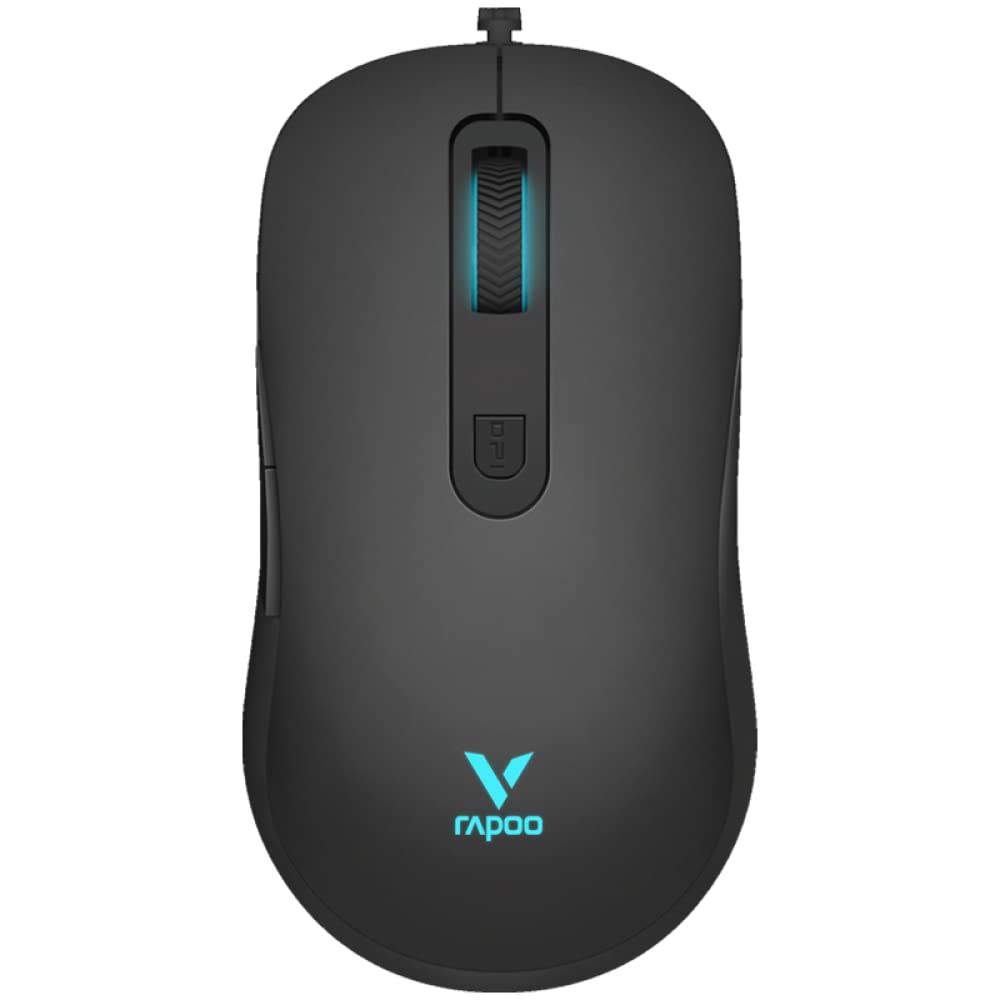
Foto 1: Top view of the Rapoo V16 Optical Gaming Mouse, highlighting its sleek black design and illuminated elements.
Atụmatụ igodo
- Nhazi Ergonomic: Perfectly designed for gaming, ensuring comfort during extended use.
- Nhazi dị arọ: Allows users to move and control the mouse with better ergonomics, enabling faster shooting and flicking.
- 6 bọtịnụ mmemme: Assign macros and functions through software to each button.
- Braided Cable: Protects the wire from tangling and ensures a hassle-free experience.
- Single RGB Lighting: Features breathing modes with cyclical changes to enlighten and brighten your gaming setup.
- Adjustable Real-time DPI: Up to 2000 DPI with 3 sensitivity modes for precise tracking.
- Ebe nchekwa dị n'ime: Store your custom settings directly on the mouse.
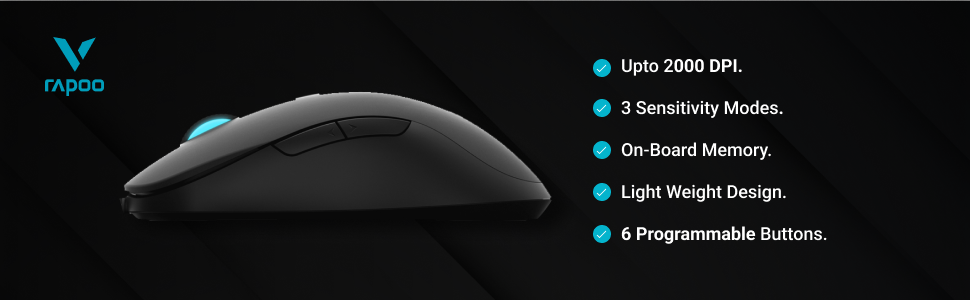
Nyocha 2: N'eluview of the Rapoo V16's main features, including its DPI range and programmable buttons.

Figure 3: The ergonomic design of the Rapoo V16, crafted for comfortable and extended gaming sessions.
Ntuziaka nhazi
Achọrọ Sistemụ
- Operating System: Windows 8, Windows XP
- Hardware Platform: PC
- USB Port dị
Ijikọ òké
- Chọta ọdụ ụgbọ mmiri USB dị na kọmputa gị.
- Insert the USB connector of the Rapoo V16 mouse into the USB port.
- The mouse is plug-and-play. Your operating system will automatically detect and install the necessary drivers.
- Once installed, the mouse's RGB lighting will illuminate, indicating it is ready for use.
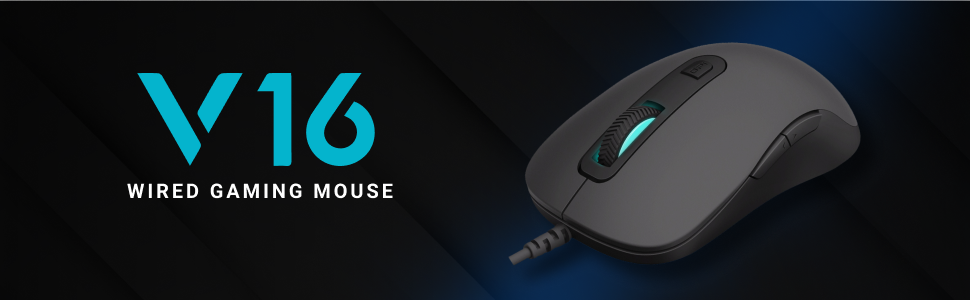
Figure 4: The Rapoo V16 is a wired gaming mouse, ensuring stable and reliable connectivity.
Ntuziaka ọrụ
Isi ọrụ
The Rapoo V16 functions as a standard optical mouse for everyday use. Move the mouse to control the cursor on your screen. The left and right click buttons perform primary and secondary actions, respectively. The scroll wheel allows for vertical scrolling through documents and web ibe.
Bọtịnụ enwere ike ime
The V16 features 6 programmable buttons, allowing you to assign custom functions, macros, or key combinations for gaming or productivity. To utilize this feature, you will need to install the customisable drivers from the official Rapoo website. Once installed, open the driver software to configure each button.

Figure 5: The 6 programmable buttons on the Rapoo V16 mouse. These include the left click (1), right click (2), scroll wheel click (3), DPI button (4), and two side buttons (5, 6).
- Bọtịnụ 1: Pịa aka ekpe
- Bọtịnụ 2: Pịa aka nri
- Bọtịnụ 3: Pịgharịa Wheel Pịa
- Bọtịnụ 4: Bọtịnụ okirikiri DPI
- Bọtịnụ 5: Side Button (Forward/Backward by default)
- Bọtịnụ 6: Side Button (Forward/Backward by default)
Na-edozi Ntọala DPI
The Rapoo V16 allows for real-time DPI adjustment with 3 sensitivity modes, up to 2000 DPI. The DPI button (Button 4) located behind the scroll wheel allows you to cycle through these sensitivity settings on the fly, enabling quick adjustments for different gaming scenarios or tasks.

Figure 6: The dedicated DPI button on the Rapoo V16 for quick sensitivity adjustments.
Nlekọta
Proper maintenance ensures the longevity and optimal performance of your Rapoo V16 gaming mouse.
- Nhicha: Jiri akwa dị nro, kpọrọ nkụ hichapụ elu òké ahụ. Maka unyi isi ike, ntakịrị dampen akwa na mmiri ma ọ bụ a nwayọọ ihicha ngwọta. Zere iji kemịkalụ siri ike ma ọ bụ ihe na-emebi emebi.
- Ihe mmetụta anya: Debe ihe mmetụta anya dị n'okpuru òké ahụ ka ọ dị ọcha na enweghị ntụ ma ọ bụ irighiri ihe iji hụ na nsochi ziri ezi.
- Nlekọta USB: The braided cable is designed for durability, but avoid sharp bends or excessive pulling to prevent internal damage.
- Nchekwa: Mgbe ejighị ya, chekwaa òké na ebe dị ọcha, kpọrọ nkụ pụọ na oke okpomọkụ.
Nchọpụta nsogbu
| Nsogbu | Ihe nwere ike ime | Ngwọta |
|---|---|---|
| Òké anaghị aza | USB cable not properly connected; Faulty USB port; Driver issue. | Ensure the USB cable is securely plugged in. Try a different USB port. Restart your computer. Reinstall mouse drivers from the Rapoo websaịtị. |
| Inaccurate tracking or erratic cursor movement | Dirty optical sensor; Uneven or reflective surface; Software interference. | Clean the optical sensor. Use a mouse pad or a non-reflective, even surface. Close other applications that might interfere. |
| Bọtịnụ ndị a na-eme mmemme anaghị arụ ọrụ | Drivers not installed or corrupted; Software not configured correctly. | Install or reinstall the latest drivers from the Rapoo website. Open the driver software and ensure buttons are assigned correctly. |
| RGB ọkụ anaghị arụ ọrụ | Driver issue; Hardware malfunction. | Ensure drivers are up to date. If the issue persists, contact Rapoo customer support. |
Nkọwapụta
| Njirimara | Nkọwa |
|---|---|
| Ụdị | Rapoo |
| Nlereanya | V16 |
| Teknụzụ Njikọta | Ekwenyere (USB) |
| Teknụzụ nchọpụta ngagharị | Ngwa anya |
| Mmetụta DPI | Up to 2000 DPI (3 sensitivity modes) |
| Bọtịnụ enwere ike ime | 6 |
| Ntuzi aka | Ambidextrous |
| Atụmatụ pụrụ iche | Lightweight, Ergonomic Design, Onboard Memory, Braided Cable, Single RGB Lighting |
| Ndakọrịta sistemụ arụmọrụ | Windows 8, Windows XP |
| Isi Iyi Ike | Kwadoro USB |
| Akụkụ (Ihe dị ka) | 125.3mm (L) x 68.2mm (W) x 38.6mm (H) |

Figure 7: Approximate dimensions of the Rapoo V16 mouse.
Akwụkwọ ikike na nkwado
The Rapoo V16 Optical Gaming Mouse comes with a Akwụkwọ ikike afọ 2. For warranty claims, technical support, or further assistance, please contact Rapoo customer service or visit their official websaịtị.
Onye mbubata: Supertron Electronics Ltd
For more information, visit the official Rapoo store: Rapoo Store on Amazon.in


