1. Okwu mmalite
The Milestone MPT-II is a compact and portable 58mm thermal printer designed for various business applications, including retail, restaurants, and mobile logistics. It offers high-speed, clear printing and features Bluetooth connectivity for seamless integration with Android and iOS devices. Its lightweight design and long-lasting battery make it ideal for on-the-go printing needs.

2. Atụmatụ igodo
- Mbipụta Bluetooth: Supports Android and iOS devices for wireless printing.
- Enwere ike ibugharị: Light and compact design allows for printing anywhere, anytime.
- Low Operating Cost: Direct thermal printing eliminates the need for ink ribbons or cartridges, requiring only thermal paper.
- Ogologo ndụ batrị: Built-in 7.4V/2500mAh rechargeable lithium battery provides up to 4 hours of continuous printing.
- Versatile Interface: Equipped with both USB and Bluetooth connectivity.
- ESC/POS Compatible: Supports standard ESC/POS print commands for broad software compatibility.

3. Mbido Mbido
3.1 Unboxing na ọdịnaya
Carefully unpack the printer and verify all components are present:
- 1 x Milestone MPT-II Thermal Printer
- 1 x eriri USB
- 1 x eriri USB
- 1 x Akwụkwọ mpịakọta
- Akwụkwọ ntuziaka onye ọrụ 1 x (akwụkwọ a)
3.2 Ịchaji ngwa nbipute
- Connect the USB cable to the printer's charging port.
- Plug the USB adaptor into a standard power outlet.
- The charging indicator light will illuminate. Charge the printer fully before first use (approximately 2.5-3 hours for continuous printing).
3.3 Na-ebunye akwụkwọ ọkụ
- Open the paper compartment cover by gently pushing the latch.
- Insert the thermal paper roll with the printing side facing outwards (as shown in Figure 2). Ensure the roll is seated correctly.
- Pull a small length of paper out beyond the cutting edge.
- Close the paper compartment cover firmly until it clicks into place.
4. Ntuziaka ọrụ
4.1 Gbanyụọ/ gbanyụọ
- To power on: Press and hold the power button until the indicator light illuminates.
- To power off: Press and hold the power button until the indicator light turns off.
4.2 Njikọ Bluetooth
The MPT-II printer supports Bluetooth connectivity for mobile devices.
- Ensure the printer is powered on and within range of your mobile device.
- On your mobile device (Android/iOS), go to Bluetooth settings and turn Bluetooth on.
- Chọọ maka available devices. The printer will appear as "MPT-II".
- Select "MPT-II" to pair. If prompted for a password, enter 1234 or 0000.
- Once paired, the printer is ready for use with compatible applications.
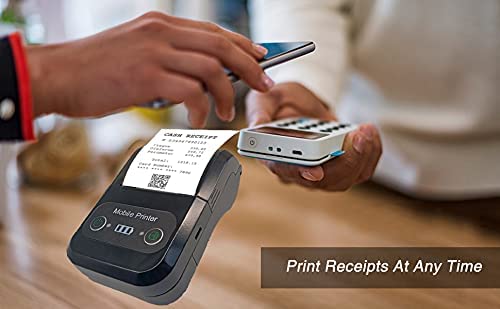
4.3 Iji ya na ngwa
For mobile printing, you will need a compatible application. Milestone recommends downloading RAWBT Printer App or MYXPrint App from the Google Play Store. For iOS, search for compatible thermal printer apps in the App Store.
- Open your chosen printing application.
- Navigate to the printer settings within the app.
- Select the "MPT-II" printer from the list of available Bluetooth devices.
- You can now send print commands from the application.
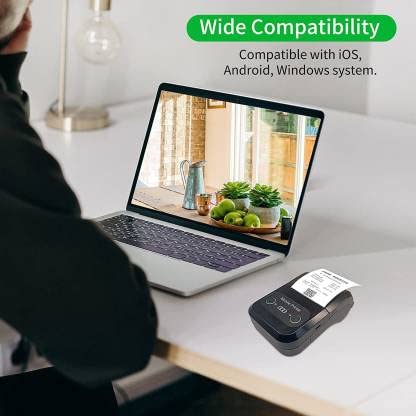

4.4 USB Connection (for PC)
The printer can also be connected to a PC via USB. You may need to install a printer driver, which is typically available from the manufacturer's website or included on a CD with the product (if applicable).
5. Nlekọta
5.1 Na-ehicha ngwa nbipute
To ensure optimal performance and print quality, regularly clean the printer:
- Isi Bipụta: Jiri ákwà owu mee obere ihe.ampened with isopropyl alcohol to gently wipe the thermal print head. Allow it to dry completely before use.
- Ụzọ akwụkwọ: Use a soft, dry cloth or a small brush to remove any paper dust or debris from the paper path.
- Mputa: Jiri nwayọ hichaa mpụta nke ngwa nbipute, damp akwa . Zere iji kemịkalụ siri ike ma ọ bụ ihe nchacha.
5.2 Nlekọta batrị
- Chajịa batrị zuru oke tupu ojiji mbụ.
- Zere igbapu batrị kpamkpam ugboro ugboro.
- If storing the printer for an extended period, charge it to about 50% and recharge every few months to prevent battery degradation.
6. Nchọpụta nsogbu
| Nsogbu | Ihe nwere ike ime | Ngwọta |
|---|---|---|
| Ngwa nbipute anaghị agbanwu ọkụ. | Batrị dị ala ma ọ bụ mebie ya. | Charge the printer using the provided USB cable and adaptor. |
| Enweghị ike ijikọ site na Bluetooth. | Bluetooth is off on device; incorrect pairing password; printer not discoverable. | Ensure Bluetooth is enabled on your device. Re-attempt pairing with password 1234 or 0000. Restart both printer and device. |
| No print output or blank paper. | Paper loaded incorrectly; out of paper; print head dirty. | Check paper orientation (printing side out). Replace paper roll if empty. Clean the thermal print head (refer to Maintenance section). |
| Ọdịdị mbipụta na-adịghị mma (agbawa agbawa, ahịrị). | Print head dirty; low battery; poor quality thermal paper. | Clean the print head. Charge the printer fully. Use high-quality thermal paper. |
| Printer beeps continuously. | Paper alarm (out of paper or paper jam); low battery reminder. | Check and replace paper roll or clear jam. Charge the printer. |
7. Nka na ụzụ nkọwa
| Njirimara | Nkọwapụta |
|---|---|
| Ụzọ obibi akwụkwọ | Thermal akara obibi |
| Obosara mbipụta | Paper width 58mm, effective width 58mm |
| Mbipụta njupụta | 576 ntụpọ/akara |
| Mkpebi | 8 dots/mm, 203 DPI |
| Ọsọ Bipụta | 70mm/s (Max Print speed Monochrome: 50 ppm) |
| Printer Core Life | 50KM (25% print density or less than 100 million pulses) |
| Printable Content | English, numbers, symbols, characters, pictures, 1D/2D barcode, multi-languages |
| Interface Nkwukọrịta data | USB / Bluetooth |
| Ịnye ọkụ | Machine charging 9V-1.5A |
| Batrị | Built-in rechargeable 2600mAh lithium-ion battery (7.4V/2500mAh) |
| Continuous Printing Time | 2.5-3 awa |
| Ntọala ntụziaka | ESC / POS dakọtara |
| Ịcha akwụkwọ | Manually tear |
| Ndakọrịta sistemụ arụmọrụ | Android, iOS, Windows |
| Akụkụ ngwaahịa | 15D x 12W x 6H centimita |
| Ibu Ibu | 310 grams |
| Ngwa gụnyere | 1 x Thermal Printer, 1 x USB Cable, 1 x USB Adaptor, 1 x Paper Roll, 1 x User Manual |
8. Akwụkwọ ikike na nkwado
This product comes with a 10-day warranty as per the purchase terms. For any technical assistance, troubleshooting beyond this manual, or warranty claims, please contact your retailer or the manufacturer's customer support. Refer to your purchase documentation for specific contact details.
Onye nrụpụta: Ihe ịrịba ama
Onye mbubata: SB RETAILS, SECTOR 28, PRADHIKARAN, PUNE-44, +918888881631


