1. Okwu mmalite
This manual provides essential information for setting up, operating, maintaining, and troubleshooting your Alienware X17 R1 Gaming Laptop. Please read this manual thoroughly to ensure optimal performance and longevity of your device.

Figure 1: Alienware X17 R1 Gaming Laptop
2. Ihe ngwugwu
Ensure all items are present in your Alienware X17 R1 package:
- Alienware X17 R1 Notebook
- Ihe nkwụnye ọkụ
- Ụdọ ọkụ
- Akwụkwọ ntuziaka (akwụkwọ a)
3. Ngwaahịa gafereview
3.1 Nhazi na Nha
The Alienware X17 R1 features a sleek, thin design in Lunar Light (white) with Dark Side of the Moon (black) accents for the keyboard and deck. Its dimensions are approximately 11.79 x 15.72 x 0.82 inches (LxWxH) and it weighs around 7.05 pounds.

Figure 2: Alienware X17 R1 Side Profile
3.2 ọdụ ụgbọ mmiri na njikọ
The Alienware X17 R1 is equipped with a comprehensive set of ports, primarily located at the rear for efficient cable management and thermal performance.
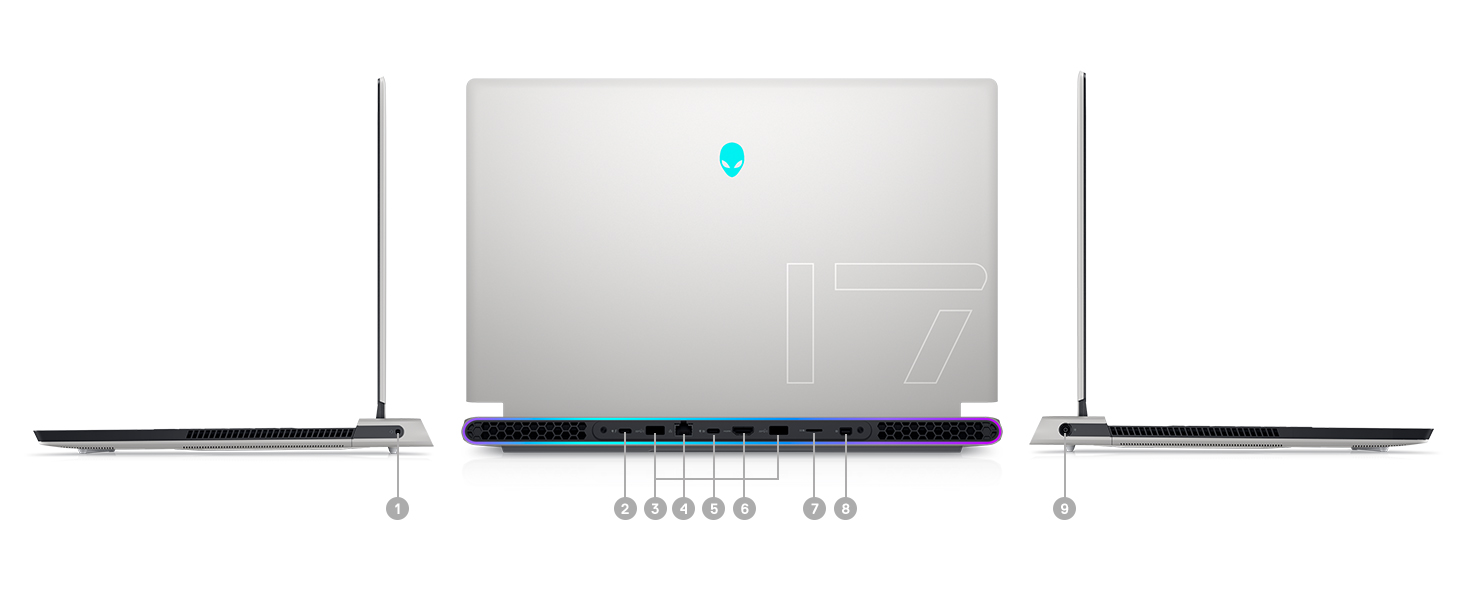
Figure 3: Rear Ports and Connectors
- Power/DC-in Port
- Mini Display Port 1.4
- HDMI 2.1 (for up to 4K/120Hz output)
- Type-C USB 3.2 Gen 2 Port with Power Delivery (5V/3A)
- Killer E3100 RJ-45 2.5G Ethernet
- Micro SD kaadị Reader
- USB 3.2 Gen 1 Type-A with Powershare
- Type-C Thunderbolt™ 4/USB 3.2 Gen 2 Port with Power Delivery (5V/3A)
- Global Headset Jack
3.3 Ahụigodo na Touchpad
The laptop features an AlienFX keyboard with per-key RGB lighting and an AlienFX Lighting design supporting 16.8 million colors. The touchpad is glass, offering solid tracking and responsive gestures.

Figure 4: AlienFX Keyboard and Touchpad
3.4 Ngosipụta
The 17.3-inch Full HD (1920 x 1080) display boasts a 360Hz refresh rate and 1ms response time, enhanced with ComfortView Plus, NVIDIA G-SYNC, and Advanced Optimus for a smooth visual experience.

Figure 5: 360Hz Display
3.5 Sistemụ jụrụ oyi
The Alienware X17 R1 incorporates advanced thermal management with its Cryo-Tech™ Technologies. This includes an exclusive Quad Fan design and Element 31, an encapsulated gallium-silicone thermal interface material, to ensure efficient heat dissipation during intensive use.

Figure 6: Cryo-Tech Cooling System
Video 1: Official Alienware X17 R1 Product Overview, highlighting key features including the cooling system.
4. Nhazi
4.1 Agbanye ike mbụ
- Unpack your Alienware X17 R1 laptop and all accessories.
- Connect the power adapter to the laptop's power port and then to a power outlet.
- Open the laptop lid and press the power button (Alienware head logo) to turn on the device.
- Follow the on-screen instructions to complete the Windows 11 setup process.
4.2 Njikọta Peripherals
Utilize the various ports on the rear and sides of the laptop to connect external monitors, keyboards, mice, and other accessories. For optimal display performance, use the HDMI 2.1 or Mini Display Port 1.4 for external monitors.

Figure 7: Connecting External Peripherals
5. Ịrụ ọrụ Laptọọpụ gị
5.1 Njikwa ike
The Alienware X17 R1 offers tailored power states to optimize performance or battery life. These can be managed through the Alienware Command Center software:
- Ụdị dị jụụ: Reduces fan noise and power consumption.
- Ụdị Nhazi: Offers a balance between performance and acoustics.
- Ụdị Ọsọ zuru ezu: Maximizes fan speed for peak performance.
- Ụdị nchekwa batrị: Optimizes settings for extended battery life.
- Ụdị arụmọrụ: Prioritizes performance for demanding tasks.
5.2 Windows Hello
The laptop supports Windows Hello for secure and convenient login using facial recognition via the integrated webcam.
5.3 Ebe Iwu Alienware
This software allows you to customize various aspects of your laptop, including RGB lighting, power profiles, and overclocking settings. It is recommended to keep the software updated for the best experience.

Figure 8: Alienware Command Center
6. Nlekọta
6.1 Nhicha
- Jiri ákwà dị nro, nke na-enweghị ihe e ji ehicha ákwà hichaa ihe mkpuchi na elu mpụta.
- Maka akara ndị isi ike, dị obere dampen akwa na mmiri ma ọ bụ ihe na-echebe ihuenyo.
- Regularly clean the air vents to prevent dust buildup, which can affect cooling performance.
6.2 Mmelite ngwanrọ
Keep your operating system, drivers, and Alienware Command Center software updated to ensure optimal performance, security, and compatibility. Use the Alienware Update utility or visit the Dell support websaịtị maka mmelite kachasị ọhụrụ.
6.3 Upgradable Components
The Alienware X17 R1 offers upgradable slots for memory and storage:
- 2 x RAM Slots (DDR4)
- 1 x M.2 PCIe Gen 4 SSD Slot
- 1 x M.2 PCIe Gen 3 SSD Slot
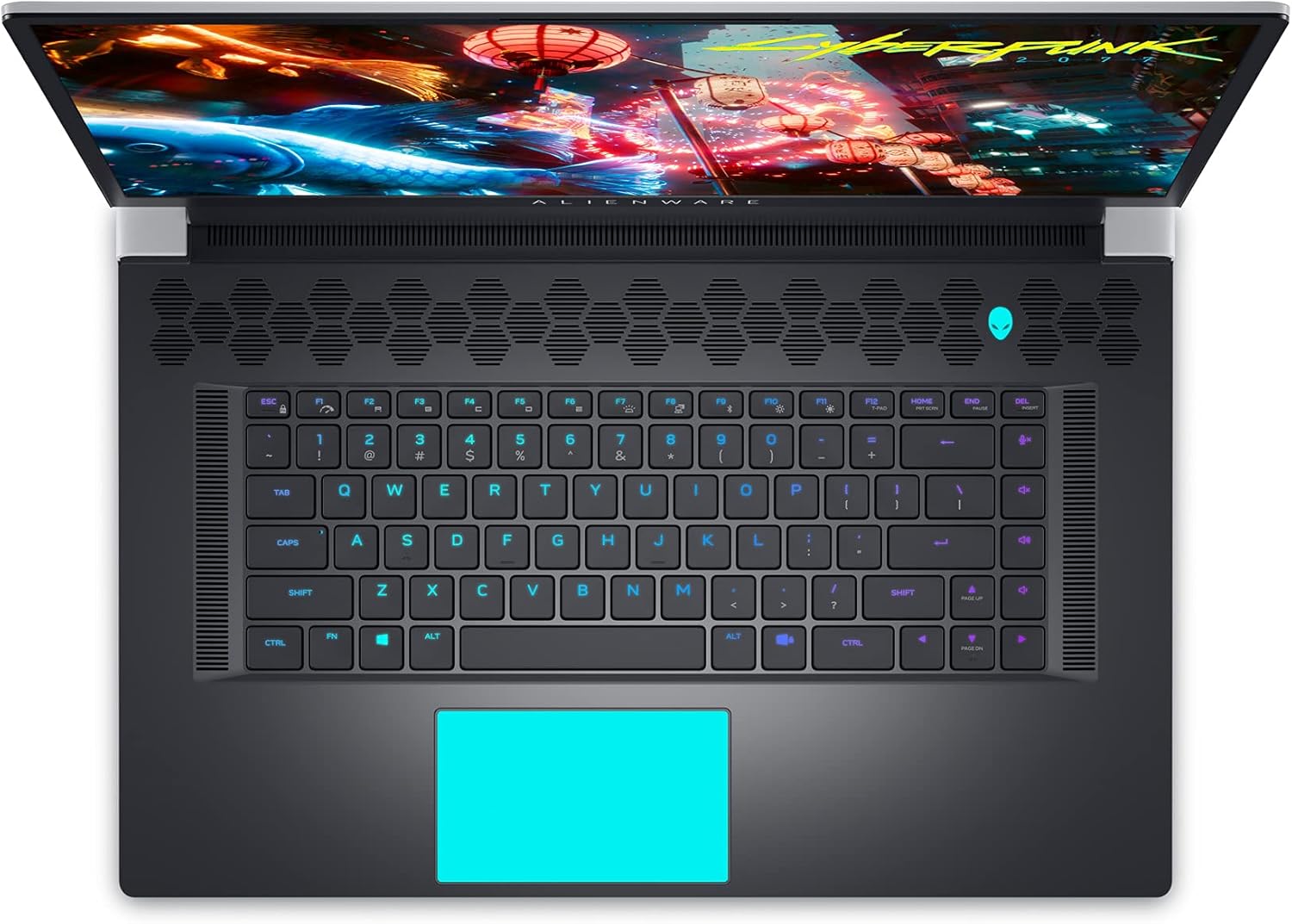
Figure 9: Internal Components and Upgradable Slots
7. Nchọpụta nsogbu
If you encounter issues with your Alienware X17 R1, try the following basic troubleshooting steps:
- Enweghị ike: Hụ na e jikọrọ ihe nkwụnye ọkụ eletrik ahụ nke ọma na laptọọpụ na ebe a na-etinye ọkụ eletrik. Nwaa ebe a na-etinye ọkụ eletrik ọzọ.
- Ihe ngosi: If the screen is blank, try connecting an external monitor to verify if the issue is with the laptop's display or the graphics card. Update graphics drivers.
- Arụmọrụ Lag Check your power management settings in Alienware Command Center. Ensure all drivers are up to date. Monitor temperatures to prevent thermal throttling.
- Nsogbu Njikọta: For Wi-Fi or Ethernet issues, restart your router and the laptop. Check network adapter drivers.
- Ngwọta ngwanrọ: Restart the application or the laptop. Ensure your operating system and applications are updated.
For more advanced troubleshooting or persistent issues, refer to the Dell support websaịtị ma ọ bụ kpọtụrụ ndị ahịa.
8. Nkọwapụta
| Njirimara | Nkọwapụta |
|---|---|
| Aha Nlereanya | Alienware x17 R1 |
| Nhazi | 11th Generation Intel Core i7-11800H (8 Cores, up to 4.6 GHz) |
| RAM | 32 GB DDR4 3200MHz |
| Nchekwa | 1 TB M.2 PCIe NVMe Solid State Drive |
| Kaadị eserese | NVIDIA GeForce RTX 3080 16GB GDDR6 |
| Ngosipụta | 17.3-inch FHD (1920 x 1080) 360Hz 1ms with ComfortView Plus, NVIDIA G-SYNC and Advanced Optimus |
| Sistemụ nrụọrụ | Windows 11 Ụlọ |
| Njikọ ikuku | Killer AX 1675 + Bluetooth 5.2 |
| ọdụ ụgbọ mmiri | 3x USB 3.0, 2x Type-C (Thunderbolt 4/USB 3.2 Gen 2), HDMI 2.1, Mini DisplayPort 1.4, Ethernet, Micro SD, Headset Jack |
| Ibu Ibu | 7.05 pound |
| Akụkụ ngwaahịa | 11.79 x 15.72 x 0.82 sentimita asatọ |
| Agba | Lunar Light (White) |
9. Akwụkwọ ikike na nkwado
Your Alienware X17 R1 laptop is covered by Dell's standard warranty. For detailed warranty information, technical support, or service requests, please visit the official Dell support website or contact their customer service. Keep your purchase receipt and product serial number handy for faster assistance.
Nkwado Dell Websaịtị: www.dell.com/adiri


