1. Okwu mmalite
This manual provides instructions for the Monoprice Dark Matter 27-inch 165Hz Gaming Monitor. This monitor features an IPS panel, a 165Hz refresh rate, and a 1920x1080p Full HD resolution. It includes Adaptive Sync technology for smooth visuals and offers multiple connectivity options, including HDMI and DisplayPort inputs.
2. Ozi nchekwa
- Read all instructions before operating the monitor.
- Keep the monitor away from water or damp gburugburu.
- Akwụsịla oghere ikuku.
- Jiri naanị ihe nkwụnye ọkụ nke onye nrụpụta nyere.
- Zere idobe ihe nleba anya n'elu ebe anaghị akwụsi ike.
- Kwụpụ eriri ọkụ eletrik n'oge oké ifufe ma ọ bụ mgbe ejiri ya ruo ogologo oge.
- Kpọtụrụ ndị ọrụ ruru eru ọrụ niile.
3. Ihe ngwugwu
Chọpụta na ngwungwu gị nwere ihe ndị a:
- Monoprice Dark Matter 27-inch Gaming Monitor
- Nyochaa Stand (Base and Olu)
- Ihe nkwụnye ike na eriri ike
- HDMI USB
- Akwụkwọ ntuziaka (akwụkwọ a)
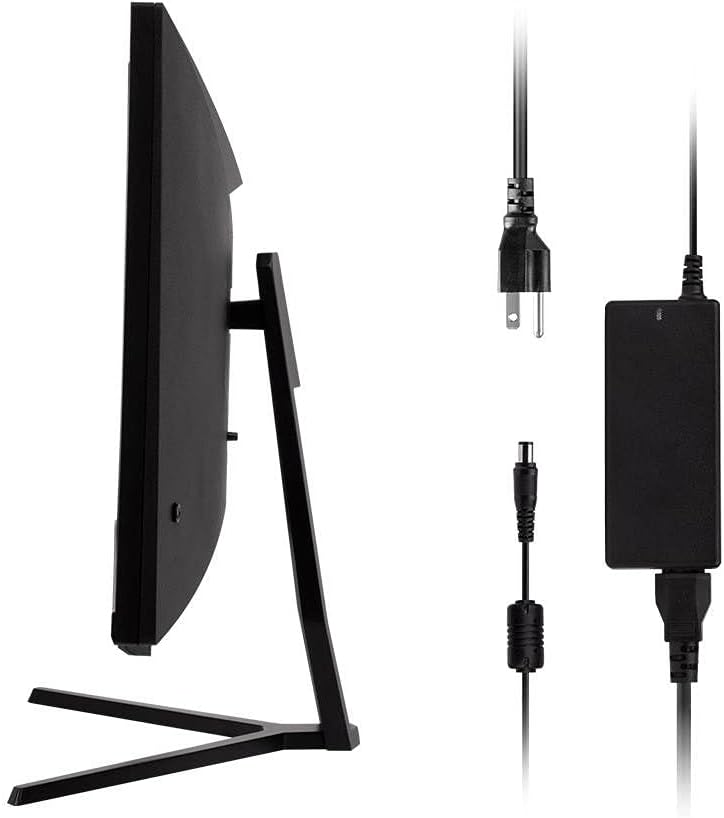
Image: Monitor side view with included power adapter and cable.
4. Nyochaa n'eluview
N'ihu View
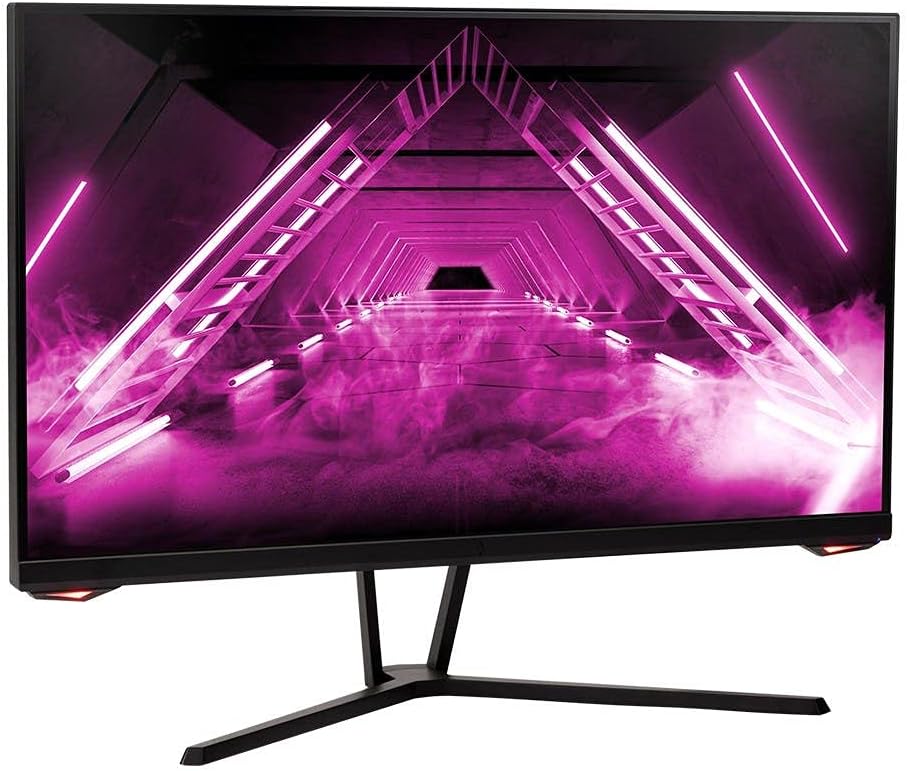
Foto: N'ihu view nke nlekota oru.
N'azụ View na Ọdụ ụgbọ mmiri
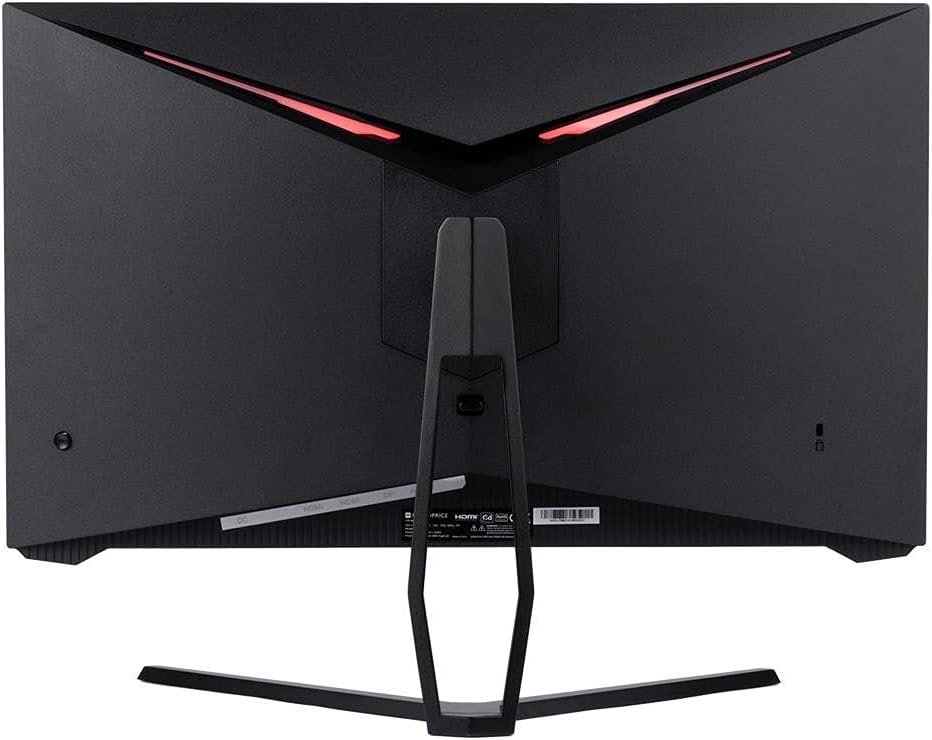
Foto: N'azụ view of the monitor, highlighting the VESA mount and stand attachment.

Image: Close-up of the monitor's input ports.
5. Nhazi
5.1 Mgbakọ Nguzo
- Jiri nlezianya wepụ ihe nlele ahụ n'ime ngwugwu ya, na-echekwa ya n'elu ala dị nro.
- Attach the stand neck to the monitor's rear panel by aligning the tabs and securing any screws if present.
- Attach the stand base to the stand neck, ensuring it is firmly secured.
- Debe ihe nleba anya gbakọtara n'elu kwụsiri ike ma dịkwa larịị.
5.2 VESA rịgoro
The monitor supports a 75x75mm VESA mount pattern. To use a wall or desk mount:
- Remove the pre-attached stand by unscrewing it from the monitor's rear panel.
- Attach your VESA-compatible mount to the monitor using the appropriate screws (not included).
- Ensure the mount is securely fastened before releasing ihe nlele ahụ.
5.3 Ijikọ na Kọmputa
Connect the monitor to your computer using one of the following methods:
- DisplayPort: Connect one end of a DisplayPort cable to the DisplayPort output on your computer's graphics card and the other end to the DisplayPort input on the monitor.
- HDMI: Connect one end of an HDMI cable to an HDMI output on your computer's graphics card and the other end to one of the HDMI inputs on the monitor.
After connecting the video cable, connect the power adapter to the monitor's DC input and then plug the power cable into a wall outlet.
6. Na-arụ ọrụ nlekota oru
6.1 Gbanyụọ ma ọ bụ gbanyụọ
Press the power button, typically located on the rear or bottom of the monitor, to turn the monitor on or off. The power indicator light will illuminate when the monitor is on.
6.2 Ngosipụta Ngosipụta (OSD) NchNhr
The OSD menu allows you to adjust various monitor settings. Access the OSD menu by pressing the menu button (often a joystick or a series of buttons) on the monitor. Navigate through the options using the directional controls and confirm selections.
Ntọala OSD nkịtị gụnyere:
- Ntọala foto: Brightness, Contrast, Sharpness, Color Temperature.
- Họrọ ntinye: Choose between DisplayPort and HDMI inputs.
- Audio: Volume control for the audio output.
- Njirimara egwuregwu: Overdrive, FreeSync/Adaptive Sync settings.
6.3 Atụmatụ
- 165Hz ume ọhụrụ ume: This monitor supports a 165Hz refresh rate, providing smoother motion and reduced input lag compared to standard 60Hz monitors. Ensure your graphics card and system settings are configured to utilize this refresh rate.
- Mmekọrịta na-agbanwe agbanwe: This technology synchronizes the monitor's refresh rate with your graphics card's frame rate, eliminating screen tearing and stuttering for a smoother gaming experience. Enable Adaptive Sync in your graphics card's control panel and the monitor's OSD menu.
- Full HD Resolution (1920x1080p): The monitor displays content at 1920x1080 pixels, offering clear and detailed visuals.
7. Nlekọta
To maintain your monitor and ensure its longevity:
- Na-ehicha ihuenyo: Jiri nwayọ hichaa ihuenyo ahụ site na iji akwa dị nro na-enweghị lint. Maka akara isi ike, jiri ihe nchacha ọcha akọwapụtara nke etinyere na akwa, ọ bụghị ozugbo na ihuenyo.
- Na-ehicha Casing: Jiri ákwà dị nro ma kpọrọ nkụ hichaa ihe nlele ahụasing. Zere ihe nhicha ihe nhicha.
- Igwe ikuku: Ensure the monitor's ventilation openings are clear of dust and obstructions to prevent overheating.
- Gbanyụọ: Gbanyụọ ihe nlele ahụ mgbe anaghị eji ya ruo ogologo oge.
8. Nchọpụta nsogbu
If you encounter issues with your monitor, refer to the following troubleshooting guide:
| Nsogbu | Ihe nwere ike ime | Ngwọta |
|---|---|---|
| Enweghị onyonyo na ihuenyo / Gbanyụọ ọkụ LED | Monitor not powered on; Power cable loose; Power outlet faulty. | Press the power button; Check power cable connections; Try a different power outlet. |
| Enweghị onyonyo / ozi "Enweghị akara ngosi" | Video cable loose; Incorrect input selected; Computer not outputting signal. | Check video cable connections; Select the correct input via OSD; Ensure computer is on and outputting video. |
| Screen flickers or goes black intermittently | Loose video cable; Graphics driver issue; Monitor overheating; Faulty cable. | Ensure video cable is secure; Update graphics drivers; Ensure adequate ventilation around the monitor; Try a different video cable. |
| ekpo oke ọkụ / anwụrụ ọkụ | Blocked ventilation; Internal component issue. | Immediately unplug the monitor. Ensure ventilation is clear. Do not use the monitor if smoke is present. Contact support. |
| Red line or other display artifacts | Faulty panel; Graphics card issue. | Test with a different video cable and computer. If the issue persists, contact support. |
| Backlight turns off, requires power cycle | Power management settings; Internal fault. | Check computer's power saving settings. If issue persists, contact support. |
9. Nkọwapụta
| Njirimara | Nkọwapụta |
|---|---|
| Nọmba nlereanya | 142771 |
| Nha ihuenyo | 27 sentimita asatọ |
| Ụdị panel | IPS |
| Mkpebi | 1920 x 1080 (FHD 1080p) |
| Ọnụego ume ọhụrụ | 165Hz |
| Akụkụ akụkụ | 16:9 |
| Ntinye vidiyo | 2x HDMI 1.4, 1x DisplayPort 1.2a |
| Ugwu VESA | 75x75mm |
| Akụkụ (LxWxH) | 28.8 x 7.1 x 19.3 sentimita asatọ |
| Ibu Ibu | 15.77 pound |
10. Akwụkwọ ikike na nkwado
10.1 Ozi akwụkwọ ikike
This Monoprice monitor is backed by a 1 Year PixelPerfect Guarantee. This warranty covers defects in materials and workmanship under normal use for one year from the date of purchase. Please refer to Monoprice's official websaịtị maka usoro na ọnọdụ akwụkwọ ikike zuru oke.
10.2 Nkwado ndị ahịa
For technical assistance, warranty claims, or further information, please contact Monoprice Customer Support. Contact details can typically be found on the official Monoprice websaịtị ma ọ bụ akwụkwọ ịzụrụ ihe.
11. Video Resources
Ọ nweghị vidiyo ngwaahịa sitere na onye na-ere ahịa ahụghị maka ihe nlereanya a.


