
1. Okwu mmalite
The GBF Smart Video Door Phone & Doorbell (Model: PL963PMPOE) is an advanced intercom system designed to enhance your home security and convenience. It allows you to remotely view and communicate with visitors at your door via your mobile device, whether you are at home or away. Featuring a 1080P camera, built-in Power over Ethernet (PoE) capability, and a smart keypad, this system offers versatile access control and monitoring functionalities.

Figure 1.1: GBF Smart Video Door Phone & Doorbell with Mobile App Interface
This image shows the main outdoor unit of the GBF Smart Video Door Phone, featuring a camera, speaker, and a numeric keypad. A smartphone is positioned next to it, displaying the mobile application interface for remote communication and door control.
2. Ihe ngwugwu
Biko hụ na ihe niile dị na ngwugwu gị:
- GBF outdoor station PL963PMPOE
- 12V DC nkwụnye ọkụ
- Wiring harness and the Bell Connector Wire Set
- WiFi mpi
- Ịgbanye kposara na arịlịka
- Akwụkwọ ntuziaka (akwụkwọ a)
3. Nwụnye
3.1 Nwụnye anụ ahụ
The PL963PMPOE unit features a premium brushed aluminum faceplate and an all-metal back box, designed for durability and weatherproof IP65 rated construction. Choose a suitable location near your door or gate, ensuring it is within reach of power and network connections.

Figure 3.1: Installed Outdoor Unit
This image displays the GBF Smart Video Door Phone unit securely mounted on a textured stone wall, adjacent to a metal gate, demonstrating a typical outdoor installation scenario.
3.2 Waya na Ike
The unit can be powered via the included 12V DC 1A power adapter or through a wired Ethernet connection using integrated Power over Ethernet (PoE). Ensure proper wiring for power and any connected locks or existing chimes.

Ọgụgụ 3.2: gbawara View na eserese Wiring
This diagram illustrates the internal components of the GBF Smart Video Door Phone, including the front panel, back case, screws, and system wiring, providing a visual guide for assembly and connection.
3.3 Njikọ netwọkụ
The system supports both WiFi and wired Ethernet connections. For optimal performance and stability, a wired Ethernet connection with PoE is recommended. Connect the unit to your local network to enable remote access via the mobile application.

Figure 3.3: System Connectivity Overview
This diagram illustrates the network connectivity of the GBF Smart Video Door Phone, showing how the outdoor unit connects to a router via Ethernet or WiFi, which then communicates with a cloud server, allowing access from mobile devices (smartphones and tablets) via 3G/4G or WiFi.
4. Initial Setup & App Configuration
4.1 Ngwa nbudata na ijikọ
Download the official GBF mobile application from your device's app store (available for iOS and Android). Follow the in-app instructions to pair your smart device with the PL963PMPOE unit. This process typically involves scanning a QR code or entering a device ID.
4.2 Ntọala ntọala
Once paired, you can configure basic settings such as device name and initial PIN codes for the keypad. Ensure your device's firmware is up to date for optimal performance and access to all features.
5. Ọrụ
5.1 Answering Calls & Remote Viewing
When a visitor presses the doorbell button, you will receive a push notification on your paired mobile device. You can then answer the call, view the live video feed, and communicate with the visitor.
5.2 Keypad Access & PIN Management
The integrated smart keypad allows for coded entry. You can remotely change your personal keypad PIN or generate temporary or permanent PIN codes for guests through the app. The app also allows you to define the length of visitor doorcodes.

Figure 5.1: Visitor Doorcode Length Setting
This app screenshot displays the configuration option for setting the length of visitor doorcodes, allowing users to specify a range (e.g., 4-8 digits) for enhanced security.
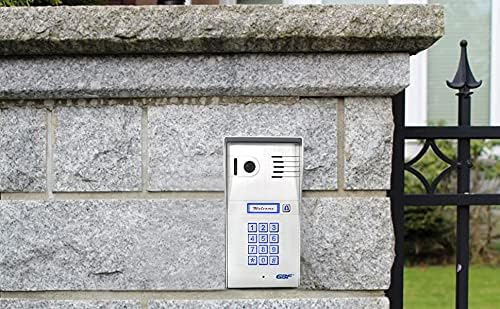
Figure 5.2: Resetting Keypad PIN
This app screenshot shows the interface for resetting the keypad PIN, with a field to enter the new PIN (e.g., '1234') and an 'OK' button to confirm the change.

Figure 5.3: Adding Visitor PIN Code
This app screenshot illustrates the process of adding a visitor PIN code, including options to name the visitor, select which lock relay to activate (e.g., Front Door, Side Gate), customize the doorcode generation, and set the access duration.
5.3 Remote Lock Control
The system features two integrated SPDT relays that can trigger two different remote door locks or gates. These can be activated directly from your mobile device during a call or independently.

Figure 5.4: Remote Lock Control Interface
This app screenshot displays the interface for controlling two separate locks, labeled 'Front Door' and 'Side Gate', with a central unlock icon, allowing users to remotely open either access point.

Figure 5.5: Door Unlock Confirmation
This app screenshot shows a confirmation message 'Door unlocked.' displayed on the screen after a successful remote unlock action, indicating the status of the controlled access point.
5.4 Motion Detection Configuration
Advanced motion detection can be programmed from the app. You can define the area of interest, sensitivity, and active time of day/days of the week for motion alerts.

Figure 5.6: Motion Detection Settings
This app screenshot displays the motion detection configuration options, including enabling/disabling the feature, setting detection areas, adjusting sensitivity, and defining a specific detection schedule for active monitoring.
5.5 Missed Call Messages
Configure the system to play a custom message if a call is not answered. This feature ensures visitors receive information even when you are unavailable.
5.6 Timed Unlock Feature
Set your gate or door to open automatically during specified time periods and days of the week. This is useful for scheduled deliveries or regular access for certain individuals.

Figure 5.7: Timed Unlock Configuration
This app screenshot shows the settings for the 'Timed Unlock' feature, allowing users to enable it and configure specific time periods and days of the week for automatic lock activation for 'lock1' and 'lock2'.
5.7 Event Log Access
The app allows you to retrieve an event log of up to one week, with a timeline and video clips tracking all events occurring at the outdoor station (Ring-in, App unlock, Keypad unlock, Motion Detection).
6. Nlekọta
To ensure the longevity and optimal performance of your GBF Smart Video Door Phone, follow these maintenance guidelines:
- Nhicha: Regularly wipe the brushed aluminum faceplate with a soft, damp akwa . Zere ihe nhicha ma ọ bụ ihe mgbaze nke nwere ike imebi njedebe.
- Nlekọta anya anya: Gently clean the camera lens with a microfiber cloth to ensure clear video quality.
- Mmelite femụwe: Periodically check the mobile application for available firmware updates. Keeping the device's firmware current ensures access to the latest features and security enhancements.
- Nchekwa gburugburu: While the unit is IP65 rated for weather resistance, avoid direct, prolonged exposure to extreme weather conditions if possible. Ensure proper sealing during installation to prevent water ingress.
7. Nchọpụta nsogbu
If you encounter issues with your GBF Smart Video Door Phone, refer to the following common problems and solutions:
| Nsogbu | Ihe nwere ike ime | Ngwọta |
|---|---|---|
| No power/Unit unresponsive | Power adapter disconnected; PoE issue; faulty wiring. | Check power adapter connection. If using PoE, verify PoE switch/injector is active. Inspect wiring for damage. |
| Cannot connect to Wi-Fi/App offline | Incorrect Wi-Fi password; weak signal; network configuration issues. | Ensure correct Wi-Fi password. Move router closer or use a Wi-Fi extender. Consider using a wired Ethernet connection for stability. Restart router and doorbell unit. |
| Poor video quality/Laggy video | Insufficient network bandwidth; weak Wi-Fi signal; camera lens obstruction. | Ensure stable internet connection. Use wired Ethernet if Wi-Fi is unstable. Clean camera lens. |
| Audio echo or distortion | Environmental acoustics; software issue. | Ensure microphone and speaker are clear of obstructions. Check for firmware updates. |
| Ahụigodo anaghị aza | Incorrect PIN; keypad malfunction. | Verify PIN code. Try resetting PIN via app. Contact support if issue persists. |
| Remote unlock not working | Incorrect wiring to lock; lock mechanism issue; app relay setting. | Check wiring to the lock. Ensure the correct relay is selected in the app. Test the lock mechanism independently. |
| No push notifications | App notification settings disabled; phone's notification settings; network issues. | Enable notifications within the GBF app and your phone's system settings. Ensure stable network connection. |
If the problem persists after attempting these solutions, please refer to the support section.
8. Nka na ụzụ nkọwa
| Njirimara | Nkọwapụta |
|---|---|
| Nọmba nlereanya | PL963PMPOE |
| Akụkụ (L x W x H) | 8 x 4 x 2 sentimita asatọ |
| Ibu Ibu | 2 pound |
| Ihe onwunwe | Aluminom, metal |
| Agba | Ọlaọcha |
| Isi Iyi Ike | 12V DC 1A (adapter included) or PoE |
| Voltage | 12 volts |
| Wattage | 24 watt |
| Teknụzụ Njikọta | Wired (Ethernet), Wi-Fi |
| Protocol Njikọta | Wi-Fi |
| Mkpebi ịse vidiyo | 1080p |
| Mkpebi vidiyo dị irè | 1080 pikselụ |
| Viewna n'akuku | 160 ogo |
| Teknụzụ ọkụ dị ala | Agba abalị |
| Ogo nchekwa mba ụwa | IP65 |
| Ọnụọgụ nke ọwa | 2 (for lock control) |
| Usoro njikwa | Ngwa |
| Njirimara Pụrụ Iche | Sensọ ngagharị |
| Ojiji ime ime/n'èzí | Ime ụlọ, n'èzí |
| Ngwa dakọtara | Ama ekwentị (iOS, gam akporo) |
| UPC | 661706307963 |
9. Akwụkwọ ikike & Nkwado
The GBF Smart Video Door Phone & Doorbell (PL963PMPOE) comes with a Akwụkwọ ikike onye nrụpụta afọ 1. Akwụkwọ ikike a na-ekpuchi ntụpọ dị na ngwa na arụ ọrụ n'okpuru ojiji nkịtị.
For technical assistance, troubleshooting beyond this manual, or warranty claims, please contact GBF customer support. Refer to the product packaging or the official GBF websaịtị maka ozi kọntaktị kacha ugbu a.
Please note that subscription fees may apply for optional features such as extended event log storage, temporary visitor codes, and timed unlock functionalities.


