1. Okwu mmalite
This manual provides essential information for the setup, operation, maintenance, and troubleshooting of your Samsung The Serif LS01B Series QLED 4K Smart TV. Please read this manual thoroughly before using your television to ensure proper and safe operation.
2. Ihe ngwugwu
Verify that all items listed below are included in your product packaging. If any items are missing or damaged, contact your retailer.
- Samsung The Serif LS01B Series QLED 4K Smart TV
- The Serif Samsung OneRemote (TM2281E) with Batteries
- Metal Floor Stand
- Detachable Easel Stand
- Igwe ọkụ ọkụ
- User Manual / E-Manual (this document)
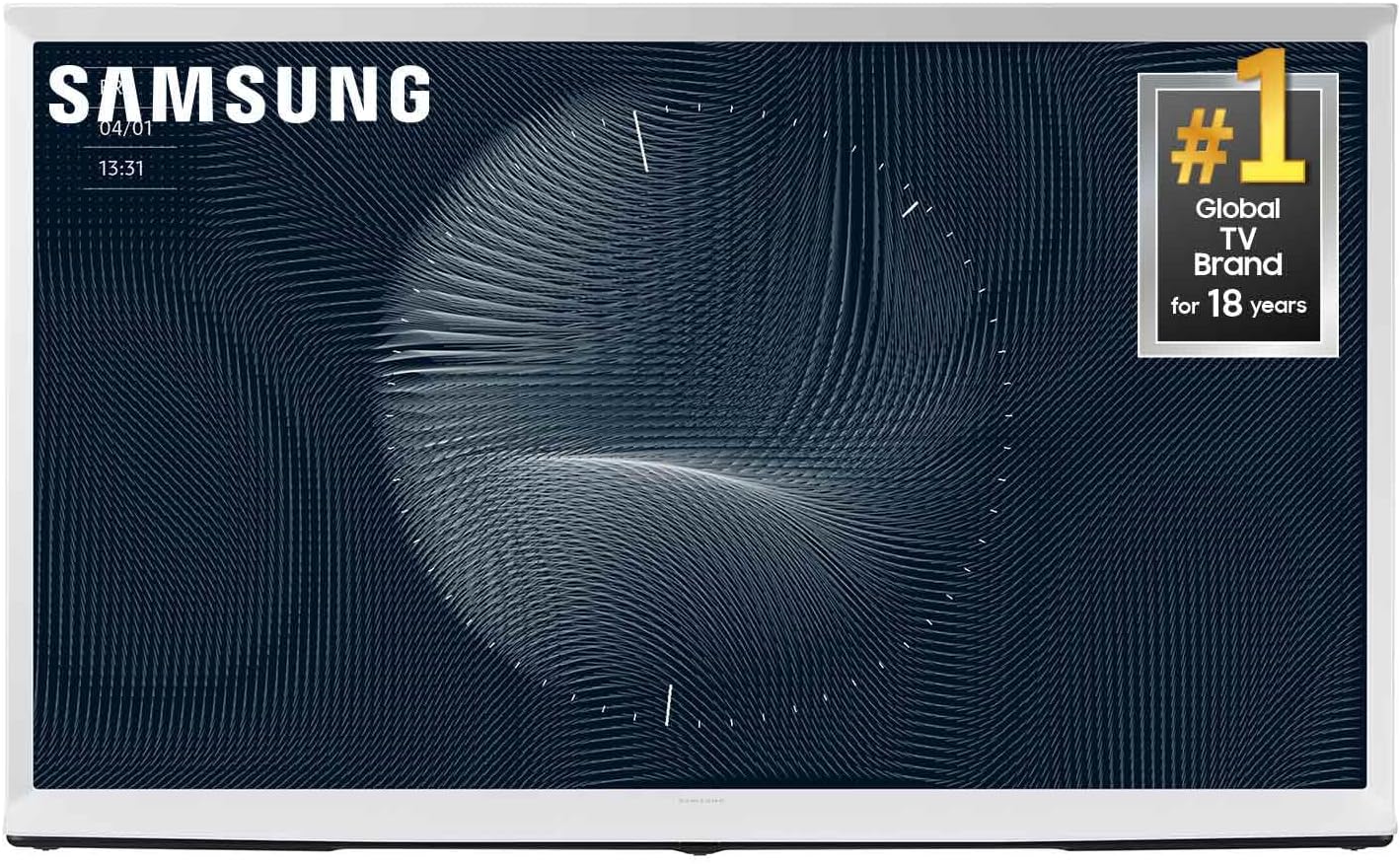
The diagram above illustrates the television unit, the included OneRemote, and a visual representation of the package contents and dimensions.
3. Nhazi
3.1 Nhazi anụ ahụ
The Serif TV features a unique I-shaped design and comes with a detachable easel stand for flexible placement. You can use the TV with the stand or remove its legs for placement on a surface.
- With Easel Stand: Attach the metal floor stand legs securely to the designated points on the television. Ensure all connections are firm and the TV is stable on a flat surface.
- Na-enweghị Nkwụsi ike: If placing the TV on a shelf or media console, carefully detach the easel stand legs. Ensure the TV is placed on a stable, level surface that can support its weight.

3.2 Njikọ
Connect your external devices to the TV using the available ports on the rear panel.
- HDMI: Connect Blu-ray players, game consoles, and other HDMI-compatible devices. The TV supports 4K resolution via HDMI.
- USB: Jikọọ ngwaọrụ nchekwa USB maka ịkpọghachi mgbasa ozi.
- Antenna: Jikọọ antenna maka mgbasa ozi n'elu ikuku.
- Wi-Fi na Bluetooth: The TV has built-in Wi-Fi for internet connectivity and Bluetooth for wireless audio devices or mobile mirroring.

3.3 Ike On
After connecting all necessary cables, plug the power cable into an electrical outlet. Press the power button on the OneRemote or on the TV to turn on the television.
4. Atụmatụ
The Samsung The Serif TV integrates advanced technology with a distinctive design.
4.1 QLED 4K with 100% Color Volume
Experience a wide spectrum of colors with Quantum Dot technology, delivering 100% Color Volume for vivid and accurate picture quality in 4K resolution.

4.2 Anti-Reflection with Matte Display
The Anti-Reflection and Matte Display Film reduces glare, allowing for clear viewing in various lighting conditions, from bright daylight to evening with indoor lighting.
4.3 Quantum Processor 4K with 4K Upscaling
The Quantum Processor 4K enhances content to 4K resolution, optimizing picture quality regardless of the original source.
4.4 Ambient Mode+
When not actively watching TV, Ambient Mode+ transforms the blank screen into a display for captivating photos, artwork, or useful information, blending the TV seamlessly into your living space.

4.5 Smart TV Hub
Access a wide range of streaming services and apps, including Apple TV+, Samsung TV Plus, Netflix, YouTube, Prime Video, Disney+, Hulu, Xbox, Nvidia GeForce NOW, ESPN, and Max, through the integrated Smart TV Hub.
4.6 Mobile Mirroring & Tap View
Easily share content from your mobile device to the TV screen. With Tap View, simply tap your compatible Samsung Galaxy device to the TV to mirror its content instantly.

4.7 Eco Remote
The included OneRemote is designed for convenience and sustainability, eliminating the need for multiple remotes and featuring a battery-free design that can be charged via solar power or USB-C.
4.8 Ụda Ndabere
The TV automatically adjusts the sound volume and clarity based on the content you are watching, optimizing the audio experience.
5. Ntuziaka ọrụ
5.1 Iji OneRemote
The Samsung OneRemote (TM2281E) provides centralized control for your TV and connected devices. Familiarize yourself with the buttons for power, volume, channel, navigation, and smart hub access.
5.2 Navigating the Smart Hub
Press the Home button on your remote to access the Smart Hub. Use the directional pad to navigate through apps, connected devices, and settings. Select an item by pressing the center button.
5.3 Activating Ambient Mode+
To activate Ambient Mode+, press the Ambient Mode button on your remote. You can customize the displayed content (art, photos, information) through the TV's settings menu.
5.4 Mobile Mirroring
For mobile mirroring, ensure your smartphone and TV are connected to the same Wi-Fi network. On your smartphone, select the screen mirroring option (e.g., Smart View on Samsung devices) and choose your Serif TV from the list of available devices. For Tap View, gently tap your compatible phone to the side of the TV frame.
6. Nlekọta
6.1 Na-ehicha ihuenyo ahụ
Jiri nwayọ hichaa ihuenyo ahụ na akwa microfiber dị nro, kpọrọ nkụ. Maka isi ike smudges, dị obere dampen the cloth with water or a screen-specific cleaning solution (avoid harsh chemicals or abrasive materials).
6.2 Cleaning the Frame and Stand
Use a soft, dry cloth to wipe the TV frame and stand. Avoid using liquid cleaners directly on the TV to prevent damage.
6.3 Mmelite ngwanrọ
Regularly check for and install software updates to ensure optimal performance and access to the latest features. Updates can typically be found in the TV's settings menu under 'Support' > 'Software Update'.
7. Nchọpụta nsogbu
Ọ bụrụ na ị zutere nsogbu na TV gị, rụtụ aka na usoro nchọpụta nsogbu ndị a na-emekarị:
- Enweghị ike: Ensure the power cable is securely connected to both the TV and the electrical outlet. Test the outlet with another device.
- Enweghị foto/ụda: Verify that the correct input source is selected. Check all cable connections (HDMI, antenna) for looseness or damage.
- Remote anaghị arụ ọrụ: Check the batteries in the OneRemote. Ensure there are no obstructions between the remote and the TV.
- Okwu njikọ netwọkụ: Restart your Wi-Fi router and the TV. Re-enter your Wi-Fi password in the TV's network settings.
- Okwu Ogo foto: Adjust picture settings (brightness, contrast, sharpness) in the TV menu. Ensure your content source is high-quality.
For more detailed troubleshooting or persistent issues, consult the E-Manual on your TV or visit the Samsung support websaịtị.
8. Nkọwapụta
| Njirimara | Nkọwapụta |
|---|---|
| Ụdị | Samsung |
| Nọmba nlereanya | QN65LS01BAFXZA |
| Nha ihuenyo | 65 sentimita asatọ |
| Ngosipụta teknụzụ | QLED 4K |
| Mkpebi | 4K |
| Ọnụego ume ọhụrụ | 120 Hz |
| Njirimara Pụrụ Iche | Anti-Reflection Matte Display, Detachable Easel Stand, Ambient Mode+ |
| Teknụzụ Njikọta | Bluetooth, HDMI, USB, Wi-Fi |
| Ọrụ ịntanetị akwadoro | Apple TV+, Samsung TV Plus, Netflix, YouTube, Prime Video, Disney+, Hulu, Xbox, Nvidia GeForce NOW, ESPN, Max |
| Akụkụ ngwaahịa (na-enweghị nkwụnye) | 58.2 x 34.5 x 11 sentimita asatọ |
| Akụkụ ngwaahịa (ya na nkwụnye) | 58.2 x 53.6 x 19.6 sentimita asatọ |
| Ibu Ibu | 83.3 pound |
| Agba | Igwe ojii na-acha ọcha |
| Ngwa gụnyere | Detachable Easel Stand, Metal Floor Stand, Power Cable, The Serif Samsung OneRemote (TM2281E) with Batteries, User Manual / E-Manual |
9. Akwụkwọ ikike na nkwado
Your Samsung The Serif TV comes with a standard manufacturer's warranty. Please refer to the warranty card included in your packaging or visit the official Samsung websaịtị maka nkọwa zuru oke usoro na ọnọdụ nke akọwapụtara mpaghara gị.
For technical support, service requests, or additional product information, please visit the Samsung Support websaịtị ma ọ bụ kpọtụrụ ọrụ ndị ahịa Samsung ozugbo.


