1. Okwu mmalite
This manual provides detailed instructions for the installation, configuration, operation, and maintenance of your TP-Link EAP610 AX1800 Gigabit Dual-Band Wi-Fi 6 Access Point. Please read this manual thoroughly before using the device to ensure proper functionality and to avoid any potential issues.
2. Ngwaahịa gafereview
The TP-Link EAP610 is a high-performance Wi-Fi 6 access point designed for demanding network environments. It offers advanced features for enhanced wireless connectivity and efficient network management.
Akụkụ ndị bụ isi:
- Ultra-Fast Wi-Fi 6 Speeds: Delivers combined speeds of up to 1775 Mbps (574 Mbps on 2.4 GHz and 1201 Mbps on 5 GHz) for smooth streaming and fast downloads.
- High-Density Connectivity: Supports up to 4 times more connected devices simultaneously compared to Wi-Fi 5, ideal for environments with many users.
- Ejikọtara ya na Omada SDN: Provides Zero-Touch Provisioning, Centralized Cloud Management, and Intelligent Monitoring for simplified network administration.
- Roaming enweghị nkebi: Ensures uninterrupted video and voice calls as users move between access points.
- Nhọrọ ike na-agbanwe agbanwe: Supports both 802.3at Power over Ethernet (PoE) and DC power for versatile installation.
3. Ihe ngwugwu
Chọpụta na ngwungwu gị nwere ihe ndị a:
- 1 × EAP610 Access Point
- Mounting Kit (Ceiling/Wall Mount)
- Ntuziaka nwụnye
Ọ bụrụ na ihe ọ bụla na-efu ma ọ bụ mebie, biko kpọtụrụ onye na-ere gị.
4. Akụrụngwa nwụnye
The EAP610 can be mounted on a wall or ceiling. Ensure the chosen location provides optimal Wi-Fi coverage and is near a power source (PoE switch/injector or DC outlet).
4.1 Ngwaọrụ gafereview
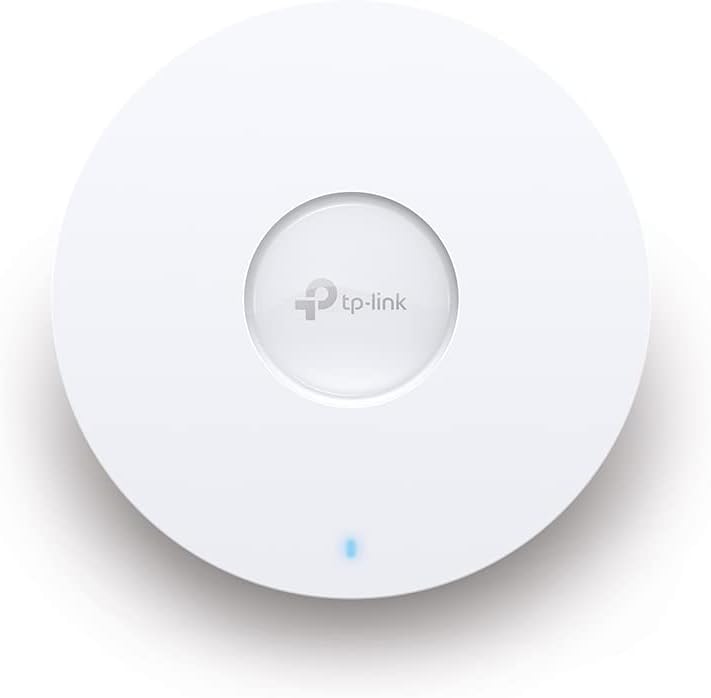
Foto 1: N'ihu view of the TP-Link EAP610 Access Point, showing the TP-Link logo and status LED.

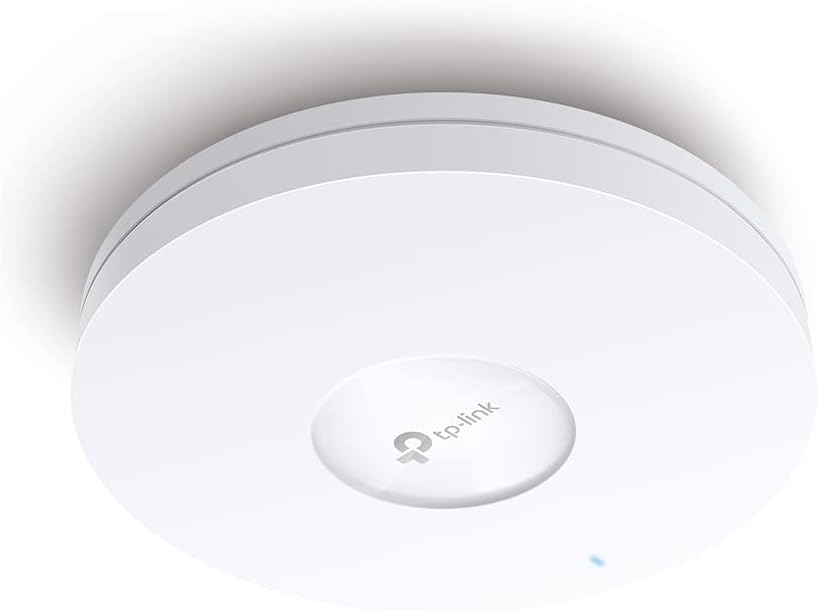
Foto 2: Akụkụ view of the TP-Link EAP610 Access Point, illustrating its slim profile.
Onyonyo 3: N'okpuru view of the TP-Link EAP610 Access Point, showing the Ethernet port and power input.
4.2 Ịkwanye ebe nnweta
Use the provided mounting kit to secure the EAP610 to a wall or ceiling. Ensure the mounting surface is stable and can support the device's weight.
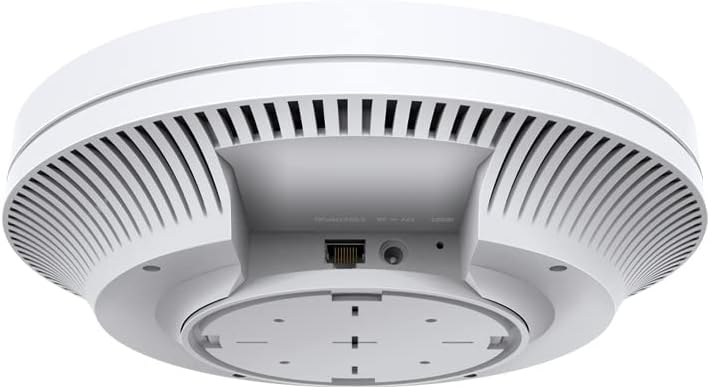
Figure 4: The EAP610 Access Point installed on a ceiling in an office environment.

Figure 5: The EAP610 Access Point installed on a wall in a commercial setting.
4.3 Ịkwanye ngwaọrụ
The EAP610 supports two power methods:
- Ike n'elu Ethernet (PoE): Connect an Ethernet cable from a PoE-enabled switch or PoE injector to the EAP610's Ethernet port. This provides both data and power.
- Ike DC: Connect a 12V DC power adapter (not included) to the DC power jack on the EAP610.
Ensure the power source meets the device's requirements to prevent damage.
5. Nhazi ngwanrọ
The EAP610 can be configured and managed using the TP-Link Omada SDN platform or the Omada app.
5.1 Omada SDN Controller
For centralized management of multiple Omada devices, use the Omada SDN Controller. This allows for zero-touch provisioning, cloud access, and intelligent network monitoring.
- Download the Omada SDN Controller software from the official TP-Link websaịtị.
- Follow the on-screen instructions to install and set up the controller.
- Connect your EAP610 to the network where the Omada Controller is running. The controller will detect and allow you to adopt the EAP610.
5.2 Omada App
For convenient management via your mobile device, use the Omada app.
- Download the TP-Link Omada app from the App Store (iOS) or Google Play (Android).
- Launch the app and follow the instructions to add your EAP610.
For detailed configuration steps, refer to the official TP-Link Omada documentation available on their support websaịtị.
6. Ntuziaka ọrụ
Once installed and configured, the EAP610 will broadcast Wi-Fi signals for client devices to connect.
6.1 Jikọọ na Wi-Fi
- On your wireless device (smartphone, laptop, tablet), search for available Wi-Fi networks.
- Select the SSID (Wi-Fi network name) configured for your EAP610.
- Tinye Wi-Fi paswọọdụ ma ọ bụrụ na kpaliri.
- Your device should now be connected to the EAP610's Wi-Fi network.
6.2 Roaming enweghị nkebi
When multiple EAP610 access points are deployed and managed by an Omada Controller, client devices can seamlessly roam between them without interruption. This ensures a consistent connection for applications like video calls and voice over IP (VoIP) as you move within the coverage area.
7. Nlekọta
Regular maintenance helps ensure optimal performance and longevity of your EAP610 access point.
- Mmelite femụwe: Lelee TP-Link kwa oge website or your Omada Controller for new firmware versions. Updating firmware can improve performance, add new features, and fix security vulnerabilities.
- Nhicha: Debe ngwaọrụ ahụ ọcha na enweghị ntụ. Jiri akwa dị nro ma kpọọ nkụ hichaa mpụta. Ejila ihe nhicha mmiri ma ọ bụ ikuku ikuku.
- Ebe kacha mma: Ensure the access point remains in an unobstructed location for best signal propagation. Avoid placing it near large metal objects or sources of electromagnetic interference.
- Na-amalitegharị: If you experience network issues, a simple restart of the access point can often resolve them.
8. Nchọpụta nsogbu
This section addresses common issues you might encounter with your EAP610.
8.1 Enweghị ike
- Ensure the Ethernet cable is securely connected to both the EAP610 and the PoE source (switch or injector).
- Verify that the PoE source is powered on and functioning correctly.
- If using a DC adapter, ensure it is properly connected and the power outlet is active.
8.2 No Wi-Fi Signal
- Check the status LED on the EAP610. Refer to the installation guide for LED indicator meanings.
- Verify that the EAP610 is properly configured via the Omada Controller or app.
- Ensure the Wi-Fi function is enabled and the SSIDs are broadcasting.
- Restart the EAP610.
8.3 Ọsọ Wi-Fi dị nwayọ
- Lelee maka ndabichi sitere na ngwaọrụ eletrọnịkị ndị ọzọ ma ọ bụ netwọk Wi-Fi agbataobi.
- Ensure your client device supports Wi-Fi 6 (802.11ax) to take full advantage of the EAP610's capabilities.
- Verify the EAP610's channel settings and adjust if necessary to avoid congestion.
- Ensure the Ethernet connection to the EAP610 is gigabit-speed.
For more advanced troubleshooting, consult the comprehensive FAQ and support resources on the TP-Link websaịtị.
9. Nkọwapụta
| Njirimara | Nkọwa |
|---|---|
| Ụdị | TP-njikọ |
| Aha Nlereanya | EAP 610 |
| Nọmba Nlereanya ihe | EAP 610 |
| Akụkụ ngwaahịa | 13.34 x 0.79 x 4.22 cm |
| Ibu Ibu | 600 grams |
| Agba | Ọcha |
| Ụdị ikuku | 802.11ax (Wi-Fi 6) |
| Klaasị ugboro ugboro | Abụọ-Band |
| Ikuku Communication Standard | 802.11ax |
| Teknụzụ Njikọta | Ethernet |
| Isi Iyi Ike | DC, Power over Ethernet (PoE) |
| Voltage | 12 volts |
| Sistemụ nrụọrụ | RouterOS (Note: This might be a generic entry, Omada SDN is the primary management platform) |
| Atụmatụ pụrụ iche | RJ-45, Wireless |
| Ngwa dakọtara | Wi-Fi 6 enabled devices (smartphones, laptops, etc.) |
| Eji akwadoro maka ngwaahịa | Company, Commercial |
| Ngwa gụnyere | 1 × EAP610 |
| Batrị | Not known, requires batteries (Note: This device typically does not use batteries) |
| Batrị gụnyere | Mba |
10. Akwụkwọ ikike na nkwado
Maka ozi akwụkwọ ikike, nkwado teknụzụ na akụrụngwa ndị ọzọ, biko gaa na TP-Link gọọmentị websaịtị:
You can find FAQs, updated drivers and firmware, and contact information for technical assistance.


