1. Okwu mmalite
This manual provides essential information for the safe and efficient operation of your GIGABYTE AORUS FO48U 48" 4K OLED Gaming Monitor. Please read this manual thoroughly before using the product and retain it for future reference. The AORUS FO48U is designed to deliver a high-performance visual experience with its 4K OLED display, fast refresh rate, and advanced features.
2. Ozi nchekwa
Lee ihe ndị a iji gbochie mmebi na ihe nlele ahụ ma hụ na onye ọrụ ahụ nwere nchekwa:
- Etinyela ihe nlele ahụ n'ime mmiri ozuzo ma ọ bụ mmiri iji zere ọkụ ma ọ bụ ihe egwu mberede.
- Emeghela ihe nlele ahụ casing. Enweghị akụkụ ndị ọrụ ga-arụ ọrụ n'ime. Kpọtụrụ ndị ọrụ ruru eru ọrụ niile.
- Debe ihe nlele ahụ n'elu ebe kwụsiri ike ma dị larịị iji gbochie ya ịda.
- Hụ na ikuku dị mma gburugburu ihe nlele ahụ. Ekpuchila oghere ikuku.
- Use only the power adapter and cables provided or specified by the manufacturer.
- Kwụpụ ihe nlele ahụ na ebe ọkụ eletrik dị n'oge oké ifufe ma ọ bụ mgbe ejiri ya ruo ogologo oge.
- Zere iji ihe dị nkọ metụ ihuenyo ahụ aka iji gbochie mmebi.
3. Ihe ngwugwu
Nyochaa na etinyere ihe niile edepụtara n'okpuru na ngwugwu gị:
- GIGABYTE AORUS FO48U 48" 4K OLED Gaming Monitor
- Igwe ọkụ
- HDMI 2.1 USB
- DP 1.4 eriri
- USB 3.0 B to A cable
- Ntuziaka mmalite ngwa ngwa (QSG)
- Akwụkwọ ikike kaadị
- AORUS Remote Control
4. Nhazi
4.1 Nhazi anụ ahụ
The monitor can be set up using its included stand or a VESA-compatible wall mount.
Mgbakọ kwụrụ:
Follow the instructions in the Quick Start Guide to securely attach the stand to the monitor base. Ensure all screws are tightened.
Nwụnye mgbidi VESA:
The AORUS FO48U supports VESA wall mounts with a 300 x 300mm pattern. Remove the stand if already attached. Use appropriate screws and a VESA-compatible bracket (not included) to mount the monitor. Refer to your wall mount's instructions for specific installation steps.

Foto: N'azụ view of the AORUS FO48U monitor, highlighting the VESA 300x300mm mounting points for wall installation.
4.2 Njikọ eriri
Connect the necessary cables to the monitor's I/O ports. Ensure the monitor is powered off before connecting or disconnecting cables.

Foto: Akụkụ zuru ezu view of the monitor's I/O ports, including USB 3.0, USB Upstream, USB Type-C (KVM), DisplayPort 1.4, HDMI 2.1, Headphone Jack, and Audio Line-Out.
- Njikọ ike: Jikọọ eriri ọkụ eletrik ahụ na ntinye ike nke ihe nlele ahụ wee jikọọ na ebe a na-etinye ọkụ eletrik.
- Ntinye vidiyo: Connect your PC or gaming console using either the provided HDMI 2.1 cable or DisplayPort 1.4 cable. The monitor features two HDMI 2.1 ports and one DisplayPort 1.4.
- Njikọ USB: Connect the USB 3.0 B to A cable from your PC to the monitor's USB Upstream port to enable the monitor's USB 3.0 ports and KVM functionality.
- USB Type-C (KVM): For KVM functionality, connect a USB Type-C cable (10Gbps Type-C cable required, not always included) from your device to the monitor's USB Type-C port. This allows control of multiple devices with a single keyboard and mouse connected to the monitor.
- Mmepụta ọdịyo: Use the Headphone Jack or Audio Line-Out for external audio devices.
4.3 Ike mbido
After connecting all necessary cables, press the power button on the monitor to turn it on. The monitor will automatically detect the active input source. If no signal is detected, ensure your source device is powered on and correctly connected.
5. Ntuziaka ọrụ
5.1 Ngosipụta na ihuenyo (OSD).
The monitor's settings can be adjusted using the OSD menu, typically accessed via a joystick or buttons on the monitor's rear or bottom edge, or with the included AORUS Remote Control.
- Use the joystick/buttons or remote to navigate through menu options.
- Press to select an option or enter a sub-menu.
- Move left/right or up/down to adjust values or select different settings.
- Press the back button or move the joystick in a specific direction (as indicated on-screen) to exit menus.
5.2 Atụmatụ
The AORUS FO48U offers several features for an enhanced viewahụmịhe egwuregwu na ahụmịhe egwuregwu:
- 4K UHD Resolution (3840x2160): Provides crisp, detailed visuals.
- 120Hz ume ọhụrụ ume: Ensures smooth motion for gaming and fast-paced content.
- 1ms (GTG) Response Time: Minimizes ghosting and motion blur.
- FreeSync Premium Support: Synchronizes the monitor's refresh rate with your GPU for tear-free gaming.
- 10-bit Color / 98% DCI-P3 / 130% sRGB: Delivers accurate and vibrant color reproduction.

Image: Visual comparison demonstrating the difference between 1ms response time at 120Hz refresh rate and 5ms response time at 60Hz, illustrating smoother motion with higher specifications.
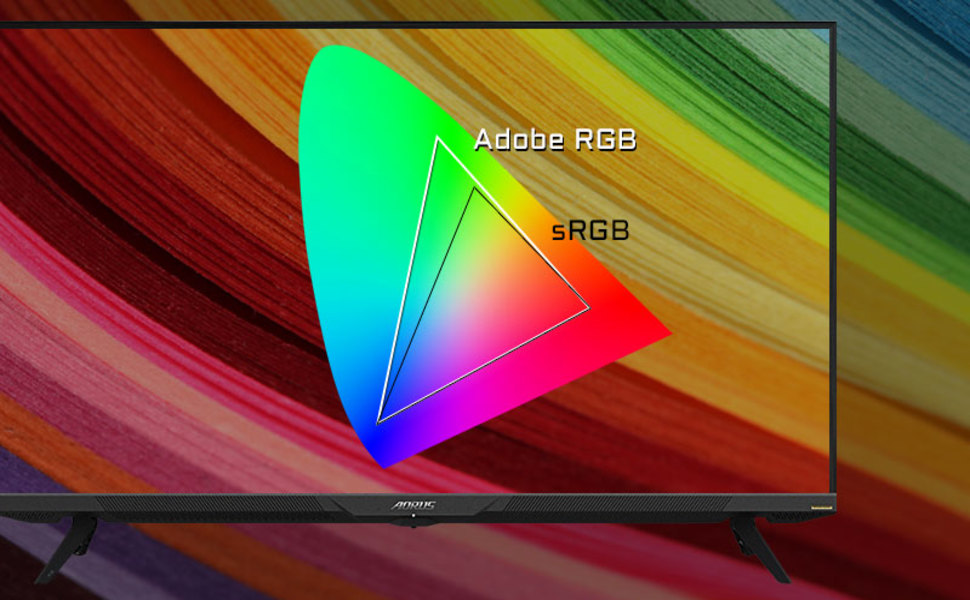
Image: A visual representation of color gamut, comparing Adobe RGB and sRGB color spaces, indicating the monitor's wide color coverage.
Atụmatụ 5.3 Pụrụ Iche
The monitor includes several advanced features accessible via the OSD or OSD Sidekick software:
- OSD Sidekick: A software utility that allows you to control OSD settings directly from your desktop.
- Picture-in-Picture (PiP) / Picture-by-Picture (PbP): Display content from multiple sources simultaneously on the screen.
- Dashboard: Real-time hardware information display (e.g., CPU/GPU temperature, fan speed).
- Ihe nhazi ojii: Enhances visibility in dark areas without overexposing bright areas.
- Egwuregwu Enyemaka: Provides in-game enhancements like crosshairs, timers, and refresh rate counters.
- Space Audio: Offers 5 modes of audio experiences for immersive sound.
- KVM Feature: Allows you to control multiple devices (e.g., two PCs) connected to the monitor using a single keyboard and mouse. Connect devices via USB Type-C and USB 3.0 Upstream ports.

Image: A diagram showing how the Type-C KVM feature allows switching between a desktop PC and a laptop connected to the monitor using one keyboard and mouse.
6. Nlekọta
6.1 Na-ehicha ihe nleba anya
To clean the monitor, first unplug the power cord. Use a soft, lint-free cloth lightly dampened with water or a mild, non-abrasive screen cleaner. Do not spray cleaner directly onto the screen. Avoid using alcohol, ammonia, or abrasive cleaners, as they can damage the screen surface.
6.2 OLED Care and Burn-in Prevention
OLED displays are susceptible to image retention (burn-in) if static images are displayed for extended periods. To prolong the life of your OLED panel:
- Avoid displaying static images (e.g., desktop icons, taskbars, logos) for long durations.
- Utilize screen savers or dynamic wallpapers.
- Enable the monitor's built-in OLED care features (e.g., pixel shift, pixel refresh, logo luminance adjustment) through the OSD menu.
- Reduce screen brightness when not needed.
- Power off the monitor when not in use.
7. Nchọpụta nsogbu
Ọ bụrụ na ịnwee nsogbu na ihe nleba anya gị, rụtụ aka na nsogbu na azịza ndị a na-ahụkarị:
| Nsogbu | Ihe nwere ike ime | Ngwọta |
|---|---|---|
| Enweghị onyonyo na ihuenyo | Power cable disconnected; Video cable disconnected or loose; Incorrect input source selected; Source device off. | Check power and video cable connections; Ensure source device is on; Select correct input source via OSD. |
| Onyonyo na-agbagọ ma ọ bụ agbagọ | Incorrect resolution; Video cable quality; Graphics card driver issues. | Set display resolution to 3840x2160; Use high-quality HDMI 2.1 or DP 1.4 cables; Update graphics drivers. |
| Screen randomly turns off/on | Loose video cable; Power supply issue; Monitor firmware issue; Source device instability. | Ensure video cables are securely connected; Try a different power outlet; Check for and install the latest monitor firmware updates from GIGABYTE's website; Test with a different source device. |
| Enweghị ụda | Volume too low or muted; Incorrect audio output selected; Audio cable disconnected. | Adjust monitor volume; Select correct audio output in PC settings; Ensure external speakers/headphones are connected. |
| KVM feature not working | Incorrect USB cable; USB Upstream cable not connected; Devices not properly configured. | Ensure a 10Gbps USB Type-C cable is used for Type-C connection; Connect the USB 3.0 B to A cable to your primary PC; Refer to the OSD Sidekick software for KVM setup. |
8. Nkọwapụta
Key technical specifications for the GIGABYTE AORUS FO48U monitor:
| Njirimara | Nkọwa |
|---|---|
| Nha ihuenyo | 48 sentimita asatọ |
| Ụdị panel | OLED |
| Mkpebi | 3840 x 2160 (4K UHD) |
| Ọnụego ume ọhụrụ | 120Hz |
| Oge nzaghachi | 1ms (GTG) |
| Agba Gamut | 98% DCI-P3 / 130% sRGB |
| Omimi agba | 10-bit |
| Viewna n'akuku | 178°(H)/178°(V) |
| Njikọta | 2x HDMI 2.1, 1x DisplayPort 1.4, 1x USB Type-C (KVM), 2x USB 3.0, 1x USB 3.0 Upstream, Earphone Jack, Audio Line-Out |
| Ndị na-ekwu okwu | 2x 15W, 1x 20W (Space Audio) |
| Ugwu VESA | 300 x 300mm |
| Akụkụ (WxHxD) | 26.58 x 42.07 x 9.89 sentimita asatọ (nwere ihe nkwụnye) |
| Ibu | 39.8 pound (ya na nkwụnye) |
9. Akwụkwọ ikike na nkwado
For detailed warranty information, please refer to the warranty card included in your product package or visit the official GIGABYTE website. For technical support, driver downloads, and further assistance, please visit the GIGABYTE support page or contact their customer service.
GIGABYTE Official Websaịtị: www.gigabyte.com