Okwu mmalite
The Logitech Wireless Presenter R500s is designed to help you deliver impactful presentations with ease. Its intuitive controls and bright red laser pointer allow for seamless navigation and highlighting of key points, boosting your confidence during any presentation. With 2.4 GHz wireless connectivity, you can move freely up to 20 meters from the receiver, engaging with your audience without being tethered to your computer. The plug-and-play design ensures quick setup, making it ready for use whenever you are.
Atụmatụ igodo
- Njikwa kensinammuo: Easy-to-find touch-keys for smooth slideshow navigation (forward/backward).
- Bright Red Laser Pointer: Class 1 laser for clear highlighting against most backgrounds.
- Oke ikuku agbatịkwuru: Up to 20 meters (65 feet) for freedom of movement.
- Njikọta nkwụnye na-egwu: No software installation required; simply plug the USB receiver into a port.
- Njikọta abụọ: Connects via USB-A receiver or Bluetooth.
- Nhazi Ergonomic: Comfortable to hold for extended periods.
- Smart Automatic On/Off: Na-enyere aka ichekwa ndụ batrị.
- Storable USB Receiver: Conveniently stores inside the presenter.
- Ogologo ndụ batrị: Up to 12 months on a single set of AAA batteries.
- Ndakọrịta Universal: Works with Windows 10, 11 or later, macOS, and iOS.
Ntuziaka nhazi
1. Wụnye batrị
The R500s requires two AAA batteries. Open the battery compartment, insert the batteries according to the polarity indicators, and close the compartment securely.

Image: The Logitech R500s Wireless Presenter shown with its accompanying USB receiver.

Image: The R500s presenter with the USB receiver detached, ready for connection.
2. Connect the USB Receiver
Remove the USB receiver from its storage slot within the presenter. Plug the USB receiver into an available USB-A port on your computer. The system will automatically detect and install the necessary drivers. No additional software is required for basic functionality.
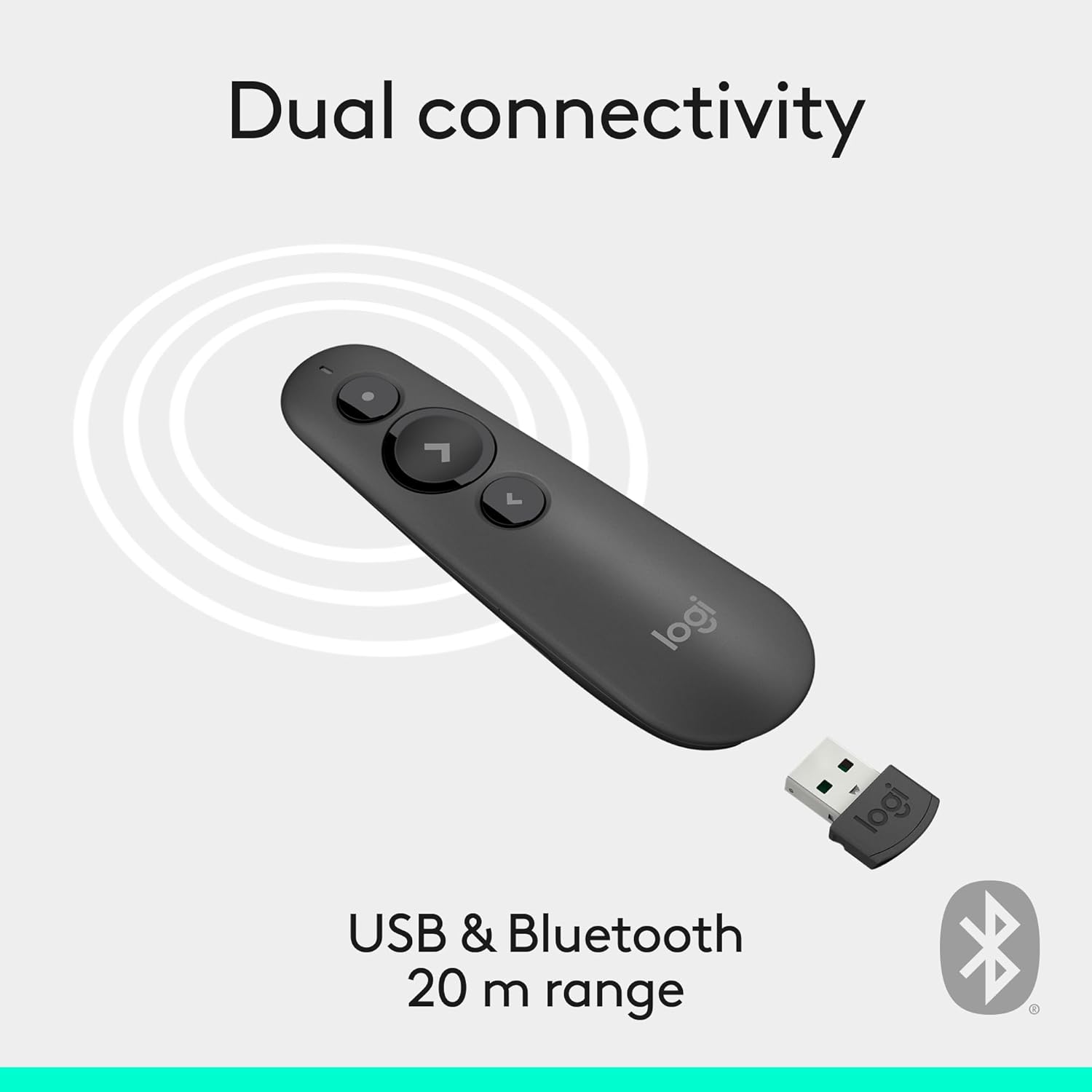
Image: Illustration of the R500s offering dual connectivity options: USB and Bluetooth.
3. Power On the Presenter
Locate the power switch on the side of the presenter and slide it to the 'On' position. The presenter is now ready for use.

Image: The R500s presenter positioned near a laptop, demonstrating its smart automatic on/off feature.
Ntuziaka ọrụ
Slide Navigation
The R500s features intuitive buttons for controlling your presentation slides:
- Forward Button (Large Arrow): Press to advance to the next slide.
- Backward Button (Small Arrow): Press to return to the previous slide.

Image: A hand comfortably holding the R500s presenter, highlighting its ergonomic design and button placement.
Laser Pointer Usage
To activate the red laser pointer, press and hold the dedicated laser button (usually a small dot icon). Release the button to turn off the laser.

Image: The R500s presenter projecting its red laser pointer onto a presentation graph, illustrating its use for highlighting.
Bọtịnụ enwere ike ịhazi ya
The R500s offers customizable buttons for enhanced control. You can configure long-press actions for specific functions such as starting a presentation or blacking out the screen. Refer to the Logitech Presentation Software (available for download from the official Logitech website) for detailed customization options.

Image: A laptop screen displaying the Logitech software interface for customizing the R500s buttons and timer settings.
Nlekọta
Ngbanwe batrị
When the battery indicator on the presenter or in the Logitech software shows low power, replace the two AAA batteries. Ensure correct polarity when inserting new batteries.
Nhicha
Wipe the presenter with a soft, dry cloth. Avoid using abrasive cleaners or solvents.
Nchọpụta nsogbu
- Presenter Not Responding:
- Hụ na e tinyere ihe nnata USB n'ime ọdụ ụgbọ USB na-arụ ọrụ nke ọma.
- Check if the presenter is powered on.
- Dochie batrị ma ọ bụrụ na ha dị ala ma ọ bụ mebie.
- Gbalịa itinye ihe nnata USB n'ọdụ ụgbọ mmiri USB dị iche.
- For Bluetooth connection, ensure Bluetooth is enabled on your computer and the presenter is paired.
- Laser Pointer Not Working:
- Ensure the laser button is being pressed firmly.
- Lelee ọkwa batrị.
- Note that laser visibility can vary on different screen types (e.g., some projection screens or large TVs may reduce visibility).
- Njikọta na-adịte aka:
- Ensure you are within the 20-meter wireless range.
- Minimize obstructions between the presenter and the receiver.
- Avoid strong electromagnetic interference from other devices.
Nkọwapụta
| Ụdị | Logitech |
| Aha Nlereanya | R500s, |
| Nọmba Nlereanya ihe | 910-006518 |
| Teknụzụ Njikọta | 2.4GHz RF Wireless, Bluetooth |
| Ikuku iche | Ruo mita 20 (ụkwụ 65) |
| Ụdị Laser | Class 1 Red Laser |
| Ụdị batrị | 2 x AAA batrị (gụnyere) |
| Nkezi Ndụ batrị | Ọnwa 12 |
| Ndakọrịta sistemụ arụmọrụ | Windows 10, 11 or later; macOS; iOS |
| Ngwaike Platform | PC, Mac |
| Ibu Ibu | 0.2 ounces |
| Akụkụ ngwaahịa (LxWxH) | 1 x 1.4 x 4.9 sentimita asatọ |
Akwụkwọ ikike na nkwado
Ngwaahịa Logitech na-enwekarị akwụkwọ ikike ngwaike pere mpe. Maka nkọwa akwụkwọ ikike, ndebanye aha, na nkwado teknụzụ, biko gaa na nkwado Logitech gọọmentị. websaịtị ma ọ bụ rụtụ aka na kaadị ikike agụnyere na ngwaahịa gị. Ị nwekwara ike ịhụ FAQ na ntuziaka nchọpụta nsogbu n'ịntanetị.
Maka enyemaka ọzọ, gaa na Ụlọ Ahịa Logitech dị na Amazon.


