1. Okwu mmalite na gafereview
The Logitech Rugged Combo 3 is a robust and versatile keyboard case designed for iPad (7th and 8th Generation) users, particularly in educational environments. It offers comprehensive protection and enhanced functionality, transforming your iPad into a powerful productivity tool.
This keyboard case is engineered for durability, meeting MIL SPEC 810G drop standards with 4.5 ft. drop protection, making it resilient against daily wear and tear. Its keys are pry-resistant and sealed, preventing damage and keeping out debris.
The Smart Connector technology ensures an instant, reliable physical connection to your iPad without the need for pairing or separate charging the keyboard, as it draws power directly from the iPad. The adjustable kickstand provides five versatile use modes, adapting to various tasks from typing to sketching.
Additionally, the case features a magnetic latch with integrated storage for a Logitech Crayon or Apple Pencil (1st gen), ensuring your stylus is always accessible. A large asset tagging window is also included for easy device management.
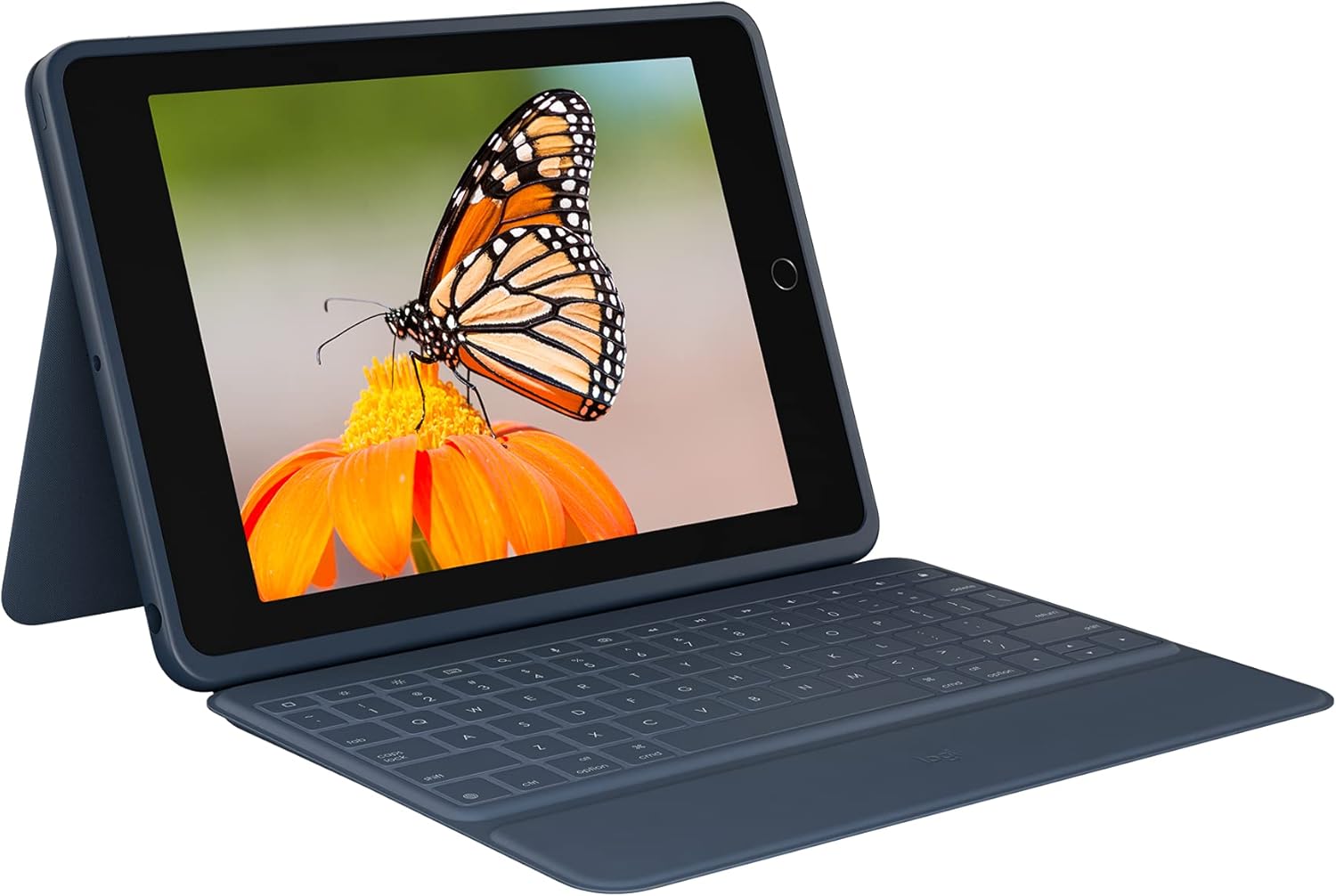
Figure 1.1: The Logitech Rugged Combo 3 with an iPad in typing mode, showcasing the integrated keyboard and adjustable stand.
2. Ntọala na Njikọ
The Logitech Rugged Combo 3 utilizes Apple's Smart Connector technology for a seamless and instant connection to your compatible iPad. No Bluetooth pairing or separate charging is required for the keyboard.
2.1. Attaching Your iPad
- Align the iPad: Carefully align your iPad with the protective case portion of the Rugged Combo 3. Ensure the camera cutout and ports match the case openings.
- Tinye ebe ahụ: Gently press the iPad into the case until it securely snaps into all corners. The durable design provides a snug fit.
- Connect the Smart Connector: Once the iPad is seated in the case, align the Smart Connector on the edge of the iPad with the corresponding pins on the keyboard. The magnetic connection will automatically snap into place, establishing the connection.
The keyboard will instantly power on and be ready for use. There is no need to manually turn the keyboard on or off, as it draws power directly from the iPad via the Smart Connector.

Figure 2.1: The Logitech Rugged Combo 3 in its closed position, providing full protection for the iPad.
3. Operating the Keyboard Case
The Rugged Combo 3 offers multiple modes of use and a full-sized keyboard for efficient interaction with your iPad.
3.1. Use Modes
The adjustable kickstand and foldable keyboard allow for five distinct use modes:
- Type Mode: Position the iPad upright with the keyboard extended for comfortable typing.
- View Ụdị: Fold the keyboard back and adjust the kickstand to an optimal angle for watching videos or presentations.
- Sketch Mode: Lower the kickstand to a shallow angle, ideal for drawing or writing with a stylus.
- Gụọ Ọnọdụ: Fold the keyboard completely behind the iPad, allowing you to hold the tablet like a book.
- Ụdị igwefoto: The design ensures the iPad camera remains unobstructed in all modes, allowing for easy photo and video capture.

Foto 3.1: Akụkụ view illustrating the adjustable kickstand, enabling various viewakụkụ .
3.2. Keyboard Functionality
The integrated keyboard provides a comfortable and responsive typing experience. It includes a full row of iPadOS shortcut keys for quick access to common functions:
- Ụlọ: Na-alaghachi na ihuenyo ụlọ.
- Ihu ihuenyo: Na-edozi nchapụta ngosi.
- Chọọ: Activates the iPad's search function.
- Ahụigodo mebere: Toggles the on-screen keyboard.
- Njikwa mgbasa ozi: Play/pause, previous track, next track.
- Njikwa olu: Mute, volume down, volume up.
- Mkpuchi mkpọchi: Locks the iPad display.

Ọgụgụ 3.2: N'elu-ala view of the keyboard, highlighting the dedicated iPadOS shortcut keys for enhanced productivity.
4. Nlekọta na nlekọta
To ensure the longevity and optimal performance of your Logitech Rugged Combo 3, follow these maintenance guidelines:
- Nhicha: Jiri nwayọọ, damp cloth to wipe down the exterior of the case and keyboard. Avoid harsh chemicals or abrasive materials.
- Nguzogide Mwụfu: The keyboard features sealed keys designed to resist spills. In case of a spill, immediately wipe off any liquid and allow the keyboard to air dry before continued use.
- Isi nlekọta: The keys are pry-resistant, but avoid excessive force when cleaning or handling to prevent damage.
- Nchekwa: When not in use, keep the case closed to protect both the iPad and the keyboard from dust and potential damage.

Figure 4.1: The keyboard's spill-resistant design helps protect against accidental liquid exposure.
5. Nchọpụta nsogbu
If you encounter issues with your Logitech Rugged Combo 3, refer to the following common troubleshooting steps:
5.1. Ahụigodo Anaghị azaghachi
- Check Smart Connector: Ensure the iPad is correctly seated in the case and the Smart Connector on the iPad is firmly connected to the keyboard. Remove and re-attach the iPad to ensure a proper connection.
- Restart iPad: Sometimes, a simple restart of your iPad can resolve connectivity issues.
- Clean Smart Connector: Inspect the Smart Connector pins on both the iPad and the keyboard for any debris or dust. Gently clean them with a soft, dry cloth.
5.2. Keys Not Functioning Correctly
- Lelee maka irighiri ihe: Ensure no foreign objects are lodged under the keys.
- Spill Damage: If the keyboard has been exposed to a significant liquid spill, allow it to dry completely. If issues persist, contact support.
5.3. iPad Not Fitting Securely
- Nyochaa ndakọrịta: Ensure your iPad model (7th or 8th Generation) is compatible with the Rugged Combo 3.
- Ntinye kwesịrị ekwesị: Make sure the iPad is inserted correctly and all corners are snapped into place.
6. Nkọwapụta
| Njirimara | Nkọwa |
|---|---|
| Ụdị | Logitech |
| Usoro | Combo gbara agba 3 |
| Nọmba nlereanya | 920-009320 |
| Ngwa dakọtara | iPad (7th Generation: A2200, A2197, A2198), iPad (8th Generation: A2270, A2428, A2429, A2430) |
| Teknụzụ Njikọta | Njikọ Smart |
| Nkọwa ahụigodo | Membrane |
| Isi Iyi Ike | iPad via Smart Connector (no battery required for keyboard) |
| Ibu Ibu | 1.33 pound |
| Akụkụ ngwaahịa (LxWxH) | 10.24 x 7.44 x 0.94 sentimita asatọ |
| Agba | Acha anụnụ anụnụ |
| Ihe onwunwe | Plastic |
| Njirimara Pụrụ Iche | Foldable, 4.5 ft. Drop Protection (MIL SPEC 810G), Pry-resistant keys, Integrated stylus storage |
| Ngwa gụnyere | Keyboard case, Documentation |
7. Akwụkwọ ikike na nkwado
For warranty information, technical support, or further assistance with your Logitech Rugged Combo 3, please visit the official Logitech support websaịtị ma ọ bụ kpọtụrụ ndị ahịa ha ọrụ. Debe nnata nzụta gị dị ka ihe akaebe nke ịzụrụ maka nkwupụta ikike.
Nkwado Logitech: www.logitech.com/support


