Okwu mmalite
This manual provides detailed instructions for the MOFii 2.4GHz Wireless Keyboard and Mouse Combo, Model 4056. Please read this manual carefully before using the product to ensure proper operation and longevity.
Ihe ngwugwu
- MOFii Wireless Keyboard
- MOFii Wireless Mouse
- 2.4GHz USB Nano nnata
- Akwụkwọ ntuziaka (akwụkwọ a)
Ntuziaka nhazi
- Wụnye batrị:
- Open the battery compartment on the underside of the keyboard and mouse.
- Fanye batrị achọrọ.
- Gbaa mbọ hụ na polarity ziri ezi (+/-).
- Mechie oghere batrị.
- Jikọọ eriri USB:
- Locate the 2.4GHz USB Nano Receiver. It is often stored within the mouse's battery compartment.
- Plug the USB receiver into an available USB port on your computer, laptop, or smart TV.
- Sistemụ ahụ kwesịrị ịchọpụta ma wụnye draịva dị mkpa na akpaghị aka.
- Ike Na:
- Turn on the keyboard and mouse using their respective power switches (if available).
- The devices should connect automatically to the receiver.

Image: MOFii Wireless Keyboard and Mouse connected to a laptop, illustrating the 2.4GHz USB receiver connection.

Image: Diagram illustrating the 2.4GHz wireless connection between the keyboard, mouse, and a laptop, highlighting stable connection up to 10m/33ft.
Ntuziaka ọrụ
Ojiji izugbe
The keyboard features a full-size layout with colorful round keys, designed for comfortable typing. The mouse is ergonomically shaped for ease of use.
Ọrụ Hotkey
The keyboard includes 13 hotkey functions for quick access to various features. Refer to the keycap legends for specific functions (e.g., media control, volume adjustment, web browser access).

Image: The MOFii keyboard highlighting its 13 hotkey functions, designed to enhance productivity and entertainment.
Nchekwa ike akpaaka
To conserve battery life, both the keyboard and mouse will automatically enter sleep mode after 5 minutes of inactivity. To wake them up, simply press any key on the keyboard or move the mouse.

Image: The keyboard and mouse in a low-light setting, illustrating the intelligent auto-sleep feature that conserves battery power.
Nlekọta
Na-ehicha ahụigodo
The keyboard features detachable keycaps for easy cleaning. A brush is included to help remove dust and debris from between the keys.
- Gently pull up the keycaps to remove them.
- Use the provided brush or a soft, dry cloth to clean the keyboard base and keycaps.
- Ensure all parts are dry before reattaching the keycaps.

Foto: nso nso view of the keyboard demonstrating detachable keycaps and the included cleaning brush for thorough maintenance.
Ergonomic imewe
The keyboard is designed with ergonomic considerations, including foldable stands on the underside to adjust the typing angle for improved comfort and reduced wrist pressure.

Image: The underside of the keyboard, highlighting foldable stands and silicone non-slip pads for adjustable height and stability.
Nchọpụta nsogbu
- Enweghị njikọ/nkwụsị:
- Hụ na e tinyere ihe nnata USB n'ime ọdụ ụgbọ USB na-arụ ọrụ nke ọma.
- Check if the keyboard and mouse have fresh batteries and are powered on.
- Move the devices closer to the USB receiver to ensure they are within the 10m/33ft operating range.
- Gbalịa itinye ihe nnata USB n'ọdụ ụgbọ mmiri USB dị iche.
- Igodo anaghị aza:
- Lelee ọkwa batrị wee dochie ma ọ dị mkpa.
- Ensure the keyboard is not in sleep mode (press any key to wake).
- Re-pair the keyboard by unplugging and re-plugging the USB receiver.
- Òké anaghị aza:
- Lelee ọkwa batrị wee dochie ma ọ dị mkpa.
- Ensure the mouse is not in sleep mode (move the mouse to wake).
- Verify the optical sensor on the bottom of the mouse is clean and unobstructed.
- Re-pair the mouse by unplugging and re-plugging the USB receiver.
Nkọwapụta
| Njirimara | Nkọwa |
|---|---|
| Akụkụ ngwaahịa | 17.52 x 5.35 x 1.38 sentimita asatọ |
| Ibu Ibu | 2.03 pound |
| Nọmba nlereanya | 4056 |
| Teknụzụ Njikọta | 2.4GHz USB Wireless |
| Njirimara Pụrụ Iche | Round Keycaps, Auto-Sleep Function |
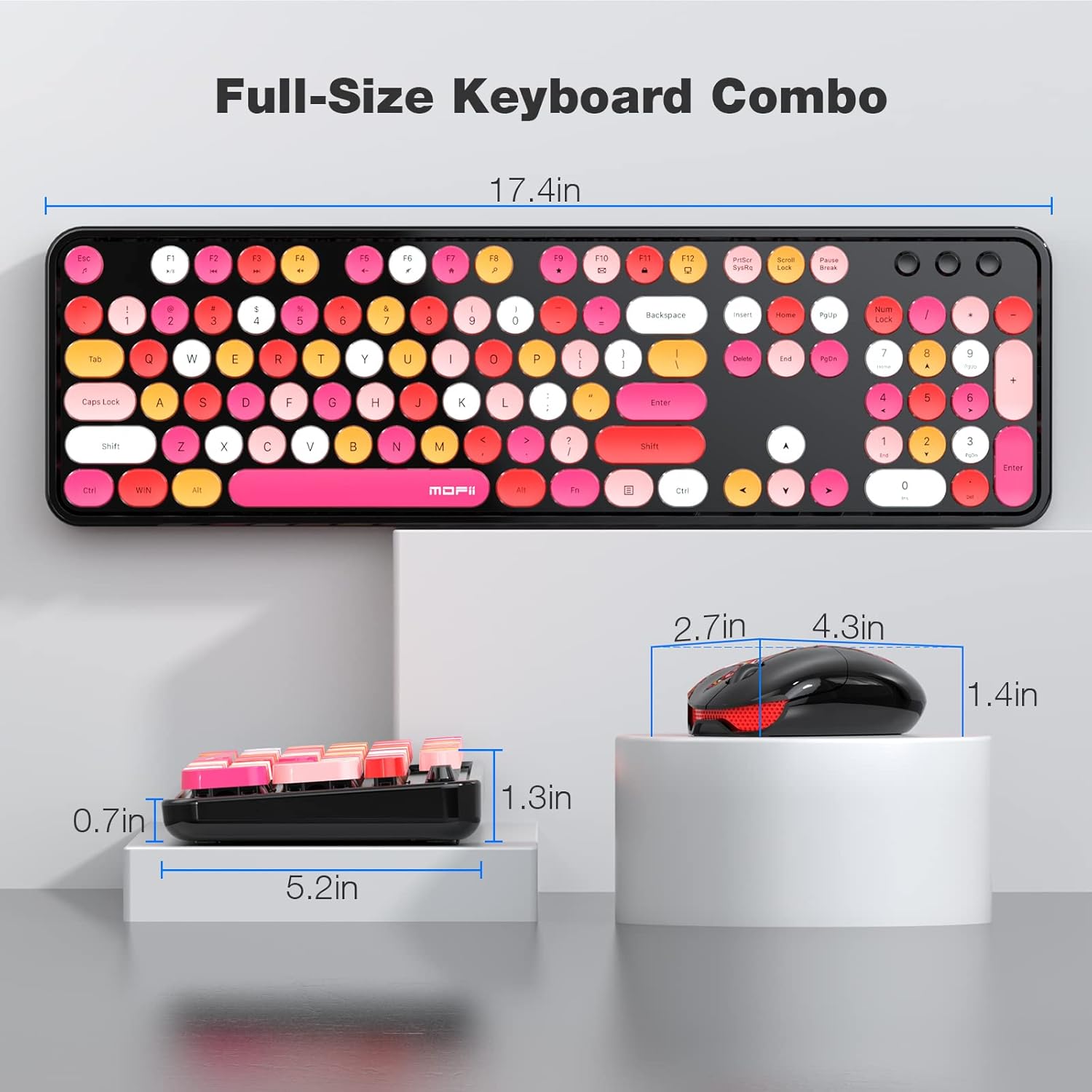
Image: Technical diagram displaying the full-size dimensions of the keyboard (17.4 inches) and mouse (2.7 x 4.3 x 1.4 inches).
Ndakọrịta
The MOFii Wireless Keyboard and Mouse Combo is compatible with the following operating systems:
- Windows 7
- Windows 8
- Windows 10
- Windows XP/Vista
- Works with PC, Laptop, Smart TV.
Note: Not compatible with Apple systems.

Image: Visual representation of the product's wide compatibility with various Windows operating systems and devices like PCs and laptops.
Vidiyo ngwaahịa ngwaahịa
Video: "Colorful wireless keyboard and mouse" - A seller-provided video showcasing the vibrant design and wireless functionality of the MOFii keyboard and mouse combo.
Video: "Stylish Comfort for Everyday Work" - A seller-provided video highlighting the ergonomic design and comfortable typing experience of the MOFii combo.
Video: "MOFii Wireless Keyboard and Mouse Retro Typewriter Keyboard" - A seller-provided video demonstrating the retro typewriter-style keys and overall aesthetic of the product.
Akwụkwọ ikike na nkwado
Maka ozi gbasara akwụkwọ ikike na nkwado ndị ahịa, biko gaa na gọọmentị nke onye nrụpụta. website or contact their customer service directly. The product typically comes with a standard manufacturer's warranty against defects in materials and workmanship.
Maka enyemaka ọzọ, ị nwere ike ịga na MOFII Store on Amazon.


