1. Okwu mmalite
The Logitech Ergo M575 Wireless Trackball Mouse is designed for ergonomic comfort and precise control. This manual provides essential information for setting up, operating, maintaining, and troubleshooting your device.

Figure 1: Logitech Ergo M575 Wireless Trackball Mouse (Graphite)
2. Atụmatụ igodo
- Ergonomic Comfort Design: The sculpted shape naturally fits your hand, promoting a relaxed hand and arm posture.
- Smooth Thumb Control: Achieve precise cursor control on any surface using the integrated trackball. Cursor speed can be adjusted via Logitech Options software.
- Ichekwa oghere: Ideal for tight workspaces and busy desks as the trackball does not require movement of the mouse itself.
- Njikọta abụọ: Connect effortlessly using either Bluetooth or the included USB receiver. Enjoy a stable connection with a range of up to 33 feet (10m).
- Ihe na-adigide Plastic parts in the ERGO M575 include post-consumer recycled plastic (Graphite/Black: 50%, Off-White: 21%). Packaging uses FSC-certified paper.
- Ndụ batrị agbatịkwuru: Up to 24 months of use from a single AA battery when using the USB receiver.
- Njikwa dị mma: Features large, easy-to-reach Back/Forward buttons and a precision scroll wheel for efficient navigation.

Figure 2: Labeled components of the Ergo M575 mouse, including Back/Forward buttons, Precision scroll wheel, and Removable trackball.
3. Nhazi
3.1. Kedu ihe dị na Igbe ahụ
Chọpụta na akụrụngwa niile dị na nkwakọ ngwaahịa:
- Logitech Ergo M575 Wireless Trackball Mouse
- Batrị AA
- Ihe nnata USB na-ejikọta ọnụ
- Akwụkwọ onye ọrụ

Figure 3: Packaging and contents of the Logitech Ergo M575.
3.2. Ịwụnye batrị
- Chọta ebe batrị dị n'okpuru òké.
- Mepee mkpuchi nke batrị batrị.
- Insert the provided AA battery, ensuring correct polarity (+/-).
- Mechie mkpuchi nke batrị batrị nke ọma.
3.3. Ijikọ gị òké
The Ergo M575 offers two connection methods: USB Unifying Receiver or Bluetooth.
3.3.1. Using the USB Unifying Receiver
- Remove the USB Unifying Receiver from its storage slot inside the battery compartment.
- Tinye eriri USB n'ọdụ ụgbọ mmiri dị na kọmputa gị.
- Gbanye òké ahụ site na iji mgba ọkụ/mgbanyụ dị n'okpuru.
- Your computer should automatically detect and connect to the mouse.
3.3.2. Iji Bluetooth
- Gbanye òké ahụ site na iji mgba ọkụ/mgbanyụ dị n'okpuru.
- Press and hold the Bluetooth pairing button on the underside of the mouse until the LED indicator starts blinking rapidly.
- Na kọmputa gị, mepee ntọala Bluetooth.
- Select "Logitech Ergo M575" from the list of available devices and follow the on-screen prompts to complete pairing.
4. Operating Your Mouse
4.1. Ọrụ ndị bụ isi
- Pịa aka ekpe: Primary button for selecting items and interacting with software.
- Pịa aka nri: Bọtịnụ nke abụọ maka nchịkọta nhọrọ na nhọrọ ndị ọzọ.
- Mpempe akwụkwọ mpịakọta: Pịgharịa gaa na elu ma ọ bụ ala site na akwụkwọ na web pages. Pressing the scroll wheel acts as a middle click.
- Bọtịnụ Azụ/Ntugharị: Located near the trackball, these buttons allow for quick navigation in web ihe nchọgharị na file ndị na-eme nchọpụta.
4.2. Using the Trackball
Control the cursor by rolling the trackball with your thumb. The trackball provides precise movement without needing to move the entire mouse, making it ideal for limited desk space.

Figure 4: The compact design of the Ergo M575 allows for efficient use in tight spaces.
4.3. Logitech Options Software
For advanced customization, download and install the Logitech Options software from the official Logitech websaịtị. Akụrụngwa a na-enye gị ohere:
- Adjust cursor speed and acceleration.
- Reassign button functions to suit your workflow.
- Set application-specific settings.
5. Nlekọta
5.1. Nhicha bọọlụ egwu
Over time, dust and debris may accumulate around the trackball, affecting its smoothness. To clean:
- Jiri nwayọ pịa bọọlụ ahụ site n'okpuru òké ahụ ka ọ pụta ìhè.
- Jiri ákwà dị nro, nke na-enweghị lint hichaa bọọlụ ahụ nke ọma.
- Clean the inside of the trackball cavity, paying attention to the small sensor points.
- Reinsert the trackball into its socket until it clicks into place.
5.2. Ngbanwe batrị
When the battery indicator light on the mouse turns red, it's time to replace the AA battery. Follow the steps in Section 3.2.
6. Nchọpụta nsogbu
| Nsogbu | Ihe nwere ike ime | Ngwọta |
|---|---|---|
| Òké anaghị aza | Battery is low or dead. Mouse is off. Connection issue. | Replace the AA battery. Ensure the On/Off switch is in the 'On' position. Re-pair via Bluetooth or re-insert USB receiver. |
| Cursor movement is erratic or sticky | Trackball or sensor is dirty. | Clean the trackball and its cavity as described in Section 5.1. |
| Bluetooth connection drops frequently | Interference from other devices. Distance from computer. | Move closer to your computer. Ensure no other strong wireless signals are interfering. Try connecting via USB receiver. |
| Bọtịnụ anaghị arụ ọrụ dịka a tụrụ anya ya | Software settings are incorrect. | Check Logitech Options software settings and reassign button functions if necessary. |
7. Nkọwapụta
- Akụkụ ngwaahịa: 5.28 x 3.94 x 0.01 sentimita asatọ
- Ibu ihe: 7 ounces
- Batrị: 1 Lithium Ion battery required (AA battery included)
- Teknụzụ Njikọta: Bluetooth, USB (Unifying Receiver)
- Teknụzụ nchọpụta ngagharị: Bọọlụ egwu
- Agba: Graphite
- Onye nrụpụta: Logitech
- Nke mbụ dị: Mee 5, 2021
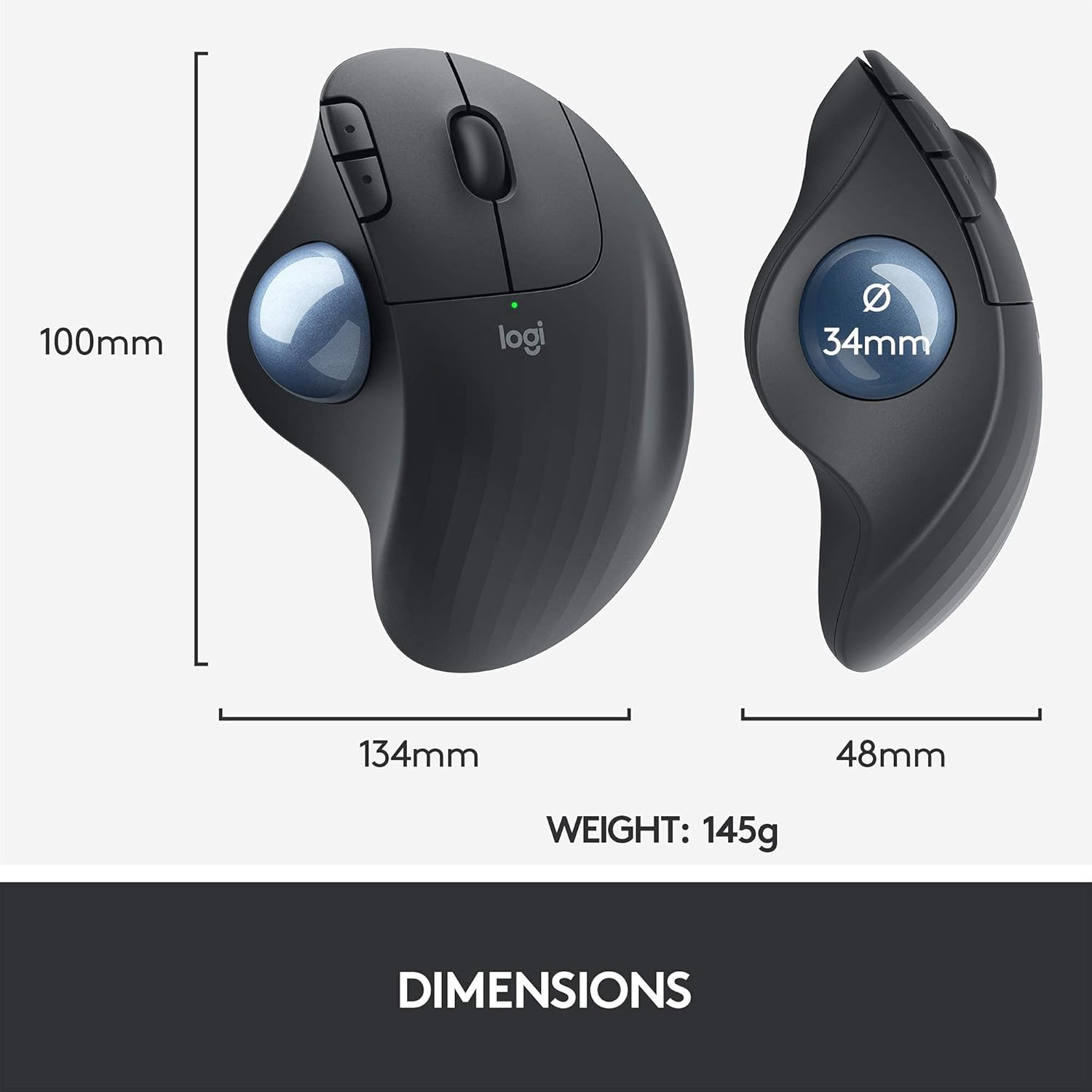
Figure 5: Physical dimensions and weight of the Ergo M575 mouse.
8. Akwụkwọ ikike na nkwado
Maka ozi gbasara akwụkwọ ikike na nkwado teknụzụ, biko gaa na Logitech gọọmentị website or contact Logitech customer service. This product is a renewed item and is covered by the Amazon Renewed Guarantee, which ensures it has been professionally inspected and tested to work and look like new. Renewed products are eligible for replacement or refund if not satisfied with the purchase.
Gaa leta Nkwado Logitech for the latest drivers, software, and support resources.


