1. Okwu mmalite
The Phomemo M120 Label Maker is a lightweight, portable thermal label printer designed for various labeling needs, from home organization to small business use. It offers inkless printing, multi-size label compatibility, and powerful customization options through its companion application. This manual provides detailed instructions for setting up, operating, maintaining, and troubleshooting your M120 label maker.

Image: The Phomemo M120 Label Maker shown with a roll of labels and several printed labels, demonstrating its versatility for different applications like barcodes, QR codes, names, and addresses.
Akụkụ ndị bụ isi:
- Portable and Long-lasting: Weighing just 200g, the M120 is highly portable and can print up to 3,000 labels on a single charge. An auto-sleep mode conserves energy.
- Multi-Size Compatibility: Supports label sizes from 20-50mm with an adjustable paper slot, ideal for barcodes, QR codes, addresses, and more.
- Powerful APP & Customization: The "Print Master" app offers voice and image recognition, OCR for text editing, and extensive customization with over 1,500 symbols, 200 templates, 110 fonts, and 20 languages.
- Ndakọrịta siri ike: Connects via Bluetooth to iOS and Android devices using the "Print Master" app, and via USB to PC (Windows, Mac, Chrome OS) using the "Labelife" software.
- Inkless Printing & Easy to Use: Utilizes thermal printing technology, requiring no ink. Simply load thermal labels for crisp, high-definition prints.
2. Gịnị gụnyere
Chọpụta na ihe niile dị na ngwugwu:
- M120 Onye na-eme Label
- 1 Roll 1.18''X0.78'' (40X30mm) label paper (100pcs)
- 1 eriri USB-C
- 1 Akwụkwọ ntuziaka onye ọrụ (akwụkwọ a)
3. Nkọwapụta
| Njirimara | Nkọwa |
|---|---|
| Akụkụ ngwaahịa | 4.37"D x 3.39"W x 2.32"H |
| Ibu Ibu | 8.3 ounce (gram 235) |
| Teknụzụ Njikọta | Bluetooth, USB-Type-C |
| Teknụzụ obibi akwụkwọ | Thermal |
| Ogo mgbasa ozi kacha | 20-50mm |
| Mkpebi mbipụta ojii na ọcha kacha | 203 Dots Per Inch (dpi) |
| Ọsọ mbipụta kacha (Monochrome) | 10 ppm |
| Ngwa dakọtara | Android & iOS Phone/Tablet (Bluetooth via App), Chrome OS, Mac OS (10/11/12/14/15+), Windows (7/8/10/11+) (USB via PC) |
| Usoro njikwa | Ngwa, metụ, olu |
| Batrị | 1 batrị achọrọ (gụnyere) |
| Ike Nchekwa ebe nchekwa | 64 GB |
| Atụmatụ pụrụ iche | Lightweight, Portable, Voice recognition, Wireless |

Image: The Phomemo M120 Label Maker with callouts indicating a 1200mAh battery capacity and the ability to print 350 labels per 10 minutes, emphasizing its fast printing and powerful battery.

Image: The Phomemo M120 Label Maker being placed into a pocket, illustrating its lightweight and compact design for easy portability. Dimensions are also shown.
4. Nhazi
4.1 Nchaji izizi
Before first use, fully charge the Phomemo M120 label maker using the provided USB-C cable. Connect the cable to the printer's USB-C port and a compatible USB power adapter (not included). The indicator light will show charging status.
4.2 Loading Label Paper
- Mepee mkpuchi nke ngalaba akara ahụ.
- Insert the label roll with the printing side facing up. Ensure the labels are aligned with the paper slot.
- Close the cover firmly. The printer will automatically detect the label size and calibrate.

Image: A close-up of the Phomemo M120 Label Maker's interior, highlighting the adjustable paper slot and demonstrating various label sizes (20-50mm) that can be used with the device.
4.3 App & Software Installation
The Phomemo M120 can be used with mobile devices (iOS/Android) via Bluetooth or with computers (Windows/Mac/Chrome OS) via USB.
For Mobile Devices (Phone/Tablet):
- Budata ya "Print Master" ngwa sitere na App Store (iOS) ma ọ bụ Google Play Store (Android).
- Gbaa mbọ hụ na agbanyere Bluetooth na ngwaọrụ mkpanaka gị.
- Open the "Print Master" app and search for your printer. Connect to the device (e.g., "Phomemo-M120"). Note: Do not pair via your phone's Bluetooth settings directly; connect within the app.
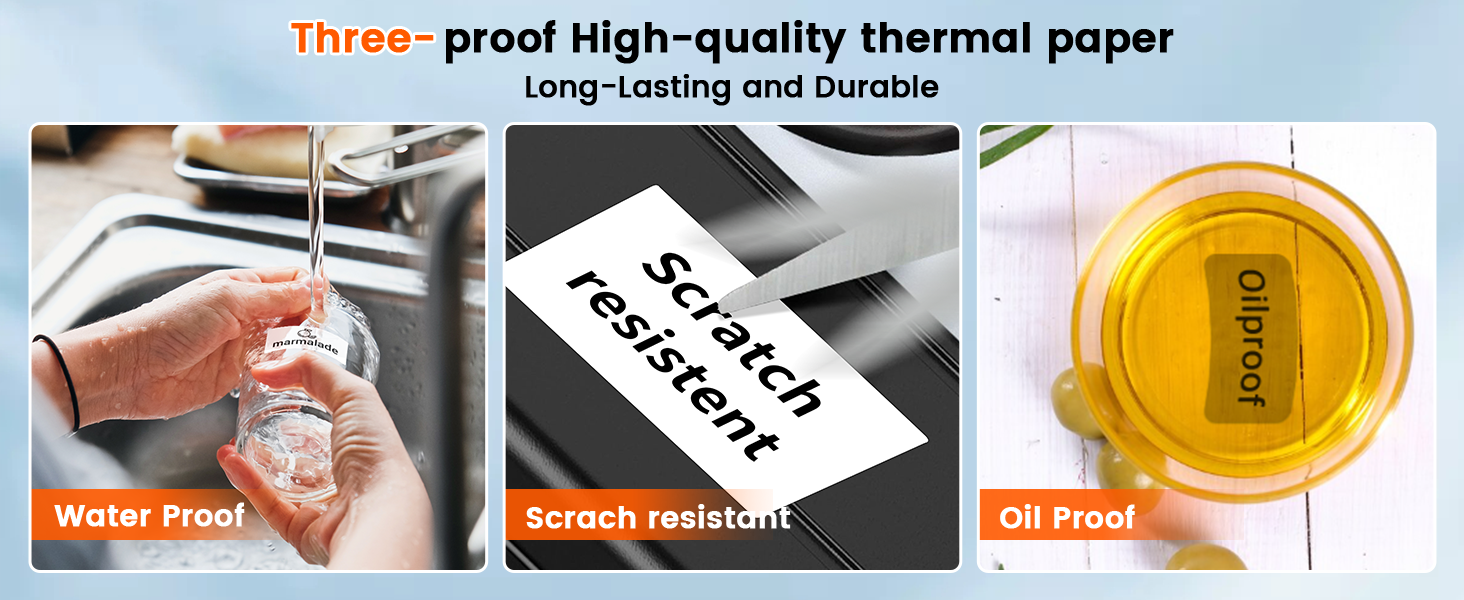
Image: A six-step visual guide demonstrating how to download the "Print Master" app, enable Bluetooth, install label paper, find and connect to the printer within the app, and begin editing and printing labels.
For Computers (PC/Laptop):
- Visit the official Phomemo website for drivers and software: https://ms.phomemo.com/?mo=M120
- Download and install the appropriate driver for your operating system (Windows, Mac, Chrome OS).
- Budata ma wụnye ya "Labelife" ngwanrọ.
- Connect the M120 label maker to your computer using the provided USB-C cable.
- Open the "Labelife" software to start using the printer.

Image: A six-step guide illustrating how to visit the Phomemo website, download the "Labelife" app and drivers, connect the printer via USB to a PC, and begin printing from the software.

Image: The Phomemo M120 Label Maker connected to a laptop via USB and wirelessly to a smartphone via Bluetooth, demonstrating its compatibility with various devices including iOS, Android, Mac OS, Windows, Chrome OS, and Linux.
5. Ntuziaka ọrụ
5.1 Basic Printing (via App)
- Ensure the printer is powered on and connected to your device via the "Print Master" app (for mobile) or "Labelife" software (for PC).
- Open the app/software and select a template or create a new label design.
- Customize your label with text, images, barcodes, QR codes, and other elements.
- Tupuview the label to ensure it appears as desired.
- Tap the print button to send the label to the M120 printer.

Image: The "Print Master" app interface displayed on a smartphone, showcasing its multi-functional capabilities including borders, icons, templates, and fonts for comprehensive label customization.
5.2 Printer Settings (On-Device)
The M120 features a simple screen and buttons for quick adjustments:
- Asụsụ: Gbanwee asụsụ ngosi.
- Dormancy Time: Set the auto-sleep duration to conserve battery.
- Nkwenye: Adjust print density.
- Ụdị akwụkwọ: Select the type of label paper being used.
- Nnwale onwe: Print a test page to check printer functionality.
- Ntọala ụlọ ọrụ: Reset the printer to its default settings.

Image: The Phomemo M120 Label Maker's display screen showing options for one-click screen settings, including Language, Dormancy Time, Consistency, Paper Type, Self-Test, and Factory Settings.
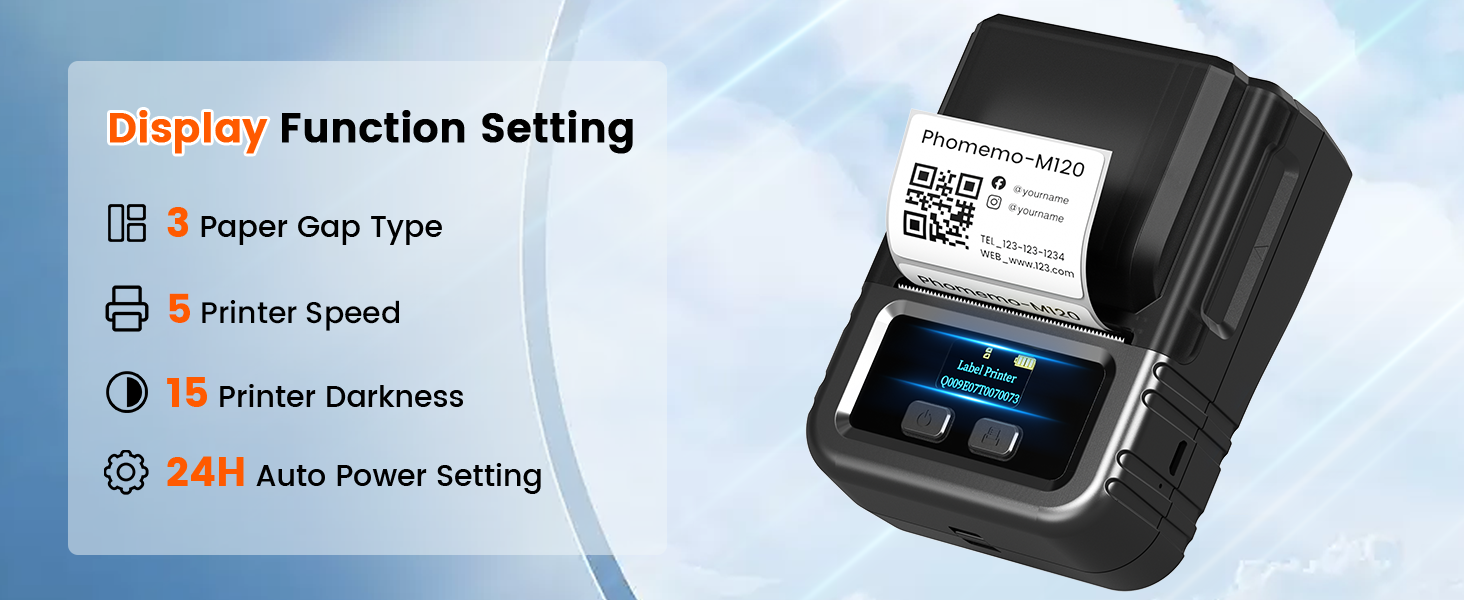
Image: A graphic illustrating the display function settings of the Phomemo M120, including options for 3 Paper Gap Types, 5 Printer Speeds, 15 Printer Darkness levels, and 24H Auto Power Setting.
5.3 Label Types and Applications
The M120 supports various label types and sizes (20-50mm) for diverse applications:
- White Labels: Standard labels for general use.
- Color Labels: For aesthetic or categorization purposes.
- Pattern Labels: Labels with pre-designed patterns.
- Transparent Labels: For a seamless look on various surfaces.
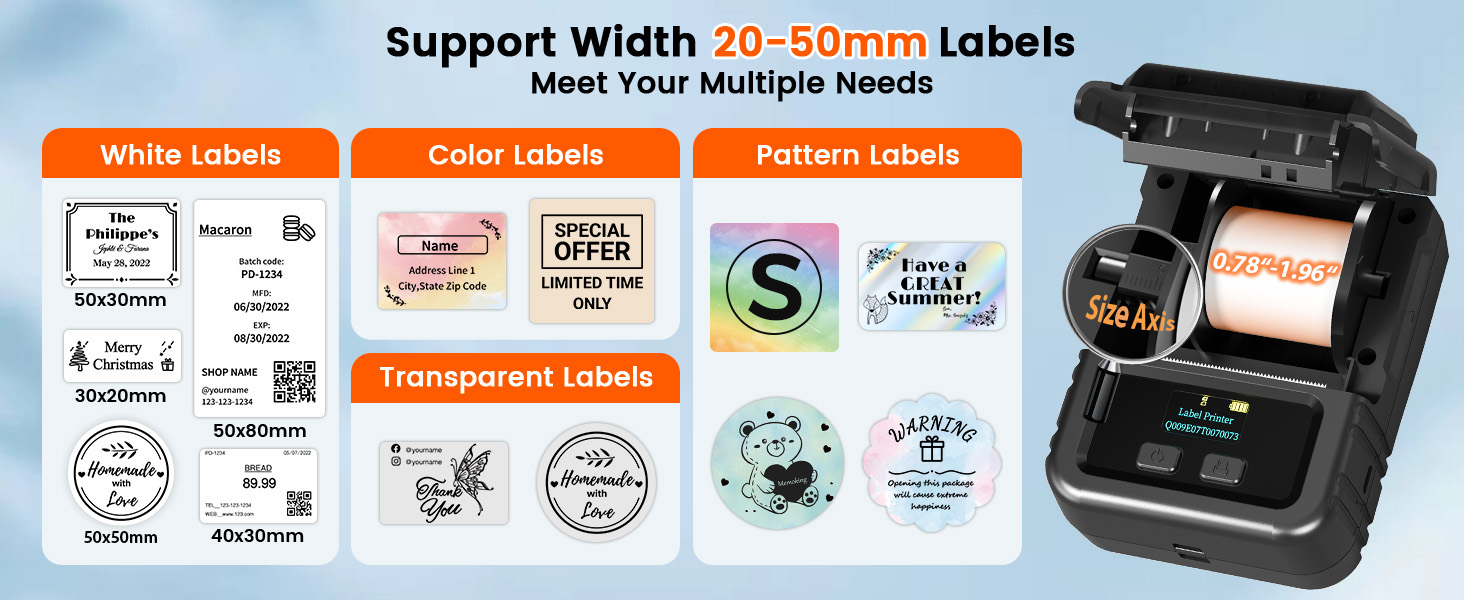
Image: A visual representation of the Phomemo M120's capability to support label widths from 20-50mm, showcasing examples of white, color, pattern, and transparent labels for multiple needs.
Usoro Ojiji A Na-ejikarị Eme Ihe:
- Small Business & Shipping: Ọnụ ahịa tags, clothing labels, address labels, QR codes for inventory or product information.
- Home Use & Organization: Jars labels, file labels, stuff labels, storage labels.
- Holiday & Gift: Greetings labels, gift tags, envelope labels, Christmas labels, thank you cards.

Foto: Mmadụ anọ bụbuamples of the Phomemo M120's use in small business and shipping: creating price tags for baked goods, clothing labels, address labels for packages, and QR codes for product information on bags.

Foto: Mmadụ anọ bụbuamples of the Phomemo M120's use for home organization: labeling jars for pantry items, creating file labels for documents, labeling various personal items, and organizing storage bins.
6. Nlekọta
6.1 Na-ehicha isi mbipụta
Iji hụ na mbipụta ya dị mma nke ọma, na-ehicha isi mbipụta ahụ mgbe niile. Jiri ákwà owu mee obere ihe.ampened with rubbing alcohol. Gently wipe the print head surface. Allow it to dry completely before closing the cover or printing.
6.2 Nlekọta batrị
- Zere ịchaji batrị ugboro ugboro.
- Chaji ngwaọrụ ahụ mgbe niile, ọbụlagodi na ọ naghị adị ya ugboro ugboro, iji hụ na batrị dị mma.
- Store the printer in a cool, dry place away from extreme temperatures.
Nchekwa Aha 6.3
Store thermal labels in a cool, dry place away from direct sunlight, heat, and moisture. This prevents premature fading or degradation of the thermal coating, ensuring your labels remain clear and durable.

Image: A visual representation of the three-proof features of high-quality thermal paper: water-proof, scratch-resistant, and oil-proof, highlighting the durability of labels printed with the Phomemo M120.
7. Nchọpụta nsogbu
7.1 Okwu nkịtị na Ngwọta
| Nsogbu | Ihe nwere ike ime | Ngwọta |
|---|---|---|
| Igwe nbipute anaghị agbanye | Batrị dị ala; Apịghị bọtịnụ ike nke ọma | Charge the printer; Press and hold the power button for a few seconds. |
| No print/Blank labels | Label roll inserted incorrectly (upside down); No label paper; Print head dirty | Re-insert label roll with printing side up; Load new label paper; Clean the print head. |
| Poor print quality (faint/streaky) | Low battery; Dirty print head; Low print density setting; Using non-thermal paper | Charge the printer; Clean the print head; Adjust print density in app/software; Ensure you are using Phomemo thermal labels. |
| Nsogbu njikọ Bluetooth | Not connected via app; Bluetooth off on device; Printer too far from device | Ensure connection is made within the "Print Master" app; Turn on Bluetooth; Move printer closer to device. |
| PC connection issues (USB) | Driver/software not installed; Loose USB cable | Install "Labelife" software and drivers from Phomemo website; Ensure USB cable is securely connected. |
| Akara aha anaghị enye nri nke ọma | Paper not aligned; Paper compartment not closed properly | Re-align label paper in the slot; Ensure the cover is firmly closed. |
8. Akwụkwọ ikike na nkwado
8.1 Ozi akwụkwọ ikike
The Phomemo M120 Label Maker comes with a standard manufacturer's warranty. For specific details regarding warranty coverage and duration, please refer to the warranty card included in your product packaging or contact Phomemo customer support.
8.2 Atụmatụ Nchedo
Extended protection plans may be available for purchase. These plans can offer additional coverage beyond the standard manufacturer's warranty. Examples gụnyere:
- Atụmatụ Nchekwa afọ 3
- Atụmatụ Nchekwa afọ 4
- Nchedo zuru oke (atụmatụ kwa ọnwa na-ekpuchi ịzụrụ ihe ruru eru)
Please check with your retailer for availability and terms of these protection plans.
8.3 Nlaghachi amụma
This product typically has a 30-day return policy for refunds or replacements. Please consult the retailer's specific return policy for detailed terms and conditions.
8.4 Nkwado ndị ahịa
For further assistance, technical support, or inquiries not covered in this manual, please utilize the following resources:
- Akwụkwọ ntuziaka onye ọrụ (PDF): For a downloadable version of the manual, please visit: Phomemo M120 User Manual PDF
- Phomemo Brand Store: Explore other products and find support information on the official brand store: Phomemo Amazon Store
- Onye nrụpụta Websaịtị: For drivers, software, and general support, visit the Phomemo official websaịtị.


