1. Okwu mmalite
This manual provides essential instructions for setting up, operating, and maintaining your ENHANCE Colmi V23 Smart Watch. Please read this manual thoroughly before using the device to ensure proper function and longevity.

Figure 1.1: ENHANCE Colmi V23 Smart Watch
2. Ozi nchekwa
Disclaimer: This device is not a medical device and is not intended to replace a Sphygmomanometer (an instrument for measuring blood pressure). Individuals with hypertension or other medical conditions should consult their doctor before using this device for health monitoring purposes.
3. Kedu ihe dị na Igbe ahụ
- 1x ENHANCE Colmi V23 Smart Watch
- 1 x eriri chaja
- 1x Akwụkwọ ntuziaka onye ọrụ
4. Nhazi
4.1 Ịchaji smart Watch
Before initial use, fully charge your smart watch. Connect the magnetic charging cable to the charging points on the back of the watch and plug the USB end into a power adapter (not included) or a computer's USB port. A full charge typically takes approximately 2 hours.

Figure 4.1: Charging the Smart Watch
4.2 Ngwa nwụnye na ijikọ
- Budata ya "Da Fit" application from your device's app store (compatible with iOS 9.0 and above, Android 4.0 and above). You can also scan the QR code provided in the included manual to download the app.
- Mepee ngwa Da Fit na ekwentị gị.
- Follow the in-app instructions to add a new device. Select the V23 Smart Watch from the list of available devices to pair.
- Gbaa mbọ hụ na agbanyere Bluetooth na ama gị n'oge usoro njikọta.
5. Operating the Smart Watch
5.1 Nsoro Ihuenyo Mmetụ Aka
The ENHANCE Colmi V23 features a 1.3-inch HD color full touch screen for easy operation. Swipe left, right, up, or down to navigate through menus and functions. Tap to select options.

Figure 5.1: Touch Screen Interface Overview
5.2 Hazie ihu nche
Personalize your smart watch with over 100 watch faces available through the Da Fit application. You can also create custom watch faces using your own photos.
- Mepee ngwa Da Fit na ekwentị gị.
- Navigate to "Add a Device" > "WATCH FACES".
- Select an existing watch face or choose "Edit" to customize with a picture.
- Select your desired picture, adjust its position, and save.
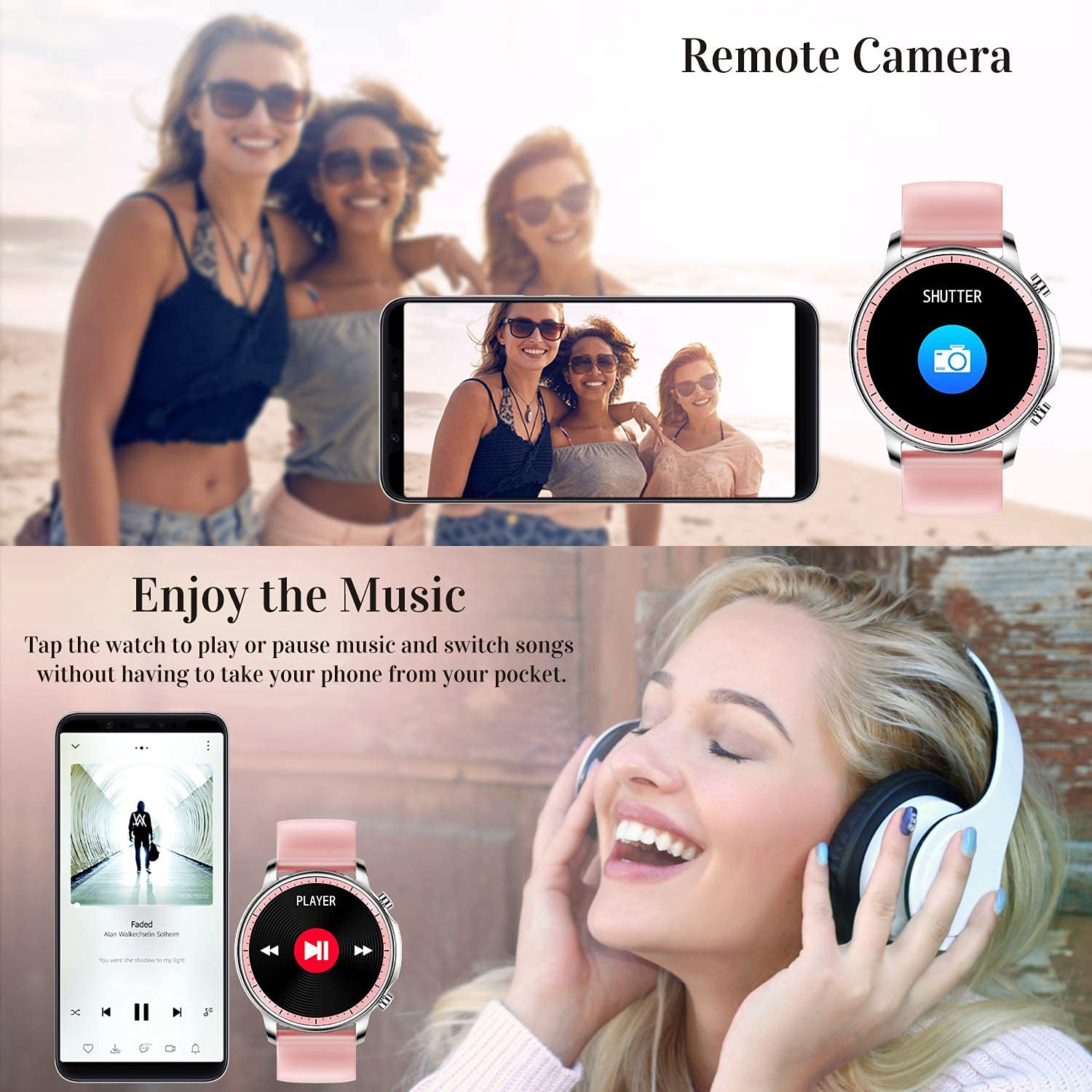
Figure 5.2: Customizing Watch Faces
5.3 Amamọkwa
Receive call, message, email, and app notifications directly on your smart watch. (Note: The watch cannot answer or make calls.)

Figure 5.3: Call and Message Reminders
5.4 Njikwa egwu
Control music playback on your smartphone directly from your watch. Tap to play/pause or switch songs without needing to access your phone.
5.5 Igwefoto ime ime
Use your smart watch as a remote shutter for your smartphone camera. This feature allows you to take photos from a distance.

Figure 5.4: Remote Camera and Music Control
6. Atụmatụ
6.1 Nlekọta ahụike
- Heart Rate (HR) Monitor: Continuously monitors your heart rate throughout the day.
- Blood Pressure (BP) Monitor: Provides blood pressure readings. (Refer to safety disclaimer in Section 2).
- Nyochaa Ọbara Oxygen (SpO2): Na-enyocha ọkwa oxygen zuru oke n'ọbara.
- Ihe nleba anya ụra: Records sleep information, including deep sleep, light sleep, and awake time, to help you understand your sleep patterns.
- Nleba ahụike ụmụ nwanyị: Offers features for tracking female health cycles.

Figure 6.1: Heart Rate and Blood Pressure Monitoring

Figure 6.2: Smart Sleep Monitoring
6.2 Ndepụta ihe omume
The smart watch offers 7 data record modes to track various sports activities:
- Ije ije
- Na-agba ọsọ
- Ịgba ígwè
- Bọọlụ basketball
- Egwuregwu bọọlụ
- Badminton
- Na-amali
This feature helps you monitor your exercise data and gain insights into your fitness levels.

Figure 6.3: Smart Watch Functions Overview
6.3 Smart Reminders
- Ncheta ịnọdụ ala: Reminds you to move and stay active after periods of inactivity.
- Elekere mkpu: Tọọ mkpu ozugbo na elekere gị.
6.4 Ọrụ ndị ọzọ
- Oge nkwụsị
- Fun Game
7. Nlekọta
7.1 Mmiri Nguzogide
The ENHANCE Colmi V23 Smart Watch is IP68 waterproof, making it resistant to daily wet conditions such as hand washing or light rain. Avoid prolonged submersion in water, hot water, or steam, and do not operate buttons underwater.
7.2 Nhicha
Jiri ákwà dị nro ma kpọrọ nkụ hichaa elekere ahụ ma kechie ya mgbe niile. Ọ bụrụ na ọ dị mkpa, jiri obere d hichaa ya.amp ákwà wee kpoo ya nke ọma. Zere iji kemịkalụ siri ike ma ọ bụ ihe ndị na-eme ka ọ dị nro.
7.3 Nlekọta batrị
To prolong battery life, avoid fully discharging the battery frequently. Charge the watch when the battery level is low. Store the watch in a cool, dry place when not in use for extended periods.
8. Nchọpụta nsogbu
- Lelee anaghị agbanye: Gbaa mbọ hụ na chajịrị elekere ahụ nke ọma. Jikọọ ya na chaja opekata mpe nkeji iri atọ.
- Watch not pairing with phone: Make sure Bluetooth is enabled on your phone and the watch is within range. Restart both the watch and your phone, then try pairing again through the Da Fit app.
- Data ahụike ezighi ezi: Ensure the watch is worn snugly on your wrist, not too tight or too loose. Clean the sensor on the back of the watch. Remember, this device is not a medical instrument.
- Amamọkwa anaghị apụta: Check notification settings in the Da Fit app and your phone's system settings to ensure permissions are granted for the app to display notifications.
9. Nkọwapụta
| Ụdị | kwalite |
| Nlereanya | V23 Smart watch |
| Akụkụ ngwaahịa | 1.03 x 2 x 4.15 cm |
| Ibu Ibu | 42 g |
| Nha ihuenyo | 1.3 sentimita asatọ |
| Mkpebi | 240 x230 |
| Ụdị ngosi | Dijitalụ LCD |
| Ike batrị | 200 mAh (Lithium Polymer) |
| Ụzọ nchaji | Magnetic Wire Charging |
| Ụdị ikuku | Bluetooth |
| Ngwa dakọtara | Mobile Phone (Android 4.0+ & iOS 9.0+) |
| Sistemụ nrụọrụ | Android & iOS |
| Mmiri Nguzogide | IP68 |
| Ihe onwunwe | Plastic |
10. Akwụkwọ ikike na nkwado
For warranty information and customer support, please refer to the documentation included with your product or contact ENHANCE customer service. The included user manual contains details regarding warranty terms and contact information.


