1. Okwu mmalite
The Symcode MJ-X8DA is a versatile 2D Wireless Bluetooth Barcode Scanner designed for efficient data capture. Featuring a durable aluminum alloy metal casing, this scanner offers three connectivity options: Bluetooth, 2.4G Wireless via USB adapter, and wired USB 2.0. It is compatible with various operating systems and software, making it suitable for diverse business applications. This manual provides essential information for setting up, operating, and maintaining your scanner.
2. Ihe ngwugwu
Upon opening your Symcode MJ-X8DA package, please verify that all the following items are included:
- Symcode MJ-X8DA Barcode Scanner
- eriri USB (USB)
- Wireless Dongle (USB Adapter)
- Eriri aka
- Akwụkwọ ntuziaka (akwụkwọ a)

3. Akụrụngwa Ngwaahịa
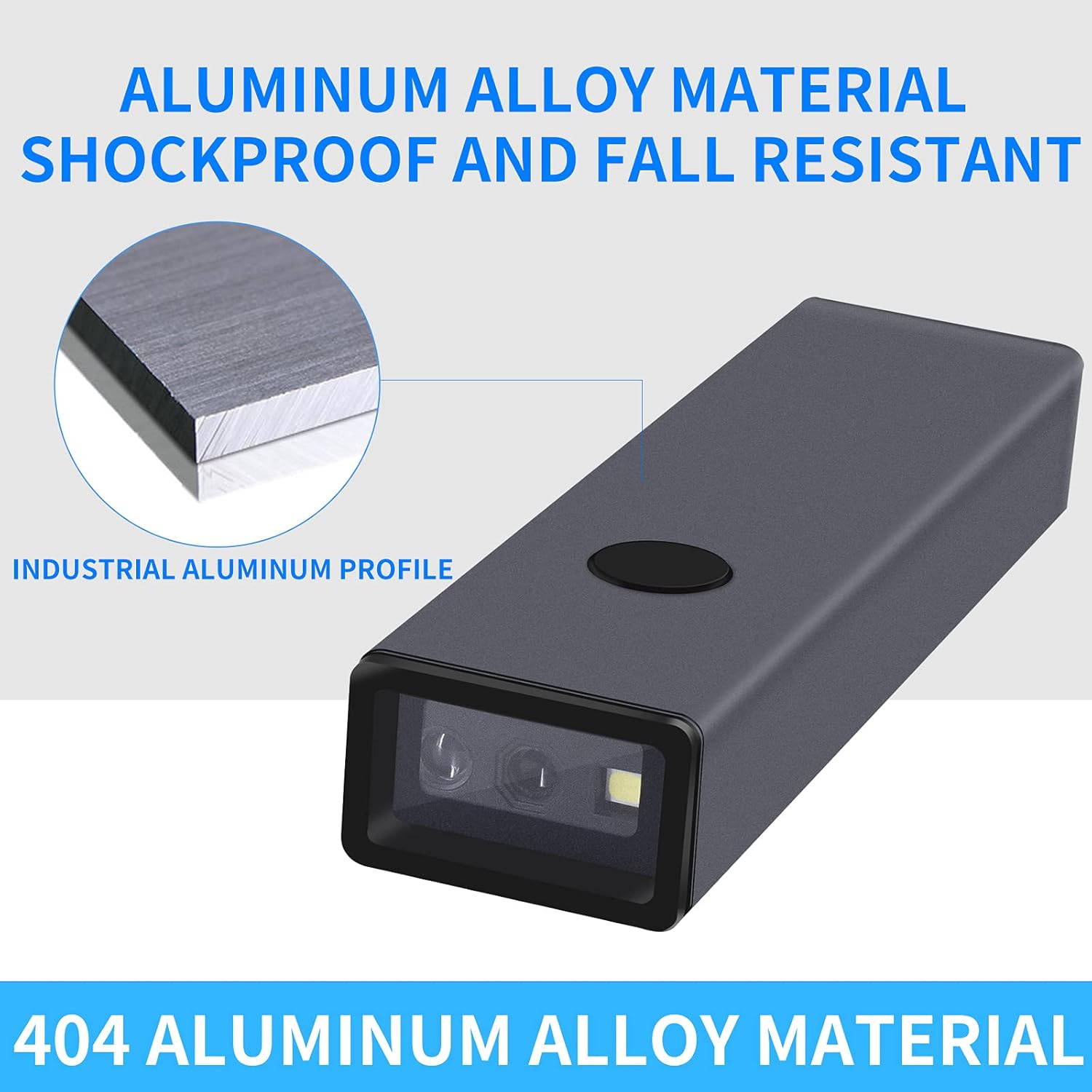
- Ihe owuwu na-adịgide adịgide: Features an aluminum alloy metal casing for enhanced durability and drop resistance.
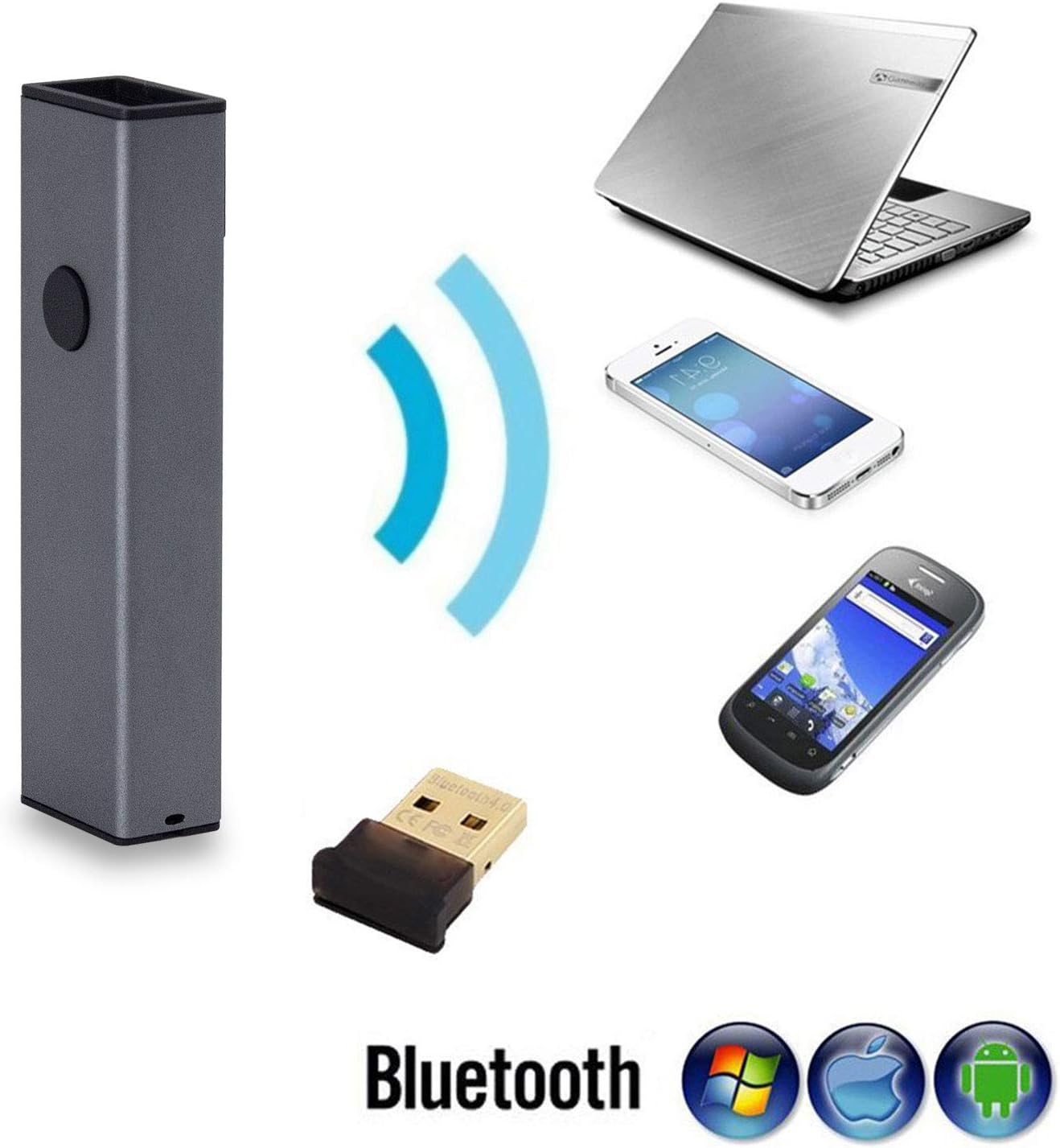
- Njikọ 3-na-1: Supports Bluetooth, 2.4G Wireless (via USB adapter), and wired USB 2.0 connections.
- Ndakọrịta sara mbara: Works with Windows XP/7/8/10, Mac OS, Windows Mobile, Android OS, and iOS devices. Compatible with software like Quickbook, Word, Excel, and Novell.
- Advanced CMOS Sensor: Equipped with a CMOS sensor for efficient capture of 1D and 2D barcodes from labels, paper, and digital displays (mobile phones, computers).
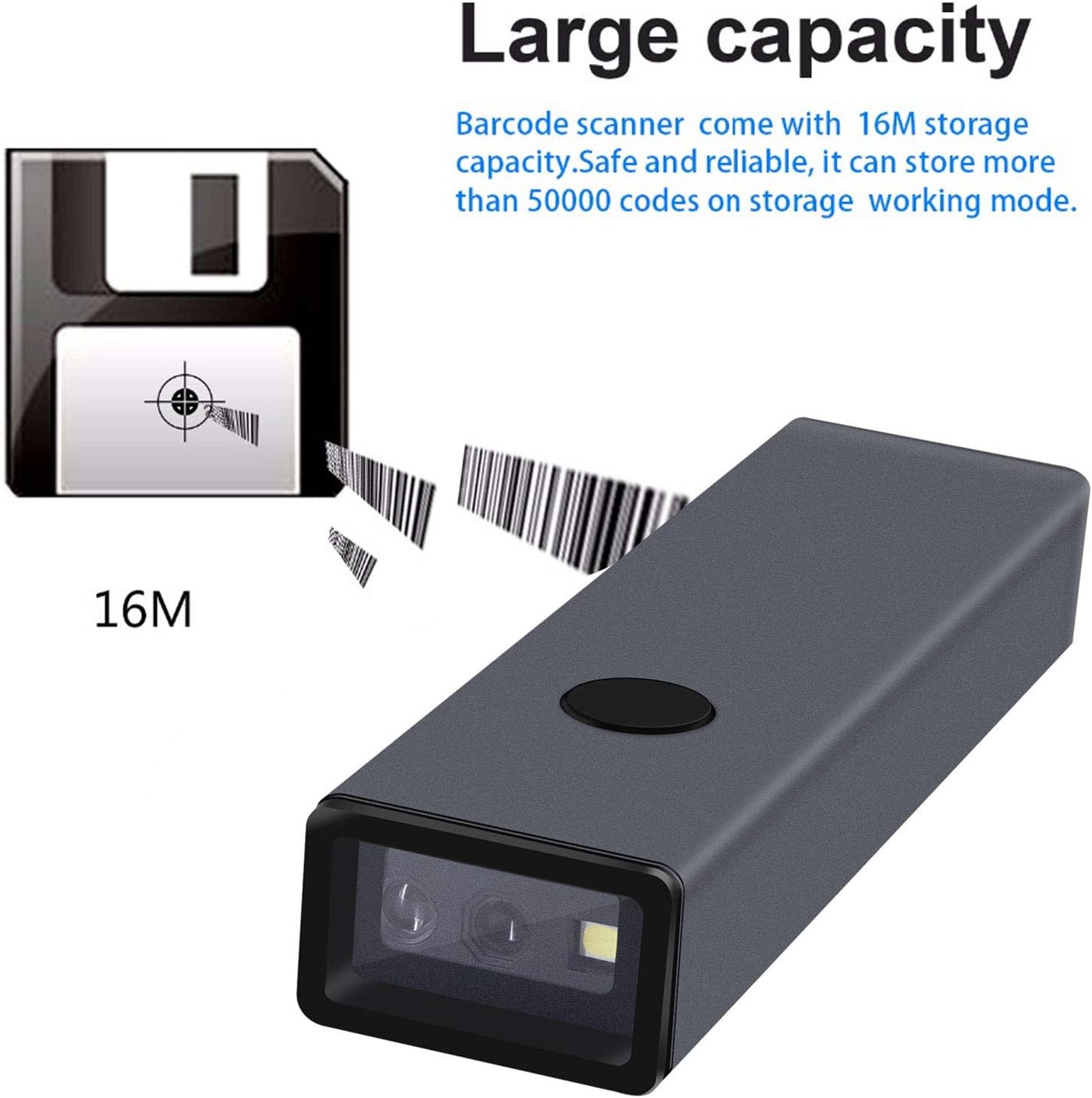
- Nnukwu ike nchekwa: Internal memory can store up to 10,000 codes in storage mode before uploading.
- Ikike ime nhọpụta kacha mma: Capable of decoding blurring or incomplete 1D and 2D barcodes rapidly.
- Ntọala nwere ike ịhazi: Offers over 180 configuration options, including adding prefixes/suffixes, deleting characters, and integrating keyboard keys/combinations.
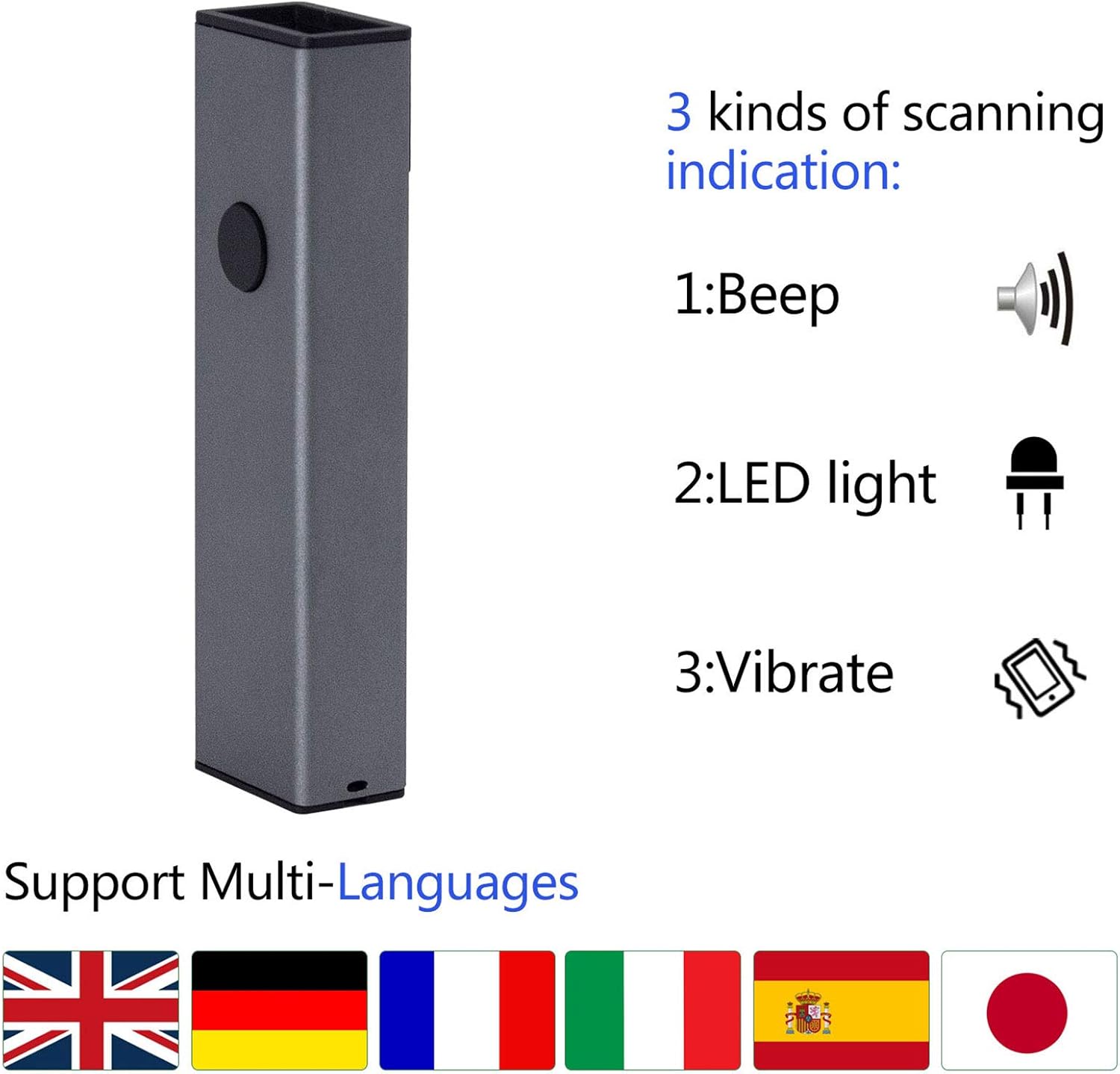
- Scanning Indications: Provides feedback through beep sounds, LED light, and vibration.
4. Nhazi
The MJ-X8DA scanner offers flexible connectivity options to suit your operational needs.
4.1 Njikọ wired
To use the scanner in wired mode, connect it directly to your computer using the provided USB cable. The cable serves both for charging and data transmission. The scanner will function as a keyboard input device, and no additional drivers are typically required.
4.2 2.4G Njikọ ikuku
For 2.4G wireless operation, plug the included USB wireless dongle into an available USB port on your computer. The scanner will automatically connect to the dongle. This mode offers a transmission distance of approximately 150m (492ft) in open spaces and 30m (98ft) indoors.
4.3 Njikọ Bluetooth
Iji jikọọ site na Bluetooth:
- Ensure the scanner is powered on and in Bluetooth pairing mode (refer to the specific barcode in the full user manual to activate Bluetooth pairing mode).
- On your host device (laptop, PC, mobile phone, tablet), enable Bluetooth and search for available devices.
- Select the Symcode scanner from the list of found devices to pair.
- Once paired, the scanner will function wirelessly.
Bluetooth transmission distance is approximately 50m (164ft) in open spaces and 15m (49ft) indoors.

5. Ụdị arụ ọrụ
The Symcode MJ-X8DA scanner supports different operating modes to manage scanned data.
5.1 Instant Upload Mode
In this mode, scanned barcodes are immediately transmitted to the connected device (computer, phone, tablet) as keyboard input. This is the default mode and is suitable for real-time data entry.
5.2 Ọnọdụ nchekwa
When operating in storage mode, the scanner saves all scanned barcodes internally. This is useful when working out of range of a host device. The scanner can store up to 10,000 codes. To upload the stored data, connect the scanner to a compatible device and scan the appropriate 'Upload Data' configuration barcode from the full user manual.
6. Barcode Symbologies Supported
The MJ-X8DA scanner is capable of decoding a wide array of 1D and 2D barcode types:
6.1 1D Barcodes
- UPC/EAN (including with Supplemental)
- Code 39 (including Full ASCII, Trioptic Code 39)
- Code 128 (including Full ASCII, extended ASCII support)
- Codabar
- Ejikọtara 2 nke 5
- Isi 2 nke 5
- Koodu mpaghara:: 93
- MSI
- Koodu mpaghara:: 11
- RSS variants
- Chinese 2 nke 5
6.2 2D Barcodes
- PDF417
- Koodu QR
- Data Matrix
- Aztek
- Maxicode
Note: Stacked PDF417 on ID Cards/Driver's Licenses are not supported.

7. Configuration Options
The scanner offers extensive customization through configuration barcodes found in the comprehensive user manual. These options allow you to tailor the scanner's output to specific requirements.
- Prefix and Suffix: Add custom characters before or after the scanned data.
- Character Deletion: Remove a specified number of characters from the beginning or end of a scanned barcode. For example, you can configure it to omit the first 9 digits of certain tracking numbers.
- Keyboard Keys/Combinations: Integrate specific keyboard functions or combinations into the scanning operation.
For detailed instructions on how to apply these configurations, please refer to the dedicated section in the complete user manual that accompanies your product.
8. Nlekọta
Proper maintenance ensures the longevity and optimal performance of your Symcode MJ-X8DA scanner.
- Nhicha: Use a soft, dry cloth to clean the scanner's exterior. For the scanning window, use a lens cleaning cloth to avoid scratches. Do not use abrasive cleaners or solvents.
- Ịchaji batrị: The scanner has a battery life of approximately 30 hours of continuous operation. A full charge takes about 2.5 hours. Charge the device using the provided USB cable connected to a compatible power source (DC5V±0.25v).
- Nchekwa: Store the scanner in a cool, dry place away from direct sunlight and extreme temperatures when not in use.
- Mmelite femụwe: Periodically check the Symcode official website for any available firmware updates to ensure your scanner has the latest features and performance improvements.
9. Nchọpụta nsogbu
If you encounter issues with your Symcode MJ-X8DA scanner, refer to the following common troubleshooting steps:
9.1 Scanner Not Connecting
- Mara: Ensure the USB cable is securely connected to both the scanner and the computer. Try a different USB port or cable.
- Ikuku 2.4G: Verify the USB dongle is properly inserted into the computer. Ensure the scanner is within range of the dongle.
- Bluetooth: Confirm Bluetooth is enabled on your host device and the scanner is in pairing mode. Delete previous pairings on your device and re-attempt pairing. Ensure the scanner is within Bluetooth range.
9.2 Barcodes Not Scanning
- Ọkwa batrị: Check if the scanner's battery is sufficiently charged.
- Ụdị Barcode: Ensure the barcode symbology is supported by the scanner (refer to Section 6).
- Ogo koodu barcode: Scan a clear, undamaged barcode. Blurry or incomplete barcodes may be difficult to read.
- Ogologo nyocha: Adjust the distance between the scanner and the barcode.
- Nhazi: If specific barcode types are not scanning, you may need to enable them using configuration barcodes from the full user manual.
9.3 Incorrect Data Output
- Nhazi: Review your scanner's configuration settings (e.g., prefix/suffix, character deletion) using the full user manual. Incorrect settings can alter the output.
- Ntọala kiiboodu: Ensure your computer's keyboard layout matches the scanner's configured output if you are experiencing character discrepancies.
For more complex issues or specific error codes, consult the detailed troubleshooting section in the complete user manual or contact Symcode customer support.
10. Nkọwapụta
| Njirimara | Nkọwapụta |
|---|---|
| Nlereanya | MJ-X8DA |
| Ntinye Voltage | DC5V±0.25v |
| Current (Work) | 25 mA |
| Current (Instantaneous) | 95 mA |
| Decoding Speed | 100 ugboro / sk |
| Wireless Range (2.4G, Open Space) | 40m (131ft) - Note: Product description states 150m/492ft, using 40m from specs. |
| Wireless Range (Bluetooth, Open Space) | 50m (164 ft) |
| Oge Nchaji | Awa 2.5 |
| Ndụ batrị | Awa 30 |
| Ụdị batrị | 1 batrị lithium ion (gụnyere) |
| Ibu Ibu | 4.6 ounces |
| Akụkụ ngwugwu | 5.71 x 2.91 x 2.05 sentimita asatọ |
| Teknụzụ Njikọta | Bluetooth, eriri USB, 2.4G Ikuku |
| Ụdị ihe mmetụta | CMOS |
11. Akwụkwọ ikike na nkwado
Symcode products are designed for reliability and performance. For any questions, technical assistance, or warranty inquiries, please contact Symcode customer support through their official channels. Refer to the packaging or the Symcode websaịtị maka ozi kọntaktị kacha ugbu a.


