1. Okwu mmalite
The thinkcar ThinkScan Plus S7 is a professional diagnostic tool designed for comprehensive vehicle maintenance and repair. This manual provides detailed instructions for its setup, operation, and various diagnostic functions to ensure safe and effective use.
2. Ngwaahịa gafereview
The ThinkScan Plus S7 is an advanced OBD2 scanner featuring a 5-inch HD touchscreen and a comfortable grip design. It offers extensive diagnostic capabilities and maintenance functions for a wide range of vehicles.
Akụkụ ndị bụ isi:
- Nchọpụta Sistemụ nke 7: Supports diagnostics for ABS (Anti-lock Braking System), SRS (Supplemental Restraint System), ECM (Engine Control Module), TCM (Transmission Control Module), BCM (Body Control Module), AC (Air Conditioning), and IC (Instrument Cluster).
- 5 Free Optional Reset Services: Choose 5 maintenance reset functions from a selection of 28 available services for lifetime use. Additional resets can be purchased.
- Ọrụ OBD2 zuru oke: Provides 10 modes of OBD2 testing, including reading/clearing fault codes, live data stream, I/M readiness, O2 sensor test, and more.
- 5-inch HD Touchscreen: Offers a clear and intuitive user interface.
- Nhazi njigide dị mma: Ergonomically designed for ease of use during extended diagnostic sessions.
- 2-in-1 Live Data Graphing: Allows for simultaneous display and comparison of multiple data streams.
- PDF Sharing: Generate and share diagnostic reports via QR code or email.
- One-Click Wi-Fi Update: Convenient software updates for vehicle models.

Image: The ThinkScan Plus S7 device, showcasing its 5-inch screen and OBD2 connector.

Image: Visual representation of the 7 supported systems: ABS, SRS, Engine, Transmission, IC, A/C, and BCM.
3. Nhazi
3.1 Unboxing na nlele mbụ
Upon receiving your ThinkScan Plus S7, carefully open the packaging and inspect the contents. The box should contain the ThinkScan Plus S7 unit with an integrated OBD2 cable, a USB cable, and a user manual.
Video: An unboxing and initial overview of the ThinkScan Plus S7 device and its components.
3.2 Ijikọ na Ụgbọala
- Locate the vehicle's OBD2 port, typically found under the dashboard on the driver's side.
- Plug the ThinkScan Plus S7's OBD2 connector firmly into the vehicle's OBD2 port. The device will power on automatically.
3.3 Wi-Fi Connection and Software Update
- On the device's main menu, navigate to 'Settings'.
- Select 'Network' and connect to an available Wi-Fi network.
- Return to the main menu and select 'Update'. The device will check for available updates.
- Download and install any pending updates for both the device firmware and vehicle software. It is highly recommended to update before first use.
4. Ntuziaka ọrụ
4.1 Isi menu gafereview
The ThinkScan Plus S7 features a user-friendly interface with all primary functions laid out on a single screen. The main menu includes: Scan, OBD, Maintenance & Service, ThinkStore, Update, ThinkFile, Repair Info, and Settings.
Video: A quick demonstration of the ThinkScan Plus S7's main menu and user interface.
4.2 Scan Function (Advanced Diagnostics)
The 'Scan' function allows for in-depth, manufacturer-level diagnostics of supported vehicle systems.
- Select 'Scan' from the main menu.
- Choose between 'Automatically Search' (recommended for quick vehicle identification) or 'Manually Select' your vehicle's make and model.
- Once the vehicle is identified, you will have options for 'Health Report' and 'System Scan'.
- Akụkọ Ahụike: Performs a quick scan of all supported systems and generates a comprehensive report. This report can be shared instantly via a QR code displayed on the screen, allowing others to view it on their smartphone. Example Report Link
- System Scan: Conducts a detailed scan of individual supported modules (ABS, SRS, ECM, TCM, BCM, AC, IC). Within each module, you can:
- Read Module Information.
- Read Fault Codes (DTCs) specific to the module.
- Clear Fault Codes.
- Read Live Data Stream (real-time sensor data, often graphed for analysis).
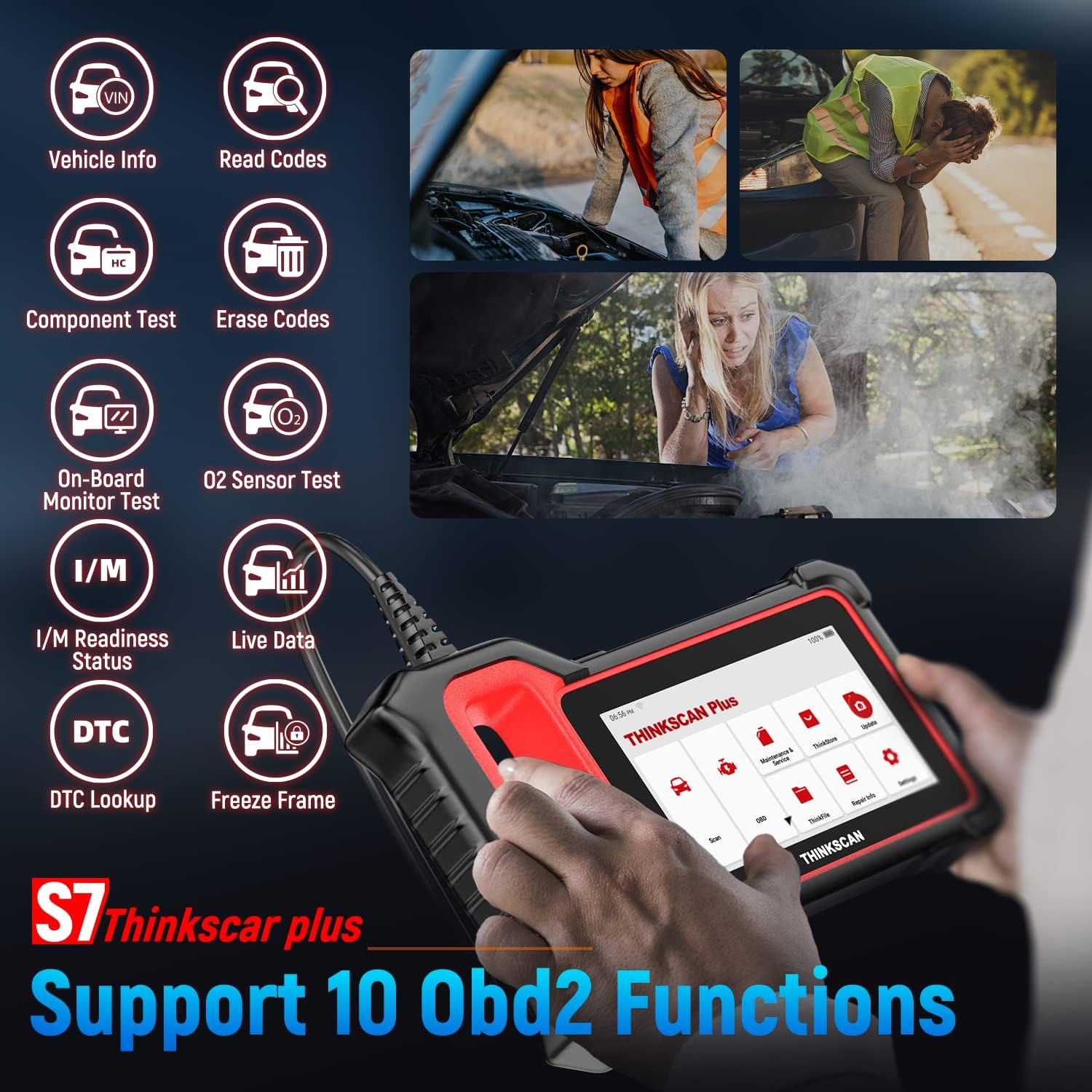
Foto: Ofeview of the 10 supported OBD2 functions, including VIN, Read Codes, Erase Codes, Live Data, and more.
4.3 OBD Function (Standard OBD2)
The 'OBD' function provides standard OBD2 diagnostic capabilities applicable to all OBD2-compliant vehicles (1996 and newer).
- Select 'OBD' from the main menu.
- The device will connect to the vehicle's generic OBD2 system.
- Available functions include:
- Read I/M Readiness (Mode $01): Checks if emission-related systems are ready for inspection.
- Read Live Data (Mode $01): Displays real-time engine data.
- Read Freeze Frame (Mode $02): Shows engine conditions at the time a fault code was set.
- Read Fault Code (Mode $03/$07/$0A): Retrieves generic diagnostic trouble codes.
- Clear Fault Code (Mode $04): Erases DTCs from the vehicle's computer.
- Test Results: On-Board Monitoring Test (Mode $06).
- Control Operation Of On-Board Component/System (Mode $08).
- Read Vehicle Information (Mode $09).
4.4 Maintenance & Service Functions
This section provides access to various maintenance and reset services. The ThinkScan Plus S7 allows you to choose 5 specific reset functions for free from a total of 28 available options. Each additional reset function can be purchased for an annual fee.
- Select 'Maintenance & Service' from the main menu.
- A prompt will appear regarding the 5 free maintenance software options. Select 'Obtain'.
- Browse the list of 28 available reset functions (e.g., ABS Bleeding, Battery Matching, Oil Maintenance Reset, TPMS Reset, Injector Coding, etc.).
- Select your desired 5 functions by checking the box next to them. Confirm your selection. Once confirmed, these choices cannot be changed.
- To use a selected function, tap its icon from the 'Maintenance & Service' menu and follow the on-screen instructions. For example, 'Battery Matching' allows you to register a new battery with the vehicle's ECU.

Image: A visual display of the 28 available reset services, highlighting the 5 free choices.
4.5 Chee echicheFile
The 'ThinkFile' section stores all your diagnostic reports, screenshots, and screen recordings. You can access and manage these files ebe a.
- Select 'ThinkFile' from the main menu.
- Browse through your saved reports (Full Vehicle Report), screenshots, and screen recordings.
- Akụkọ nwere ike ịbụ viewed, printed (via QR code), or sent via email.

Image: The device displaying a diagnostic report with options for QR code scanning and PDF sharing.
4.6 Ozi mmezi
The 'Repair Info' section provides helpful resources for diagnosing and repairing vehicle issues.
- Ọbá akwụkwọ koodu mmejọ OBD: Look up definitions and potential causes for diagnostic trouble codes.
- Ndepụta mkpuchi: View the list of supported vehicles and systems.
- Vidiyo: Access instructional videos related to the device's functions.
- Ịmụ: Find educational content to enhance your diagnostic knowledge.
4.7 Ntọala
The 'Settings' menu allows you to customize device preferences and manage system functions.
- Netwọk: Configure Wi-Fi connections.
- Icha ọkụ: Gbanwee nchapụta ihuenyo.
- Nkebi nke: Switch between Metric and Imperial units.
- Asụsụ: Select the operating language.
- Mpaghara Oge: Tọọ mpaghara oge ziri ezi.
- Screenshots/Screen Recorder: Enable or disable these features.
- Clear Cache/Data: Manage storage by clearing temporary files or resetting the device to factory settings.
5. Nlekọta
Regular maintenance of your ThinkScan Plus S7 ensures optimal performance and longevity.
- Mmelite ngwanrọ: Periodically check for and install software updates via the 'Update' function to ensure compatibility with the latest vehicle models and diagnostic protocols.
- Nhicha: Jiri ákwà dị nro ma kpọọ nkụ mee ka ngwaọrụ ahụ dị ọcha. Zere ihe nhicha ma ọ bụ ihe mgbaze.
- Nchekwa: Chekwaa ngwaọrụ ahụ n'ebe dị jụụ, kpọrọ nkụ na-adịghị na ìhè anyanwụ kpọmkwem na oke okpomọkụ.
- Nlekọta USB: Avoid bending or twisting the OBD2 cable excessively to prevent damage.
6. Nchọpụta nsogbu
Okwu na azịza ndị nkịtị:
- Ngwaọrụ anaghị agbanye: Hụ na njikọ OBD2 dị n'ọdụ ụgbọ ala ahụ nke ọma. Lelee ike batrị nke ụgbọ ala ahụ.tage (displayed on the device's top bar) to ensure it's within the 9-18V operating range.
- Njehie nkwukọrịta na ụgbọ ala: Verify the vehicle's ignition is on. Ensure the OBD2 connector is properly seated. Check if the vehicle is OBD2 compliant (1996 or newer).
- Mmelite software ọdịda: Check your Wi-Fi connection. Ensure sufficient storage space on the device. Try restarting the device and the update process.
- Ịrụ ọrụ nwayọ: Clear the device's cache via 'Settings' -> 'Clear the cache'.
- Ngwupu batrị: The device displays the vehicle's battery voltage (e.g., 12.4V) at the top of the screen. Monitor this to avoid draining the vehicle's battery during prolonged diagnostic sessions.
7. Nkọwapụta
| Njirimara | Nkọwa |
|---|---|
| Nlereanya | ThinkScan Plus S7 (TKPS7) |
| Nha ihuenyo | 5 sentimita asatọ |
| Mkpebi | 854*480 pikselụ |
| Sistemụ nrụọrụ | Android 7.0 |
| Vol -arụ ọrụ Voltage | 9-18V |
| Na-arụ ọrụ ugbu a | 1.2A |
| Environment na-arụ ọrụ | 32°F-122°F (0°C-50°C) |
| Ebe nchekwa | -4°F-140°F (-20°C-60°C) |
| Ibu Ibu | 2.07 pound |
| Akụkụ ngwaahịa | 8.4 x 1.1 x 5.7 sentimita asatọ |
| Sistemụ akwadoro | ABS, SRS, ECM, TCM, BCM, AC, IC |
8. Akwụkwọ ikike na nkwado
8.1 Ozi akwụkwọ ikike
The ThinkScan Plus S7 comes with a 1-year warranty from the date of purchase, covering manufacturing defects and malfunctions under normal use.
8.2 Nkwado nka na ụzụ
For technical assistance, troubleshooting, or warranty claims, please contact thinkcar Tech Inc. support:
- Ekwentị: 1-833-692-2766
- adreesị: 720 S Rochester Ave Unit B, Ontario, CA 91761 USA


