1. Okwu mmalite
The Poly Studio is an all-in-one USB video and audio conferencing system designed for home offices and small meeting rooms. It integrates a 4K camera, smart microphones, and a speaker into a single, sleek bar, offering a plug-and-play solution for enhanced virtual meetings.

Image: Poly Studio Premium USB Video & Audio Conferencing System, showcasing ya kọmpat imewe.
Akụkụ ndị bụ isi:
- Ngwọta niile na otu: Combines a 4K camera, smart microphone, and speaker into a single bar, ideal for small meeting rooms and home offices.
- Njikọ USB nkwụnye na-egwu: No software required for basic functionality. Connect via USB to instantly elevate your Zoom, Teams, Skype, and Google Meet experience.
- Exceptional Audio Clarity: Features Polycom noise-blocking technology and beamforming microphones for crystal-clear sound.
- Smart Camera Framing: Automatically adjusts framing and tracking based on speaker movement and participants in the room.
2. Nhazi
Follow these steps to set up your Poly Studio conferencing system:
- Mepee ngwaọrụ ahụ: Carefully remove the Poly Studio bar and all accessories from the packaging.
- Họrọ Nhọrọ Nkwanye: The Poly Studio can be mounted on a tabletop, wall, or tripod.
- Ugwu okpokoro: Tinye ngwaọrụ n'elu kwụsiri ike.
- Mgbidi Mgbidi: Use the provided wall mount bracket and hardware to securely attach the device to a wall, typically above or below your display.
- Ugwu Tripod: Attach the device to a standard tripod using the integrated tripod thread.
- Njikọ Ike: Plug the power cable into the Poly Studio and then into a power outlet.
- Jikọọ na Kọmputa: Connect the USB cable from the Poly Studio to an available USB port on your laptop or PC.
- Nkwenye ngwanrọ: Your computer should automatically recognize the device as a USB camera, microphone, and speaker.

Image: Poly Studio connected to a display, highlighting its compatibility with various video conferencing applications.
3. Ntuziaka ọrụ
The Poly Studio is designed for ease of use with popular video conferencing platforms.
- Select Device in Application: In your preferred video conferencing application (e.g., Zoom, Microsoft Teams, Skype, Google Meet), navigate to the audio and video settings. Select "Poly Studio" as your camera, microphone, and speaker.
- Utilize Smart Camera Features: The device's smart camera framing and speaker tracking features will automatically adjust the view to keep participants in frame and focus on the active speaker.
- Experience Clear Audio: Polycom's noise-blocking and beamforming technologies work automatically to ensure clear audio transmission and reception.
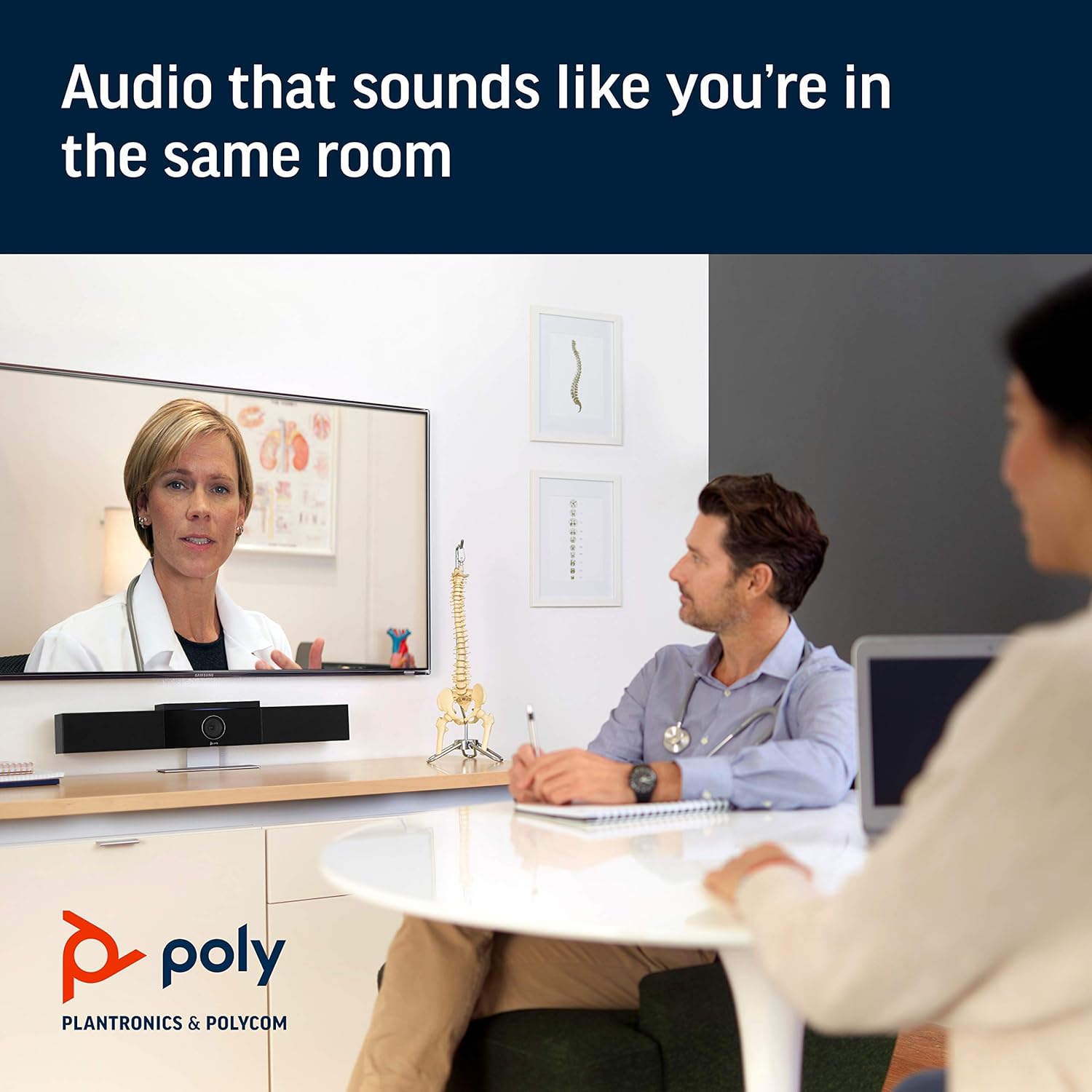
Image: Poly Studio in a meeting room, illustrating its capability to deliver clear audio for all participants.

Image: Poly Studio capturing vivid details and facial expressions of meeting participants.
4. Nlekọta
To ensure optimal performance and longevity of your Poly Studio, regular maintenance is recommended:
- Nhicha: Gently wipe the device with a soft, dry cloth. Avoid using harsh chemicals or abrasive materials.
- Mmelite ngwanrọ: Regularly check for and install software updates. These updates often include performance improvements, new features, and bug fixes. Poly Lens remote device management software can assist with this.
- Njikwa USB: Hụ na e nwere eriri niile nke ọma ma ghara inwe nsogbu iji gbochie mmebi.
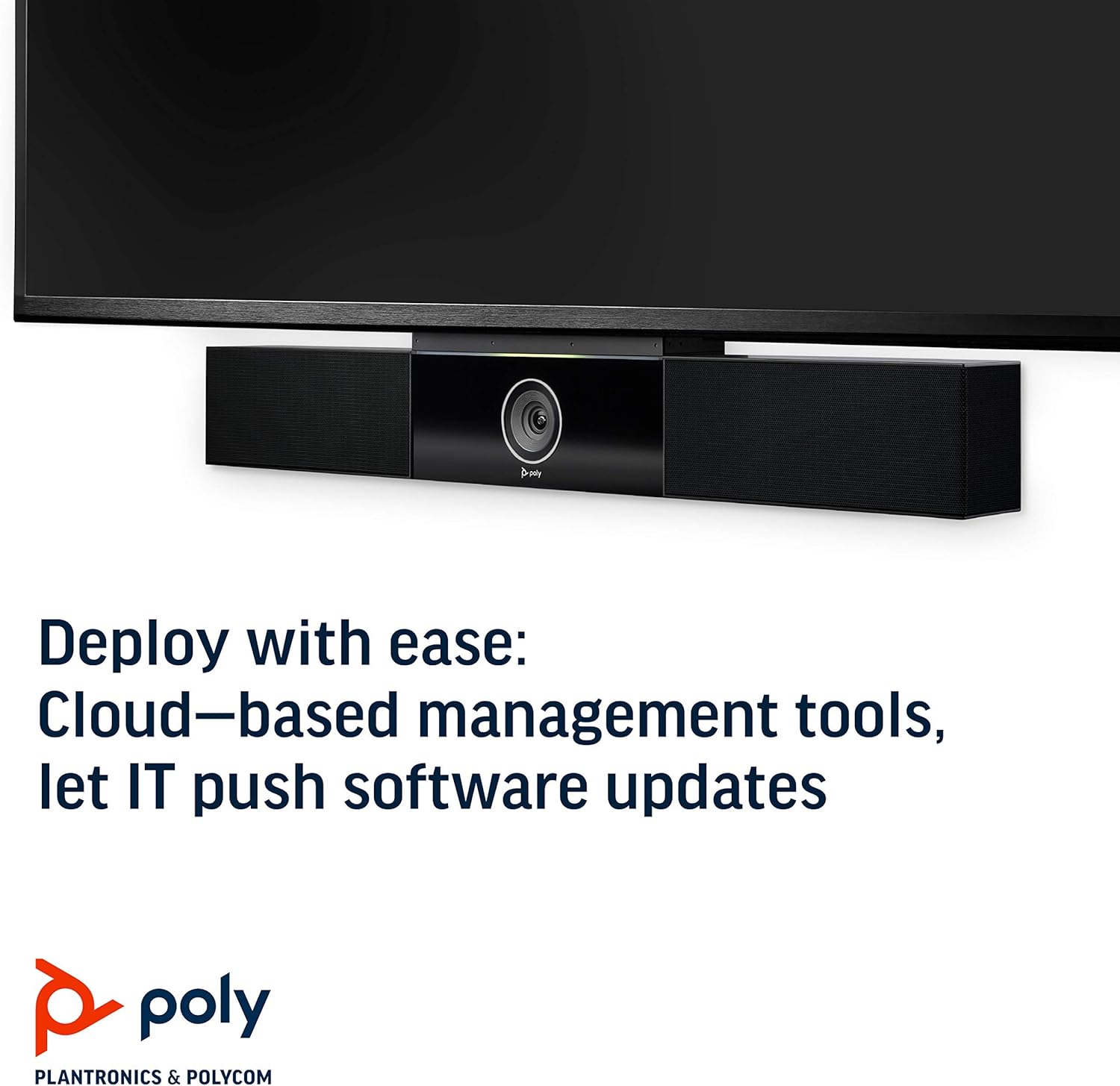
Image: Poly Studio, illustrating its compatibility with cloud-based management tools for easy software updates.
5. Nchọpụta nsogbu
If you encounter issues with your Poly Studio, try the following troubleshooting steps:
- Enweghị ike: Ensure the power cable is securely connected to both the device and the power outlet. Try a different outlet if necessary.
- Enweghị Vidiyo/Ọdịyo: Verify that the USB cable is securely connected to both the Poly Studio and your computer. Check your video conferencing application settings to ensure the Poly Studio is selected as the active camera, microphone, and speaker.
- Ogo ọdịyo adịghị mma: Ensure the device is placed in a central location in the room. Check for any physical obstructions blocking the microphones or speakers. Update the device firmware via the Poly Lens app.
- Camera Not Tracking: Ensure the room is adequately lit. Check the Poly Lens app settings for camera tracking modes and adjust as needed.
- Amataghị ngwaọrụ: Try connecting the USB cable to a different USB port on your computer. Restart your computer.
6. Nkọwapụta
| Njirimara | Nkọwa |
|---|---|
| Ụdị nkwụnye | Ugwu okpokoro |
| Aha Nlereanya | 649661882596 |
| Ụdị Ọkà Okwu | Stereo |
| Njirimara Pụrụ Iche | Ìhè dị ala |
| Eji akwadoro maka ngwaahịa | video conferencing in home offices and small conference rooms |
| Ngwa dakọtara | Laptọọpụ |
| Nhazi ọwa ụda gburugburu | 2.0 |
| Agba | Nwa |
| Ngwa gụnyere | camera, stereo speakers, microphones, control unit |
| Enweghị mmiri | Ụgha |
| Ụdị akwụkwọ ikike | Oke |
| Ọnụọgụ nke ihe | 1 |
| Usoro njikwa | Olu |
| Teknụzụ nzikọrịta ozi ikuku | Enweghị teknụzụ nkwukọrịta ikuku |
| Nha Ọkà Okwu | 21.59 sentimita asatọ |
| Isi Iyi Ike | Igwe ọkụ eletrik |
| Ọkwa Nguzogide mmiri | Ọ bụghị mmiri na-eguzogide |
| Ụdị ọkwọ ụgbọ ala ọdịyo | Ọkwọ ụgbọala dị ike |
| Teknụzụ Njikọ Subwoofer | Ekwenyere |
| Ihe eji eme ihe maka ngwaahịa | Home office, Small conference rooms, Video conferencing with Zoom and Microsoft Teams |
| UPC | 649661882596 |
| Ojiji ime ime/n'èzí | Ime ụlọ |
| Onye nrụpụta | Ụlọ ọrụ Polycom Inc. |
| Ụdị | rectangular prism |
| Akụkụ ngwaahịa | 30 x 6 x 4 sentimita asatọ |
| Ibu Ibu | 10.58 pound |
| ASIN | B091YCFF84 |
| Nọmba ihe nlereanya | 649661882596 |
| Ụbọchị mbụ dị | Eprel 7, 2021 |
| Ụdị | POLY |
| Ike Nwepu kacha elu | 40 Watt |
| Nzaghachi ugboro ugboro | 120 kHz |
| Teknụzụ Njikọta | USB |
| Ọnọdụ mmepụta ọdịyo | Stereo |
7. Akwụkwọ ikike na nkwado
Your Poly Studio Premium USB Video & Audio Conferencing System comes with a Akwụkwọ ikike nwere oke. For specific details regarding the warranty period and coverage, please refer to the official Poly documentation or contact Poly support.
This product is also eligible for a Nkwụghachi/ ndochi ụbọchị 90 policy under the Amazon Renewed Guarantee, as it is a renewed product. For support or to claim warranty/return, please contact the seller or refer to the product's official support channels.


