1. Okwu mmalite
Thank you for choosing the NEC E438 43-inch LCD 4K UHD Commercial-Grade Monitor. This manual provides detailed instructions for the safe and efficient use of your display. Please read this manual thoroughly before operating the product and retain it for future reference.
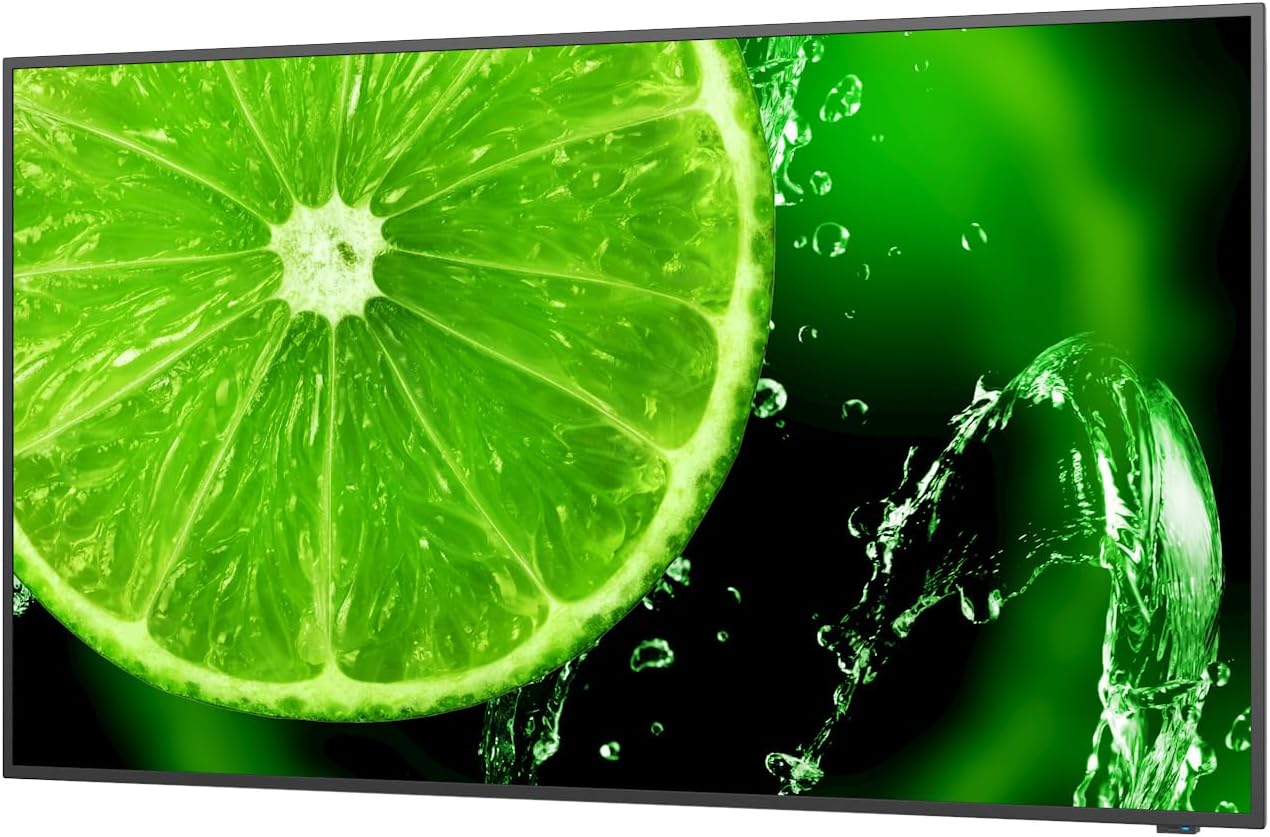
Foto 1: N'ihu view of the NEC E438 43-inch 4K UHD monitor.
2. Ozi nchekwa
Observe the following safety precautions to prevent damage to the product and to ensure your safety:
- Etinyela ihe nlele ahụ n'ime mmiri ozuzo ma ọ bụ mmiri iji zere ọkụ ma ọ bụ ọkụ eletrik.
- Emeghela ihe nlele ahụ casing. Tụtụ aka n'aka ndị ọrụ ruru eru.
- Gbaa mbọ hụ na ikuku ikuku dị mma. Akwụsịla oghere ikuku.
- Use only the power cord supplied with the monitor or a suitable replacement.
- Place the monitor on a stable, level surface or mount it securely according to VESA standards.
- Kwụpụ plọg ọkụ eletrik na mpụta mgbidi ma ọ bụrụ na anaghị eji ihe nlele ahụ ruo ogologo oge.
3. Ihe ngwugwu
Chọpụta na ihe niile dị na ngwugwu:
- NEC E438 43-inch LCD 4K UHD Monitor
- Ụdọ ọkụ
- HDMI USB
- USB-C USB
- Njikwa anya (ya na batrị)
- Akwụkwọ ntuziaka (akwụkwọ a)
- Ntuziaka Mbido ngwa ngwa
4. Nhazi
4.1 Ntinye anụ ahụ
Place the monitor on a sturdy, flat surface or mount it using a VESA-compatible wall mount or stand. Ensure adequate space around the monitor for ventilation.
4.2 Njikọ eriri
Connect the necessary cables to the corresponding ports on the monitor and your source device (e.g., computer, media player).

Ọgụgụ 2: N'azụ view of the monitor showing connection ports and mounting points.

Foto 3: Akụkụ view of the monitor illustrating the input port cluster.
- Ike: Connect the power cord to the monitor's AC input and then to a grounded electrical outlet.
- Ntinye vidiyo: Use an HDMI, VGA, or USB-C cable to connect your source device to the monitor. The monitor supports multiple HDMI inputs.
- LAN: Jikọọ eriri Ethernet na ọdụ ụgbọ mmiri LAN maka njikọta netwọkụ.
- USB-C: For video, data, and power delivery (if supported by the source device).
5. Ntuziaka ọrụ
5.1 Gbanyụọ ma ọ bụ gbanyụọ
Press the power button located on the monitor or on the remote control to turn the display on or off. The power indicator light will illuminate when the monitor is on.
5.2 Nhọrọ ntinye
Use the 'Input' button on the remote control or the monitor's control panel to cycle through available input sources (HDMI 1, HDMI 2, HDMI 3, VGA, USB-C, etc.).
5.3 Ngosipụta Ngosipụta (OSD) NchNhr
Access the OSD menu to adjust various display settings such as brightness, contrast, color temperature, aspect ratio, and audio settings. Navigate the menu using the directional buttons on the remote or monitor and confirm selections with the 'Enter' button.
5.4 Audio
The monitor includes integrated speakers. Adjust the volume using the remote control or through the OSD menu. You can also connect external audio devices if desired.
6. Nlekọta
6.1 Na-ehicha ihe nleba anya
- Kwụpụ ihe nleba anya mgbe niile tupu ihicha ya.
- Jiri akwa dị nro na-enweghị ntụpọ dampejiri mmiri mee ya ma ọ bụ ihe dị nro, ihe nhicha ihuenyo anaghị emebi emebi.
- Afesakwala ihe nhicha ozugbo na ihuenyo.
- Zere iji kemịkalụ siri ike, ihe mgbaze, ma ọ bụ ihe na-emebi emebi.
6.2 Nlekọta n'ozuzu
- Debe ihe nlele ahụ ka ọ ghara ịpụta ìhè kpọmkwem n'anwụ na ebe okpomọkụ na-esi apụta.
- Gbaa mbọ hụ na ikuku ikuku dị mma iji gbochie ikpo oke ọkụ.
- Zere itinye ihe ndị dị arọ na igwe nleba anya ma ọ bụ eriri ya.
7. Nchọpụta nsogbu
Ọ bụrụ na ị hụ nsogbu na ihe nlele gị, gaa na usoro ndị a na-emekarị maka nchọpụta nsogbu:
| Nsogbu | Ngwọta enwere ike |
|---|---|
| Enweghị ike | Check if the power cord is securely connected to both the monitor and the power outlet. Ensure the power outlet is functional. |
| Enweghị mgbama | Verify that the video cable (HDMI, VGA, USB-C) is correctly connected to both the monitor and the source device. Select the correct input source using the 'Input' button. |
| Image is distorted or unclear | Adjust resolution and refresh rate settings on your source device. Check cable connections for looseness or damage. Perform an auto-adjustment via the OSD menu if using VGA. |
| Enweghị ụda sitere na ndị ọkà okwu | Check the volume settings on the monitor and your source device. Ensure the audio output is correctly configured on your source device. |
If the problem persists after trying these steps, please contact NEC customer support.
8. Nkọwapụta
Key technical specifications for the NEC E438 monitor:
- Nha ihuenyo: 43 sentimita asatọ
- Mkpebi: 3840 x 2160 (4K UHD)
- Akụkụ akụkụ: 16:9
- Ụdị panel: IPS (Ngbanwe n'ime ụgbọ elu)
- Onyonyo onyonyo: 350 cd/m² (NITS)
- Ntinye vidiyo: HDMI (multiple), VGA, USB-C
- Ọdụ ụgbọ mmiri ndị ọzọ: LAN, Total 2 USB Ports
- Ndị na-ekwu okwu: Ejikọtara
- Akụkụ ngwaahịa: 2.8 x 38.2 x 22.04 sentimita asatọ
- Ibu ihe: 19.58 pound
- Voltage: 240 volts
- Nọmba nlereanya: 60005045

Figure 4: Excerpt from the product data sheet.
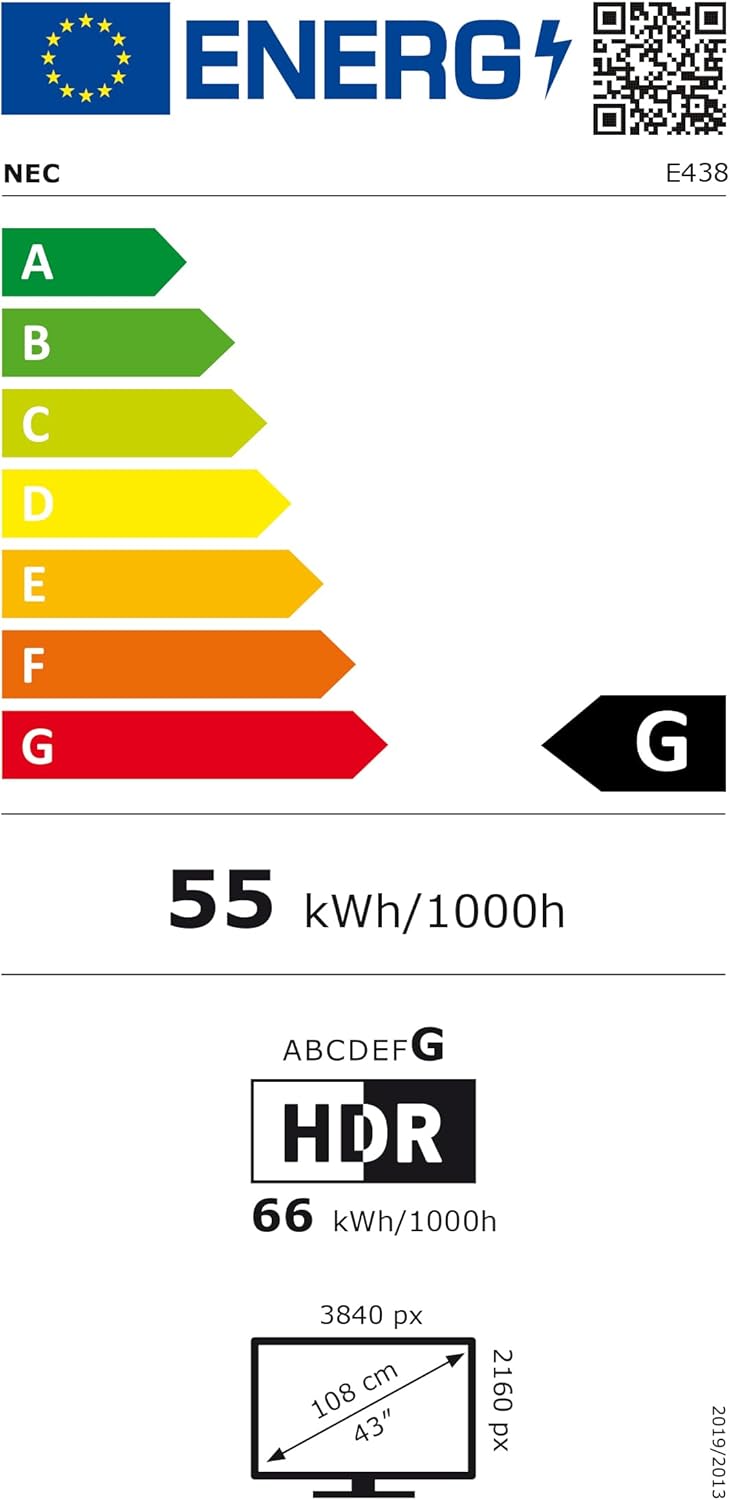
Figure 5: EU Energy Label for the NEC E438 monitor.
For more detailed energy information, please visit the EPREL database: https://eprel.ec.europa.eu/qr/429363
9. Akwụkwọ ikike na nkwado
9.1 Ozi akwụkwọ ikike
This NEC E438 monitor comes with a 3-year limited warranty. Please refer to the warranty card included in your package for specific terms and conditions. Keep your proof of purchase for warranty claims.
9.2 Nkwado ndị ahịa
For technical assistance, service, or further inquiries, please contact NEC customer support. Visit the official NEC websaịtị maka nkọwa kọntaktị na akụrụngwa nkwado.


