Okwu mmalite
This manual provides detailed instructions for the setup, operation, and maintenance of your Retro-Bit Tribute 64 2.4 GHz Wireless Controller V2. This controller is designed for use with Nintendo 64, Nintendo Switch Online, PC, MacOS, RetroPie, Raspberry Pi, and other USB-enabled devices, offering a versatile gaming experience.
For optimal performance, please ensure your controller's firmware is updated to the latest version before use. Refer to the "Firmware Update" section for instructions.
Ihe ngwugwu
Chọpụta na ihe niile dị na ngwugwu gị:
- Retro-Bit Tribute 64 2.4 GHz Wireless Controller V2 (Atomic Purple)
- N64 Original Port Receiver
- USB nnata
- USB-C Charging Cable (Micro-USB for receiver updates, not included)

Image: The Retro-Bit Tribute 64 Wireless Controller shown alongside its N64 and USB receivers, illustrating the included components for various compatibility options.
Nhazi njikwa
The Tribute 64 V2 controller features an ergonomic design with an ample button layout, including additional functions for USB devices. It incorporates dual Z shoulder pads for enhanced grip and control.
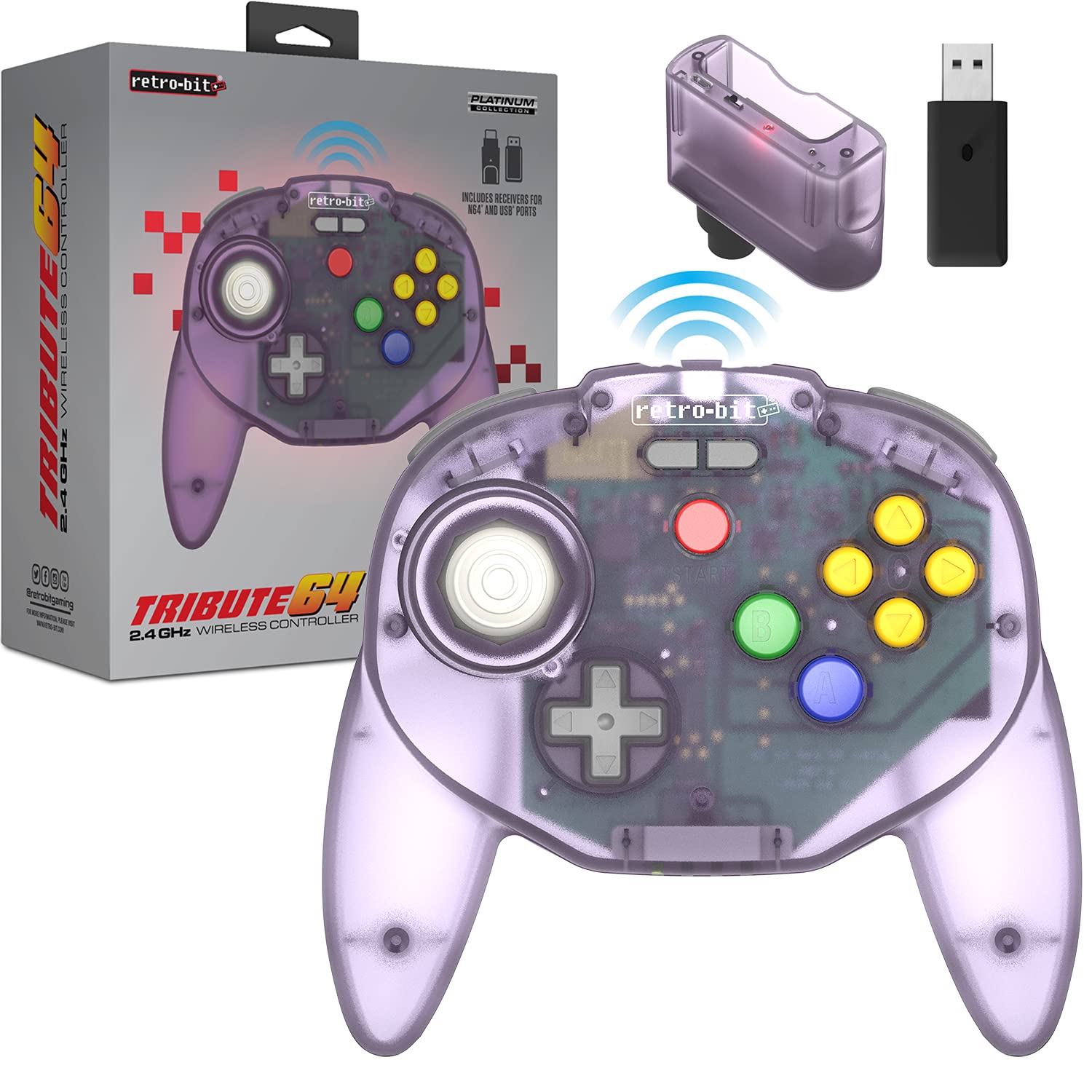
Foto: A n'elu-ala view of the Atomic Purple Retro-Bit Tribute 64 Wireless Controller, highlighting the analog stick, D-pad, A, B, and C buttons, and Start button.

Image: A detailed diagram illustrating the key features of the Tribute 64 controller, including the sensitive analog stick, dual Z triggers, and additional function buttons for USB compatibility.
Akụkụ ndị bụ isi:
- Analog Stick: High-grade, sensitive, and accurate for precise control.
- D-Pad: Standard directional pad.
- A, B, C Buttons: Classic N64 button layout.
- Bọtịnụ mmalite: For in-game menu and pause functions.
- Bọtịnụ L/R: Bọtịnụ ubu.
- Bọtịnụ ZL/ZR: Dual Z triggers for enhanced control, especially with USB devices.
- Built-in Rumble Pak: Provides haptic feedback during gameplay.
- Memory Card Port: For N64 memory card functionality.

Foto: A nso nso view of the controller's underside, highlighting the ZL, ZR, L, and R triggers, designed for comfortable access during gameplay.
Ntọlite na ijikọ
Ịchaji njikwa:
The controller is equipped with a rechargeable Lithium Ion battery. Connect the included USB-C charging cable to the controller's charging port and to a USB power source (e.g., computer, USB wall adapter). The LED indicator will show charging status.
Pairing with Nintendo 64:
- Insert the N64 Original Port Receiver into a controller port on your Nintendo 64 console.
- Ensure the N64 console is powered on.
- Press and hold the SYNC button on the N64 receiver until its LED indicator begins to flash.
- On the Tribute 64 controller, press and hold the HOME/PAIR button until the controller's LED indicators begin to flash.
- Once both LEDs are solid, the controller is successfully paired with your N64 console.
Jikọọ na Nintendo Switch:
- On your Nintendo Switch, navigate to System Settings > Controllers and Sensors.
- Enable "Pro Controller Wired Communication." This step is crucial for pairing.
- Insert the USB Receiver into an available USB port on the Nintendo Switch dock. If using in handheld mode, a USB-C to USB-A adapter (not included) may be required.
- Press and hold the SYNC button on the USB receiver until its LED indicator begins to flash.
- On the Tribute 64 controller, press and hold the HOME/PAIR button until the controller's LED indicators begin to flash.
- Once both LEDs are solid, the controller is successfully paired with your Nintendo Switch.

Image: The Retro-Bit Tribute 64 controller displayed next to a Nintendo Switch console, indicating its compatibility with Nintendo Switch Online services.
Pairing with PC, MacOS, RetroPie, Raspberry Pi, and Other USB Devices:
- Insert the USB Receiver into an available USB port on your device (PC, Mac, Raspberry Pi, etc.).
- Press and hold the SYNC button on the USB receiver until its LED indicator begins to flash.
- On the Tribute 64 controller, press and hold the HOME/PAIR button until the controller's LED indicators begin to flash.
- Once both LEDs are solid, the controller is successfully paired. Your operating system should recognize it as a gamepad.

Image: A graphic displaying various compatibility logos, including Nintendo 64, Windows, Nintendo Switch Online, MacOS, Steam, Android, and Raspberry Pi, highlighting the controller's broad device support.
Na-arụ ọrụ njikwa
Once paired, the controller functions similarly to an original N64 controller, with added versatility for modern systems.
Rumble Feature:
The controller has a built-in rumble pak for haptic feedback. Note that rumble functionality and memory card port support may vary and may not be available on all games or platforms.

Image: An illustration depicting a controller with vibration waves, signifying the integrated rumble feature for immersive gameplay feedback.
Button Mapping (for USB Devices):
The Tribute 64 V2 includes additional function buttons for use with USB devices. The default button mapping is designed to be intuitive, but can often be customized within the settings of your game or emulator.
For Nintendo Switch, if you encounter issues with button mapping, some users have found that holding Malite + A for a few seconds can adjust the mapping. Refer to online resources or the Retro-Bit support page for specific button remapping instructions for different platforms.

Image: A close-up of the controller's central area, highlighting the "retro-bit" logo and the additional gray buttons positioned above the Start button, intended for expanded functionality with USB devices.
Mmelite firmware
It is highly recommended to update your controller to the latest firmware version for the best experience and to resolve potential issues. Firmware updates are typically performed via a computer.
- Visit the official Retro-Bit support websaịtị.
- Locate the support page for the Tribute 64 2.4 GHz Wireless Controller V2.
- Download the latest firmware update tool and instructions.
- Follow the on-screen instructions provided by the update tool. This usually involves connecting the controller to your computer via a Micro-USB cable (not included for receiver updates) and running the software.
Mara: Video tutorials for firmware updates are often available online and can be helpful if you are not familiar with the process.
Nlekọta
- Nhicha: Jiri akwa dị nro dị nro hichaa njikwa. Maka unyi isi ike, ntakịrị damp cloth can be used, but ensure no moisture enters openings.
- Nchekwa: Chekwaa onye njikwa ahụ n'ebe dị jụụ, kpọrọ nkụ na-adịghị na ìhè anyanwụ kpọmkwem na oke okpomọkụ.
- Nlekọta batrị: Iji mee ka batrị dị ogologo, zere iwepụ ihe njikwa ahụ kpamkpam mgbe niile. Chajie ya mgbe niile, ọbụlagodi na ọ naghị arụ ọrụ ruo ogologo oge.
- Analog Stick: The analog stick is designed for durability. Avoid excessive force or twisting, as this can cause wear over time.
Nchọpụta nsogbu
| Nsogbu | Ngwọta enwere ike |
|---|---|
| Controller does not pair. |
|
| Rumble feature not working. |
|
| Incorrect button mapping on Switch. |
|
| Onye njikwa na-akwụsịkarị. |
|
Nkọwapụta
| Njirimara | Nkọwa |
|---|---|
| Nọmba nlereanya | RET00175 |
| Njikọta | 2.4 GHz Ikuku |
| Ndakọrịta | Nintendo 64, Nintendo Switch Online, PC, MacOS, RetroPie, Raspberry Pi, other USB devices |
| Ụdị batrị | Lithium ion (gụnyere) |
| Akụkụ | 6.34 x 1.97 x 3.98 sentimita asatọ |
| Ibu | 8.8 ounces |
| Included Receivers | N64 Original Port Receiver, USB Receiver |
Akwụkwọ ikike na nkwado
For warranty information, technical support, or further assistance, please visit the official Retro-Bit websaịtị ma ọ bụ kpọtụrụ ngalaba ọrụ ndị ahịa ha. Debe ihe akaebe nke ịzụrụ ihe maka akwụkwọ ikike.
Retro-Bit Official Websaịtị: www.retro-bit.com