1. Okwu mmalite
Thank you for choosing the AULA F809 Wired USB Backlit Gaming Mouse. This manual provides detailed instructions on how to set up, operate, and maintain your new gaming mouse to ensure optimal performance and an enhanced gaming experience. Please read this manual thoroughly before use.
2. Ngwaahịa gafereview
The AULA F809 is a high-performance wired gaming mouse designed for precision and comfort. It features adjustable DPI settings, customizable macro programming, and vibrant LED backlighting to suit various gaming styles and preferences.
Akụkụ ndị bụ isi:
- Njikọta: USB eriri
- Bọtịnụ: 7 bọtịnụ mmemme
- Ihe mmetụta: Optical Movement Detection
- DPI: Multi-DPI Adjustable Sensitivity
- Ọkụ: Backlit with LED Color Lights (7-color breathing light)
- Ihe: Plastic na-adịgide adịgide
- Usoro aka: Ọdịdị Ambidextrous
- ndakọrịta: PC & Laptọọpụ
Ngwaahịa:
The package includes the AULA F809 Wired USB Backlit Gaming Mouse with an integrated USB cable.

The mouse features a comfortable ergonomic design suitable for extended gaming sessions. Its surface is made from durable plastic, ensuring longevity.
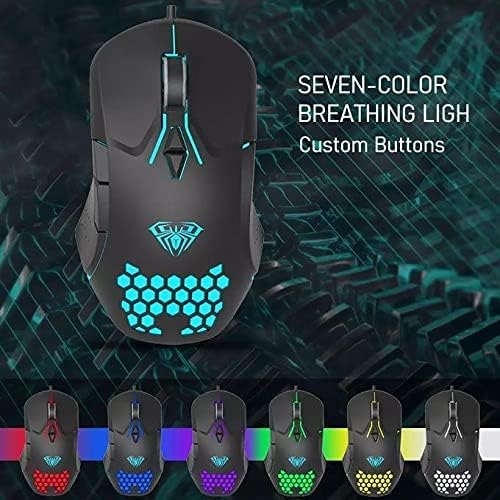
The mouse is equipped with 7 programmable buttons, allowing for personalized control and macro assignments to enhance gameplay efficiency.

3. Nhazi ntuziaka
Setting up your AULA F809 Gaming Mouse is a simple plug-and-play process.
- Mepee òké ahụ: Jiri nlezianya wepụ òké na nkwakọ ngwaahịa ya.
- Locate a USB Port: Identify an available USB port on your computer or laptop.
- Jikọọ òké: Insert the USB connector of the AULA F809 mouse into the USB port.
- Nwụnye ọkwọ ụgbọala: Sistemụ arụmọrụ gị ga-achọpụta ma wụnye draịva dị mkpa na akpaghị aka. Usoro a nwere ike were obere oge.
- Dị njikere maka ojiji: Once the drivers are installed, the mouse will be ready for immediate use. The LED backlighting will illuminate, indicating it is powered on.
4. Ntuziaka ọrụ
4.1 DPI mmezi
The AULA F809 mouse features multi-DPI adjustable sensitivity, allowing you to change the cursor speed to match your preference or game requirements. The DPI button is typically located near the scroll wheel. Pressing this button cycles through different DPI settings, often indicated by changes in the LED lighting color or pattern.
- Lower DPI: Ideal for precise movements, such as sniping in first-person shooter games.
- Higher DPI: Suitable for fast-paced action or navigating multiple monitors quickly.
4.2 Macro Mmemme
The mouse is equipped with 7 programmable buttons. To utilize macro programming, you will typically need to download the specific driver software from the AULA official websaịtị. Akụrụngwa a na-enye gị ohere:
- Assign custom functions to each of the 7 buttons.
- Create and save complex macro sequences for in-game actions.
- Adjust other mouse settings such as polling rate and lift-off distance.
Refer to the software's user interface for detailed instructions on creating and assigning macros.
4.3 LED Backlighting
The AULA F809 features dynamic LED backlighting with a 7-color breathing light effect. This lighting enhances the aesthetic appeal of the mouse and can be particularly useful for night gaming. While specific controls for lighting modes are usually managed through the driver software, some mice may have a dedicated button to cycle through effects or turn the lighting on/off.

5. Nlekọta
To ensure the longevity and optimal performance of your AULA F809 Gaming Mouse, follow these simple maintenance guidelines:
- Nhicha: Jiri akwa dị nro, kpọrọ nkụ hichapụ elu òké ahụ. Maka unyi isi ike, ntakịrị dampen akwa na mmiri ma ọ bụ a nwayọọ ihicha ngwọta. Zere kemịkalụ siri ike.
- Nlekọta ihe mmetụta: Debe ihe mmetụta anya dị n'okpuru òké ahụ ka ọ dị ọcha na enweghị uzuzu ma ọ bụ irighiri ihe. Jiri owu swab ma ọ bụ ikuku abịakọrọ ma ọ bụrụ na ọ dị mkpa.
- Njikwa USB: Avoid sharply bending or pulling the USB cable to prevent internal damage.
- Nchekwa: Mgbe ejighị ya, chekwaa òké na ebe dị ọcha, kpọrọ nkụ pụọ na oke okpomọkụ.
6. Nchọpụta nsogbu
If you encounter any issues with your AULA F809 Gaming Mouse, please refer to the following common troubleshooting steps:
- Òké anaghị aza:
- Gbaa mbọ hụ na etinyere eriri USB na nchekwa n'ọdụ ụgbọ mmiri USB na-arụ ọrụ.
- Try plugging the mouse into a different USB port on your computer.
- Malitegharịa ekwentị gị na kọmputa.
- Igwe ọkụ LED anaghị arụ ọrụ:
- Check if the mouse is properly connected and receiving power.
- If using custom software, ensure the lighting effects are enabled.
- Mmegharị ihe nrụgharị adịghị mma:
- Hichaa ihe mmetụta anya na ala nke òké ahụ.
- Ensure you are using the mouse on a clean, non-reflective surface or a mouse pad.
- Adjust the DPI settings to a comfortable level.
- Bọtịnụ anaghị arụ ọrụ nke ọma:
- If buttons are programmed, check the macro software settings.
- Hụ na ihe ọ bụla na-egbochi bọtịnụ ahụ.
If the issue persists after trying these steps, please contact AULA customer support for further assistance.
7. Nkọwapụta
| Njirimara | Nkọwapụta |
|---|---|
| Aha ika | AULA |
| Aha Nlereanya | F809 |
| Agba | Nwa |
| Teknụzụ Njikọta | USB |
| Nchọpụta mmegharị | Ngwa anya |
| Ọnụọgụ bọtịnụ | 7 |
| Ntuzi aka | Ambidextrous |
| Eji akwadoro | Ịgba egwu |
| Ngwa dakọtara | Kọmputa nkeonwe, Laptọọpụ |
| Atụmatụ pụrụ iche | Portable, Backlit, Macro Programming, Multi DPI |
8. Akwụkwọ ikike na nkwado
For warranty information and customer support, please refer to the documentation included with your purchase or visit the official AULA websaịtị. Debe ihe akaebe nke ịzụrụ ihe maka akwụkwọ ikike ọ bụla.


