1. Okwu mmalite
Daalụ maka ịzụrụasing the ONIKUMA K1 RGB Gaming Headset. This manual provides detailed instructions for setup, operation, maintenance, and troubleshooting to ensure optimal performance and longevity of your headset. Please read this manual carefully before use and retain it for future reference.
2. Ngwaahịa gafereview
The ONIKUMA K1 is a wired gaming headset designed for multi-platform compatibility, featuring vibrant RGB lighting, 7.1 surround sound, and a noise-cancelling microphone. It is built for comfort during extended gaming sessions.
Akụkụ ndị bụ isi:
- 7.1 gburugburu ụda: Provides immersive audio for an enhanced gaming experience.
- Igwe okwu na-akagbu mkpọtụ: Ensures clear communication by reducing background noise.
- RGB ọkụ: Dynamic lighting effects for an aesthetic appeal.
- Ndakọrịta ọtụtụ Platform: Works with PC, PlayStation (PS3, PS4), Mobile devices, and Xbox (Xbox One requires an adapter, not included).
- Nhazi dị mma: Features soft protein earpads, an adjustable headband, and cozy head cushions.
- Njikwa n'ịntanetị: Easy access to volume adjustment and microphone mute.
Ngwa:
The headset includes the main unit with integrated microphone and a wired connection featuring a 3.5mm audio jack and a USB connector for RGB lighting.

Figure 1: Headset with in-line volume and microphone mute control, USB connector for RGB lighting, and 3.5mm audio jack.

Figure 2: Flexible microphone with 160-degree adjustment and 360-degree voice pick-up for clear communication.

Figure 3: Soft protein earpads, adjustable headband, and cozy head cushions designed for supreme comfort.
3. Nhazi ntuziaka
Follow these steps to connect your ONIKUMA K1 headset to your device.
Ndakọrịta ọtụtụ Platform:
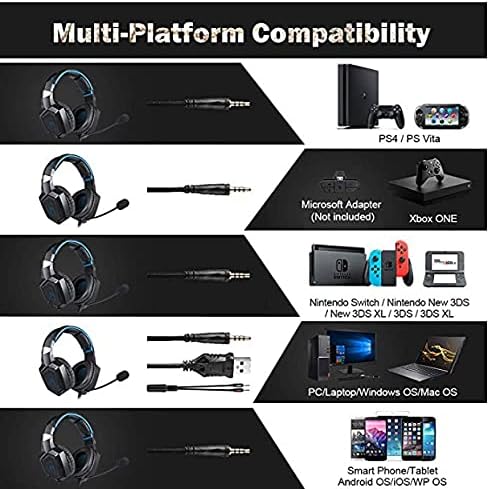
Ọgụgụ 4: ndakọrịta gafereview for PC, PlayStation, Xbox, Nintendo Switch, and mobile devices.
- For PC/Laptop (Windows OS/Mac OS):
Connect the 3.5mm audio jack to your computer's audio output/input port. Connect the USB cable to a USB port for RGB lighting. Ensure your sound settings are configured to use the headset. - For PlayStation (PS4/PS Vita/PS3):
Connect the 3.5mm audio jack to the controller or console's audio port. For PS4, go to Settings > Devices > Audio Devices > Output to Headphones > All Audio. Connect the USB for RGB lighting if a USB port is available. - For Xbox ONE:
An additional Microsoft Adapter (not included) is required for older Xbox One controllers. Connect the 3.5mm audio jack to the adapter, then connect the adapter to your controller. Newer Xbox One controllers have a built-in 3.5mm jack. Connect the USB for RGB lighting if a USB port is available on the console. - For Nintendo Switch/New 3DS XL/3DS/3DS XL:
Connect the 3.5mm audio jack directly to the console's audio port. - For Smart Phone/Tablet (Android OS/iOS/WP OS):
Connect the 3.5mm audio jack directly to your mobile device's headphone jack.
4. Ntuziaka ọrụ
Once connected, you can begin using your headset. Here are the basic operating functions:
- Njikwa olu: Use the in-line volume roller to adjust the audio output level. Roll up to increase volume, roll down to decrease.
- Mechie igwe okwu: Use the in-line switch to mute or unmute the microphone. Slide the switch to the 'OFF' position to mute and 'ON' to unmute.
- Microphone Adjustment: The microphone is flexible. Adjust its position closer to your mouth for optimal voice pickup or away when not in use.
- RGB ọkụ: The RGB lighting is powered via the USB connection. Once the USB is plugged in, the lighting will activate automatically. There are no user-adjustable controls for the RGB lighting patterns on the headset itself.
- Ada ekweisi: Adjust the headband to ensure a comfortable and secure fit over your ears. The earpads should fully cover your ears for optimal sound isolation and comfort.
5. Nlekọta
Nlekọta kwesịrị ekwesị ga-agbatị ndụ ekweisi gị.
- Nhicha: Use a soft, dry cloth to clean the headset. Do not use liquid cleaners or abrasive materials.
- Nchekwa: Chekwaa ekweisi n'ebe dị jụụ, kpọrọ nkụ na-adịghị na ìhè anyanwụ kpọmkwem na oke okpomọkụ.
- Nlekọta USB: Avoid sharp bends or excessive pulling on the cables to prevent damage. The cable is designed to be tangle-free.
- Zere mmiri mmiri: The headset is not water-resistant. Keep it away from liquids.
6. Nchọpụta nsogbu
If you encounter issues with your headset, please refer to the following common solutions:
| Nsogbu | Ngwọta enwere ike |
|---|---|
| Enweghị ụda ma ọ bụ olu dị ala |
|
| Igwe okwu anaghị arụ ọrụ |
|
| RGB ọkụ anaghị arụ ọrụ |
|
| Sound quality issues (e.g., no 7.1 surround sound) |
|
7. Nkọwapụta
| Njirimara | Nkọwa |
|---|---|
| Aha Nlereanya | K1-B-Black RGB |
| Teknụzụ Njikọta | Ekwenyere |
| Jack ekweisi | 3.5mm ọkpụrụkpụ |
| Mmetụta | 104 dB |
| Nzaghachi ugboro ugboro | Not specified (Original data: 3045 Unknown Rate) |
| Njikwa mkpọtụ | Nkagbu mkpọtụ nọ n'ọrụ |
| Ihe kpatara ụdị ekweisi | Ntị karịa |
| Ntinye ntị | Ntị karịa |
| Agba | Nwa |
| Aha ika | ONIKUMA |
| Akụkụ ngwaahịa | 22.5 x 19.5 x 10.5 cm |
| Ibu Ibu | 394 grams |
| Njirimara USB | Enweghị tangle |
| Ụdị njikwa | Njikwa olu |
| Ngwa dakọtara | Multi-ikpo okwu |
| Eji akwadoro | Gaming, Making Calls |
| Ojiji Ngwaahịa Pụrụ Iche | Igwe isi egwuregwu |
| Akụrụngwa | Plastic, Polycarbonate Leather (PC) |
| Nkọwa Ogologo Afọ | Okenye |
| Ọkwa Nguzogide mmiri | Ọ bụghị mmiri na-eguzogide ọgwụ |
8. Akwụkwọ ikike na nkwado
Maka ozi gbasara akwụkwọ ikike ma ọ bụ nkwado teknụzụ, biko lee akwụkwọ ndị dị na nzụta gị ma ọ bụ kpọtụrụ onye na-ere ahịa ozugbo. Debe ihe akaebe nke nzụta gị maka akwụkwọ ikike ọ bụla.


