1. Okwu mmalite
Thank you for choosing the ZEBRONICS Zeb-Buds C2 Type C Wired Earphones. This manual provides essential information for the proper setup, operation, maintenance, and troubleshooting of your new earphones. Please read this guide thoroughly before use to ensure optimal performance and longevity of your device.
2. Ngwaahịa gafereview
Akụkụ ndị bụ isi:
- Type C Connector for broad compatibility.
- Integrated microphone for hands-free calls.
- Durable 1.2-meter braided cable.
- Metallic design for enhanced durability.
- Comfortable in-ear fit.
- Equipped with 10mm drivers for clear audio.
- In-line remote for call function and volume/media control.
Ọdịnaya ngwugwu:
- 1 x ZEBRONICS Zeb-Buds C2 Earphone
- Extra Eartips (various sizes)

Image: ZEBRONICS Zeb-Buds C2 earphones, showcasing the Type C connector, in-line remote with volume and call controls, and the braided cable leading to the metallic earbuds.

Image: A visual representation highlighting the key design elements and accessories of the Zeb-Buds C2, such as comfortable fit, in-ear design, in-line microphone, included extra eartips, and the 1.2-meter cable length.
3. Nhazi
Connecting Your Earphones:
The Zeb-Buds C2 earphones are designed for plug-and-play functionality with most devices featuring a Type C audio output. Simply insert the Type C connector into your device's Type C port.

Foto: nkọwa zuru ezu view of the Type-C connector, which is used to connect the earphones to compatible devices.
Mobile Phone Compatibility & User Guide:
Most phones work with Type-C wired earphones without any setup. However, if the audio still plays through the phone speaker after plugging in the earphones, try one of the following solutions:
Nhọrọ 1
- Gaa na Ntọala > Banyere Ekwentị ma nwee ike Nhọrọ Mmepụta (tap "Build Number" 7 times).
- In Developer Options, turn off the "Disable USB audio routing" setting.
- Plug in your earphones and enjoy your music.
Nhọrọ 2
- Enable Developer Options as described above.
- In Developer Options, turn on the "OTG connection" setting.
- Plug in your earphones and start listening.
Mara: For Option 2, if the earphones are unused for over 10 minutes, the OTG connection may turn off automatically. You'll need to re-enable it manually.
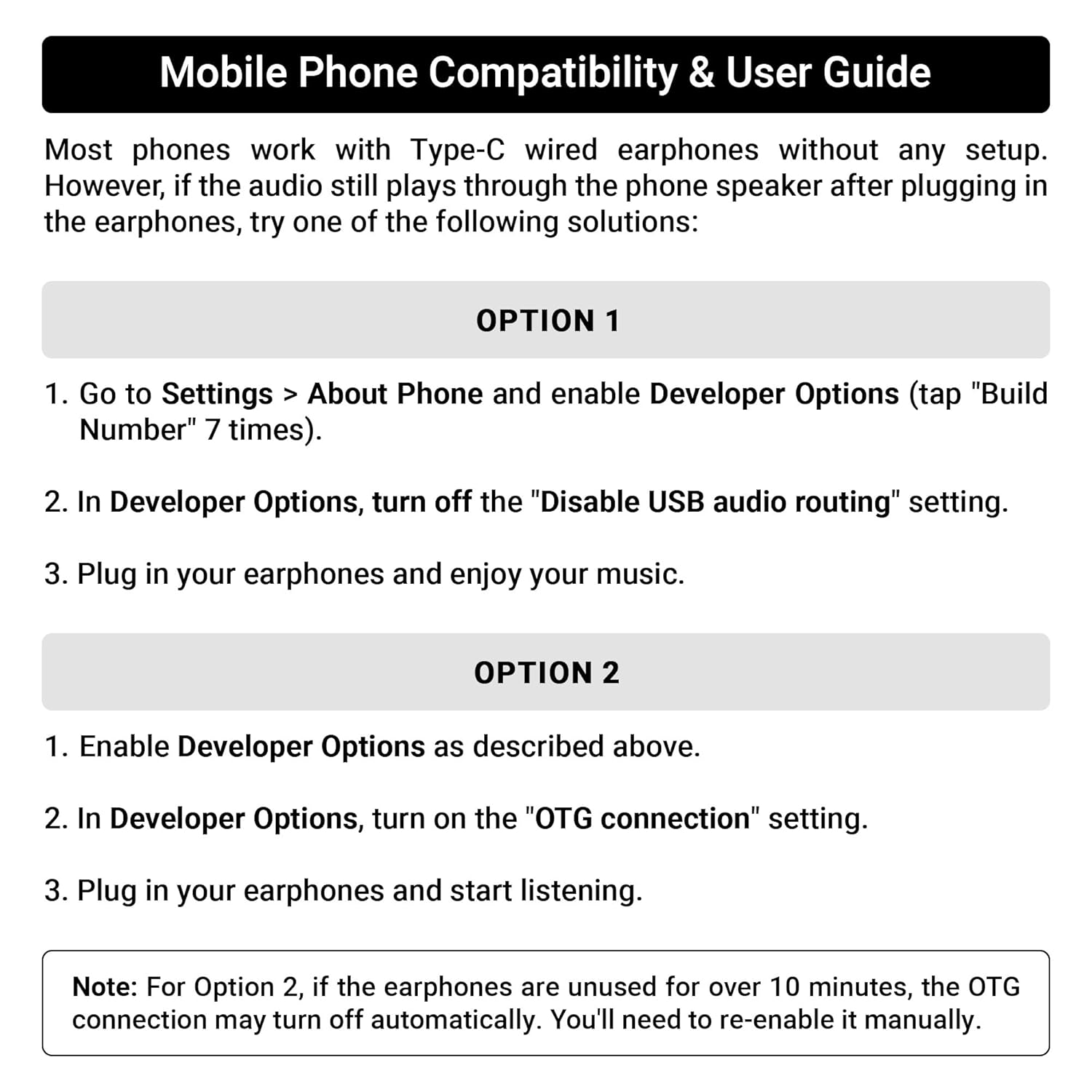
Image: A guide detailing compatibility and troubleshooting steps for connecting Type C earphones to mobile phones, including instructions for Developer Options and OTG settings.
4. Ntuziaka ọrụ
In-line Remote Control:
The Zeb-Buds C2 features an in-line remote control for convenient management of audio playback and calls.
- Elu elu (+): Pịa iji mee ka olu ọdịyo dịkwuo elu.
- Mpịakọta ọnụ (-): Pịa iji belata olu ọdịyo.
- Bọtịnụ ọtụtụ ọrụ (Ebe etiti):
- Otu Pịa: Kpọọ/kwụsịtụ egwu, zaa/kwụsị oku.
- Ugboro abụọ Press: Gaa na egwu na-esote.
- Pịa ugboro atọ: Gaa na egwu gara aga.
- Ogologo Pịa: Reject incoming calls, Activate voice assistant (if supported by device).

Image: A user demonstrating the in-line volume and media control remote on the Zeb-Buds C2 earphones.
5. Nlekọta
To ensure the longevity and optimal performance of your earphones, follow these maintenance guidelines:
- Nhicha: Gently wipe the earbuds and cable with a soft, dry cloth. Do not use harsh chemicals or abrasive materials.
- Nchekwa: When not in use, store the earphones in a clean, dry place, preferably in a protective pouch to prevent tangling and damage.
- Nlekọta USB: Avoid sharp bends or excessive pulling on the cable, especially near the connectors, to prevent internal wire damage. The braided cable is designed for durability, but proper handling is still recommended.
- Atụmatụ: Regularly check and clean the eartips. Replace them if they become worn or damaged to maintain sound quality and comfort.
6. Nchọpụta nsogbu
If you encounter issues with your Zeb-Buds C2 earphones, refer to the following common solutions:
- Enweghị ụda:
- Ensure the Type C connector is fully inserted into your device.
- Lelee ntọala olu ngwaọrụ gị.
- Verify that your device's audio output is set to the Type C port (refer to Section 3: Setup for specific mobile phone settings).
- Test the earphones with another compatible device to rule out a device-specific issue.
- Igwe okwu anaghị arụ ọrụ:
- Ensure the earphones are fully connected.
- Check your device's microphone input settings.
- Gbaa mbọ hụ na egbochighị igwe okwu.
- Mgbagha ụda:
- Lower the volume on your device.
- Hụ na isi iyi ọdịyo ahụ dị mma.
- Check for any physical damage to the cable or earbuds.
7. Nkọwapụta
| Njirimara | Nkọwapụta |
|---|---|
| Aha Nlereanya | Zeb-Buds C2 |
| Teknụzụ Njikọta | Ekwenyere |
| Ụdị njikọ | USB Ụdị C |
| Nha ọkwọ ụgbọ ala | 10mm |
| Oke ugboro ugboro | 20Hz-20kHz |
| Ogologo eriri USB | 1.2 mita |
| Njirimara USB | Braided, Tangle Free |
| Ihe onwunwe | Plastic (earbuds with metallic design elements) |
| Ibu Ibu | 16 grams |
| Ụdị njikwa | Call Control, Volume/Media Control |
| Ngwa dakọtara | Laptops, Mobile Phones, Tablets, PC, Audio Devices with Type C Input Port |
8. Akwụkwọ ikike na nkwado
Ozi akwụkwọ ikike:
The ZEBRONICS Zeb-Buds C2 earphones come with a 6 Months Carry Into Service Centre warranty from the date of purchase. Please retain your purchase receipt for warranty claims. The warranty covers manufacturing defects under normal use conditions.
Nkwado ndị ahịa:
For any support queries, technical assistance, or warranty claims, please contact ZEBRONICS customer service through their official websaịtị ma ọ bụ nkọwa kọntaktị enyere na nkwakọ ngwaahịa gị.