Okwu mmalite
This manual provides comprehensive instructions for the setup, operation, and maintenance of your AlkiVision C1 Wireless Rechargeable Battery Powered 1080P WiFi Home Surveillance Camera. Designed for outdoor use, this camera features waterproof construction, night vision, motion detection, and two-way audio for enhanced home security.

Figure 1: AlkiVision C1 Wireless Security Camera
The AlkiVision C1 camera is a compact, white, bullet-style security camera with a black front housing the lens and sensors. It is designed for easy outdoor installation.
Kedu ihe gụnyere
Upon unboxing your AlkiVision C1 camera, please verify that all components are present:
- AlkiVision C1 Battery IP Camera
- Mgbidi mgbidi dị n'èzí
- eriri USB (maka ịchaji)
- Screws Set (for mounting)
- Quick User Guide (this manual)
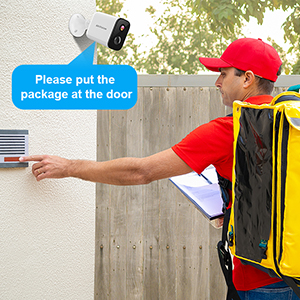
Figure 2: Contents of the AlkiVision C1 package, including the camera, wall mount, USB cable, screws, and quick user guide.
Melite
1. Nchaji mbụ
Before first use, fully charge the camera using the provided USB cable and a DC5V 1A/2A power adapter (not included). Full charge typically takes about 5-6 hours.

Figure 3: The camera features a rechargeable battery designed for extended use.
2. Ngwa nwụnye
Download the "Adorcam" app from your mobile device's app store (available for Android). Chọọ maka "Adorcam" or scan the QR code provided in the quick user guide.
3. Njikọ igwefoto
- Ensure your camera's indicator light is flashing red, indicating it's awaiting Wi-Fi setup. If not, short press the power button twice to reset.
- Open the Adorcam app and select "Add Device" for a battery camera.
- Select your 2.4GHz Wi-Fi network (5GHz networks are not supported) and enter the correct password.
- Remove any protective film from the camera lens.
- The app will generate a QR code. Aim the camera lens directly at the QR code on your phone screen from a distance of 5-8 inches.
- A tone will be heard from the camera when successfully scanned, indicating successful pairing.

Figure 4: The camera setup process involves scanning a QR code from the Adorcam app on your smartphone.
Ntuziaka ọrụ
Dị ndụ View
Access real-time video streaming from your camera through the Adorcam app. This allows you to monitor your property from anywhere with an internet connection.
Nchọpụta ngagharị & Mkpu
The camera is equipped with PIR smart detection to identify unusual motion. When motion is detected, the camera will send instant alerts to your smartphone, allowing you to respond quickly to potential security threats.

Figure 5: The camera's motion detection feature sends real-time alerts to your phone, showing detected activity.
Audio Ụzọ Abụọ
Utilize the built-in microphone and speaker for real-time, two-way audio communication. This feature allows you to speak to visitors or deter intruders directly through the camera.
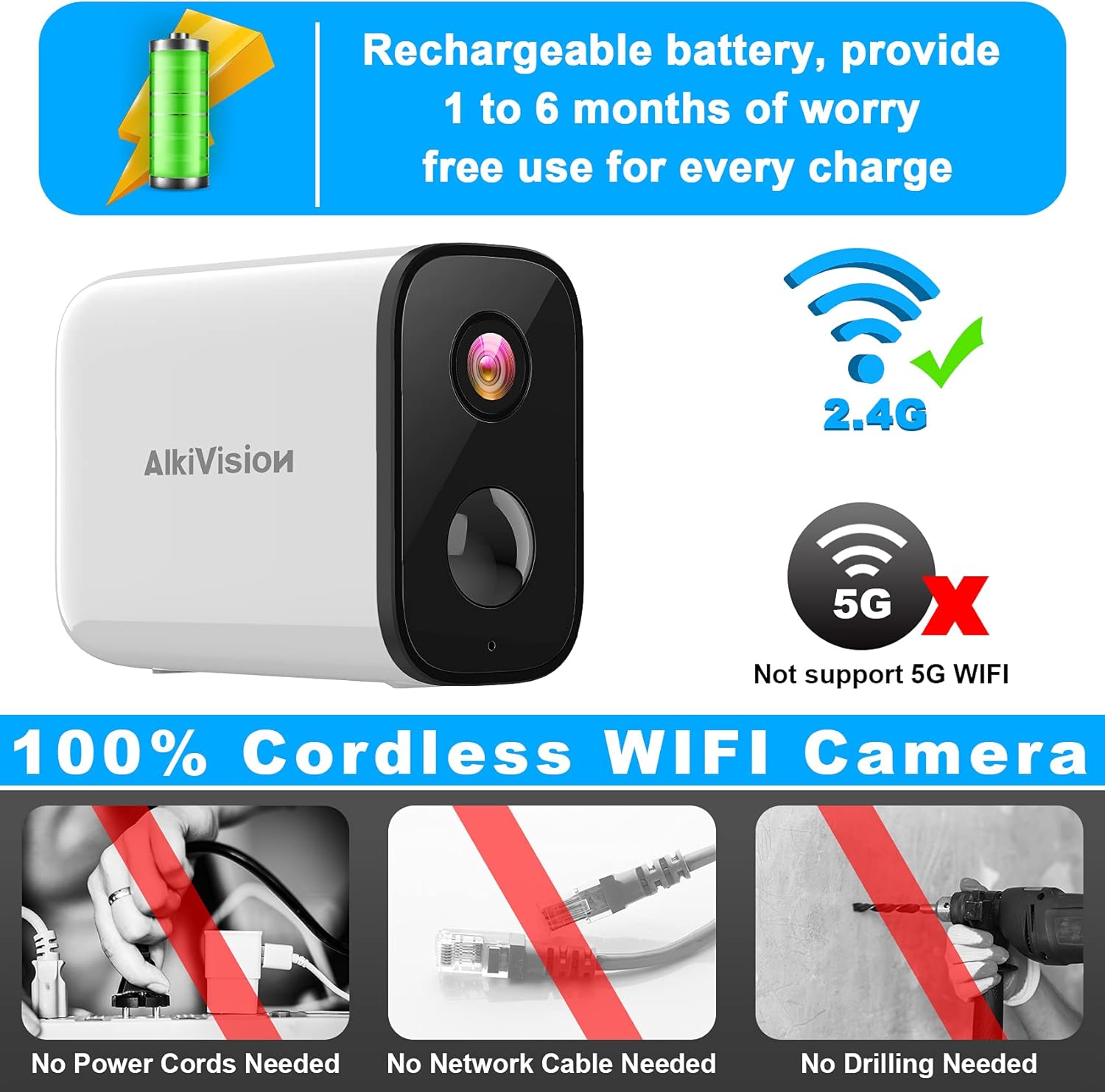
Figure 6: The camera supports two-way audio, enabling communication with individuals near the camera.
Ọhụụ abalị
The AlkiVision C1 provides clear surveillance even in low-light conditions or complete darkness, with a night vision range of up to 32 feet.

Figure 7: Visual comparison of video quality in 720P, 1080P, and the camera's night vision mode.
Nchekwa kaadị SD
The camera supports local storage via an SD card (not included) for recording and saving footage. This allows for continuous recording or event-triggered recordings without a subscription.
Nwụnye na Ịkwado
The AlkiVision C1 camera is designed for easy, wire-free installation, requiring no power cords, network cables, or drilling (for certain mounting options).

Figure 8: The camera is IP65 weatherproof, ensuring reliable operation in various weather conditions.
Ndụmọdụ nbanye:
- Use the outdoor mount if you intend to place the camera outdoors.
- Before final installation, take your camera and phone to the desired mounting location. Use the app to check the Wi-Fi signal strength; ensure it is "Great" for optimal performance.
- Mount the camera 7-10 feet high for a wide field of view and effective motion detection.
- Avoid placing the camera under direct sunlight to prevent glare and overheating.
- Avoid placing the camera lens near walls or glass to prevent reflections into the IR LED, which can affect night vision clarity.
Nlekọta
Ndụ batrị & Nchaji
The camera's rechargeable battery provides 1 to 6 months of use per charge, depending on activity and settings. When the battery is low, recharge it using the provided USB cable.
Nhicha
Jiri ihe dị nro, d hichaa oghere igwefoto na ebe nchekwa ya mgbe niile.amp cloth to ensure clear image quality and proper sensor function. Avoid abrasive cleaners.
Nchọpụta nsogbu
Okwu Njikọta:
- "Unable to play live video" / Disconnection:
- Check your mobile phone's Wi-Fi signal strength.
- Ensure the camera's Wi-Fi signal strength is adequate at its location. If too weak, move the camera closer to the wireless router.
- If connection fails repeatedly, try resetting the camera by short pressing the power button twice.
- Ndakọrịta Wi-Fi: Ensure you are connecting to a 2.4GHz Wi-Fi network. The camera does not support 5GHz Wi-Fi.
Nkọwapụta
| Njirimara | Nkọwa |
|---|---|
| Nọmba nlereanya | C1 |
| Mkpebi ịse vidiyo | 1080p |
| Isi Iyi Ike | Akwanyere batrị |
| Protocol Njikọta | Wi-Fi (naanị 2.4GHz) |
| Ojiji ime ime/n'èzí | N'èzí |
| Atụmatụ pụrụ iche | Night Vision, Motion Sensor, 2-Way Audio |
| Ogo nchekwa mba ụwa | IP65 (ihe mkpuchi ihu igwe) |
| Oke ọhụụ abalị | 32 ụkwụ |
| Akụkụ ihe (L x W x H) | 3.4 x 1.4 x 2.3 sentimita asatọ |
| Ibu Ibu | 10.2 ounces |
Akwụkwọ ikike na nkwado
For warranty information and technical support, please refer to the contact details provided with your product packaging or visit the official AlkiVision websaịtị. Debe akwụkwọ nnata ịzụrụ maka akwụkwọ ikike.


