1. Okwu mmalite
This manual provides detailed instructions for the proper use and maintenance of your Tera D5100Y USB Wired 1D 2D QR Barcode Scanner. Designed for efficiency and durability, this scanner offers fast and precise scanning for a wide range of barcode symbologies. Please read this manual thoroughly before operating the device to ensure optimal performance and longevity.

Image: The Tera D5100Y USB Wired 1D 2D QR Barcode Scanner, featuring its ergonomic design and USB cable.
2. Ihe ngwugwu
Mgbe ịmepechara ngwugwu ahụ, biko chọpụta na ihe niile edepụtara n'okpuru dị ugbu a yana ọ dị mma:
- Tera D5100Y Barcode Scanner (x1)
- Eriri USB (ejikọtara ọnụ)
- Akwụkwọ ntuziaka onye ọrụ (x1)

Image: A visual representation of the Tera D5100Y scanner, its USB cable, and the included user manual, as found in the product box.
3. Atụmatụ igodo
- Nhazi Ergonomic: The scanner features a curved, extended, and thickened handle, specifically designed for comfortable grip during prolonged use. The smooth, flat trigger enhances user experience.
- Ọdịnaya emelitere: Equipped with an orange anti-shock silicone protective cover, the scanner is designed to withstand drops from up to 6.56 feet (2 meters). Its IP54 rating provides protection against dust and splashing water.
- Plug and Play Connectivity: The Tera D5100Y is a wired 2D barcode scanner that connects via a standard USB cable. No driver or software installation is required, allowing for immediate use upon connection.
- Ndakọrịta sara mbara: Compatible with Windows, Mac OS, Linux, iOS, and Android operating systems. It works seamlessly with common software applications such as Word, Excel, and Novell.
- Nkwado ọtụtụ asụsụ: Supports approximately 25 languages, including English, Spanish, German, French, Italian, and Japanese. The factory default language is English. Ensure the scanner's language setting matches your computer's keyboard language for correct output.
- Versatile Scanning Capabilities: Decodes both printed and digital 1D, 2D, and QR barcode symbologies. This includes UPC-A, EAN-13, Code 128, QR Code, Data Matrix, PDF417, Aztec code, and Maxicode.

Image: A hand comfortably holding the Tera D5100Y scanner, illustrating its ergonomic shape and trigger placement for ease of use.

Image: The Tera D5100Y scanner shown in a simulated drop scenario, emphasizing its robust, shock-resistant construction.
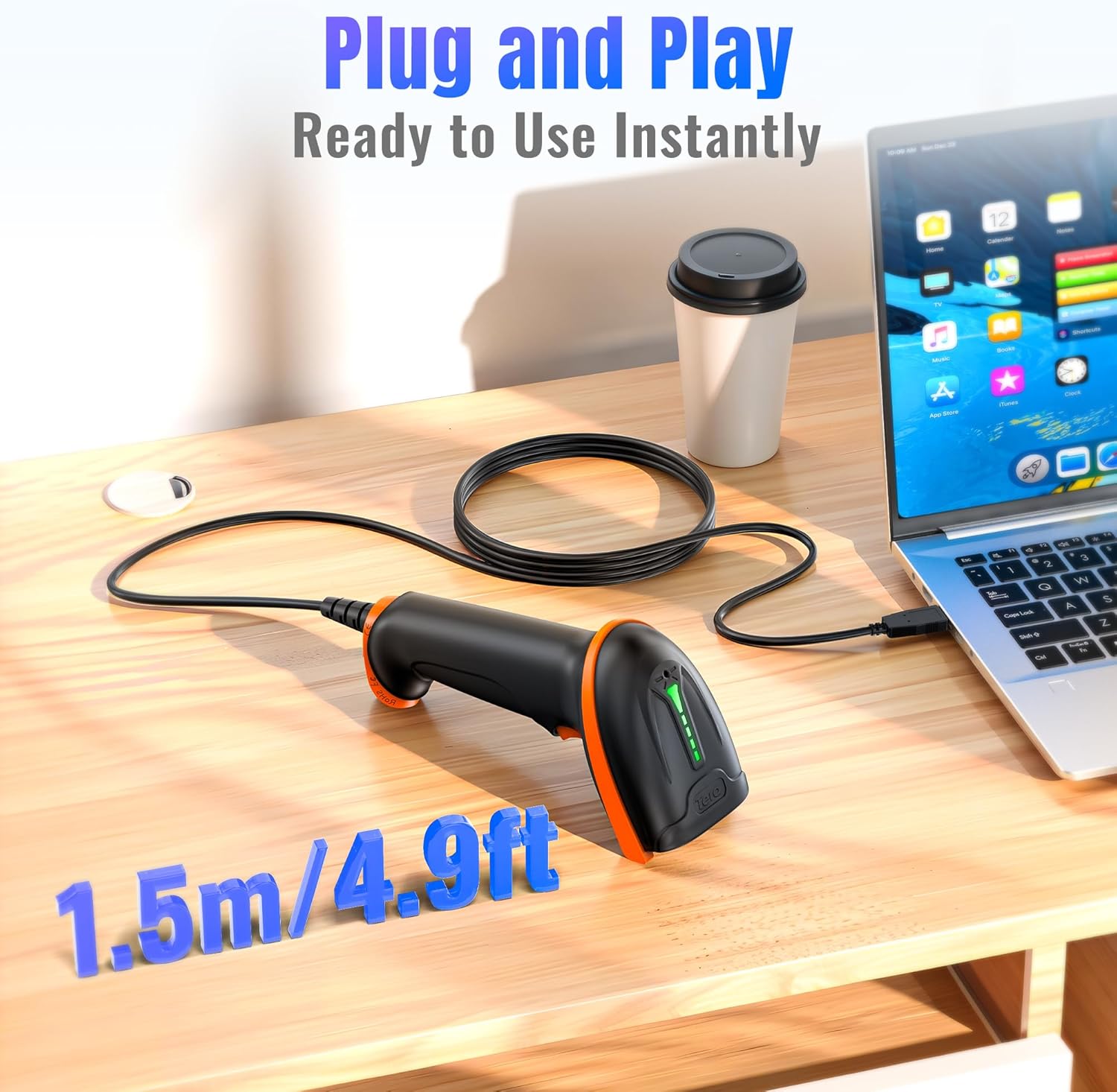
Image: The Tera D5100Y scanner connected to a laptop via its USB cable, demonstrating its simple plug-and-play setup.

Image: The Tera D5100Y scanner with flags of various countries, indicating its support for multiple languages.

Image: The Tera D5100Y scanner actively scanning a QR code on a laptop screen, demonstrating its capability to read both digital and printed 1D/2D/QR codes.
4. Nhazi
- Jikọọ ihe nyocha ahụ: Plug the USB cable of the Tera D5100Y scanner into an available USB port on your computer (Desktop or Laptop).
- Nkwekọrịta sistemụ: Your operating system (Windows, Mac OS, Linux, etc.) will automatically detect and install the necessary drivers. This process typically takes a few seconds.
- Dị njikere maka ojiji: Once the system recognizes the device, the scanner is ready for immediate use. No additional software installation is required.
5. Ntuziaka ọrụ
5.1 Basic Scanning
- Ensure the scanner is connected to your computer.
- Open an application where you want the scanned data to appear (e.g., Notepad, Word, Excel, a POS system).
- Tụtụ aka na mpio ihe nyocha na koodu mkpọchi nke ịchọrọ inyocha.
- Press and hold the trigger button. A red aiming line will appear.
- Align the aiming line across the entire barcode. Once successfully scanned, the scanner will emit a beep (if enabled) and the data will appear in your active application.
5.2 Ntọala ụda
The scanner's beep sound can be adjusted. Refer to the full user manual (PDF) for specific configuration barcodes to turn the sound on or off.
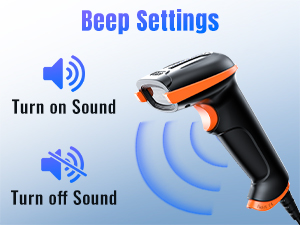
Image: A visual guide illustrating how to enable or disable the scanner's beep sound, enhancing user control over auditory feedback.
5.3 Ntọala asụsụ
To ensure correct character output, the scanner's language setting must match your computer's keyboard language. The default language is English. Consult the full user manual (PDF) for instructions on changing the scanner's language by scanning specific configuration barcodes.

Image: A graphic depicting a globe surrounded by various national flags, symbolizing the scanner's extensive multi-language support.
5.4 Data Editing (Prefix/Suffix)
The scanner supports adding prefixes or suffixes to scanned data, and hiding certain characters. These advanced settings are configured by scanning specific barcodes found in the comprehensive user manual (PDF).
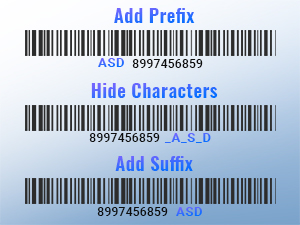
Foto: Examples of barcodes with added prefixes, illustrating the scanner's capability to customize data output.
5.5 Upload Modes
The Tera D5100Y scanner supports two primary upload modes:
- Ụdị nbudata ngwa ngwa: Scanned data is immediately transmitted to the connected device.
- Ụdị Nchekwa: Scanned data is stored internally in the scanner's memory and can be uploaded later in a batch.
Configuration barcodes for switching between these modes are available in the full user manual (PDF).
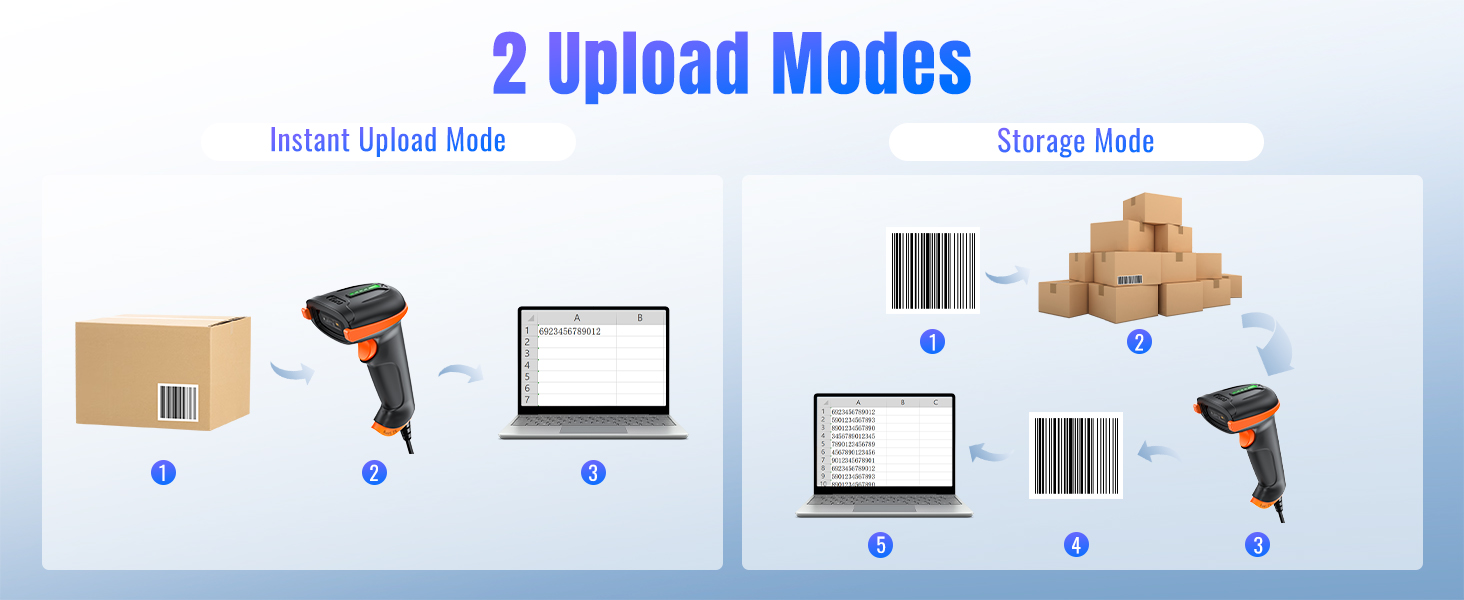
Image: A diagram illustrating the two data upload modes: Instant Upload, where data is sent immediately, and Storage Mode, where data is saved for later batch transfer.
6. Nlekọta
- Nhicha: Use a soft, dry cloth to clean the scanner's exterior. For the scanning window, use a lint-free cloth lightly dampened with a mild, non-abrasive cleaner. Avoid harsh chemicals or abrasive materials.
- Nchekwa: Debe ihe nyocha ahụ n'ebe dị jụụ ma kpọọ nkụ, ebe anwụ na-anaghị apụta kpọmkwem na oke okpomọkụ.
- Nlekọta USB: Zere ịgbagọ ma ọ bụ ịgbagọ eriri USB gabiga ókè iji gbochie mmebi dị n'ime.
7. Nchọpụta nsogbu
If you encounter issues with your Tera D5100Y scanner, please refer to the following common problems and solutions:
- Ihe nyocha anaghị aza:
- Gbaa mbọ hụ na ejikọrọ eriri USB na nchekwa na nyocha ma kọmputa.
- Try plugging the scanner into a different USB port.
- Malitegharịa ekwentị gị na kọmputa.
- Unable to Scan Barcodes:
- Gbaa mbọ hụ na koodu mkpuchi ahụ dị ọcha, adịghị emebi emebi, yana a na-ahụ ya nke ọma.
- Hazie anya na akụkụ dị n'etiti ihe nyocha na barcode.
- Verify that the scanner is configured for the correct barcode symbology (refer to the PDF manual for configuration barcodes).
- Check the scanner's decoding ability for challenging barcodes.
- Incorrect Characters or Output:
- Ensure the scanner's language setting matches your computer's keyboard language.
- Verify that the cursor is in an active input field in your application.
- If experiencing random character issues (e.g., lower case becoming upper case, numbers becoming symbols), this might indicate a firmware issue or an incorrect HID keyboard mode setting. Refer to the full PDF manual for factory reset options or alternative USB-COM mode configurations.
- No Beep Sound:
- Check the sound settings as described in Section 5.2 or the PDF manual to ensure the beep is enabled.
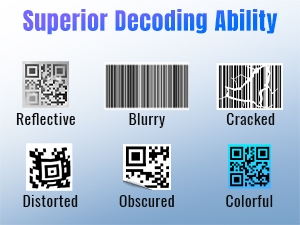
Image: A display of various barcode conditions, such as reflective, blurry, cracked, distorted, obscured, and colorful, demonstrating the scanner's advanced decoding capabilities.
For advanced troubleshooting or specific configuration settings, please refer to the comprehensive Tera D5100Y User Manual (PDF).
8. Nkọwapụta
| Njirimara | Nkọwapụta |
|---|---|
| Nọmba nlereanya | D5100Y |
| Akụkụ ngwaahịa | 2.5"D x 3.9"W x 6.5"H (6.35 cm D x 9.9 cm W x 16.5 cm H) |
| Ibu Ibu | 9.1 ounce (257.98 grams) |
| Isi Iyi Ike | eriri USB |
| Teknụzụ Njikọta | eriri USB |
| Ngwa dakọtara | Desktop, Laptọọpụ |
| Barcode Types (1D) | UPC-A, UPC-E, EAN-8, EAN-13, Code 128, Code 39, Code 93, Code 11, Interleaved 2 of 5, Matrix 2 of 5, Standard 2 of 5, Coda bar, MSI Plessey, GS1, China Post, Databar(RSS), Korea, NEC2 of 5, etc. |
| Barcode Types (2D) | QR Code, Data Matrix, PDF417, Aztec code, Maxicode |
| Ogo ịdịte aka | IP54 (Anaghị egbochi uzuzu, Anaghị egbochi mmiri) |
| Wepu Nguzogide | Ruo 6.56 ụkwụ (mita 2) |
9. Akwụkwọ ikike na nkwado
Tera products are manufactured to high-quality standards and are backed by a manufacturer's warranty. For specific warranty details, terms, and conditions, please refer to the documentation included with your product or visit the official Tera websaịtị.
For further assistance, technical support, or to download the complete user manual, please visit the official Tera support resources. The full user manual contains detailed configuration barcodes and advanced settings not covered in this condensed guide.
You can access the official PDF user manual here: Tera D5100Y User Manual (PDF)
10. Ozi nchekwa
- Do not expose the scanner to extreme temperatures, humidity, or corrosive substances.
- Avoid direct eye exposure to the scanner's light source.
- Do not attempt to disassemble or modify the scanner. This will void the warranty and could cause damage or injury.
- Debe ngwaọrụ ahụ pụọ na oghere magnetik siri ike.


