1. Okwu mmalite
This user manual provides comprehensive instructions for the setup, operation, maintenance, and troubleshooting of your EMEET M2 Max Bluetooth Speakerphone. Please read this manual carefully before using the device to ensure optimal performance and longevity.
2. Ngwaahịa gafereview
The EMEET M2 Max is a professional conference speakerphone designed for business conference calls, supporting up to 15 participants. It features advanced audio technology for clear communication in various meeting environments.

Figure 2.1: EMEET M2 Max Speakerphone and USB Dongle
The image displays the EMEET M2 Max speakerphone, a circular black device with a perforated top surface and a central control panel featuring illuminated icons for Bluetooth, call, volume, and mute. A small USB dongle is shown next to it, indicating wireless connectivity options.
2.1 Atụmatụ
- 4 Professional Audio Level Microphones: Equipped with four directional microphones with a 48kHz sampling rate for high-definition voice pickup, suitable for 1-15 attendees.
- Ike Daisy Chain: Allows connecting two M2 Max units for extended voice pickup and transmission range, accommodating up to 30 attendees.
- VoiceIA Noise Reduction: Patented technology and rubber insulators effectively eliminate ambient noise and vibrations, ensuring clear audio.
- Ụzọ njikọ ọtụtụ: Supports USB, Bluetooth, AUX, and Dongle connections for versatile compatibility with various devices and operating systems (Windows, macOS, Android, Linux).
- Dual Bluetooth Device Support: Connects to two Bluetooth devices simultaneously, or one Bluetooth device and one USB/dongle connection.
- Personalization via eMeetLink: Offers customization options for Bluetooth name, standby time, firmware updates, and LED light control.
- Oge egwuregwu nke awa 12: Provides extended battery life for full-day meeting usage.
3. Nhazi
Ihe ngwugwu 3.1
- EMEET M2 Max Speakerphone
- eriri USB
- USB Bluetooth Dongle
- Akwụkwọ ntuziaka (akwụkwọ a)
3.2 Connecting Your Speakerphone
The EMEET M2 Max offers several connection options:

Figure 3.1: Connection Options (USB, Dongle, AUX, Bluetooth)
This image illustrates the various connectivity options for the EMEET M2 Max, including USB, a dedicated dongle, AUX cable, and Bluetooth 5.0, showing how the device can connect to both a laptop and a smartphone.
- Njikọ USB:
Connect the speakerphone to your computer using the provided USB cable. The device will automatically power on and be recognized by your operating system. This is the recommended method for stable audio and power.
- Njikọ Bluetooth:
- Press and hold the Bluetooth button on the speakerphone until the indicator light flashes blue.
- On your device (smartphone, tablet, or computer), enable Bluetooth and search for "EMEET M2 Max".
- Select the device to pair. Once connected, the indicator light will turn solid blue.
- The M2 Max can connect to two Bluetooth devices simultaneously.
- Njikọ USB Dongle:
Plug the USB dongle into an available USB port on your computer. The speakerphone will automatically connect to the dongle, providing a stable wireless connection. This is ideal for computers without built-in Bluetooth or for a more reliable connection.
- Njikọ AUX:
Use a 3.5mm AUX cable (not included) to connect the speakerphone to devices with an audio output jack. This provides a direct audio connection without Bluetooth or USB.
3.3 Daisy Chain Setup (Optional)
For larger meeting rooms or more attendees (up to 30 people), you can daisy chain two EMEET M2 Max units using an EMEET daisy chain cable (sold separately).

Figure 3.2: Daisy Chain Configuration
This image shows two EMEET M2 Max speakerphones placed along a long conference table, illustrating how they can be daisy-chained to extend audio coverage for medium to large meetings, accommodating up to 20 people.
- Connect the first M2 Max unit to your computer via USB or Bluetooth.
- Connect the EMEET daisy chain cable to the "OUT" port of the first M2 Max and the "IN" port of the second M2 Max.
- Ensure both units are powered on. The system will automatically configure for expanded coverage.
4. Ntuziaka ọrụ
4.1 Njikwa na egosi
The EMEET M2 Max features intuitive touch controls and LED indicators on its top surface:
- Bọtịnụ ike: Pịa ma jide ka ịgbanwuo/ gbanyụọ.
- Bọtịnụ Bluetooth: Pịa ka itinye ọnọdụ njikọta.
- Azịza/Kwụsị bọtịnụ: Pịa ka ịza ma ọ bụ kwụsị oku.
- Elu elu (+): Increase speaker volume.
- Mpịakọta ọnụ (-): Decrease speaker volume.
- Mute Microphone Button: Mute or unmute the microphones. The LED ring will indicate mute status.
- LED Ring Indicator: Displays power status, Bluetooth pairing status, call status, and microphone mute status.
4.2 Ịkpọ na ịnata oku
- Ensure the M2 Max is connected to your device (computer, smartphone).
- Initiate a call from your connected device or conferencing software.
- To answer an incoming call, press the Answer/End Call button.
- To end a call, press the Answer/End Call button again.
4.3 VoiceIA Noise Reduction
The EMEET M2 Max utilizes VoiceIA technology to minimize background noise and echoes, ensuring clear voice transmission during calls.

Figure 4.1: VoiceIA Noise Reduction in Action
This image visually represents the VoiceIA Noise Reduction feature, showing sound waves before and after processing. The "Before" section depicts a mix of voice and noise waves, while the "After" section shows only clear voice waves, indicating effective noise cancellation.
This feature is automatically active. For advanced settings or to toggle specific noise reduction features, use the eMeetLink software.
4.4 eMeetLink Software (Personalization)
Download the eMeetLink software from the official EMEET website to customize your M2 Max speakerphone.
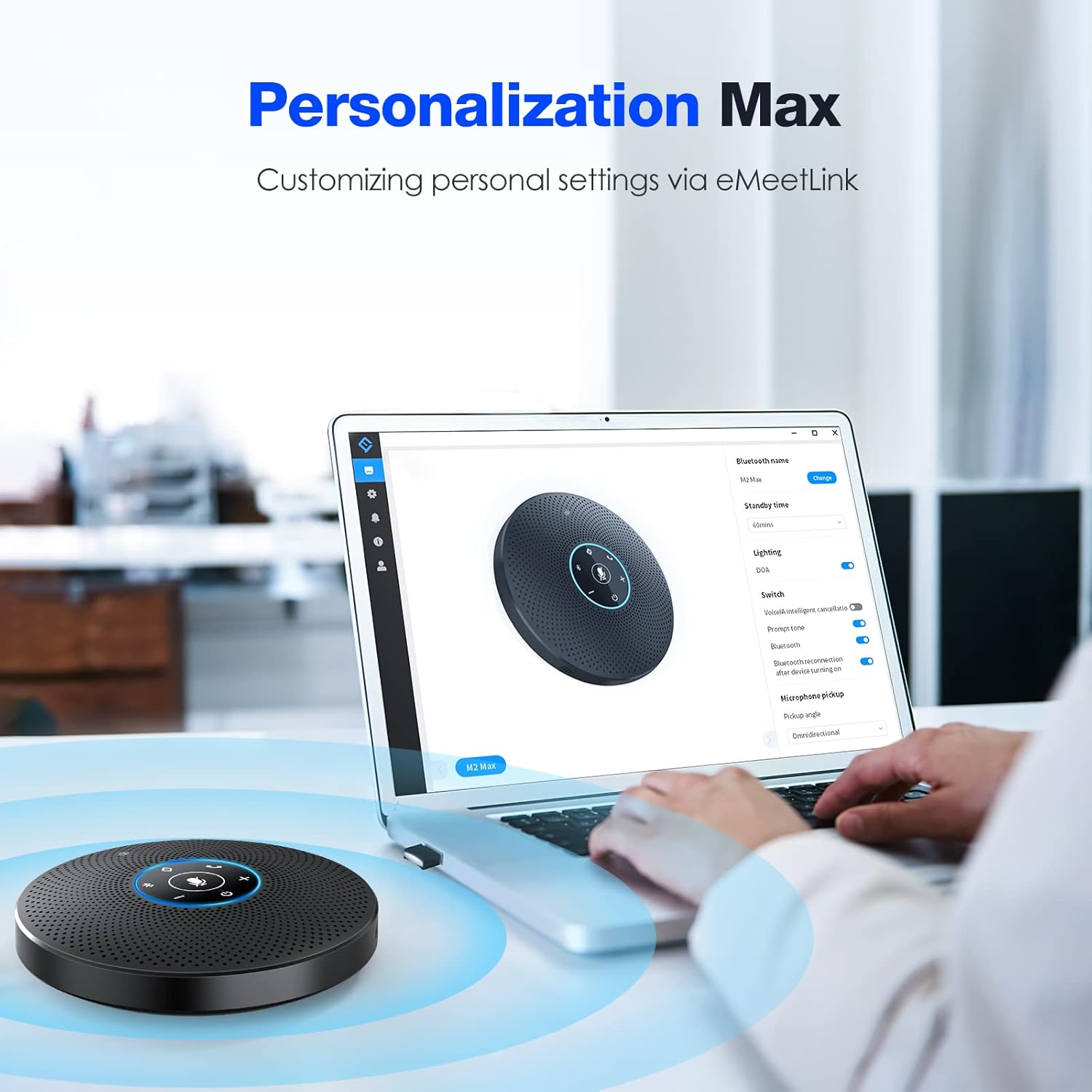
Figure 4.2: eMeetLink Personalization Options
The image shows a laptop screen displaying the eMeetLink software interface, which allows users to personalize settings for the EMEET M2 Max speakerphone, such as renaming Bluetooth, setting standby time, updating firmware, and controlling the DOA light.
With eMeetLink, you can:
- Rename the Bluetooth device.
- Hazie oge njikere.
- Update product firmware and software.
- Turn on/off the DOA (Direction of Arrival) light.
- Configure pickup angle and other audio settings.
5. Nlekọta
- Jiri akwa dị nro hichaa ngwaọrụ ahụ. Ejila ihe nchacha abrasive ma ọ bụ ihe mgbaze.
- Avoid exposing the speakerphone to extreme temperatures, humidity, or direct sunlight.
- Do not disassemble the device. Any unauthorized repairs will void the warranty.
- Store the speakerphone in a cool, dry place when not in use for extended periods.
6. Nchọpụta nsogbu
| Nsogbu | Ihe nwere ike ime | Ngwọta |
|---|---|---|
| No sound from speakerphone. | Volume too low; device not selected as audio output; muted. | Increase volume on speakerphone and connected device. Ensure M2 Max is selected as default audio output. Unmute the speakerphone. |
| Igwe okwu anaghị ebuli ụda. | Microphone muted; M2 Max not selected as input device. | Unmute the microphone on the speakerphone. Select M2 Max as the default microphone input in your device's sound settings or conferencing software. |
| Njikọ Bluetooth adịghị akwụsi ike ma ọ bụ na-ada ada. | Too far from device; interference; pairing issue. | Move speakerphone closer to the connected device. Avoid obstacles. Re-pair the Bluetooth connection. Try using the USB dongle. |
| Daisy chain not working. | Incorrect cable; improper connection. | Ensure you are using an official EMEET daisy chain cable. Verify connections to "IN" and "OUT" ports are correct. |
| Ngwaọrụ anaghị akwụ ụgwọ. | Eriri ma ọ bụ isi iyi ọkụ eletrik adịghị mma. | Try a different USB cable and power adapter/port. Ensure the cable is securely connected. |
7. Nkọwapụta
| Njirimara | Nkọwa |
|---|---|
| Aha Nlereanya | M2 Max |
| Ụdị Ọkà Okwu | Computer Speakerphone |
| Igwe okwu | 4 Directional Microphones |
| Teknụzụ Njikọta | Bluetooth, USB, AUX, Daisy Chain, Dongle |
| Nkwukọrịta ikuku | Bluetooth |
| Oke Bluetooth | 10 mita |
| Ike Nwepu kacha elu | 5 Watt |
| Signgbaàmà-na-Noise ruru | 89 dB |
| Isi Iyi Ike | Akwadoro batrị (1 batrị lithium polymer achọrọ) |
| Akụkụ ngwaahịa | 7.4 x 7.4 x 1.77 sentimita asatọ |
| Ibu Ibu | 2.48 pound |
| Agba | Nwa |
| Ngwa dakọtara | Desktop, Laptop, Projector, Smartphone, Tablet |
| Usoro njikwa | Voice, Buttons |
| Ngwa gụnyere | Microphone (integrated) |
8. Akwụkwọ ikike na nkwado
8.1 Ozi akwụkwọ ikike

Figure 8.1: Warranty Coverage
An icon representing a shield with a checkmark, indicating a 2-year exclusive warranty for the product.
The EMEET M2 Max speakerphone comes with a 2-year exclusive warranty site na ụbọchị ịzụrụ. Akwụkwọ ikike a na-ekpuchi ntụpọ nrụpụta na adịghị arụ ọrụ n'okpuru ojiji nkịtị. Biko dowe ihe akaebe nke ịzụrụ ihe maka akwụkwọ ikike.
8.2 Nkwado nka na ụzụ

Figure 8.2: Lifetime Technical Support
An icon depicting a headset, symbolizing lifetime professional technical team support available for the product.
EMEET provides lifetime professional technical support for the M2 Max. If you encounter any issues or have questions not covered in this manual, please contact EMEET customer service. Inquiries are typically replied to within 24 hours.
For support, visit the official EMEET websaịtị ma ọ bụ rụtụ aka na ozi kọntaktị enyere na nkwakọ ngwaahịa gị.


