1. Okwu mmalite
The Tycon TPSC2440NMPPT is an advanced Maximum Power Point Tracking (MPPT) solar charge controller designed for efficient battery charging from solar panels. It automatically adjusts to 12V or 24V battery systems and supports various battery types including Flooded, AGM, GEL, and Lithium, with a customizable USER setting. This controller features an integral LCD display for monitoring key system parameters.
2. Ntuziaka nchekwa
Please read and understand all instructions before installation and operation. Failure to follow these instructions may result in electric shock, fire, or severe injury.
- Ensure all wiring is correctly polarized and securely connected.
- Do not disassemble or attempt to repair the controller. Refer to qualified service personnel.
- Install the controller in a well-ventilated area, away from flammable materials and corrosive gases.
- Always disconnect the battery and solar panel before installing or moving the controller.
- Yiri akụrụngwa nchedo onwe nke kwesịrị ekwesị (PPE) mgbe ị na-etinye ya.
- The controller is designed for indoor use or protected outdoor environments (IP32 rating). Avoid direct exposure to water.
3. Ngwaahịa gafereview
The TPSC2440NMPPT controller is equipped with several features to optimize solar charging and battery management:
- Teknụzụ MPPT: Na-eme ka ike site na panel anyanwụ dịkwuo elu.
- Auto-Ranging Voltage: Compatible with 12V or 24V battery arrays.
- Multimode Load Operation: Offers 5 selectable modes for load control.
- Soft Start Load Output: Powers high capacitive loads safely.
- Automatic Battery Equalization: Performs 30-day equalization for optimal battery health.
- Conformal Coated Electronics: Provides environmental protection.
- TVS Lightning Protection: Enhances durability against electrical surges.
- Integral LCD Display: Na-egosi batrị Voltage, Capacity, Charging Capacity, Temperature, Load Current, and Solar Current.
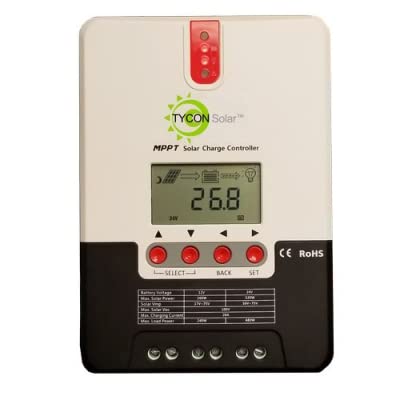
Foto 1: N'ihu view of the Tycon TPSC2440NMPPT Solar MPPT Battery Charging Controller, showing the LCD display and connection terminals.
4. Ntọala na nwụnye
Soro usoro ndị a maka nrụnye nke ọma:
- Ịkwanye: Choose a suitable location for mounting the controller. Ensure good ventilation and protection from direct sunlight and moisture.
- Njikọ batrị: Connect the battery to the controller's battery terminals first. Ensure correct polarity (+ to + and - to -). The controller will automatically detect the battery voltage (12V ma ọ bụ 24V).
- Njikọ anyanwụ panel: Connect the solar panel array to the controller's solar input terminals. Observe correct polarity. Ensure the open-circuit voltage of the solar array does not exceed the controller's maximum input voltage (110V at 25°C).
- Njikọ Ibu (Nhọrọ): If using the load output, connect your DC loads to the controller's load terminals. Do not exceed the rated load current (20A Max).
- Ihe mmetụta okpomọkụ: Connect the included battery temperature probe cable to the designated port on the controller. Place the sensor near the battery for accurate temperature compensation.
- Ike Na: Once all connections are secure, the controller will power on and begin operation.
5. Ntuziaka ọrụ
The integral LCD display provides real-time information about your solar charging system. Use the buttons (if present, assuming standard UP/DOWN/SET) to navigate through the display menus and adjust settings.
Ozi Ngosipụta LCD 5.1
- Batrị Voltage: Voltage nke batrị ejikọrọ.
- Ike batrị: Estimated state of charge.
- Ikike Nchaji: Current power being delivered to the battery.
- Okpomọkụ batrị: Temperature measured by the external probe.
- Ibu Ibu Ugbu a: Current being drawn by connected DC loads.
- Solar Current: Current being generated by the solar panels.
5.2 Battery Type Settings
The controller supports Flooded, AGM, GEL, and Lithium battery types. A USER setting allows for custom charge parameters. Refer to the on-screen menu for selecting and configuring the battery type.
5.3 Load Operation Modes
The controller offers 5 selectable load operation modes. Consult the device's menu for details on each mode and how to select them, typically involving timed operation or dusk-to-dawn control.
6. Nlekọta
Regular maintenance ensures optimal performance and longevity of your solar charge controller.
- Nyochaa njikọ: Periodically check all wiring connections for tightness and corrosion.
- Onye njikwa dị ọcha: Keep the controller clean and free of dust. Use a dry cloth for cleaning. Do not use liquids.
- Ahụike batrị: Nyochaa batrị voltage and capacity on the LCD. Ensure batteries are properly maintained according to their manufacturer's guidelines.
- Igwe ikuku: Ensure the installation area remains well-ventilated to prevent overheating.
7. Nchọpụta nsogbu
| Nsogbu | Ihe nwere ike ime | Ngwọta |
|---|---|---|
| Enweghị ngosipụta/Enweghị ike | Loose battery connection; Battery voltage too low; Blown fuse (external, if applicable). | Check battery connections and polarity. Charge battery if voltage is below operating threshold. Check and replace any external fuses. |
| Enweghị ịchaji anyanwụ | Solar panel not connected; Incorrect polarity; Insufficient sunlight; Damaged solar panel/wiring. | Verify solar panel connections and polarity. Ensure panels are receiving adequate sunlight. Inspect panels and wiring for damage. |
| Load not working | Load disconnected; Overload; Short circuit; Battery voltage dị ala. | Check load connections. Reduce load if exceeding 20A. Check for short circuits. Ensure battery is sufficiently charged. |
| Ọgụgụ na-ezighi ezi | Loose connections; Faulty sensor. | Check all wiring connections. Ensure temperature sensor is properly connected and placed. |
8. Nkọwapụta
- Ụdị: TPSC2440NMPPT
- Akpaaka Voltage: 12V/24V (System)
- Ampebe: 40A
- Ibu Enyere Ego ugbu a: 20A Max
- Ibu ike kacha elu: 10,000uF
- Ntinye oke anyanwụ Voltage: 110V (25°C), 90V (25°C)
- Max Power Point Range: 2VDC to 75VDC (Battery Volts)
- Ntugharị arụmọrụ: 96% Ụdị.
- MPPT Tracking Efficiency: 99%
- Njiri Onwe Onye: 1W
- Nkwụghachi okpomọkụ: -3.0mV/°C/cell
- Oke waya kacha: 8 AWG
- Voltage and Current Accuracy: +/- 2%
- Nda ala: Ihe na-adịghị mma
- Nchekwa gburugburu: IP32
- Akụkụ ngwaahịa: 12 x 9 x 6 sentimita asatọ
- Ibu ihe: 5.16 pound
- Ụdị ngosi: LCD


