1. Okwu mmalite
This manual provides essential information for setting up, operating, maintaining, and troubleshooting your TECLAST M40 10.1-inch Android Tablet. Please read it thoroughly to ensure optimal performance and longevity of your device.
2. Kedu ihe dị na Igbe ahụ
Upon unboxing your TECLAST M40 tablet, you should find the following items:
- TECLAST M40 10.1-inch Android Tablet
- USB-C ka eriri USB-A
- USB-A Charging Adapter
- SIM/MicroSD Card Tray Ejector Tool
- Akwụkwọ ntuziaka (akwụkwọ a)
- Akwụkwọ ikike kaadị
For a visual guide on unboxing and included accessories, please refer to the official unboxing video below:
Ihe ngosi vidiyo ngwaahịa gọọmentịasing the TECLAST M40 Android Tablet, highlighting its design, performance, and key features like 10-inch display, 128GB storage, and 5G WiFi capabilities.
3. Ngwaahịa gafereview
The TECLAST M40 is a 10.1-inch Android tablet designed for versatile use, featuring a powerful Octa-Core processor and a high-resolution display.

This image displays the TECLAST M40 tablet from both the front, showing its 10.1-inch display, and the back, highlighting the rear camera and port layout.
Isi ihe:
- Ngosipụta: 10.1-inch Full HD (1920x1200) IPS screen.
- Ihe nhazi: 2.0GHz Octa-Core (UNISOC T618) with Mali G52 3EE GPU.
- Ebe nchekwa & Nchekwa: 6GB RAM, 128GB internal storage, expandable via TF card.
- Igwefoto: 5MP Front Camera, 8MP Rear Camera.
- Njikọta: Dual-band 2.4G+5G WiFi, Bluetooth 5.0, BDS+GPS, 4G LTE support (via dual SIM slot).
- Batrị: 6000mAh, offering approximately 8 hours of usage.
- Sistemụ nrụọrụ: Android 10.
- ọdụ ụgbọ mmiri: USB-C for charging and data transfer, 3.5mm headphone jack.

This image details the tablet's connectivity options including BDS+GPS, Dual WiFi, Bluetooth 5.0, and its 6000mAh battery with Type-C charging, suggesting long usage and versatile navigation.
4. Nhazi
4.1 Ike mbido
- Press and hold the Power button (located on the side) until the TECLAST logo appears on the screen.
- Soro mkpali na ihuenyo ka ịhọrọ asụsụ gị, jikọọ na netwọk Wi-Fi, wee guzobe akaụntụ Google gị.
4.2 Inserting SIM/MicroSD Card
The TECLAST M40 supports dual SIM cards for 4G LTE connectivity and a MicroSD card for expandable storage.
- Chọta tray kaadị SIM/MicroSD n'akụkụ mbadamba.
- Insert the provided ejector tool into the small hole next to the tray and press gently until the tray pops out.
- Place your Nano-SIM card(s) and/or MicroSD card into the designated slots on the tray. Ensure they are correctly oriented.
- Jiri nlezianya pịa tray ahụ n'ime mbadamba ahụ ruo mgbe ọ pịrị aka n'ebe ọ nọ.
5. Na-arụ ọrụ gị mbadamba
5.1 Nsoro ụzọ
The tablet runs on Android 10, offering intuitive navigation. You can choose between gesture navigation or the traditional 3-button navigation in the system settings.
5.2 Njikọta
- Wi-Fi: Connect to 2.4G or 5G Wi-Fi networks for internet access. Go to Settings > Network & internet > Wi-Fi.
- Bluetooth: Pair with Bluetooth 5.0 devices like headphones or speakers. Go to Settings > Connected devices > Bluetooth.
- Data mkpanaka: If a SIM card is inserted, enable mobile data for internet access on the go. Go to Settings > Network & internet > Mobile network.
- GPS: The tablet supports BDS+GPS for location services and navigation.
5.3 Ngosipụta na ọdịyo
Enjoy a vibrant visual experience on the 10.1-inch 1920x1200 Full HD IPS display. The tablet also features dual speakers for audio output.
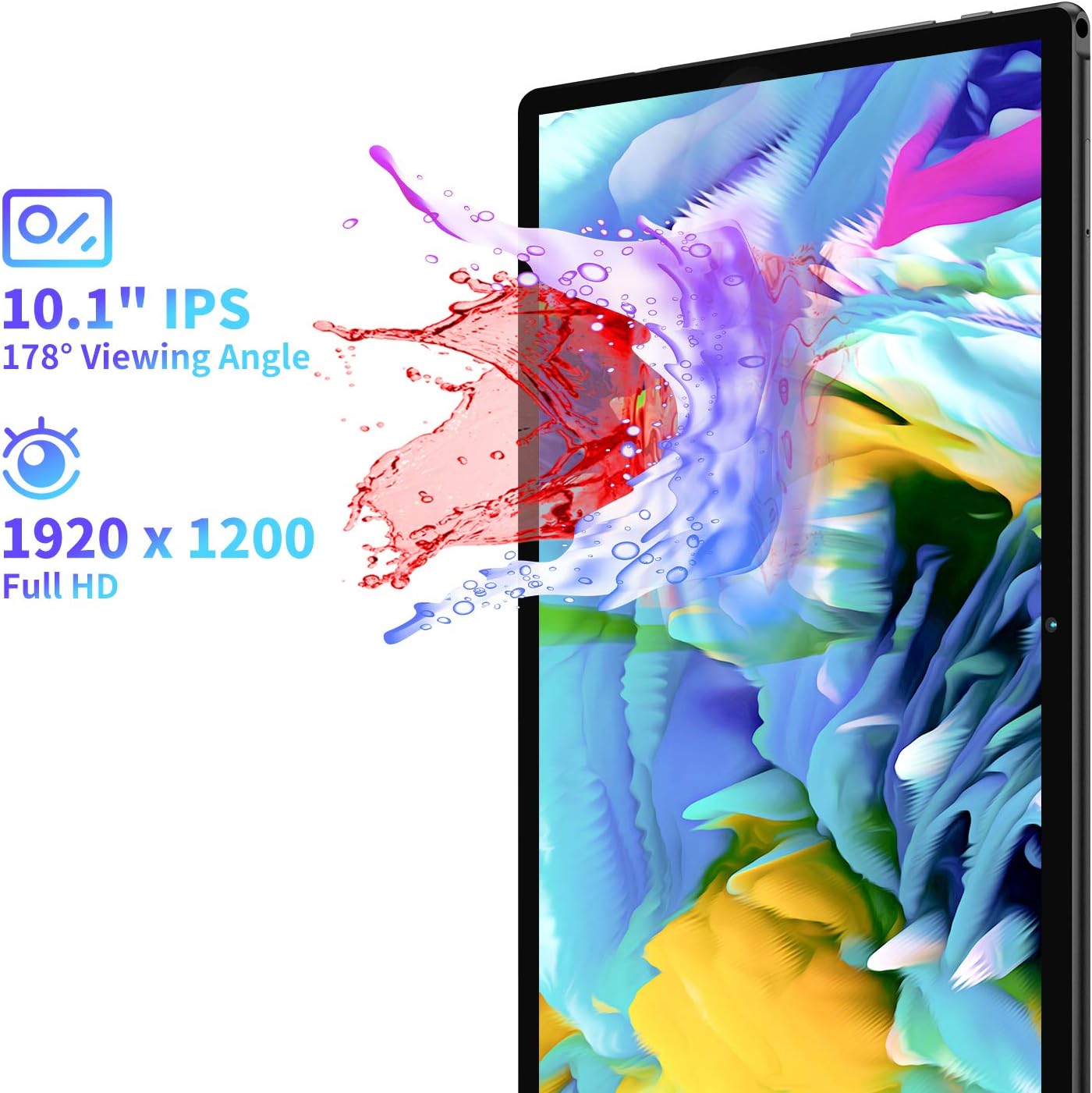
This image illustrates the tablet's 10.1-inch Full HD IPS display with a 1920x1200 resolution and a 178-degree viewing angle, emphasizing vibrant visuals.
5.4 Ojiji igwefoto
The tablet is equipped with a 5MP front camera and an 8MP rear camera for photos and video calls.
- Mepee ngwa igwefoto site na ihuenyo mbụ ma ọ bụ drọwa ngwa.
- Tap the shutter button to take a photo or switch to video mode.
- Jiri ihe ntụgharị igwefoto n'ihu/azụ gbanwee n'etiti igwefoto.
For a detailed look at the tablet's cameras and their performance, you can watch the video below:
A zuru ezu review and unboxing video by FishBee Productions, demonstrating the TECLAST M40 Gaming Android Tablet's features, performance, and user experience, including a look at its components and software.
6. Nlekọta
6.1 Ịchaji batrị
The TECLAST M40 is equipped with a 6000mAh battery. Use the provided USB-C cable and charging adapter to charge the device. Connect the USB-C end to the tablet's port and the USB-A end to the adapter, then plug the adapter into a power outlet.
Note: Some USB Power Delivery (PD) chargers may not be compatible and could cause the tablet to attempt charging the charger instead of being charged itself. Use the provided charger or a standard 5V 2.4A charger for best results.
6.2 Mmelite ngwanrọ
Ensure your tablet's software is up-to-date for optimal performance and security. Go to Settings > System > Advanced > System update to check for and install any available updates.
6.3 Njikwa nchekwa
The tablet comes with 128GB of internal storage, expandable via a TF (MicroSD) card. Regularly manage your storage to prevent performance issues:
- Hichapụ adịghị mkpa files na ngwa.
- Bugharịa buru ibu files (photos, videos) to a MicroSD card.
- Clear cache data for apps in Settings > Apps & notifications > See all apps > [App Name] > Storage & cache.
7. Nchọpụta nsogbu
If you encounter any issues with your TECLAST M40 tablet, try the following solutions:
- Tablet is unresponsive/frozen: Pịa ma jide bọtịnụ ike maka ihe dịka 10-15 sekọnd ịmanye ịmalitegharịa.
- Ịrụ ọrụ nwayọ: Close unused apps, clear app caches, free up storage space, or restart the tablet.
- Nsogbu ịchaji: Ensure you are using the provided charger and cable. Check if the charging port is clean and free of debris. Avoid using incompatible USB PD chargers.
- Screen responsiveness: If the touchscreen is inconsistent, a restart may resolve the issue. If problems persist, a factory reset might be necessary (back up your data first).
- Wi-Fi/Bluetooth connectivity problems: Toggle Wi-Fi/Bluetooth off and on. Restart the tablet and your router/Bluetooth device.
- Ngwa na-akụda: Ensure apps are updated to their latest versions. Clear app cache or reinstall the app.
If these steps do not resolve the issue, please contact TECLAST customer support.
8. Nkọwapụta
| Njirimara | Nkọwapụta |
|---|---|
| Aha Nlereanya | M40 |
| Nha ihuenyo | 10.1 sentimita asatọ |
| Mkpebi ihuenyo kacha | 1920x1200 (FHD IPS) |
| Nhazi | 2 GHz Octa-Core (UNISOC T618) |
| RAM | 6 GB |
| Hard Drive / Storage | 128 GB |
| Nchekwa enwere ike ịgbasa | TF Expansion (MicroSD) |
| Sistemụ nrụọrụ | Android 10 |
| N'azụ Webcam mkpebi | 8 MP |
| N'ihu Webcam mkpebi | 5 MP |
| Njikọta | 2.4G+5G WiFi, Bluetooth 5.0, BDS+GPS, 4G LTE (Dual SIM) |
| Ndụ batrị (Ọkara) | 8 Hours (6000 mAh) |
| Ibu Ibu | 2.05 pound |
| Akụkụ ngwaahịa | 9.56 x 6.4 x 0.37 sentimita asatọ |
9. Akwụkwọ ikike na nkwado
For warranty information and customer support, please refer to the warranty card included in your product packaging. You can also visit the official TECLAST website for further assistance and contact options.
Note: Some users have reported difficulties in receiving responses from TECLAST support. It is recommended to keep all purchase records and contact information readily available.


