1. Okwu mmalite
Thank you for choosing the Symcode 2.4 GHz Wireless Laser Barcode Scanner. This device is designed for efficient and reliable barcode scanning, offering both wireless and wired connectivity options. This manual provides detailed instructions for setup, operation, and maintenance to ensure optimal performance.

Foto 1: Symcode 2.4 GHz Wireless Laser Barcode Scanner. This image displays the Symcode 2.4 GHz Wireless Laser Barcode Scanner in black, along with its accompanying USB wireless dongle and USB charging cable. The scanner features a comfortable grip and a laser scanning window.
2. Ihe ngwugwu
Biko chọpụta na ihe niile dị na ngwugwu gị:
- 1 x Symcode Laser Barcode Scanner
- 1 x 2.4 GHz Wireless USB Dongle
- 1 x USB Charging/Data Cable
3. Akụrụngwa Ngwaahịa
- Njikọ 2-na-1: Supports both 2.4 GHz wireless and USB wired connections.
- Nkwụnye ma kpọọ: Enweghị nrụnye ọkwọ ụgbọala achọrọ maka ọtụtụ sistemụ arụmọrụ.
- Ndakọrịta sara mbara: Works with Windows, Mac, Android, and Linux systems, connecting to PCs, laptops, and POS machines via a USB port.
- Ogologo nnyefe ogologo: Up to 15-30 meters indoors (with obstacles) and 30-100 meters outdoors (open environment).
- Ụdị ebugo abụọ: Instant Upload and Offline Storage modes.
- Atụmatụ mmemme: Customizable settings for uppercase/lowercase, volume, terminator, prefix/suffix, and character addition/masking.
- Ikike ngbanwe dị elu: Reads various 1D barcodes.
- Batrị na-adịgide adịgide: 1800mAh capacity for extended operation.
4. Nhazi
4.1 Njikọ Waya (USB)
- Connect the USB cable to the scanner's port.
- Tinye eriri USB n'akụkụ nke ọzọ n'ọdụ ụgbọ mmiri USB dị na kọmputa gị.
- The scanner will be recognized automatically by your operating system. It is ready for use once the connection is established.
4.2 Njikọ Ikuku (2.4 GHz)
- Insert the 2.4 GHz wireless USB dongle into an available USB port on your computer.
- The computer will automatically install the necessary drivers.
- Turn on the barcode scanner by pressing the trigger. The scanner will automatically pair with the dongle.
- Once paired, the scanner is ready for wireless operation.

Foto 2: Mini USB Receiver. This image highlights the compact mini USB receiver, emphasizing its plug-and-play functionality for easy connection to laptops and PCs. It also indicates the ability to store up to 100,000 barcodes.
5. Ntuziaka ọrụ
5.1 Ụdị nyocha
The scanner supports two primary scanning modes:
- Ọnọdụ ịkpalite: Press the trigger to activate the laser and scan a barcode. Release the trigger to deactivate.
- Ụkpụrụ na-aga n'ihu: The laser remains active, continuously scanning barcodes without needing to press the trigger for each scan.
To switch between scanning modes, specific setting barcodes are required. If these are not provided in your physical manual, please contact Symcode customer support for assistance.
5.2 Data Upload Modes
The scanner offers two methods for uploading scanned data:
- Instant Upload Mode (Normal Mode): Data is transmitted to your computer immediately after each successful scan. This is the default mode.
- Offline Storage Mode: Scanned barcodes are stored in the scanner's internal memory. You can then upload all stored data to your computer at a later time by scanning a specific setting barcode. The scanner can store up to 100,000 barcodes.

Foto 3: Two Upload Modes. This image illustrates the two data upload modes: Instant Upload Mode, where data is synchronously transferred to the computer after each scan, and Offline Storage Mode, where barcodes are stored internally in the scanner for later upload.
5.3 Decoding Capabilities
The Symcode MJ-2030-B scanner is capable of reading various 1D barcode types, including but not limited to:
- UPC/EAN (including add-on code)
- Code 128, UCC/EAN128
- Code 39, Code 39 Full ASCII
- Koodu mpaghara:: 93
- Codabar
- Ejikọtara 2 nke 5
- MSI
- Koodu mpaghara:: 11
- ISBN, ISSN, China Postage
Atụmatụ 5.4 Enwere ike ịhazi ya
The scanner offers several programmable options to customize its behavior:
- Uppercase/Lowercase Settings: Adjust how scanned data appears.
- Ndozi olu: Control the sound level of the buzzer.
- Terminator Setting: Configure the character appended to scanned data (e.g., Enter, Tab).
- Prefix/Suffix Setting: Add custom characters before or after scanned barcode data.
- Add/Hide Characters: Modify specific characters within the scanned data.
These settings are typically configured by scanning specific programming barcodes found in the full user manual or provided by customer support.

Foto 4: Prefix and Suffix Customization. This image shows how the scanner supports adding custom prefixes or suffixes to scanned barcode data, allowing for flexible data formatting.
5.5 Multi-language Support
The scanner supports various keyboard layouts and languages, including English (US & UK), German, French, Italian, Spanish, and Japanese, to ensure correct data input in different regions.
6. Nlekọta
6.1 Ozi batrị
The scanner is equipped with a built-in 1800mAh Lithium-ion battery. To ensure optimal battery life and performance:
- Ọrụ na-aga n'ihu: Approximately 8 to 10 hours.
- Oge njikere: Ruo ụbọchị 15.
- Oge nchaji: Approximately 3.5 to 4 hours for a full charge using the provided USB cable.
- Recharge the battery when the low battery indicator is active or when performance degrades.
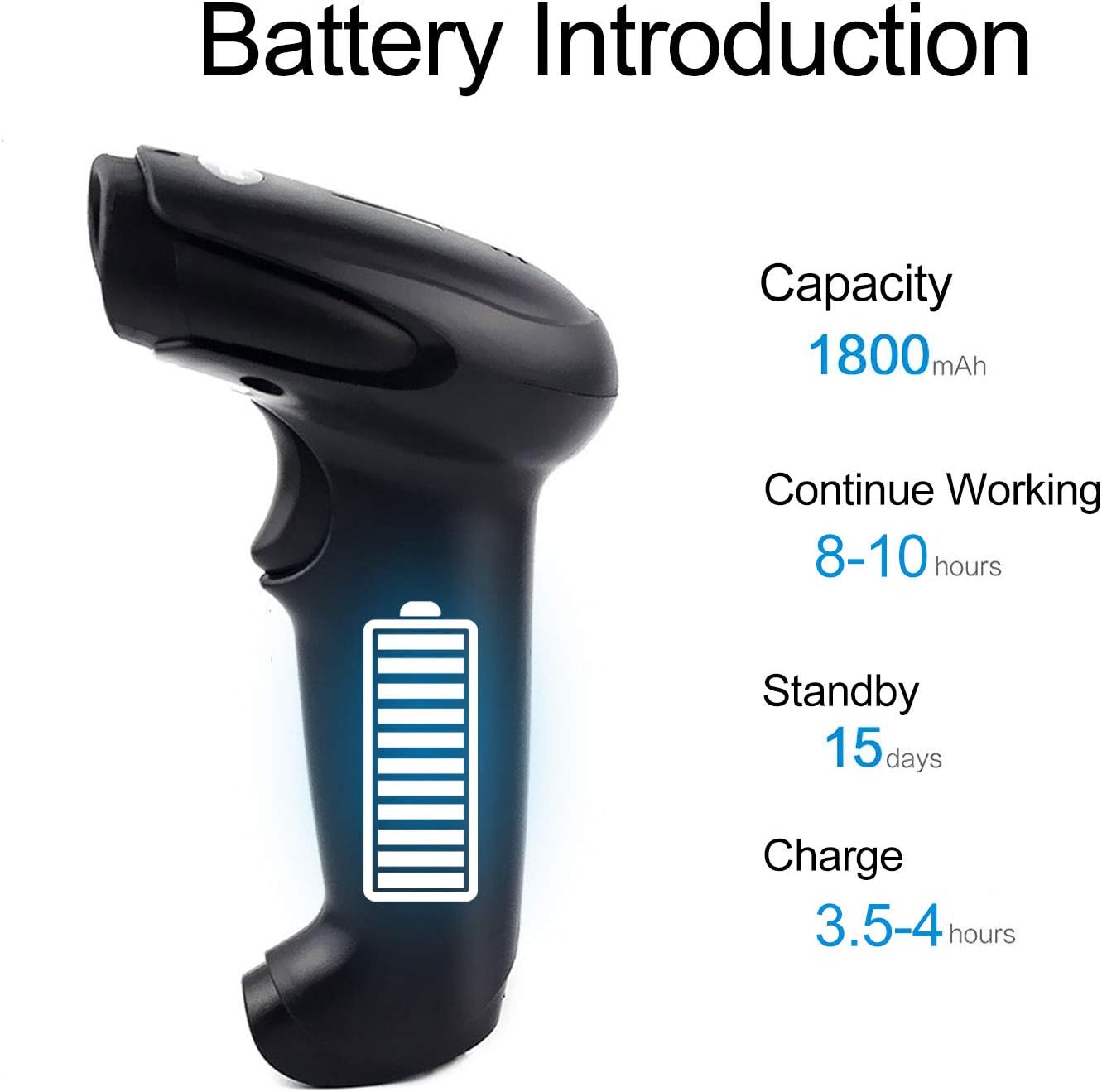
Foto 5: Battery Specifications. This image provides details about the scanner's battery, including its 1800mAh capacity, 8-10 hours of continuous working time, 15 days of standby time, and 3.5-4 hours charging time.
6.2 Nhicha
To clean the scanner, use a soft, dry cloth. Do not use abrasive cleaners or solvents, as these can damage the device. Keep the scanning window clean for accurate performance.
7. Nchọpụta nsogbu
- Scanner not connecting: Ensure the USB cable is securely connected or the wireless dongle is properly inserted. For wireless, ensure the scanner is charged and within range.
- Scanner not reading barcodes: Ensure the barcode is not damaged or smudged. Check that the laser is active and properly aimed. Verify the scanner is in the correct scanning mode.
- Data not appearing on computer: Confirm the scanner is connected and in Instant Upload Mode. Check if the cursor is active in a text field on your computer.
- Difficulty changing settings: Specific setting barcodes are required for configuration. If these are missing from your manual, contact customer support for the correct codes.
- Ndụ batrị dị mkpụmkpụ: Ensure the scanner is fully charged. Reduce continuous scanning time if possible.
8. Nkọwapụta
8.1 Nka nka
| Njirimara | Nkọwapụta |
|---|---|
| Isi Iyi Ìhè | 650 nm (visible laser) |
| Nhazi | 32-bit ARM |
| Ọsọ nyocha | 200 lines/sec |
| Omimi nyocha | 2.5 mm - 600 mm |
| Obosara nyocha | 18 cm |
| Mbipụta ọdịiche | 20% kacha nta |
| Ọnụego mperi | 1/5 nde |
| Mkpebi | 3 mm |
| Ihe ngosi | Buzzer, LED light |
| Trigger Life | ugboro 3 nde |
| Ndụ Laser | awa 100,000 |
8.2 Wireless Parameters
| Njirimara | Nkọwapụta |
|---|---|
| Transmission Distance (Indoor) | 15-30 meters (with obstacles) |
| Transmission Distance (Outdoor) | 30-100 meters (open environment) |
| Ụdị ọrụ | Normal Mode (Instant Upload), Storage Mode (Offline) |

Foto 6: Long Transmission Distance. This image demonstrates the wireless transmission capabilities of the scanner, showing an indoor range of 10-50 meters with obstacles and an outdoor range of up to 100 meters in open areas.
8.3 Nkọwapụta batrị
| Njirimara | Nkọwapụta |
|---|---|
| Ike | 1800 mAh |
| Oge ọrụ na-aga n'ihu | 8-10 awa |
| Oge Njikere | 15 ụbọchị |
| Oge Nchaji | 3.5-4 awa |
8.4 gburugburu gburugburu
| Oke | Uru |
|---|---|
| Okpomọkụ na-arụ ọrụ | 0 Celsius C ruo 40 Celsius |
| Okpomọkụ nchekwa | -40 Celsius C ruo 60 Celsius |
| iru mmiri | 5% ruo 95% (na-abụghị condensing) |
| Ambient Light | Oke 50,000 lux |
| Igwe ọkụ eletrik | Air discharge 15 kV, Contact discharge 8 kV |

Foto 7: Product Dimensions. This image provides the physical dimensions of the Symcode barcode scanner, indicating its length, width, and height in both inches and centimeters for precise measurement.
9. Akwụkwọ ikike na nkwado
This Symcode barcode scanner comes with a Akwụkwọ ikike nke ụbọchị 180 site na ụbọchị ịzụrụ. Akwụkwọ ikike a na-ekpuchi ntụpọ nrụpụta na adịghị arụ ọrụ n'okpuru ojiji nkịtị. Biko dowe ihe akaebe nke ịzụrụ ihe maka akwụkwọ ikike.
For technical support, specific setting barcodes, or warranty inquiries, please contact your seller or Symcode customer service. Refer to the contact information provided with your purchase or visit the official Symcode websaịtị.


